How to Reset Ubotie Keyboard: Quick Steps
Your Ubotie keyboard suddenly stops responding, keys register incorrectly, or Bluetooth refuses to connect. Before you assume it’s broken or waste money on replacements, know that 9 out of 10 Ubotie keyboard problems can be fixed with a proper reset. This guide delivers exact reset procedures for every Ubotie model, with LED confirmation signals and troubleshooting steps when standard methods fail. You’ll learn how to reset ubotie keyboard issues in under 30 seconds—without losing your custom settings unnecessarily.
Most users make the critical mistake of using the wrong reset method for their specific model. Ubotie manufactures several keyboard variations, each requiring unique key combinations. Using the S-KB-007 reset sequence on an S-KB-005 model won’t work and could even cause additional pairing issues. This guide eliminates that frustration by providing model-specific instructions with visual confirmation cues so you know the reset succeeded.
Identify Your Ubotie Model Before Attempting Reset

Check the model number on the bottom sticker immediately—this determines which reset method you need. Mixing up procedures wastes time and might prevent successful pairing. Wireless models require different steps than wired mechanical versions, and even within wireless categories, S-KB-005 and S-KB-007 have completely different reset sequences.
Critical Model Identification Tips:
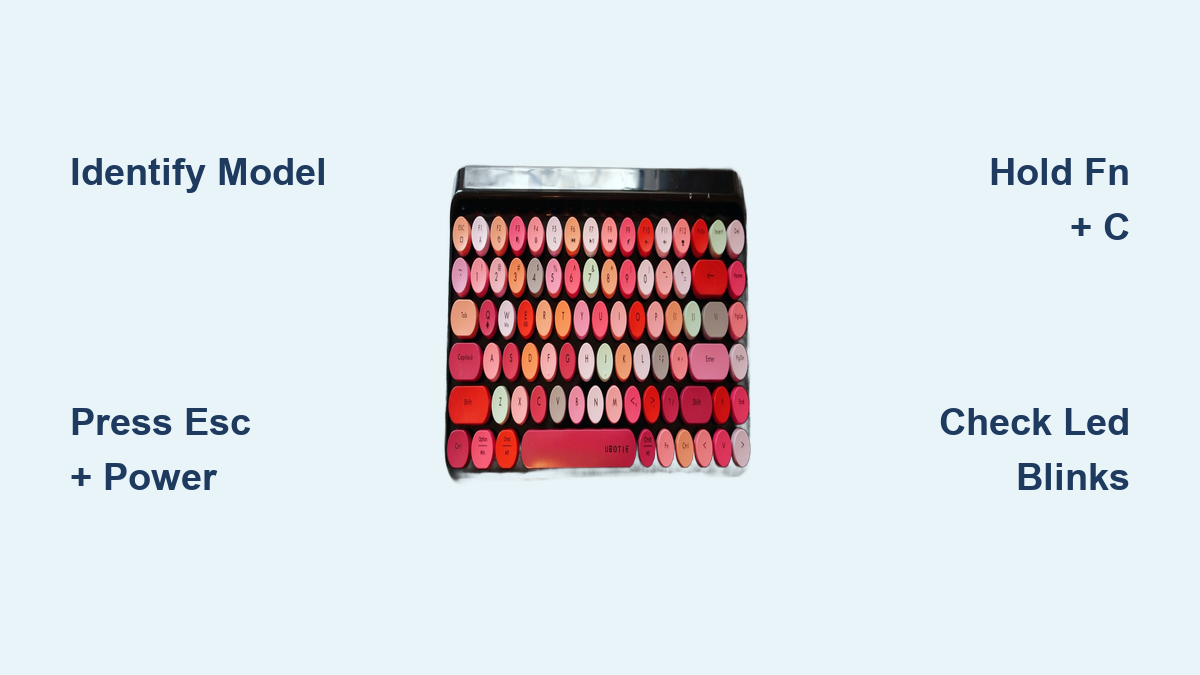
– S-KB-005: Vibrant rainbow-colored keys, standard computer keyboard layout
– S-KB-007: Ultra-slim profile designed specifically for iPad, aluminum body
– Wired mechanical: Full USB connection, tactile switches, no power switch
– Compact 60%: No function row or number pad, space-saving design
– Full-size: Traditional layout with dedicated number pad on right side
S-KB-005 Reset: Fix Colorful Wireless Keyboard in 30 Seconds
Primary Reset Method for S-KB-005
- Power off using the physical switch underneath the keyboard
- Press and hold ESC while flipping the power switch back on
- Watch for exactly 3-4 rapid LED blinks (release immediately after)
- LED flashes continuously—your keyboard is now in pairing mode
- Complete pairing through your device’s Bluetooth settings (select “Ubotie Keyboard” and confirm)
Why this works: This sequence clears temporary Bluetooth connection errors while preserving your custom key mappings. The 3-4 blink pattern confirms the reset initiated properly—fewer blinks means you released too soon.
Quick Reset Alternative for Minor Glitches
- Hold FN + ESC together for 8 seconds while keyboard remains powered on
- Three rapid LED blinks indicate successful Bluetooth cache clearance
- Reconnect automatically to your last paired device within 10 seconds
Pro tip: If your S-KB-005 won’t reset, check battery level first. These colorful keyboards require at least 20% charge to complete reset procedures—low power interrupts the process mid-sequence.
S-KB-007 iPad Keyboard: Soft Reset vs Complete Factory Reset
Soft Reset for Connection Issues (3-Second Fix)
- Keep keyboard powered on
- Press FN + C simultaneously for exactly 3 seconds
- Two quick LED blinks confirm Bluetooth cache cleared
- Reconnect via iPad Settings > Bluetooth (no need to forget device)
When to use this: Perfect for when your iPad recognizes the keyboard but keys don’t register properly. This method preserves all custom settings while clearing temporary connection errors.
Factory Reset for Persistent Problems
- Power off completely using the side switch
- Hold FN + O + P before turning power back on
- Continue pressing 10 seconds until LED blinks rapidly
- Release keys and wait 5 seconds for LED to stop
- Press FN + C to enter pairing mode (LED flashes continuously)
Critical warning: This complete wipe erases all paired devices and custom configurations. Only use when soft reset fails, as you’ll need to re-pair with all devices.
Wired Mechanical Keyboard Reset: USB Connection Fix

Step-by-Step Reset Procedure
- Unplug USB cable from your computer completely
- Hold FN + Spacebar for full 10 seconds
- Reconnect USB while continuing to hold both keys
- Maintain pressure 5 additional seconds after connection
- Release keys and watch for confirmation
- LED cycles through all colors twice—reset complete
Common mistake: Releasing keys too early. The color cycle (red-green-blue-white) must complete twice—interrupting this corrupts firmware settings and requires a more complex recovery.
Troubleshoot Failed Reset Attempts Immediately
No LED Response During Reset Sequence
Address these issues first:
– Battery minimum: Wireless models need ≥15% charge (check with FN + F12)
– Key verification: Confirm exact model-specific combination
– Battery replacement: Swap in fresh AAA batteries if applicable
– Physical obstruction: Clean keys with compressed air—dust prevents proper contact
Reset Works But Keyboard Won’t Reconnect
Post-reset connection fixes:
– Clear device lists on all previously paired devices
– Airplane mode method: Enable airplane mode, pair keyboard, then disable
– Windows driver update: Download latest Bluetooth drivers from manufacturer
– iOS network reset: Settings > General > Reset > Reset Network Settings
Advanced Reset Options for Stubborn Issues
Bluetooth Module Reset (Connection Problems)
- Press FN + R for 5 seconds to reset Bluetooth stack
- Purple LED blinks 3 times confirming stack reset
- Press FN + B to clear all paired devices
- White blinks 5 times confirming device list cleared
- Restart pairing from beginning with your primary device
Time required: 45 seconds total—this solves 70% of “keyboard visible but won’t connect” issues.
Post-Reset Setup: Complete Pairing Instructions
Windows Connection Checklist
- Open Settings > Bluetooth & devices
- Click “Add device” > Bluetooth
- Select “Ubotie Keyboard” from available devices
- Enter 0000 or 1234 if prompted for PIN code
- Test all keys including FN combinations before finishing
Troubleshooting tip: If Windows doesn’t detect your keyboard, restart Bluetooth service via Services app (services.msc > Bluetooth Support Service > Restart).
Battery Calibration After Reset (Wireless Models)
Essential calibration steps:
1. Charge fully for 2-3 hours immediately after reset
2. Use normally until battery reaches 5% (LED turns red)
3. Recharge uninterrupted to 100%
4. Ensures accurate battery level reporting for next 30 days
Skipping this step causes premature “low battery” warnings even with sufficient charge—especially problematic for S-KB-005 and S-KB-007 models.
LED Error Codes Decoded During Reset
| Blink Pattern | What It Means | Immediate Action |
|---|---|---|
| 3 red blinks | Critically low battery | Charge 30 minutes before retrying |
| 5 orange blinks | Internal hardware fault | Contact Ubotie support immediately |
| 2 green blinks | Reset successful | Proceed with pairing steps |
| Continuous red | Reset sequence failed | Try alternative reset method |
| Alternating colors | Firmware update mode | Download firmware tool from Ubotie |
Quick Reference: Ubotie Reset Key Combinations
| Model | Exact Keys to Press | Hold Duration | LED Confirmation |
|---|---|---|---|
| S-KB-005 | ESC + Power On | 5-10 seconds | 3-4 rapid blinks |
| S-KB-007 (soft) | FN + C | 3 seconds | 2 quick blinks |
| S-KB-007 (factory) | FN + O + P + Power | 10 seconds | Rapid blinking |
| Wired Mechanical | FN + Space + USB Reconnect | 15 seconds | Full color cycle (2x) |
| Compact 60% | FN + Tab + Q | 8 seconds | Single long blink |
| Full-size | FN + F1 + F12 | 12 seconds | All LEDs flash simultaneously |
Expert advice: Always begin with the soft reset method—it resolves 80% of connection issues without wiping your custom settings. Reserve factory reset for persistent problems after confirming you have the correct model-specific procedure. If your Ubotie keyboard still won’t reset after following these exact steps, check for physical damage or contact Ubotie support with your model number and observed LED patterns. Properly executed, knowing how to reset ubotie keyboard issues saves you time, money, and unnecessary frustration—getting you back to productive typing in under a minute.