How to Reset NuPhy Keyboard: Quick Steps
Your NuPhy keyboard suddenly stops responding to Bluetooth pairings, or your custom keymap has frozen mid-typing session. Before you assume hardware failure, know that 90% of these issues vanish with a proper reset. Unlike standard keyboards, NuPhy models require specific reset protocols tailored to their series—whether you own an Air75 struggling with stubborn pairings or a Halo96 refusing to wake from sleep mode.
This guide delivers precise reset instructions verified across all NuPhy keyboard series. You’ll discover exactly how long to hold that recessed reset button, which key combinations trigger full Bluetooth wipes, and critical troubleshooting steps when standard methods fail. Most resets take under 30 seconds, but skipping model-specific details wastes precious time.
Locate Your NuPhy Keyboard’s Reset Button
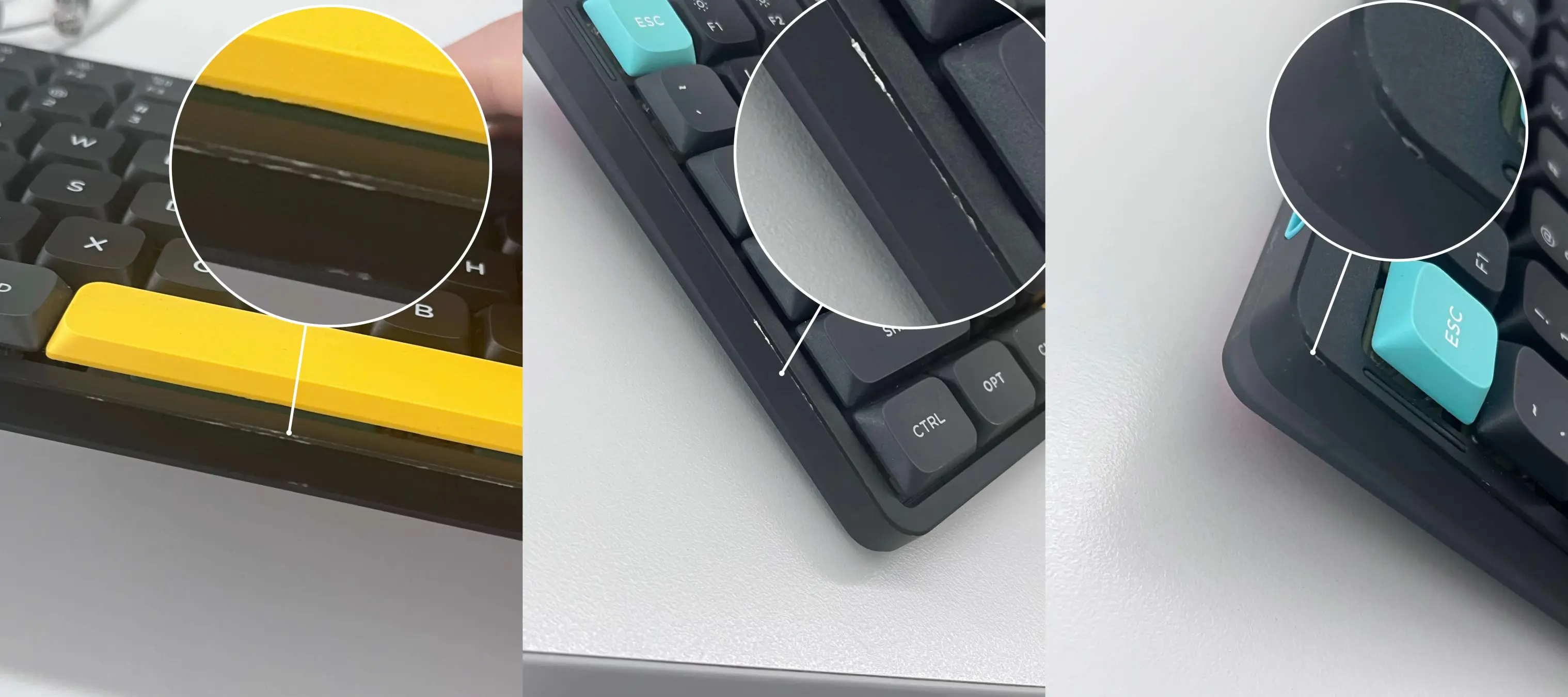
Air Series Reset Button Position (Air60/Air75/Air96)
Flip your Air series keyboard over and examine the bottom-left corner near the USB-C port. You’ll spot a tiny pinhole marked with a reset symbol (⟳). Never attempt this reset in Bluetooth mode—first toggle the physical switch to “Cable” position. Use a straightened paperclip to press the recessed button; standard paperclips often jam in the narrow hole. If your keyboard remains unresponsive after multiple attempts, switch to the software reset method below.
Halo Series Hidden Reset Under Spacebar
Your Halo series reset isn’t on the bottom panel—it’s concealed beneath the spacebar. Carefully remove the spacebar using a keycap puller (gentle wiggling prevents stem damage). Beneath it, you’ll see a small black button on the PCB. Critical warning: This reset requires power—do not disconnect USB during the process. Shine a flashlight to confirm you’re pressing the actual button, not just the spacebar plate. Many users mistake the metal plate for the reset point, causing failed attempts.
Execute Physical Reset Correctly by Model
Air Series 5-Second Wired Reset Protocol
- Power down completely: Toggle switch to OFF and unplug USB cable
- Insert paperclip into reset hole on bottom-left corner
- Hold button while reconnecting USB—timing starts upon cable contact
- Maintain pressure for exactly 5 seconds (Air models are timing-sensitive)
- Release when all LEDs flash 3 times—this confirms factory reset completion
Common mistake: Holding for only 3 seconds clears keymaps but preserves Bluetooth pairings. If your keyboard still auto-connects to old devices, repeat the process ensuring full 5-second duration.
Halo Series Dual-Purpose PCB Reset
Your Halo keyboard uses the same button for two functions:
– Bluetooth reset: Hold PCB button for 3 seconds until LEDs pulse slowly
– Full factory reset: Hold for 5 seconds until rapid flashing stops
Pro tip: Keep your phone nearby to test Bluetooth pairing immediately after reset. If pairing fails, perform the nuclear Bluetooth reset (FN+TAB+P) next—Halo models often need this when standard reset leaves pairing cache intact.
Wipe Bluetooth Pairings Without Full Reset
Clear All Paired Devices in 5 Seconds
When your NuPhy keyboard connects to the wrong device:
1. Toggle to Bluetooth mode (BT indicator lights)
2. Hold FN + P simultaneously for 5 seconds
3. Watch for rapid LED flashing across all keys
4. Release when flashing stops—this erases all 3 device pairings
Time-saver: This preserves your custom keymap and RGB settings. Use this method daily if you frequently switch between work and personal devices. If only one pairing is problematic, toggle to that specific channel (FN+1/2/3) and repeat the FN+P sequence.
Nuclear Bluetooth Reset for Stubborn Connections
When standard pairing wipe fails:
1. Ensure keyboard is in BT mode (not 2.4GHz)
2. Hold FN + TAB + P for 10 full seconds
3. Keyboard will power cycle automatically—don’t reconnect yet
4. Wait 15 seconds for Bluetooth subsystem to fully reboot
Why this works: This clears the hidden Bluetooth cache that survives standard resets. Essential when your keyboard shows “device connected” but registers no keystrokes.
Software Reset Via Configurator
Restore Keymap Without Losing Firmware
When only your custom layout fails:
1. Connect keyboard via USB in wired mode
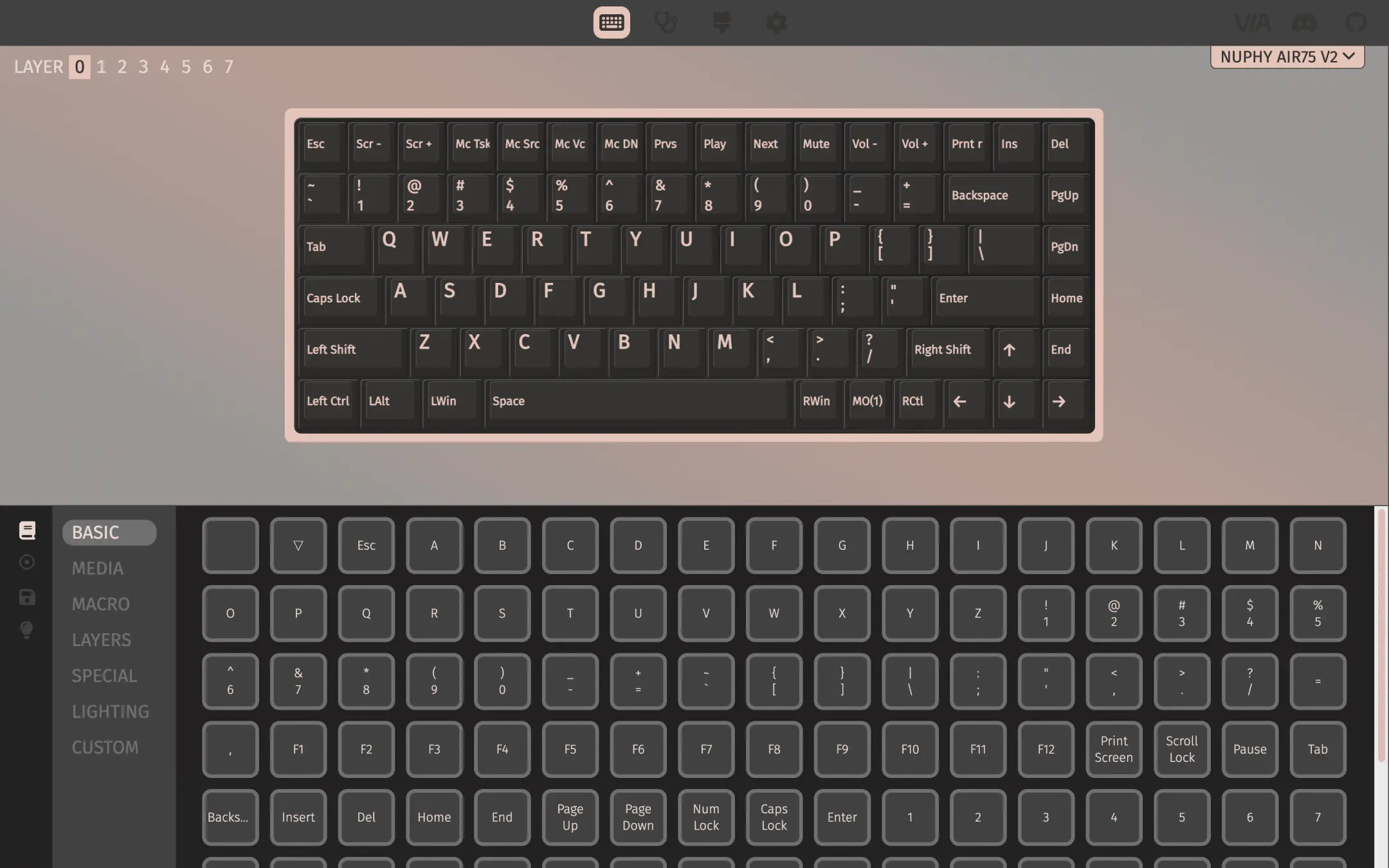
2. Open usevia.app and load your model’s JSON
3. Go to CONFIGURE tab → Click RESET in toolbar
4. Select “Reset Keymap” from dropdown menu
This takes 8 seconds and leaves Bluetooth pairings intact. Critical: Always back up your layout first via SAVE+LOAD tab—this reset is irreversible without a backup.
Full VIA Factory Reset for Configuration Corruption
When RGB effects freeze or macros malfunction:
1. In VIA, navigate to SETTINGS tab
2. Click “Factory Reset” (not the toolbar reset button)
3. Confirm “Reset all VIA settings” in popup
4. Re-upload your JSON file immediately after
Warning: This preserves firmware but erases all VIA customizations. Do NOT use this if your keyboard isn’t detected—first try the physical reset.
Fix Failed Reset Attempts
Reset Button Unresponsive? Try This
If your physical reset button yields no LED response:
– Check power state: Air series requires OFF position; Halo needs ON
– Swap USB cables: Faulty cables prevent reset recognition
– Use thinner tool: Dental floss picks work better than paperclips for Air series
– Try recovery mode: Hold ESC while connecting USB for 15 seconds
Real-world fix: One user resolved a “dead” Air75 by connecting USB to a powered hub instead of laptop—low-power ports often cause reset failures.
Partial Reset Fixes for Persistent Pairings
When Bluetooth devices reconnect after reset:
1. Perform Bluetooth-specific reset (FN+P) immediately after factory reset
2. Repeat reset sequence twice with 10-second power-off intervals
3. For Halo models, press PCB button 3 times rapidly after 5-second hold
Why timing matters: NuPhy PCBs have a 7-second window to accept reset commands. Rushing the process causes partial resets where keymaps reset but Bluetooth cache remains.
Verify Your NuPhy Reset Success
Immediate Functionality Checklist
After any reset, test within 60 seconds:
✅ Default QWERTY layout: Press keys—no custom macros should trigger
✅ Rainbow wave lighting: Hold FN+\ to cycle effects—starts at default mode
✅ No auto-connection: In BT mode, keyboard shouldn’t pair instantly
✅ VIA detection: Appears as “NuPhy [Model]” requiring JSON upload
Red flag: If LEDs stay solid white, perform recovery mode (ESC+USB) to force bootloader.
Recovery Mode for “Bricked” Keyboards
When all methods fail and keyboard is unresponsive:
1. Hold ESC key while inserting USB cable
2. Maintain pressure for 15 seconds (count slowly)
3. Release when LEDs flash erratically
4. Flash firmware using QMK Toolbox’s “Clear EEPROM”
Critical insight: This bypasses corrupted firmware. One Reddit user revived a “dead” Air96 after 3 failed resets using this method—NuPhy’s recovery mode works even when reset buttons don’t.
Prevent Future Reset Needs
Configuration Maintenance Protocol
Backup weekly: In VIA’s SAVE+LOAD tab, export JSON to cloud storage.
Firmware update rule: Only update when experiencing bugs—not preventatively.
Cable discipline: Use braided USB cables to prevent power interruptions during resets.
Reset trigger checklist: Attempt reset before firmware updates for pairing/keymap issues.
Pro tip: Label your Bluetooth channels (FN+1=Work, FN+2=Phone) to avoid accidental pairing wipes. If your keyboard still malfunctions after all reset attempts, contact NuPhy support with your reset verification results—they prioritize users who’ve completed full diagnostics.
A properly executed reset restores your NuPhy keyboard to factory-fresh performance in under two minutes. Whether you cleared a single Bluetooth pairing or performed a nuclear factory reset, always verify success with the QWERTY test and VIA detection check. Remember that model-specific timing—especially the Air series’ 5-second requirement—is the difference between a partial fix and complete resolution. Keep this guide bookmarked; with NuPhy’s complex reset protocols, you’ll likely need it again when next your custom layout freezes during an important deadline.