How to Remove Keyboard Keys Safely
That stubborn crumb wedged under your spacebar. The sticky residue on your W key. The mysterious debris trapped beneath your keyboard that no amount of compressed air seems to dislodge. When your keyboard starts feeling grimy or unresponsive, popping off keys for a proper cleaning becomes essential—but doing it wrong can cause permanent damage. This guide shows you exactly how to pop off keyboard keys safely across all keyboard types, from mechanical gaming boards to delicate laptop models, using the right tools and techniques to avoid costly mistakes.
Knowing how to pop off keyboard keys properly saves you from replacing an entire keyboard over a simple cleaning issue. Whether you’re dealing with a mechanical keyboard’s Cherry MX switches or a laptop’s fragile scissor mechanisms, the wrong approach can crack keycaps, break stabilizers, or damage underlying components. By following these precise methods, you’ll maintain your keyboard’s functionality while extending its lifespan through proper maintenance.
Essential Tools for Key Removal Success
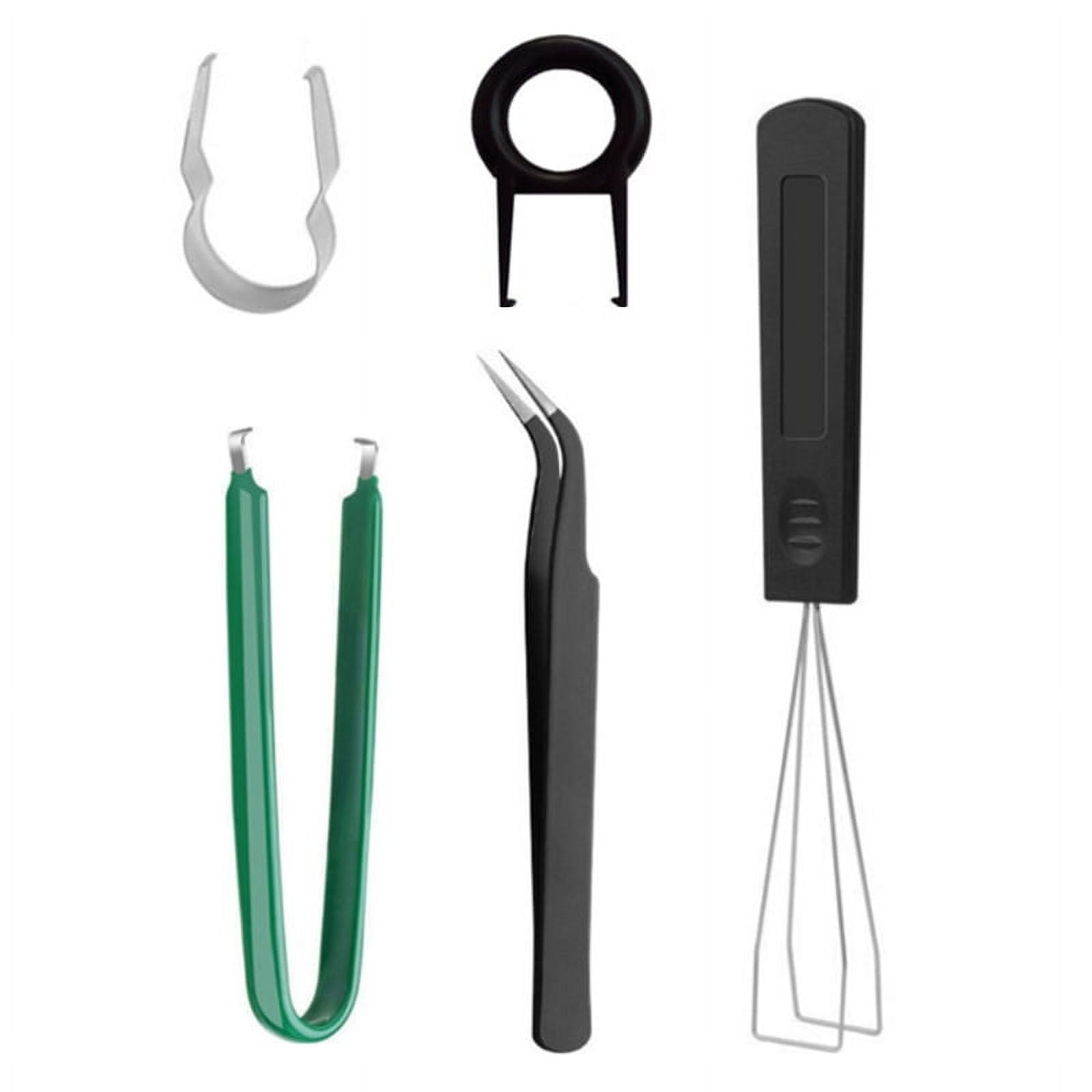
Before attempting to pop off keyboard keys, gather these specialized tools that prevent damage during removal. Using household items like paperclips or knives dramatically increases your risk of cracking keycaps or damaging switch mechanisms—investing in proper tools takes just minutes but protects your expensive keyboard.
Must-Have Removal Tools
- Wire keycap puller – The only safe tool for mechanical keyboards, distributing force evenly to prevent keycap warping
- Plastic spudger or guitar pick – Essential for prying laptop keys without scratching fragile plastic hinges
- Fine-tip tweezers – Critical for handling tiny stabilizer clips and metal retainers on larger keys
- Small magnetic container – Prevents losing those tiny stabilizer clips that love to launch across the room
- Compressed air canister – Immediately cleans debris from exposed switch housings after key removal
Avoid These Common Tool Mistakes
Never use metal screwdrivers directly on keycaps—this scratches surfaces and concentrates force at single points, causing cracks. Standard flathead screwdrivers are too wide for most keycaps and often slip, damaging surrounding keys. If you absolutely must improvise, use the plastic handle of a small brush instead of metal tools.
Pre-Removal Safety Protocol
Power Down and Disconnect Completely
Unplug your keyboard from the computer before touching any keys. For wireless models, remove batteries entirely. Laptop users must shut down completely and disconnect from AC power—this prevents accidental key presses and protects sensitive electronics from static discharge that could damage circuitry.
Document Your Keyboard Layout First
Snap a high-resolution photo of your keyboard before removing anything. This 10-second step saves hours of frustration during reassembly, especially for non-standard layouts like gaming keyboards with extra macro keys or international keyboard variants. Pay special attention to stabilized keys (spacebar, shift, enter) which have unique mounting mechanisms.
Mechanical Keyboard Key Removal Techniques
Standard Keys (Cherry MX, Gateron, Kailh)
- Position wire puller correctly – Slide both wire loops under opposite sides of the keycap, ensuring even placement across the stem
- Pull straight upward – Apply steady, vertical pressure with no wiggling or twisting motion
- Listen for the release click – You’ll hear/feel when the switch stem disengages from the keycap
- Inspect the switch – Check for bent pins or debris before proceeding to the next key
Critical Warning: Never pull at an angle—this bends switch stems and causes inconsistent keypress registration. If resistance increases, stop immediately and reposition your puller.
Spacebar and Stabilized Key Removal
Stabilized keys require special handling due to their metal wire stabilizers:
- Remove adjacent keys first – Take off surrounding keys to access stabilizer wire ends
- Release wire connections – Use tweezers to gently disconnect stabilizer wires from plastic retainers
- Lift at multiple points – Apply upward pressure at both ends and center simultaneously
- Store stabilizers safely – Place metal wires and plastic retainers in your magnetic container
Pro tip: For stubborn keycaps, apply heat with a hairdryer on low setting for 10-15 seconds to soften the plastic before attempting removal.
Laptop Keyboard Key Removal Method

Scissor Mechanism Removal Process
Laptop keys use fragile “X” shaped plastic hinges that break instantly with improper technique:
- Identify hinge locations – Most laptop keys have two top hinges and two bottom anchor points
- Start at the top edge – Insert plastic spudger at top hinge location where movement occurs
- Lift top edge first – Raise top of keycap 2-3mm before sliding spudger along sides
- Release bottom anchors – Once top hinges disengage, gently lift bottom edge to release remaining clips
Never pull straight up—this is the #1 cause of broken laptop keys. Always work the top edge first, then sides, then bottom anchors in sequence.
Metal Retainer Clip Handling
Spacebars and larger laptop keys often use spring-loaded metal clips:
- Use tweezers to gently lift clips from their slots—never force them
- Work slowly as these tiny components are easily lost or damaged
- Keep a magnetic container nearby to catch clips as they release
Membrane Keyboard Key Removal Strategy
Full Disassembly Required
Most membrane keyboards need complete top cover removal before accessing individual keys:
- Flip keyboard over – Locate all visible screws (often hidden under rubber feet)
- Remove all screws – Keep them organized by location as sizes may vary
- Separate top and bottom halves – Carefully pry apart using plastic spudger
- Access rubber dome layer – The keycaps attach directly to this membrane sheet
Critical Warning: Rubber domes tear easily—never force keys upward. Instead, twist gently while lifting to disengage plastic retention clips.
Cleaning During Key Removal

Keycap Deep Cleaning Process
- Soak in warm soapy water – 30 minutes loosens built-up grime and oils
- Gentle brush cleaning – Use soft-bristled toothbrush for stubborn residue
- Thorough rinsing – Eliminate all soap residue that affects key feel
- Complete drying – Air dry for 24 hours or use cool hairdryer setting
Keyboard Surface Cleaning
While keys are off, clean exposed areas with:
– Compressed air to blast debris from switch housings
– Isopropyl alcohol (90%+) on cotton swabs for sticky residue
– Soft brush for dust in hard-to-reach areas
Never allow liquids to contact switch mechanisms—moisture causes permanent damage to electronic components.
Key Reinstallation Best Practices
Mechanical Keyboard Keys
- Align stem precisely – Position keycap directly over switch stem
- Press straight down – Apply even pressure until you hear the click
- Test key travel – Ensure smooth movement and proper actuation
- Check for wobble – Keys shouldn’t move sideways when properly seated
Laptop Key Reassembly
- Position scissor mechanism – Both plastic arms must engage fully
- Align keycap clips – Match with scissor anchor points before pressing
- Press firmly and evenly – Apply pressure across entire key surface
- Verify functionality – Test key registration and return spring action
Troubleshooting Common Problems
Keys Not Working After Reinstallation
- Misaligned keycap – Remove and reinstall ensuring proper stem alignment
- Debris in switch – Use compressed air to clear obstructions from switch housing
- Bent switch pins – Inspect mechanical switches for visible damage
Physical Damage During Removal
- Cracked keycap – Individual replacements available from manufacturers
- Broken scissor mechanism – Laptop keyboards often require full replacement
- Lost stabilizer clip – Contact manufacturer for replacement parts
Safety Best Practices Checklist
Force Application Guidelines
Never use excessive force—most keys require only 2-5 pounds of pressure when using proper technique. If resistance increases, stop immediately and reassess. Forcing keys causes 90% of removal damage.
Workspace Essentials
- Work in low-humidity environment to prevent static discharge
- Use adequate lighting to see small components clearly
- Organize keys systematically to prevent reassembly errors
- Keep small parts in magnetic container to avoid loss
Bottom line: How to pop off keyboard keys safely comes down to using the right tool for your specific keyboard type and applying steady, controlled pressure in the correct direction. Mechanical keyboards need wire pullers with straight upward motion, while laptop keys require careful prying of top hinges first. By following these precise techniques, you’ll maintain your keyboard’s functionality through proper cleaning and maintenance without causing costly damage. Always remember: when in doubt, stop and reassess rather than forcing components—your keyboard’s longevity depends on it.