How to Connect Apple Keyboard to Windows
That sleek Apple keyboard you love on your Mac has followed you to your Windows machine, but it’s not behaving as expected. Whether you’re switching between operating systems daily or making the permanent jump to Windows, getting your Apple keyboard functioning properly requires specific configuration steps that Microsoft doesn’t automatically handle. Without proper setup, you’ll face frustrating issues like missing shortcuts, reversed delete functionality, and unresponsive media keys.
This guide cuts through the confusion with precise instructions for every connection method—USB, Bluetooth, and Boot Camp—plus the critical key remapping that transforms your Apple keyboard from a frustrating novelty into a fully functional Windows input device. You’ll discover exactly which keys work out of the box, how to fix common connection failures within minutes, and professional-level tweaks that make your Apple keyboard feel natural in Windows.
Wired Apple Keyboard Connection to Windows PC
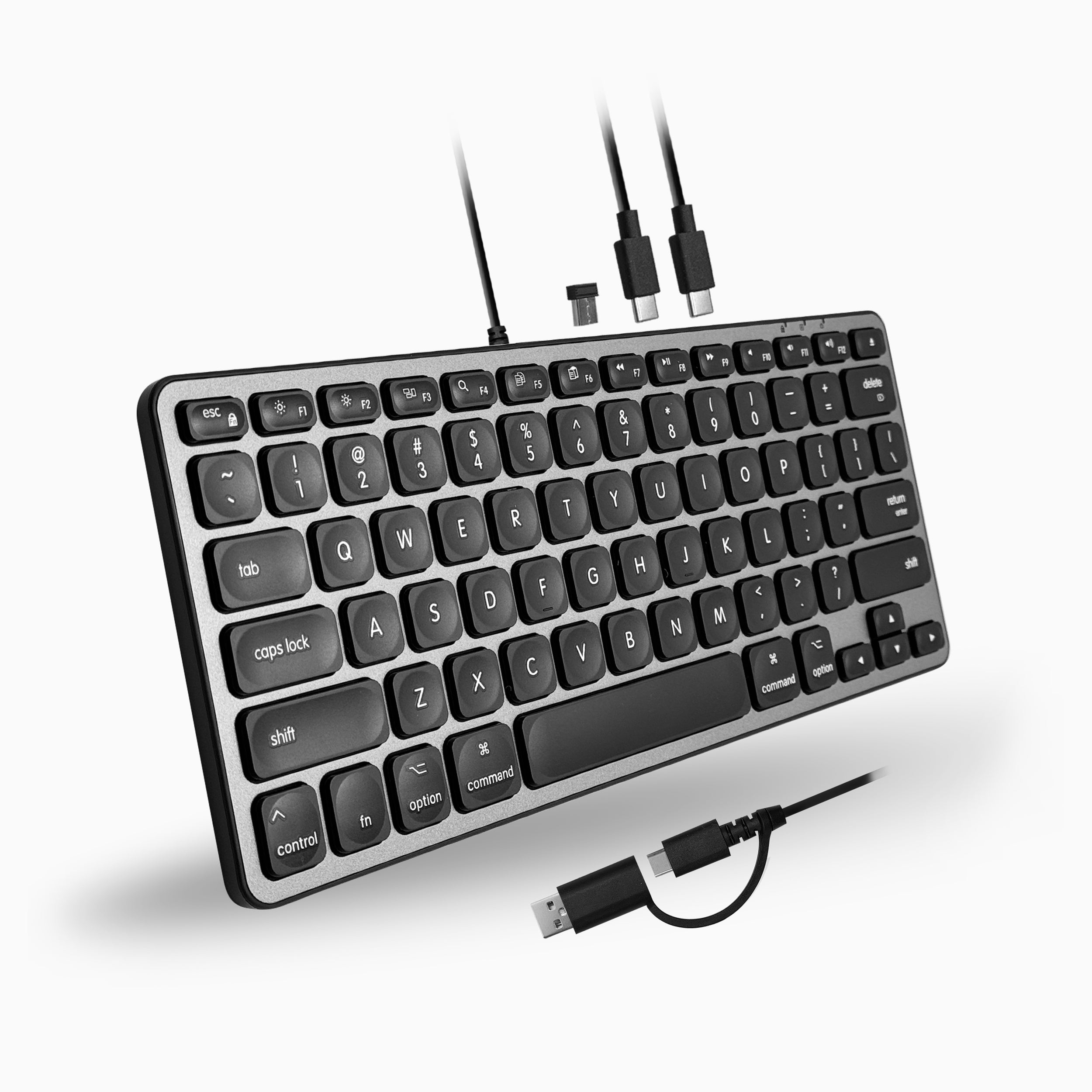
Plug your USB Apple keyboard directly into any available USB port on your Windows machine. Windows recognizes it as a standard HID keyboard within seconds, giving you immediate basic typing functionality. However, don’t expect perfect behavior from the start—several keys will operate differently than on your Mac.
Critical setup steps for wired connection:
– Wait 10-15 seconds for Windows to complete device recognition
– Test basic typing in Notepad to verify core functionality
– Check if Num Lock activates the numeric keypad (if applicable)
– Verify physical keyboard switch positions match your language layout
Many users immediately notice the Delete key functions as Backspace in Windows, while the expected forward Delete requires pressing Fn+Delete. This reversal causes frequent typing errors until you adjust. The Command (⌘) key won’t trigger Windows shortcuts by default, requiring either manual remapping or third-party software for proper functionality.
Pair Apple Wireless Keyboard with Windows via Bluetooth
Activate Pairing Mode on Apple Keyboard
Hold the power button on your wireless Apple keyboard for 3-5 seconds until the green LED blinks rapidly. This indicates the keyboard has entered discoverable mode. For Magic Keyboards without a dedicated power button, use the small slider switch on the side. If the LED doesn’t illuminate, replace the batteries before proceeding.
Complete Windows Bluetooth Connection Process
Navigate to Windows Settings > Bluetooth & devices > Add device > Bluetooth. Select “Apple Keyboard” from the detected devices list. When prompted, type the displayed pairing code using your Apple keyboard and press Return. Successful pairing is confirmed when the green LED stops blinking and Windows shows “Connected” status.
Bluetooth pairing verification checklist:
– Type random characters in Notepad to confirm key registration
– Check battery level indicator in Windows Bluetooth settings
– Test multimedia keys (volume, brightness) for immediate functionality
– Verify Windows recognizes the keyboard model in Device Manager
Windows 10 N and KN editions require the Media Feature Pack for full multimedia key functionality. Without this Microsoft-provided add-on, your volume and playback controls won’t work. Download the appropriate Media Feature Pack version from Microsoft’s official site, install it, and restart your computer to activate these keys.
Boot Camp Apple Keyboard Configuration on Mac Hardware
Automatic Key Mapping Through Boot Camp Drivers
When running Windows on Apple hardware via Boot Camp, the installation process automatically installs Apple-specific drivers that handle key remapping. The Command (⌘) key instantly functions as the Windows key, Option (⌥) becomes Alt, and Control maintains standard behavior. This driver-level integration ensures consistent keyboard behavior across all Windows applications without additional configuration.
Customize Key Behavior in Boot Camp Control Panel
Access the Boot Camp Control Panel from the Windows System Tray to adjust keyboard settings specifically for Apple hardware. Here you can:
– Reverse the Command and Control key functions
– Adjust function key behavior (F1-F12 vs. special features)
– Configure keyboard backlight settings (for compatible models)
– Modify trackpad gestures if using a Magic Trackpad
This native integration through Boot Camp provides the smoothest Apple-to-Windows keyboard experience, eliminating most compatibility issues faced when connecting to non-Apple hardware.
Fix Missing Windows Keys on Apple Keyboard
Restore Print Screen Functionality Immediately
The Print Screen key doesn’t exist on Apple keyboards, but you can capture screenshots using these methods:
- Windows Snipping Tool: Press Win+Shift+S for instant screen capture options
- On-Screen Keyboard: Access Print Screen through Windows accessibility features
- Third-Party Tools: Configure screenshot utilities like Greenshot to trigger with Fn+F11
For capturing the active window only, use Alt+Win+Shift+S as your replacement for Alt+Print Screen functionality.
Access Pause/Break Key Functions
When applications require the Pause/Break key (common in command prompt operations), use these alternatives:
- On-Screen Keyboard: Launch via Windows key > Settings > Ease of Access > Keyboard
- Key Combination: Press Ctrl+Scroll Lock as a standard Windows alternative
- AutoHotkey Script: Create a custom shortcut like Ctrl+Option+P to send Pause command
Most modern applications provide alternative methods to accomplish what previously required the Pause/Break key, reducing its necessity in daily Windows use.
Troubleshoot Apple Keyboard Connection Failures
Resolve “Keyboard Not Detected” Error in Windows
When your Apple keyboard connects physically but Windows doesn’t respond:
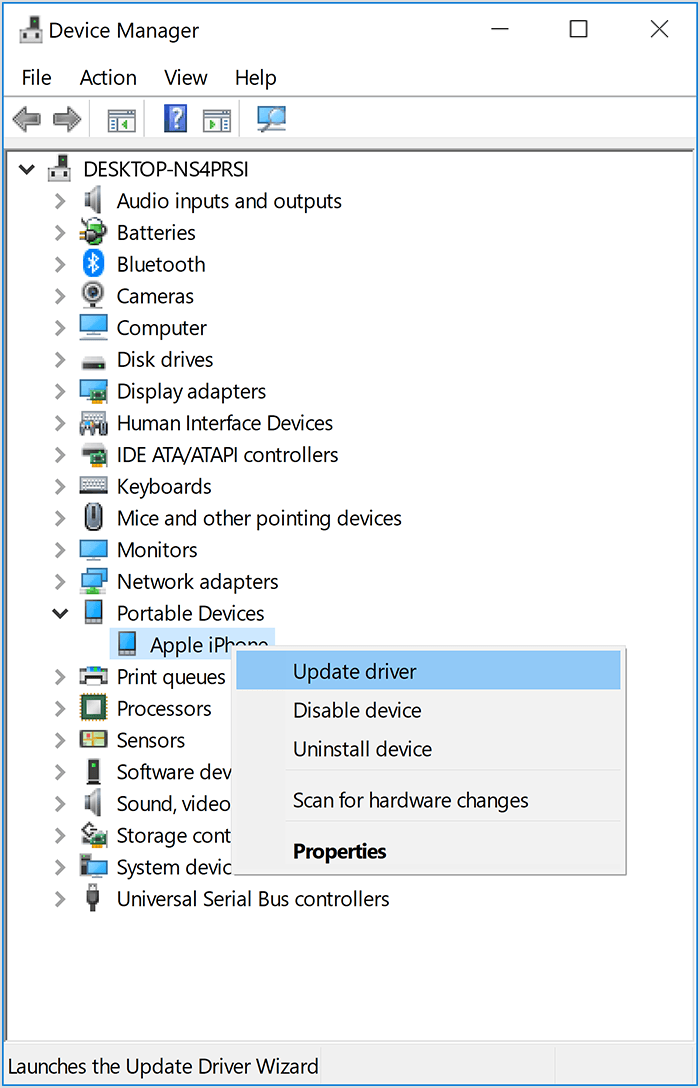
- Open Device Manager (Win+X, select Device Manager)
- Expand “Keyboards” section and locate your Apple device
- Right-click and select “Uninstall device”
- Disconnect and reconnect the keyboard
- Allow Windows to reinstall drivers automatically
If issues persist, update your USB controller drivers through Device Manager under “Universal Serial Bus controllers” to resolve communication problems between Windows and your Apple keyboard.
Fix Intermittent Bluetooth Disconnections
Apple wireless keyboards frequently drop connection after periods of inactivity on Windows systems. Prevent this by:
- Open Device Manager > Bluetooth > Right-click Apple keyboard > Properties
- Navigate to Power Management tab
- Uncheck “Allow the computer to turn off this device to save power”
- Click OK and restart your computer
This critical setting prevents Windows from powering down the Bluetooth connection, maintaining stable keyboard functionality during extended use sessions.
Optimize Apple Keyboard Performance on Windows
Remap Keys for Natural Windows Operation
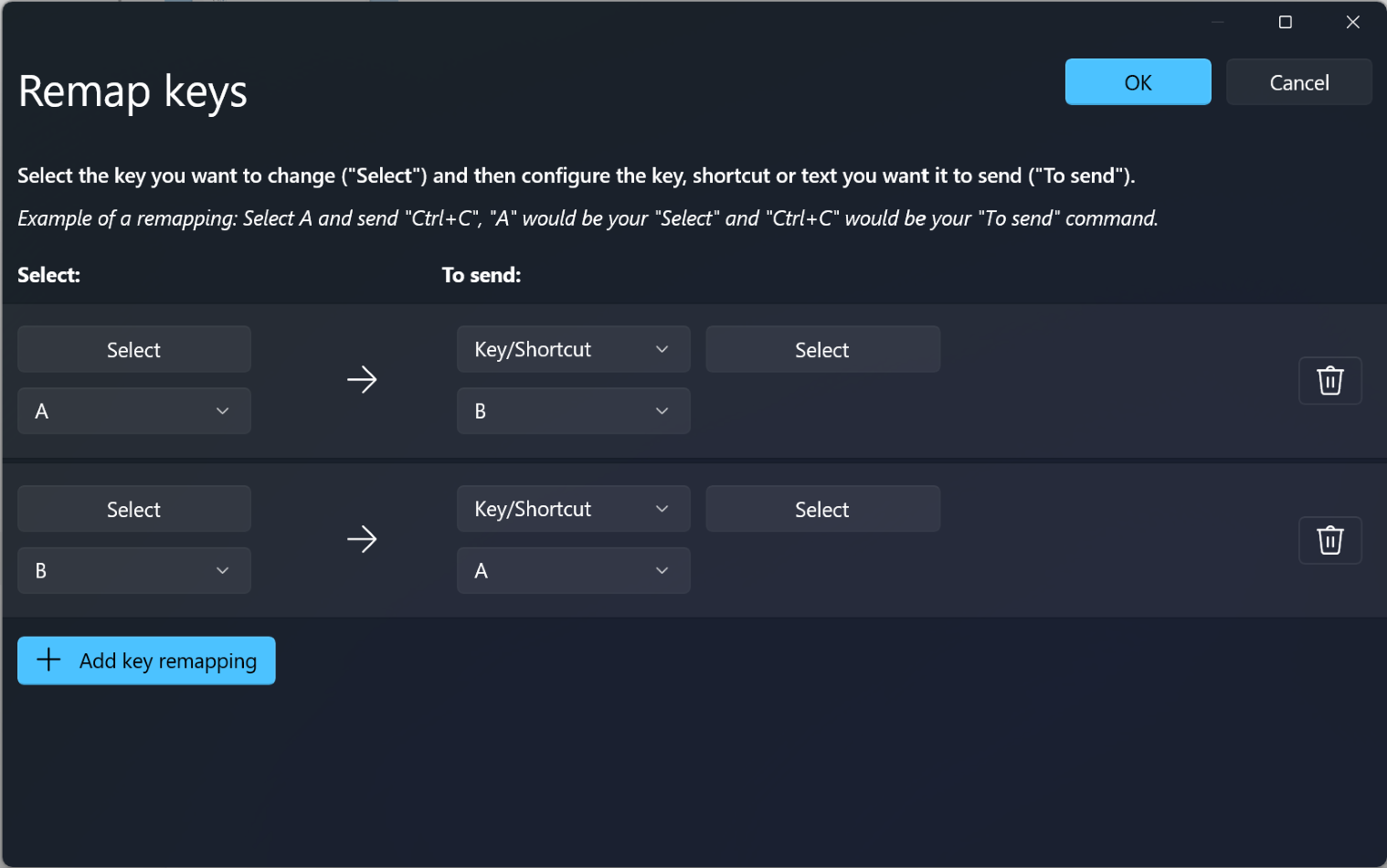
Install Microsoft PowerToys (free utility) to create custom key mappings that make your Apple keyboard feel native in Windows:
- Map Command (⌘) key to Windows key function
- Configure Option (⌥) key as Alt
- Reverse Delete key behavior to match Windows expectations
- Create custom shortcuts for missing keys like Print Screen
PowerToys offers real-time preview of your remapping changes, allowing immediate testing before applying system-wide. The utility persists mappings through Windows updates and restarts, eliminating daily reconfiguration.
Extend Wireless Keyboard Battery Life
Apple wireless keyboards consume significantly more power when connected to Windows due to constant Bluetooth communication. Maximize battery life with these adjustments:
- Disable keyboard backlighting if not needed
- Turn off the keyboard when not in use (physical switch)
- Reduce Windows Bluetooth polling rate through registry edits
- Use high-quality rechargeable batteries for consistent performance
Most users report 20-30% longer battery life after implementing these power-saving measures, reducing the frequency of battery replacements.
Gaming and Specialized Usage Considerations
Address Gaming Limitations with Apple Keyboards
Apple keyboards lack anti-ghosting technology found in gaming keyboards, causing input conflicts during intense gaming sessions. When multiple keys are pressed simultaneously (common in gaming), some inputs may not register.
Effective workarounds:
– Use KeyTweak utility to remap critical gaming keys to more accessible positions
– Configure game-specific profiles in Steam or gaming software
– Keep a dedicated gaming keyboard for competitive play sessions
– Adjust in-game key bindings to avoid problematic key combinations
For casual gaming, these adjustments typically resolve most issues, but serious gamers will still benefit from a dedicated Windows gaming keyboard for optimal performance.
Maintain BIOS/UEFI Access Capability
Apple keyboards often fail to function during early boot processes like BIOS/UEFI access. Always keep a standard USB Windows keyboard available for:
– System firmware updates
– Boot order configuration
– Hardware troubleshooting
– Secure Boot modifications
This limitation stems from Windows-specific driver requirements that don’t load during pre-boot environments, making Apple keyboards unreliable for critical system configuration tasks.
Final Note: Your Apple keyboard becomes a fully functional Windows input device with proper configuration—no longer just a Mac accessory. The Command key now triggers Windows shortcuts seamlessly, multimedia keys control volume without additional software (on standard Windows editions), and proper key mapping eliminates daily frustration. For non-Boot Camp Windows installations, Microsoft PowerToys provides the most reliable key remapping solution, while Boot Camp users enjoy near-perfect integration out of the box. Remember to keep a standard Windows keyboard available for BIOS access, and you’ll enjoy the premium typing experience of your Apple keyboard across both operating systems without compromise.