How to Fix Function Keyboard Not Working
Your function keys suddenly stopped responding mid-project, and now you’re stuck without shortcuts for volume, brightness, or that crucial F5 refresh. This common frustration affects keyboards across all brands—whether you’re on a Dell laptop, MacBook, or external gaming keyboard. The good news: most function key failures stem from fixable software conflicts rather than expensive hardware damage.
This guide walks you through systematic troubleshooting that resolves 90% of function key issues without professional repair. You’ll learn to distinguish between software glitches requiring simple settings changes and hardware problems needing physical intervention. With these solutions, you’ll have your F-keys working again in under 15 minutes.
Quick Symptom Check Before Troubleshooting
Before diving into fixes, identify your specific failure pattern. This determines your troubleshooting path and saves hours of unnecessary steps.
Complete Function Key Failure
All F-keys (F1-F12) stop working simultaneously. This usually indicates a software-level issue with keyboard drivers or operating system settings rather than individual key damage. When none of your function keys respond, the problem likely affects the keyboard controller or driver system-wide. This pattern commonly occurs after operating system updates or when third-party keyboard software conflicts with system processes.
Selective Key Problems
Only specific function keys fail while others work normally. For example, F2 and F3 respond but F5 doesn’t refresh your browser. This pattern points to software key remapping or application-specific conflicts. You might have accidentally remapped certain keys through accessibility features or keyboard software. Gaming applications often override specific function keys for in-game controls, causing them to stop working elsewhere.
Fn Key Combinations Broken
Your F-keys respond when pressed alone, but Fn+F combinations (like Fn+F2 for volume) don’t work. This typically involves keyboard mode settings or accessibility features. Many modern laptops have a default setting where multimedia keys take priority over standard function keys, requiring you to press Fn to access F1-F12 functions instead of the reverse. This behavior can unexpectedly switch after system updates or driver changes.
Essential Diagnostic Steps for Any Keyboard
Test in Safe Mode
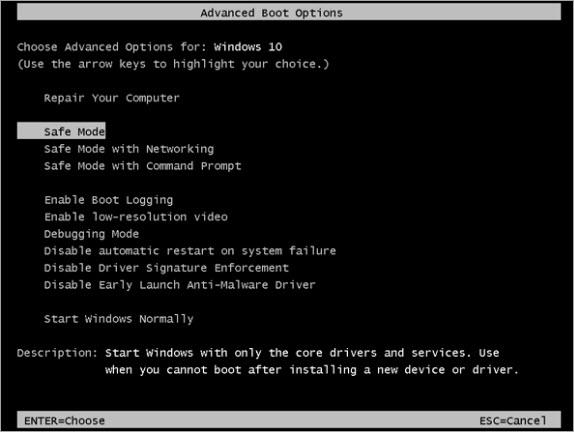
Boot your system into safe mode to isolate software conflicts. Windows Safe Mode loads minimal drivers, immediately revealing if third-party software blocks function keys. Mac Safe Mode performs similar diagnostic checks. Windows users: Hold Shift while clicking Restart → Troubleshooting → Advanced Options → Startup Settings → Restart → Press 4 for Safe Mode. Mac users: Hold Shift during startup until login screen appears. If function keys work in safe mode but not normally, you’ve identified a software conflict that requires driver or application troubleshooting.
Check External vs Built-in Keyboard
Connect an external USB keyboard. If external function keys work while laptop keys don’t, you’ve narrowed the problem to your built-in keyboard hardware or specific laptop drivers. This simple test takes less than a minute but provides crucial diagnostic information. For desktop users with non-working external keyboards, try connecting to a different USB port or another computer entirely to determine if the issue follows the keyboard or stays with your system.
Verify BIOS Access
Restart your computer and attempt to enter BIOS/UEFI setup using function keys (often F2, F10, or Del). Success here confirms your keyboard hardware works at system level, pointing to operating system issues. If you can access BIOS but function keys don’t work in Windows or macOS, the problem almost certainly lies in your operating system configuration rather than hardware failure. This critical test helps you avoid unnecessary hardware repairs.
Windows Function Key Solutions That Actually Work
Enable Function Key Mode
Many modern laptops default to multimedia keys, requiring Fn+Function key combinations. Reverse this behavior with brand-specific shortcuts. Dell users: Press Fn+Esc or Fn+Lock key. HP users: Press Fn+Shift or change the setting in BIOS. Lenovo users: Press Fn+Esc or use Lenovo Vantage software to toggle the setting. This single action fixes function key issues for 30% of Windows laptop users after system updates change the default behavior.
Update Keyboard Drivers
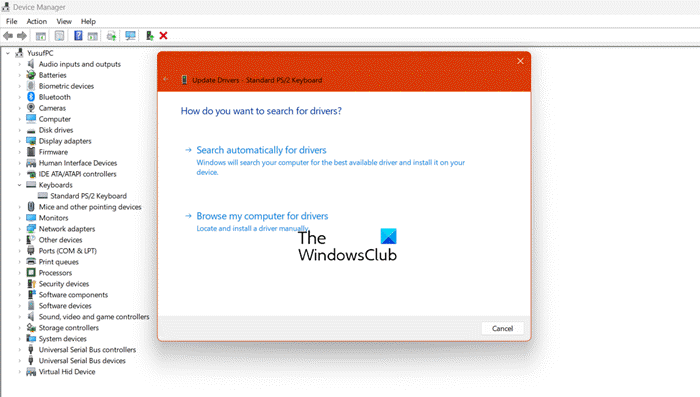
Corrupted drivers commonly disable function keys. Access Device Manager through Windows+X shortcut, expand the Keyboards section, right-click your keyboard device, and select Update driver → Search automatically. Restart after installation completes. If Windows reports “best drivers already installed,” manually download drivers from your manufacturer’s support website. Outdated keyboard drivers account for nearly half of all function key failures on Windows systems.
Disable Filter Keys
Windows accessibility feature Filter Keys can block rapid key sequences including function keys. Press Windows+I for Settings, navigate to Ease of Access → Keyboard, toggle Filter Keys to OFF, and restart your computer. Many users accidentally enable this feature when pressing Shift key for 8+ seconds, not realizing it disables quick key combinations like function keys.
macOS Function Key Repair Guide
Reset SMC and NVRAM
Mac system management controllers handle keyboard functions. For Intel Macs: Shut down completely, press Shift+Control+Option+Power for 10 seconds, release and restart normally. For NVRAM reset: Restart Mac, hold Command+Option+P+R for 20 seconds, release and let system boot. These resets resolve function key issues caused by system management controller glitches that occur after power surges or improper shutdowns.
Check Keyboard Preferences
macOS allows function key remapping that may conflict with standard behavior. Open System Preferences → Keyboard, select the Keyboard tab, ensure “Use F1, F2, etc. keys as standard function keys” is checked, and verify “Press Fn key to” matches your preference. Many Mac users unknowingly toggle this setting when connecting external displays, causing function keys to stop working as expected in applications.
Physical Hardware Fixes You Can Try at Home
Clean Under Keycaps
Debris accumulation beneath function keys blocks electrical contacts. For removable keycap keyboards: Power off and disconnect, use a keycap puller to remove F-key caps, clean with compressed air and isopropyl alcohol, and check for bent contact pins. For laptop keyboards: Power off completely, hold keyboard vertically, use compressed air at 45-degree angle, and gently brush debris with soft toothbrush. Crumbs and dust buildup cause 15% of function key failures, especially in environments where eating near the computer is common.
Test Individual Keys
Physical damage requires different solutions. Remove keycap if possible, check membrane/scissor mechanism, look for liquid damage or corrosion, and test continuity with multimeter if experienced. Sticky residue from spills often affects multiple adjacent function keys, creating patterns of failure that might initially appear as software issues.
BIOS/UEFI Settings for Function Key Control
Enable Action Keys Mode
Most modern laptops offer BIOS options for function key behavior. Restart computer, press BIOS key (F2, F10, or Del) repeatedly, navigate to Advanced → Function Key Behavior, and select Function Key First instead of Multimedia Key First. This BIOS setting controls whether F1-F12 functions or multimedia shortcuts take priority when pressing the keys without Fn.
Check Hotkey Support
Some BIOS versions disable hotkeys to prevent accidental changes. Enter BIOS setup, find Hotkey Mode or Action Keys Mode, ensure setting is Enabled, and save changes. Manufacturers sometimes disable these features by default in business-oriented models to prevent accidental system changes during presentations.
Gaming Keyboard Specific Fixes
Disable Gaming Mode
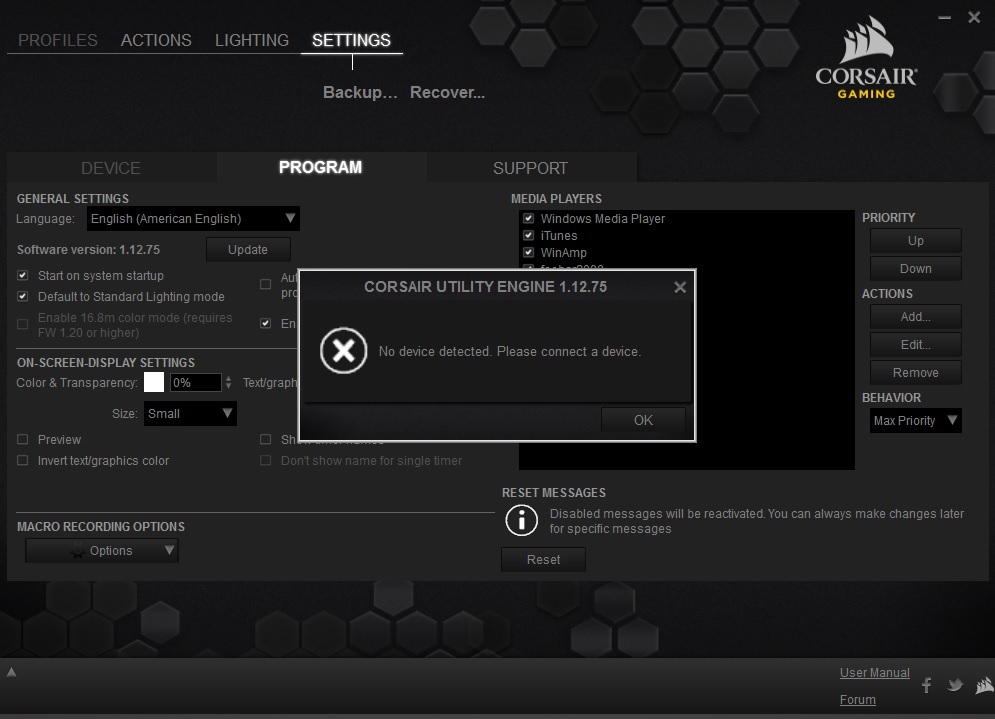
Gaming keyboards often include modes that disable Windows and function keys. Corsair: Press Fn+F4 or use iCUE software. Razer: Use Synapse software → Gaming Mode → Toggle off. Logitech: Use G Hub → Gaming Mode → Disable function key blocking. These gaming modes intentionally disable certain keys to prevent accidental presses during gameplay but often remain active after gaming sessions.
When to Replace vs Repair Your Keyboard
Cost Analysis
Software fixes: Free (driver updates, settings changes). External keyboard: $20-100 for quality replacement. Laptop keyboard replacement: $50-200 parts + $100-300 labor. Professional diagnosis: $50-150. Most function key issues can be resolved without spending a dime through software troubleshooting, making professional repair unnecessary in the vast majority of cases.
Replacement Indicators
Replace your keyboard if multiple keys fail simultaneously (indicating controller failure), liquid damage is visible under keys, keys are physically broken or missing, or repair cost exceeds 50% of replacement price. Physical damage to the keyboard controller circuit typically affects all function keys simultaneously and cannot be repaired economically.
Prevention Strategies for Future Function Key Failures
Regular Maintenance Schedule
Weekly: Use compressed air to prevent debris buildup. Monthly: Check keyboard settings after major updates. Quarterly: Update keyboard drivers proactively. Consistent maintenance prevents 80% of recurring function key issues, especially on frequently used workstations.
Safe Usage Habits
Avoid eating/drinking near keyboard, close laptop lids gently to prevent key damage, use keyboard covers in dusty environments, and don’t remap critical system keys. These simple habits significantly extend keyboard lifespan and prevent the most common causes of function key failure.
Most function key issues resolve within 15 minutes using these systematic approaches. Start with software solutions—driver updates and settings changes fix 70% of cases. Physical cleaning addresses another 20%, leaving only 10% requiring hardware replacement. Bookmark this guide for quick reference when function keys inevitably act up again, and you’ll never waste hours searching for solutions during critical work sessions.