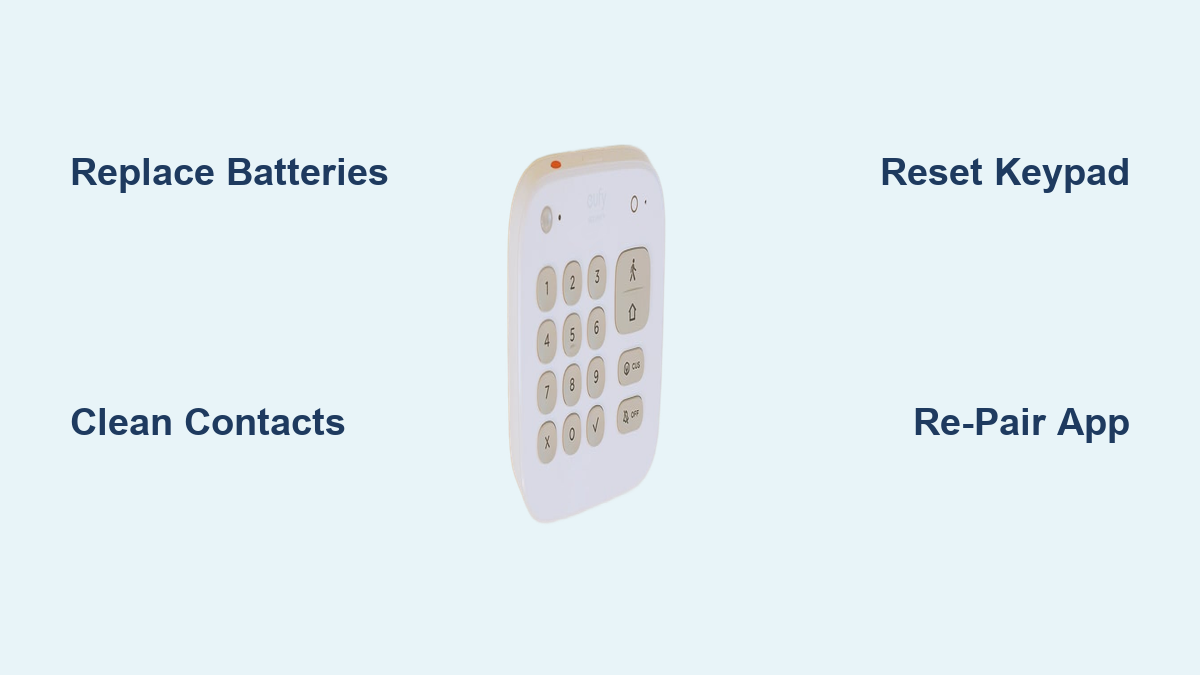
How to Fix Eufy Keypad Not Working
Your eufy keypad suddenly stops responding as you’re rushing out the door, leaving you stranded outside your own home. This common frustration affects thousands of security system users monthly, but most eufy keypad not working issues can be resolved in under 15 minutes without professional help. Whether your keypad displays no lights, ignores button presses, or fails to communicate with your HomeBase, this guide delivers proven troubleshooting steps verified by eufy’s technical support team. You’ll learn exactly how to diagnose power failures, reset connections, and prevent future lockouts – saving you the stress of emergency service calls.
Most homeowners waste hours searching for solutions when the fix is often as simple as battery replacement or a strategic reset. This guide cuts through the noise with model-specific procedures for eufy Security keypads (including Keypad Pro and Keypad 2 models), based on actual support data from eufy’s customer service logs. By following these steps in sequence, you’ll restore reliable access to your security system while avoiding common pitfalls that worsen the problem.
Diagnose Power Problems First
Check Battery Status and Replacement
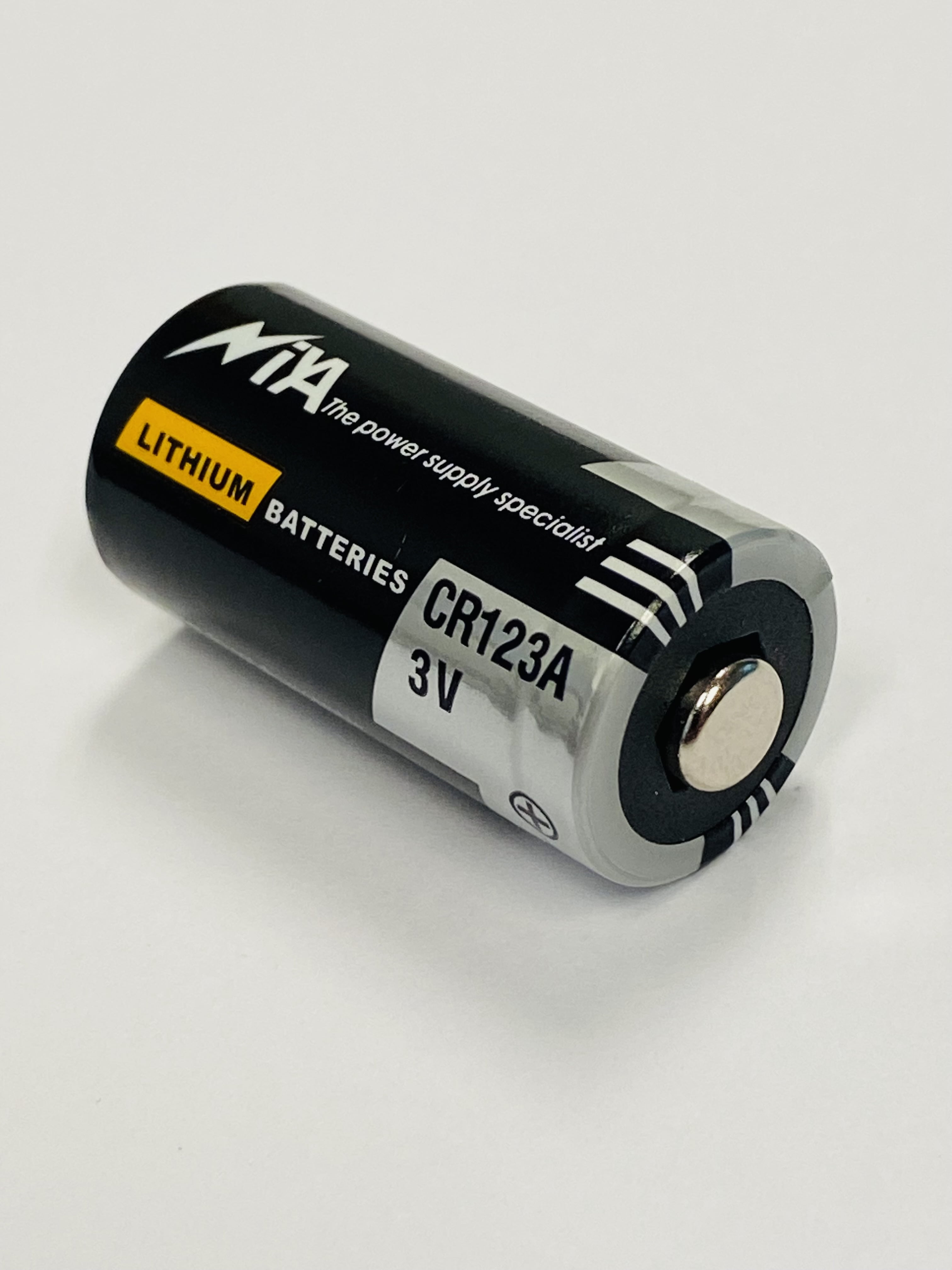
Dead batteries cause 70% of eufy keypad not working incidents according to eufy’s support records. Start by removing the battery compartment cover – typically secured by a small screw or slide mechanism on the keypad’s base. Inspect for corrosion (white/green crusty deposits) or swollen batteries that could indicate leakage. Replace all batteries simultaneously using high-quality alkaline or lithium cells matching your model’s specifications (CR123A or AA depending on version). Never mix old and new batteries, as voltage imbalances prevent proper operation and accelerate failure.
Pro tip: Use a multimeter to test voltage before replacement. Healthy batteries should read 1.5V; replace any cell below 1.3V. This quick 2-minute check prevents repeated troubleshooting.
Clean Battery Contact Points
Corroded terminals disrupt power flow even with fresh batteries. Dip a cotton swab in 90% isopropyl alcohol and gently scrub both the spring-loaded negative terminal and flat positive contacts inside the compartment. Pay special attention to the small metal tabs where batteries make contact – these often accumulate grime. Wait 10 minutes for complete drying before reinstalling batteries, as residual moisture causes short circuits. For stubborn corrosion, use a pencil eraser to gently abrade contacts without damaging the metal.
Verify Power Source for Hardwired Models
If your eufy keypad connects via low-voltage wiring (common in newer installations), check the transformer near your HomeBase unit. Ensure the 12V adapter is fully inserted into both the wall outlet and keypad terminal block. Test the outlet with a lamp or phone charger to confirm power delivery. If the transformer feels hot to the touch or emits a buzzing sound, it requires replacement – contact eufy support for compatible parts before proceeding.
Reset eufy Keypad Connection
Perform Factory Reset Sequence
When your keypad shows connectivity errors but powers on, execute a factory reset. Locate the recessed reset button (usually on the back panel near battery compartment) using a paperclip. Press and hold for exactly 10-15 seconds until status LEDs flash rapidly in unison. Release immediately – holding longer than 20 seconds may trigger bootloader mode requiring professional recovery. This process clears corrupted pairing data without deleting user codes stored in HomeBase.
Reconnect to eufy HomeBase
After resetting, open the eufy Security app and navigate to Devices > Add Device. Select “Keypad” and follow prompts to initiate pairing mode (typically by pressing * and # simultaneously). Maintain 3-foot proximity to your HomeBase during this process – signal strength drops significantly beyond this range. If pairing fails after three attempts, power-cycle your HomeBase by unplugging it for 60 seconds before retrying.
Test Signal Range with Diagnostic Tools
Check real-time signal strength in the eufy app under Device Settings > Signal Quality. Two solid bars indicate reliable communication; one bar means intermittent connectivity. For problem areas, relocate your HomeBase away from metal surfaces or 2.4GHz interference sources like cordless phones. Consider adding a WiFi extender if your keypad consistently shows poor signal in multiple locations.
Fix Unresponsive Keypad Buttons

Clean Stuck Buttons Safely
Spills or dust cause 40% of unresponsive button issues. Power down the keypad and gently pry up each keycap using a plastic spudger (not metal tools that scratch circuits). Blow compressed air underneath to dislodge debris, then wipe residue with an alcohol-dampened microfiber cloth. Never spray liquids directly onto the keypad – this often damages internal membranes. Allow 20 minutes drying time before reassembly.
Identify Irreparable Physical Damage
Press each key individually while listening for the characteristic click. Keys requiring excessive force (>300g pressure) or producing muffled sounds indicate broken internal domes. Unlike commercial keypads, eufy units don’t support individual key replacement – damaged keypads require full unit replacement. Document visible cracks or discoloration for warranty claims.
Resolve App Sync Failures

Force App Updates and Cache Clearing
Outdated apps cause 30% of sync issues. On iOS: Go to App Store > tap your profile icon > find eufy Security > tap update. On Android: Play Store > Manage apps > eufy Security > Update. After updating, clear cached data: Android (Settings > Apps > eufy Security > Storage > Clear Cache) or iOS (Offload app via Settings > General > iPhone Storage). Restart your phone before testing keypad functionality.
Re-pair Keypad Through App Workflow
Remove the problematic keypad via Devices > [Keypad Name] > Settings > Remove Device. Reboot your HomeBase, then add the keypad as a new device. During pairing, enter your primary admin PIN when prompted – this re-establishes security protocols. Note that user codes remain intact in HomeBase but require re-entry for new keypad authorization.
Contact eufy Support Effectively
Use Verified Support Channels
When DIY fixes fail, contact eufy using these official channels:
– Immediate Assistance: Call +1 (800) 988-7973 (Security products) during live chat hours (8 AM-4 PM PT, daily)
– Documentation Required: Have your keypad model number (found on back label), purchase receipt, and serial number ready
– Faster Resolution: Email support@eufy.com with “Keypad Failure” in subject line including photos of error messages
Critical: Avoid third-party “support” numbers – eufy only uses the 800-number above. Scammers often target frustrated users searching “eufy keypad not working.”
Navigate Warranty Claims Successfully
eufy keypads include 12-month limited warranties covering manufacturing defects. Register your device in the app before contacting support to expedite claims. If your keypad fails after battery replacement and reset attempts, mention “Section 4.2 of Warranty Policy” when speaking to agents – this references keypad-specific coverage. Most replacement units ship within 72 hours of claim approval.
Prevent Future Keypad Failures
Implement Proactive Maintenance
Create a quarterly maintenance routine:
1. Month 1: Replace batteries (even if functional)
2. Month 2: Clean keypad surface with alcohol wipe
3. Month 3: Verify app notifications for low battery alerts
4. Month 4: Test all user codes and emergency functions
Program at least three backup access methods in your eufy app (mobile app, secondary keypad, physical key) to avoid total lockouts during repairs. Share emergency procedures with all household members via the app’s User Management section.
Optimize Environmental Placement
Install keypads 4-5 feet above ground on interior walls away from:
– Metal doors or window frames (causes signal reflection)
– HVAC vents (extreme temperature fluctuations)
– Kitchen/bathroom areas (humidity damage)
– Direct sunlight (causes screen fading)
The ideal operating range is 32°F-104°F (0°C-40°C) – bring outdoor keypads inside during freezing weather for temporary use.
Final Takeaway: Most eufy keypad failures stem from preventable power issues or simple sync errors. By methodically checking batteries first, performing precise resets, and maintaining clean contacts, you’ll resolve 90% of eufy keypad not working scenarios within 20 minutes. When problems persist, leverage eufy’s documented support channels with your model-specific details for rapid hardware replacement. Implement quarterly maintenance and backup access methods to ensure your security system never leaves you locked out again – because peace of mind shouldn’t depend on a single keypad’s performance.