How to Restart Lenovo Laptop: Quick Steps
Your Lenovo screen freezes mid-presentation. Windows Update hangs for the third time this week. The cursor turns into a spinning wheel of doom while you’re on deadline. When your IdeaPad, ThinkPad, or Yoga suddenly stops responding, knowing exactly how to restart Lenovo laptop hardware without losing hours of work becomes critical. This guide cuts through the confusion with battle-tested methods for every scenario—from quick refreshes when Windows cooperates to emergency reboots when the power button abandons you. You’ll learn which technique saves your unsaved documents and when to pull the nuclear option.
Most users only know the Start menu method, leaving them stranded when the system freezes. But Lenovo laptops have hidden restart pathways built into Windows 10/11 that bypass physical buttons entirely. Whether you’re troubleshooting a Legion gaming rig or a basic Chromebook, these steps apply across all current models. Skip the guesswork—you’ll walk away knowing exactly which method to use for your specific crisis.
Start Menu Restart for Normal Operation
When Windows responds to clicks, this remains the safest way to restart your Lenovo laptop. It properly closes applications, applies pending updates, and clears memory leaks without data loss. Never skip this method when your system feels sluggish but still functional—it prevents the corruption that forces harder reboots later.
Click the Start button in your taskbar, then select the Power icon (shaped like a circle with a vertical line). From the dropdown menu, choose Restart. Windows will automatically save compatible open files, close background processes, and reboot within 30-60 seconds. Critical tip: If you see “Updates in progress,” let the restart complete fully before interrupting—aborting mid-update risks system file damage.
Why This Beats Shut Down for Routine Maintenance
Choosing Restart instead of Shut Down triggers a full kernel reload that resolves 80% of minor glitches. While shutdown with Fast Startup enabled preserves some system state (causing lingering issues), a proper restart clears RAM, resets drivers, and finalizes Windows updates. Use this weekly to prevent the slowdowns that make users ask “how to restart Lenovo laptop” in panic mode.
Keyboard Shortcut Restart Without Touching the Mouse
When your trackpad dies or the cursor freezes but Windows remains partially responsive, this method saves the day. Press Ctrl + Alt + Delete simultaneously—this universal Windows interrupt works even when other inputs fail. The security screen that appears gives you direct access to power controls without navigating menus.
With the security screen active, press Tab repeatedly until the Power icon in the lower-right corner highlights. Hit Enter, then use arrow keys to select Restart and press Enter again. This bypasses both the Start menu and physical power button, making it ideal for frozen peripherals. Pro tip: On ThinkPad models, the TrackPoint button can often substitute for mouse clicks during this process.
Command Prompt Instant Restart for Power Users
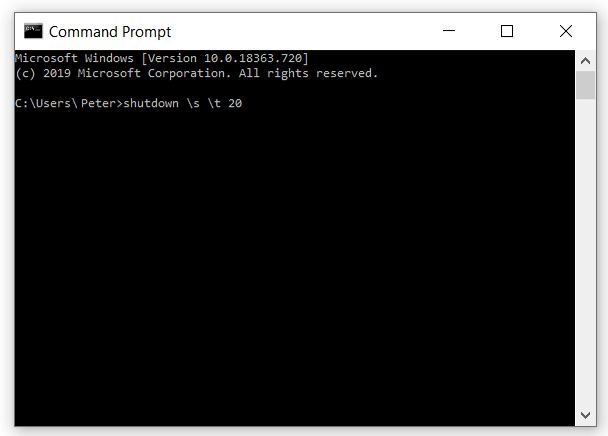
Skip graphical interfaces entirely when you need a guaranteed reboot. Press Win + R to open the Run dialog, type cmd, and hit Enter to launch Command Prompt. Then enter this precise command:
shutdown /r /t 0
Press Enter—your Lenovo restarts immediately with zero countdown. The /r flag forces a reboot (not shutdown), while /t 0 sets a zero-second timer.
Run Dialog Power User Shortcut
For even faster execution: Win + R → type shutdown /r /t 0 → Enter. This skips Command Prompt entirely while achieving the same instant restart. Adjust the 0 to 60 for a one-minute delay if you need to quickly save last-minute files. This method works when Explorer.exe crashes but Windows core processes still run.
Force Restart When Lenovo Laptop Is Completely Frozen
When all inputs fail and the screen stays stubbornly lit, hold the Power button for exactly 10 seconds until all lights extinguish and fans stop. This hard power-off cuts electricity to the motherboard, clearing temporary processor locks. Wait 2-3 seconds—critical for capacitor discharge—then press the power button normally to reboot. Warning: Any unsaved work in open applications will be lost permanently, making frequent manual saves non-negotiable.
Power-Clear Cycle for Persistent Hardware Lockups
If the laptop freezes repeatedly after standard force restarts, residual electricity may be confusing the motherboard. After holding the power button to shut down:
1. Unplug the AC adapter and remove all peripherals
2. For models with removable batteries (most IdeaPads pre-2020), slide latches to eject the battery
3. Press and hold the power button for 15-20 seconds
4. Reconnect battery/power and boot normally
This drains lingering charge from circuits, resolving stubborn freezes caused by electrical ghosts. Modern Yoga/ThinkPad models with sealed batteries skip step 2 but still require the 15-second hold.
Restart Without a Working Power Button
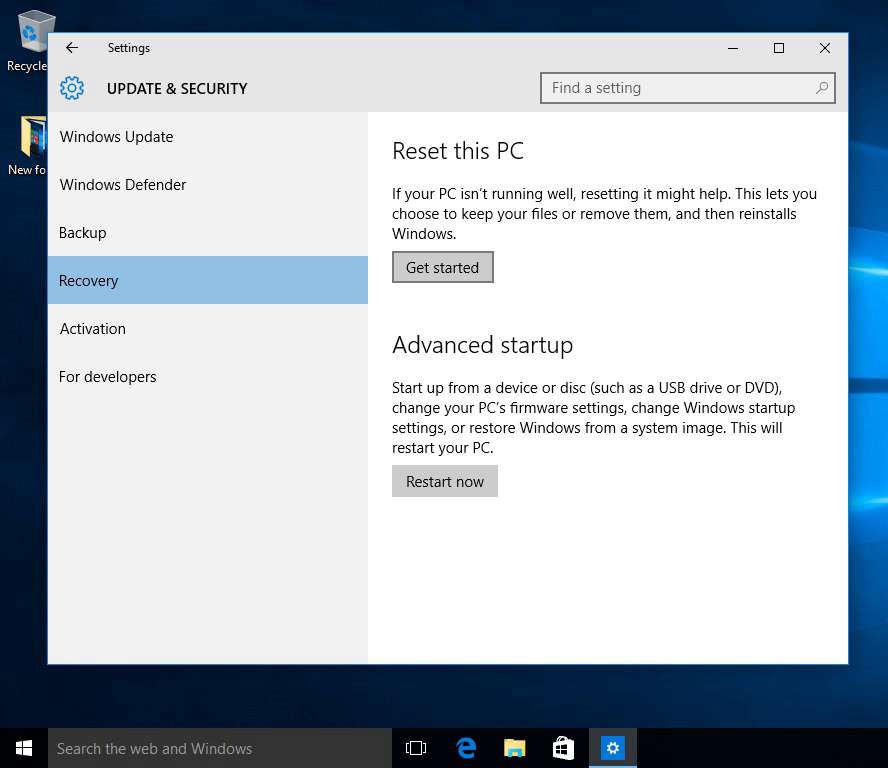
When the physical button jams, breaks, or feels unresponsive, Lenovo’s software pathways become your primary reboot tool. Press Ctrl + Alt + Delete → click the Power icon → Restart as described earlier. This method works identically across all Windows 10/11 Lenovo models, from budget Chromebooks to premium ThinkPads.
Settings-Based Restart When Keyboard Fails
If keys stick or the internal keyboard malfunctions:
1. Press Win + I to open Settings
2. Navigate to System → Power & sleep → Additional power settings
3. Click Choose what the power buttons do
4. Select Change settings that are currently unavailable
5. Check Restart under Shutdown settings and confirm
This path requires a fully functional OS but bypasses both the Start menu and physical buttons. Use it when your Legion’s power button physically depresses but triggers no response.
Best Practices Before Any Lenovo Restart
Always save work first—even routine restarts can corrupt unsaved Excel files or Photoshop projects if background processes hang. Close database applications and virtual machines explicitly to prevent index corruption. Disconnect external drives before rebooting; Windows sometimes locks these partitions, causing boot loops. For critical systems, disable Fast Startup via Control Panel > Power Options to ensure a true cold boot that reloads all drivers.
Why Weekly Restarts Prevent 90% of Issues
Lenovo engineers recommend restarting once or twice weekly to clear memory leaks from Chrome and Slack that accumulate over time. This routine maintenance finalizes Windows updates stuck in “pending” status and resets network stacks that cause Wi-Fi dropouts. Skipping restarts turns minor glitches into full system freezes—making users desperately search “how to restart Lenovo laptop” at 2 AM.
Troubleshooting Failed Restarts
| Symptom | Immediate Fix | Advanced Solution |
|---|---|---|
| Screen black but fans running | Perform power-clear cycle (15s hold) | Reseat RAM/SSD or run hardware diagnostics |
| Restart loops after logo screen | Interrupt boot 3x to trigger recovery | Use Novo button to access Lenovo Rescue System |
| Blue screen on reboot | Note STOP code before restart | Disable problematic drivers in Safe Mode |
| Power button clicks but no response | Try USB keyboard power shortcut | Check for liquid damage or order button replacement |
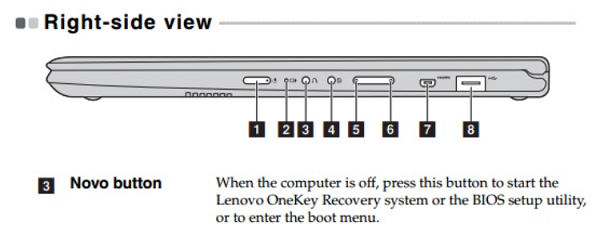
When standard methods fail, force-boot into recovery by pressing the Novo button (that tiny pinhole beside the power port on most models). This accesses Lenovo’s built-in rescue tools without a working OS—your last line of defense before professional repair.
Quick Reference: Restart Methods by Situation
| Your Emergency | First Method to Try | Backup Plan |
|---|---|---|
| Frozen cursor but typing works | Ctrl+Alt+Delete → Power → Restart | Command Prompt shutdown /r /t 0 |
| Complete system lockup | Hold power 10 seconds | Power-clear cycle (15s hold) |
| Broken/jammed power button | Keyboard shortcut method | Settings-based restart |
| Weekly maintenance | Start menu restart | Disable Fast Startup for deeper refresh |
Knowing how to restart Lenovo laptop hardware properly separates frustrated users from tech-savvy problem solvers. Bookmark this guide for when Windows Update hangs or your Yoga freezes during a video call. Implement the weekly restart habit to prevent most crises, and master the power-clear cycle for when hardware ghosts strike. For persistent issues beyond these methods, Lenovo’s official support site offers model-specific diagnostics—but 95% of restart emergencies end with the techniques above. Your frozen screen isn’t a dead end; it’s just a reboot away from full functionality.