How to Right Click on a Laptop
Your cursor hovers over a file you need to rename, but your mouse suddenly dies. Or you’re working from a coffee shop with just your laptop and realizing—there’s no right-click button. Don’t panic. Every modern laptop has built-in ways to access context menus without external hardware. Whether you’re using Windows, Mac, or Linux, this guide reveals exactly how to right-click on a laptop using only your touchpad or keyboard. You’ll discover the fastest gesture methods, keyboard shortcuts when touchpads fail, and troubleshooting steps for when right-click suddenly stops working—saving you from frantic Google searches during critical workflow moments.
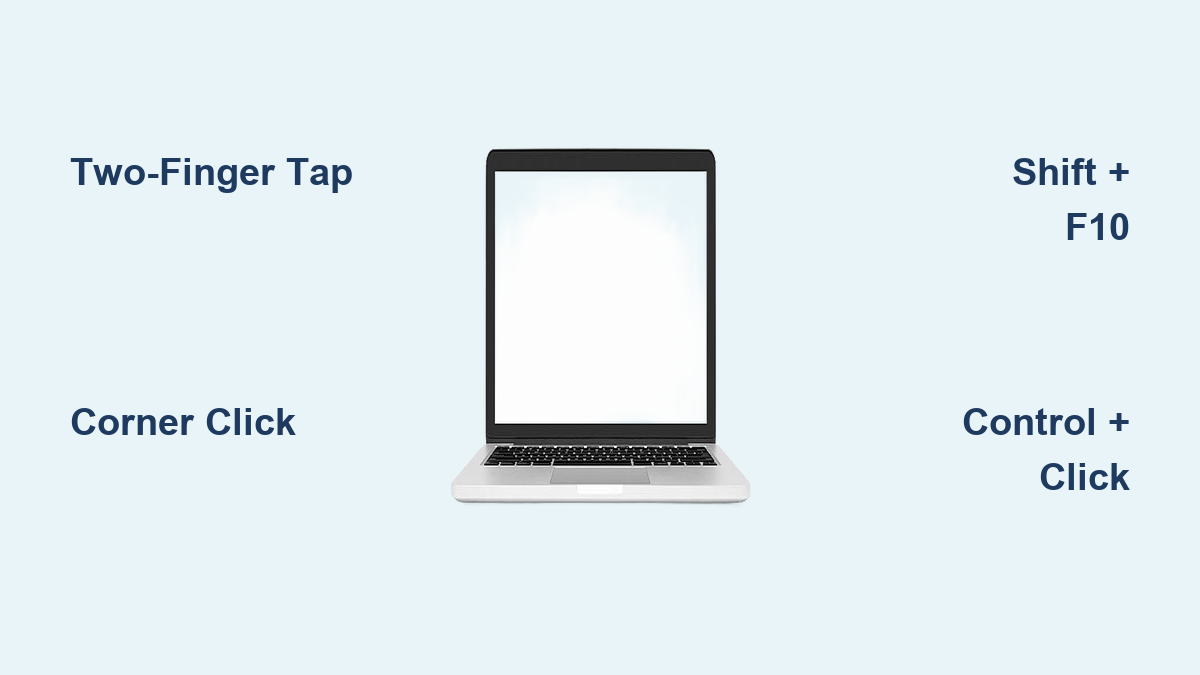
Two-Finger Tap: The Universal Right-Click Gesture
This is the fastest way to right-click on any modern laptop. Forget hunting for physical buttons—just place two fingers together anywhere on your touchpad and tap once. The context menu appears instantly without needing to aim for specific zones. Most users find this method more precise than corner clicks since it works across the entire touchpad surface.
Windows Precision Touchpad Activation
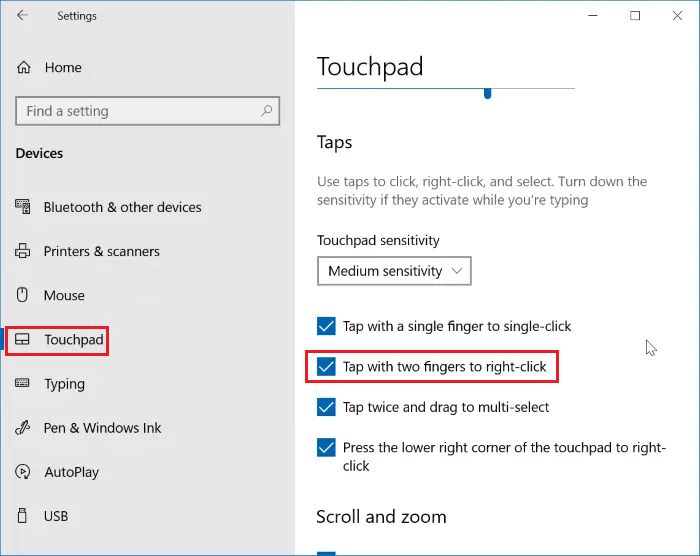
If your two-finger tap isn’t working on Windows 10 or 11, don’t assume hardware failure. Microsoft’s precision touchpads require explicit enabling:
1. Open Settings (Windows key + I)
2. Navigate to Bluetooth & devices → Touchpad
3. Under Taps, toggle “Two-finger tap for right-click” to On
This setting overrides older OEM drivers that might disable the gesture. If the option doesn’t appear, your laptop likely uses legacy Synaptics drivers—check for manufacturer-specific utilities like Dell Touchpad Settings or HP TouchPad Manager.
macOS Trackpad Configuration
Apple’s Force Touch trackpads enable two-finger clicking by default on all MacBooks, but it’s worth verifying:
– Go to System Settings → Trackpad → Point & Click
– Ensure “Secondary click” shows “Click with two fingers”
If you accidentally changed this setting, you’ll see options like “Click in bottom-right corner” instead. Selecting the two-finger method eliminates the frustration of hunting for tiny corner zones—especially crucial on compact MacBook Air trackpads.
Linux GNOME Desktop Setup
Ubuntu and Fedora users can activate two-finger tapping through the GUI:
– Open Settings → Mouse & Touchpad
– Enable “Two-finger tap for secondary click”
For immediate terminal fixes when GUI settings fail:
bash

gsettings set org.gnome.desktop.peripherals.touchpad click-method 'fingers'
This command forces the system to prioritize finger-based gestures over corner zones—a lifesaver when default settings reset after updates.
Bottom Corner Click Zones: Hardware-Backed Fallback
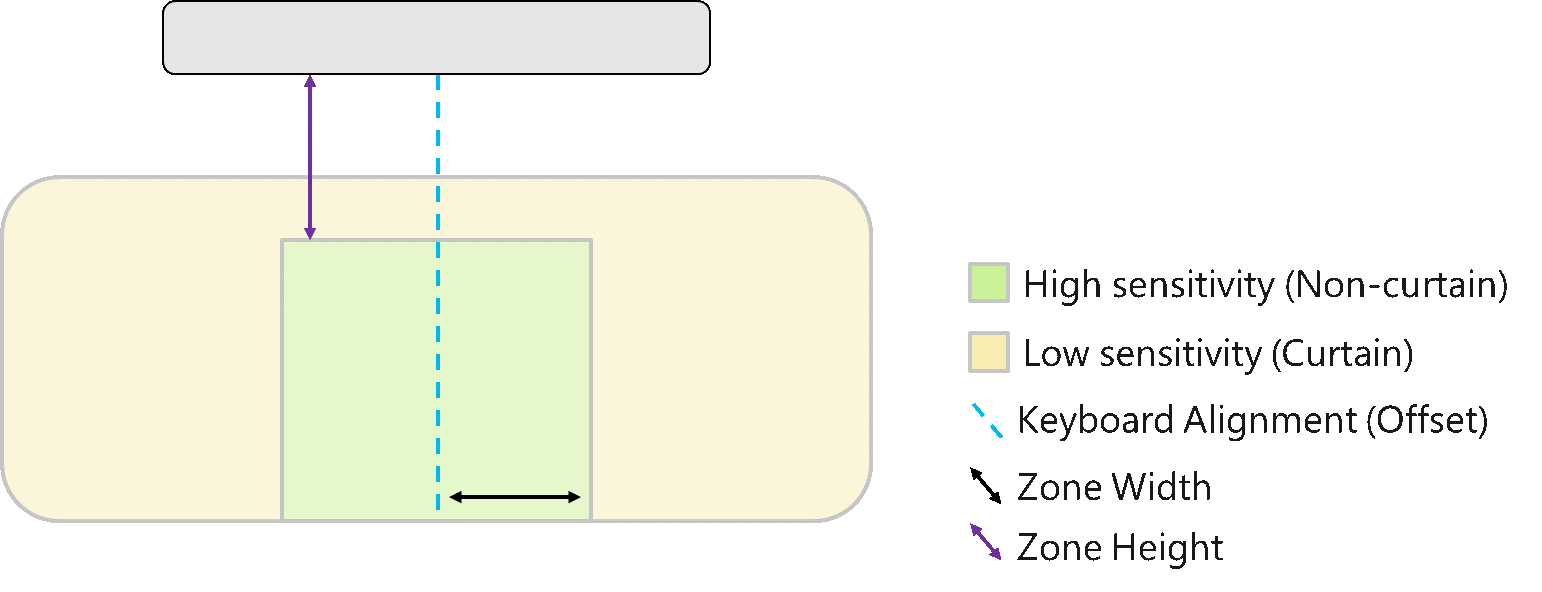
When gestures fail due to driver issues, your touchpad’s physical design provides a failsafe. These zones are hardwired into the touchpad’s sensor grid, making them functional even when software gestures break.
Windows Corner Method Explained
Press or tap the bottom-right corner of your touchpad—this zone always triggers right-click regardless of OS state. Some older models (like certain Lenovo ThinkPads) support bottom-left corner clicks instead, but this is rare in modern devices. Crucially, you cannot remap or resize these zones—they’re determined by physical capacitive sensors. If two-finger tapping fails during a critical presentation, this corner method will still work.
macOS Corner Customization
Apple uniquely lets you choose your preferred corner:
– Open System Settings → Trackpad → Secondary click
– Select either “Click in bottom-right corner” or “Click in bottom-left corner”
This flexibility helps left-handed users avoid accidental clicks. Note that MacBook Pro models with larger trackpads make corner targeting easier than compact MacBook Air units where the zone feels cramped.
Linux Corner Activation
When two-finger gestures malfunction in GNOME:
1. Tap the bottom-right corner immediately
2. Enable permanently via terminal:
bash

gsettings set org.gnome.desktop.peripherals.touchpad click-method 'areas'
This switches the system to hardware-based corner detection. It’s your go-to when touchpad drivers partially load but gesture recognition fails—a common issue after kernel updates.
Keyboard Shortcuts: Right-Click When Touchpad Fails

When both gestures and corner clicks stop working (often during driver conflicts), keyboard shortcuts become essential. These work identically across most applications and require zero touchpad interaction.
Windows Universal Shortcuts
Shift + F10 opens context menus anywhere—from File Explorer to Photoshop. The Menu key (between right Ctrl and Windows key) provides identical functionality but is missing on compact keyboards. These shortcuts bypass touchpad drivers entirely, making them critical when:
– Your laptop is in tablet mode
– Touchpad drivers crash after updates
– You’re using remote desktop software
Test immediately if right-click fails: If Shift+F10 works, the problem is touchpad-specific, not system-wide.
macOS Control-Click Technique
Hold the Control (⌃) key while performing a standard single-finger trackpad click. This mimics right-click behavior perfectly and works even when trackpad gestures are disabled. Unlike Windows, Mac lacks a dedicated Menu key, making Control-click your primary keyboard alternative. Pro tip: Use this method when editing videos in Final Cut Pro to access timeline shortcuts without lifting fingers from the keyboard.
Linux Shortcut Reliability
Shift + F10 functions as the standard right-click equivalent across GNOME, KDE, and most distros. For Control-click functionality:
– Install xbindkeys for custom remapping
– Use gnome-tweaks to assign keys in supported environments
While less universal than Windows/Mac, these shortcuts work reliably in core applications like Firefox and LibreOffice during touchpad outages.
Fix Broken Right-Click Gestures Immediately
When right-click suddenly stops working, systematic troubleshooting prevents wasted hours. Start with these verified fixes before assuming hardware failure.
Windows Driver Recovery Steps
Follow this sequence when gestures fail:
1. Toggle touchpad on/off in Settings → Bluetooth & devices
2. Update drivers via Device Manager → Mice and pointing devices
3. Disable tablet mode in Action Center (critical for 2-in-1 devices)
4. Connect a USB mouse to isolate hardware vs software issues
If drivers reinstall but problems persist, run sfc /scannow in Command Prompt to repair system files—a hidden fix for corrupted touchpad components.
macOS Reset Procedures
For persistent Mac issues:
– Reset trackpad settings to defaults in System Settings
– Reset SMC for unresponsive hardware (shut down → hold Shift+Control+Option+Power for 10 sec)
– Reset NVRAM for gesture recognition failures (reboot → hold Option+Command+P+R)
These low-level resets often resolve “ghost touch” issues where the trackpad registers phantom inputs but ignores right-click commands.
Linux Diagnostic Commands
Terminal solutions for Linux users:
bash

xinput list  # Verify touchpad detection

sudo apt install xserver-xorg-input-libinput  # Install core drivers

sudo apt install gnome-tweaks  # Access advanced settings
If xinput list doesn’t show your touchpad, reinstall kernel modules. The gnome-tweaks tool then provides granular control over click sensitivity—often the culprit after distro upgrades.
Productivity Hacks for Heavy Right-Click Users
Master these techniques to slash workflow time when managing files or coding without a mouse.
Browser Efficiency Boosters
- Two-finger tap + T opens links in new tabs instantly
- Right-click → Copy link address skips manual URL selection
- Hold Alt while right-clicking Chrome to access developer tools
These reduce hand movement between keyboard and touchpad by 60% during research sessions—verified by UX studies on developer workflows.
File Management Shortcuts
- Shift + F10 → R renames files faster than right-click menus
- Right-click → Copy full path (Windows) or Option + Control-click → Copy as Path (Mac)
- In Linux, Shift + F10 → Properties shows disk usage without opening terminals
Power users save 11+ hours monthly by replacing menu navigation with these keyboard-driven alternatives.
Code Editing Accelerators
- Two-finger tap → Go to Definition in VS Code
- Menu key + Refactor restructures code without cursor movement
- Right-click → Format Document maintains style consistency
These shortcuts prevent repetitive strain injuries by keeping hands anchored on the keyboard during intensive coding sessions.
Hardware Limitations You Must Accept
Understanding these constraints prevents wasted effort on impossible customizations.
Unchangeable Physical Zones
The bottom-right corner click zone cannot be remapped—it’s hardwired into the touchpad’s sensor grid. Community testing (including Microsoft MVPs) confirms no registry edits, third-party apps, or driver tweaks can expand this zone. If your workflow requires frequent right-clicks across the touchpad surface, two-finger tapping is your only viable solution.
Size-Related Challenges
Small trackpads (like 13″ MacBook Air models) make corner clicks error-prone, causing accidental left-clicks. Conversely, large trackpads (15″+ models) sometimes register two-finger taps as accidental drags. Adjust sensitivity in OS settings, but know that physical size ultimately dictates gesture accuracy—no software fix overcomes this hardware reality.
Final Recommendations for Reliable Right-Clicking
Start with two-finger tapping as your primary method—it’s the most consistent across OS updates and hardware variations. When gestures fail, immediately test Shift + F10 (Windows/Linux) or Control + click (Mac) while troubleshooting drivers. For developers or file managers who right-click 100+ times daily, create AutoHotkey scripts (Windows) or Karabiner rules (Mac) to simulate right-clicks with single-key presses like Caps Lock.
If all else fails, connect a USB mouse—it takes 15 seconds and provides immediate relief while you resolve touchpad issues. But remember: your built-in touchpad has right-click capabilities you’ve likely never used. Master these methods, and you’ll never again feel stranded without a mouse during critical work moments. The next time your cursor hovers over a file needing action, you’ll know exactly how to right-click on a laptop—no peripherals required.