How to Shut Down Asus Laptop
You’ve just finished an important project on your ASUS laptop, but suddenly you’re frozen—not by the task, but by the question: Should you close the lid, click Sleep, or properly shut down? Many users accidentally leave their ASUS notebooks in Sleep mode overnight, only to find a dead battery the next morning. This guide cuts through the confusion with precise instructions for powering down your ASUS laptop correctly every time—whether you’re using a ZenBook, VivoBook, or ROG gaming model.
5 Reliable Ways to Shut Down Your ASUS Laptop
Knowing multiple shutdown methods gives you options when standard approaches fail. These techniques work across all ASUS Windows laptops, from budget models to premium ZenBooks.
Start Menu Shutdown (Most User-Friendly)
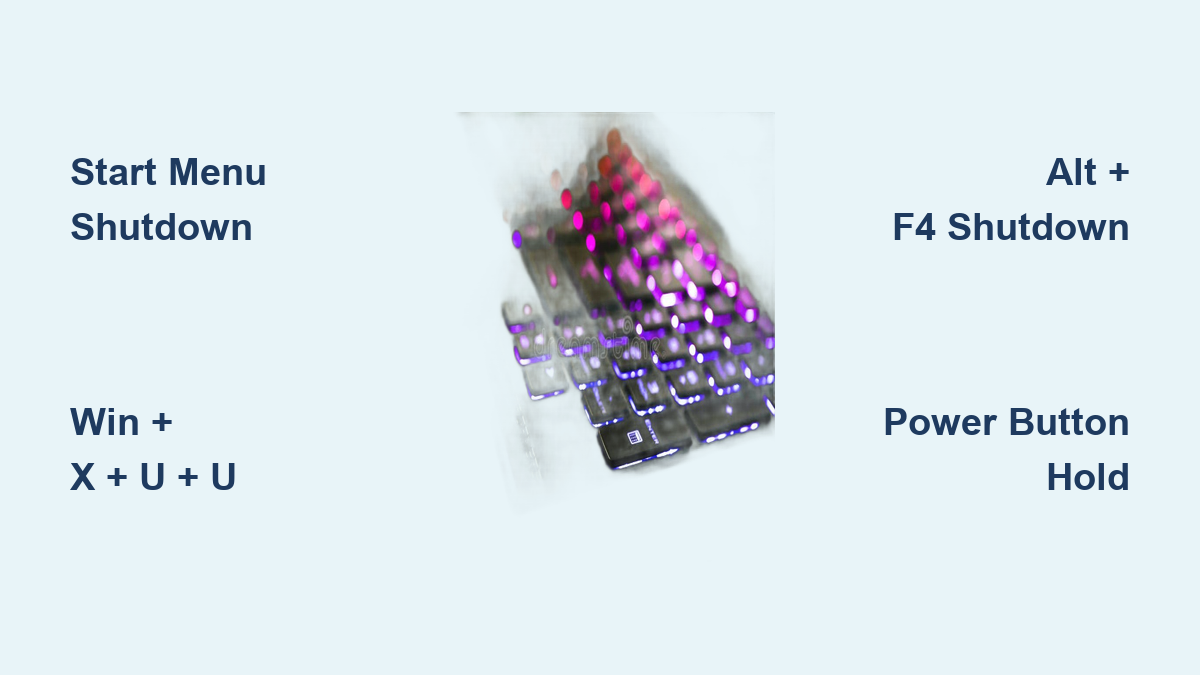
Click the Windows logo in your taskbar, select the power icon (⚡), then choose “Shut down.” This method gives you a safety net—Windows will warn you about unsaved documents before proceeding. Pro tip: If you’ve customized your Start Menu layout, the power option might be hidden; right-click the Start button and select “Shut down or sign out” as an alternative path.
Keyboard-Only Shutdown Sequence
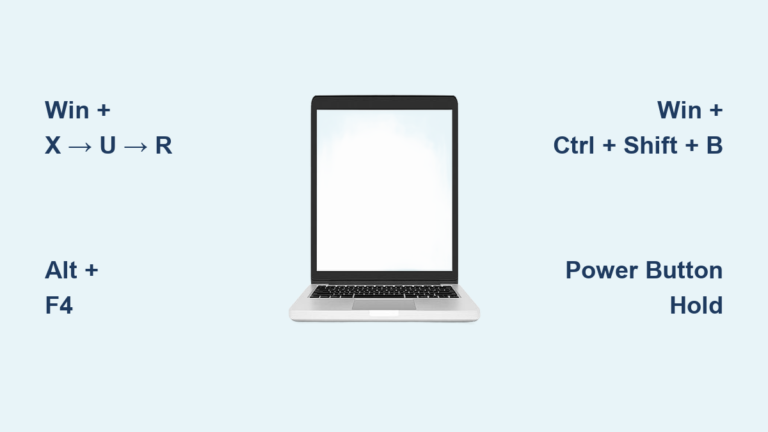
When your mouse isn’t working or you want speed, press Win + X, then U, then U again. This WinX menu shortcut bypasses the Start Menu entirely, letting you shut down in under three seconds. Critical detail: On some ASUS models with keyboard backlight controls, you might need to hold the Fn key with the Win key—test both combinations if the first attempt fails.
Alt+F4 Desktop Method for Frozen Interfaces
Minimize all windows to expose your desktop, then press Alt + F4. Select “Shut down” from the dropdown menu and press Enter. This approach works when the Start Menu is unresponsive but Windows is still partially functional. Warning: If you accidentally select “Switch user” instead of “Shut down,” press Esc to return to the desktop and try again.
Reprogram Your ASUS Power Button to Shut Down in One Press
Your physical power button can become a dedicated shutdown switch with two minutes of configuration—ideal if you frequently forget to properly power down.
Windows 11 Power Button Customization
Type “Choose a power plan” in Windows search, click “Choose what the power button does,” then select “Change settings that are currently unavailable.” Under shutdown settings, set “When I press the power button” to “Shut down” and save changes. Model-specific note: On ASUS ZenBooks where the power button doubles as a fingerprint sensor, this configuration still works without affecting biometric functionality.
Windows 10 Configuration Path
Navigate to Power & sleep settings, click “Additional power settings,” then follow the same steps as Windows 11. Troubleshooting tip: If you see a grayed-out “Hibernate” option, you’ll need to enable it first using the command prompt method described later in this guide.
Sleep vs Hibernate vs Shut Down: Which One Saves Your ASUS Battery?
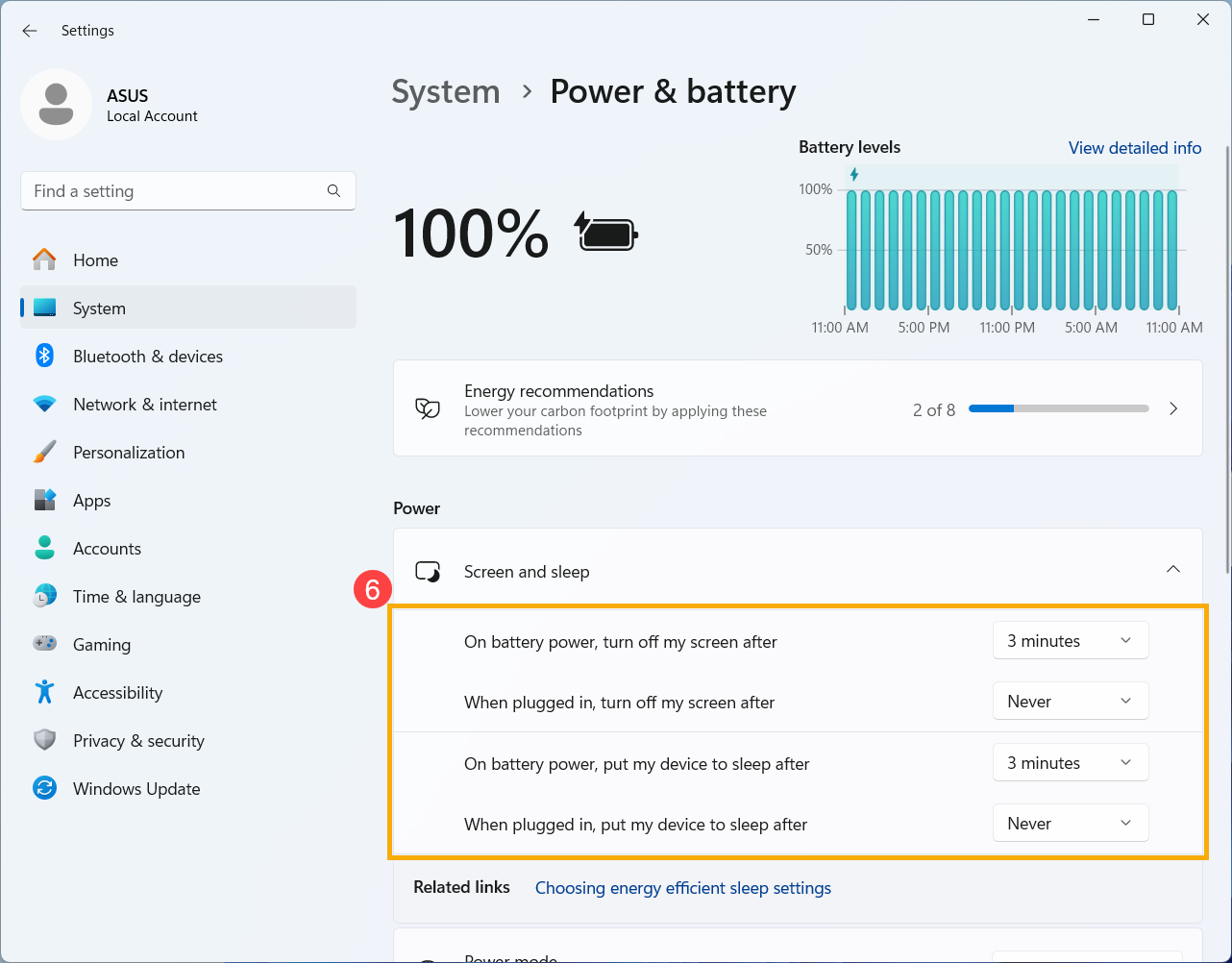
Choosing the wrong power state drains your battery unnecessarily or risks data loss. Understanding these three options prevents common ASUS laptop pitfalls.
When to Force a Complete Shutdown
Use proper shutdown when ending your workday, transporting your laptop for more than an hour, or troubleshooting hardware issues. Unlike Sleep mode, a full shutdown clears RAM and stops all background processes, giving your ASUS a true fresh start. Critical distinction: Windows 10/11’s “fast startup” feature actually puts your system in a hybrid hibernation state—hold Shift while clicking “Shut down” to perform a true full shutdown.
Sleep Mode: The Convenient But Risky Option
Sleep keeps your session active in RAM with minimal power draw (about 5% of normal usage). It’s perfect for coffee breaks under 30 minutes, but problematic overnight—if your battery dies during sleep, unsaved work may be permanently lost. ASUS VivoBooks with smaller batteries deplete faster in sleep mode than premium ZenBooks with larger cells.
Hibernate: The Best Compromise for Long Breaks
Hibernate writes your session to disk before powering off completely, using zero battery. Enable it by opening Command Prompt as administrator and typing powercfg -h on. Storage requirement: Ensure you have free space equal to your RAM size—most modern ASUS laptops with 8GB+ RAM need at least 8GB free on the C: drive.
Frozen ASUS Laptop? Force Shutdown Without Data Loss
When your screen freezes completely, standard shutdown methods won’t work. Knowing the emergency procedure prevents hardware damage from improper power cycling.
Safe Force-Shutdown Technique
Hold the physical power button for exactly 10-15 seconds until the screen goes black. Never just unplug the charger and remove the battery—this can corrupt your Windows installation. Critical timing: Release the button immediately when the screen turns off; holding longer serves no purpose and stresses components.
Troubleshooting Failed Shutdown Attempts
If Windows won’t shut down normally, disconnect all USB devices (external drives often block shutdown), open Task Manager with Ctrl + Shift + Esc, and end non-responsive applications one by one. ASUS-specific fix: Update your ATK Package and System Control Interface drivers through MyASUS—outdated versions commonly cause shutdown failures on newer models.
Where’s the Power Button on Your ASUS Model? (ZenBook, VivoBook, ROG)
Different ASUS lines place the power button in varying locations, causing confusion when you need to shut down quickly.
ZenBook Series Identification
Look for a circular button in the top-right keyboard corner—on premium models like the ZenBook S13, it doubles as a fingerprint sensor with Windows Hello integration. Pro tip: If you’ve spilled liquid near the keyboard, use the Windows software shutdown methods instead to avoid electrical risks.
ROG Gaming Laptop Power Layout
ROG Strix and Zephyrus models feature prominent power buttons above the keyboard, often ringed by customizable RGB lighting. Critical note: On some ROG models, the power button is physically separate from the keyboard deck—check the front edge if you don’t see it above the keys.
ASUS Laptop Shutdown Cheat Sheet: What to Press When
Save time with this quick-reference guide tailored to common scenarios you’ll face with your ASUS notebook.
Daily Work Completion Protocol
For standard shutdown after finishing work: Start Menu → Power icon → Shut down. Essential habit: Press Ctrl + S in all open documents first—ASUS laptops with fast SSDs might complete shutdown before applications can autosave.
Emergency Travel Preparation
When rushing to catch a flight: Hold Shift while clicking “Shut down” for a complete power cycle that prevents accidental wake-ups in your bag. Airport tip: TSA requires completely powered-off devices for carry-on—Sleep mode won’t satisfy security requirements.
Command Prompt Shutdown: Power-User Methods for ASUS Laptops
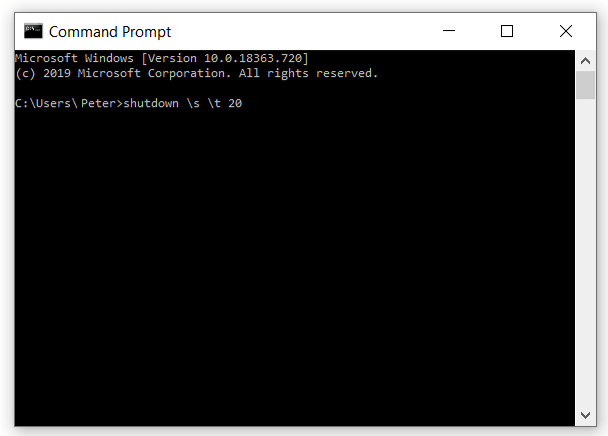
Advanced users can create shutdown shortcuts that bypass the graphical interface entirely—useful for scripting or remote management.
Instant Shutdown Command
Open Run (Win + R), type shutdown /s /f /t 0, and press Enter. The /f forces applications closed, while /t 0 sets zero delay. Customization option: Change /t 0 to /t 30 for a 30-second countdown—perfect when you need to grab one last file before shutdown.
Create a One-Click Shutdown Shortcut
Right-click your desktop, select New → Shortcut, and enter shutdown.exe /s /t 0 as the location. Name it “Emergency Shutdown” and place it prominently. Safety modification: For a safer version that warns about unsaved work, use shutdown.exe /s /t 30 instead.
3 Daily Shutdown Habits That Extend Your ASUS Laptop’s Life
Proper shutdown routines prevent common issues that degrade ASUS hardware over time.
Weekly Full Power Cycle
Once per week, perform a complete shutdown (not Sleep or Hibernate) to clear RAM and reset system processes. Performance boost: This simple habit resolves minor slowdowns in ASUS models running Windows 11, especially those with 16GB+ RAM that tends to accumulate background processes.
Battery Health Preservation
Always shut down before storing your ASUS laptop for more than 48 hours. Critical battery tip: For long-term storage (30+ days), discharge to 50% first—lithium-ion batteries degrade fastest at full charge when powered off.
Pre-Shutdown Checklist
Before initiating shutdown: Save all documents (Ctrl + S), eject external drives safely, and close resource-heavy applications like Chrome with multiple tabs. ASUS-specific advice: Models with NVIDIA graphics should close GPU-intensive applications first to prevent driver conflicts during shutdown.
Key takeaway: Your ASUS laptop gives you multiple shutdown pathways, but the Start Menu method remains safest for daily use. Configure your power button to shut down with one press if you frequently transport your device, and always perform a full weekly shutdown cycle to maintain peak performance. When emergencies strike, remember the 10-15 second power button hold—but use this force method only when software options fail. By mastering these techniques, you’ll extend your ASUS laptop’s lifespan while avoiding the frustration of dead batteries and lost work.