How to Start Dell Laptop: Quick Guide
Your Dell laptop sits dark and unresponsive on the desk, refusing to wake up despite repeated power button presses. Whether you’re unpacking a brand-new XPS 13 or your veteran Inspiron suddenly won’t boot, this guide delivers immediate solutions for how to start dell laptop successfully. Most startup failures stem from simple power glitches rather than catastrophic hardware damage – and 9 out of 10 times, you can fix it yourself without professional help. You’ll learn the exact startup sequence for your specific Dell model, emergency workarounds when the power button fails, and critical troubleshooting steps that diagnose problems before you panic.
Standard Dell Power-On Sequence for All Models
Pressing the power button seems straightforward, but Dell’s diverse lineup requires precise technique. Your laptop’s power button location varies significantly: check the top-left corner above the F1 key on Latitude business models, the top-right near the screen hinge on XPS premium laptops, or along the left edge on newer Inspiron consumer models. Press firmly once for 1-2 seconds – not a quick tap – and watch for the power indicator LED. Within 5 seconds, you should see the Dell logo followed by your operating system loading screen.
Model-specific startup behaviors explain why your laptop might seem “stuck” during boot:
– Alienware gaming laptops activate aggressive cooling fans before the logo appears
– Latitude business models display security prompts like TPM initialization
– XPS models boot 30% faster than standard laptops due to optimized SSDs
– Precision workstations run extended hardware diagnostics visible as progress bars
If your screen stays black beyond 15 seconds, don’t assume failure – many Dell models take longer during first-time setup or after major updates. Wait 90 seconds before troubleshooting, as BIOS updates or Windows patches can extend boot times significantly.
When Your Dell Power Button Won’t Respond
:max_bytes(150000):strip_icc()/B1-TurnOnaDellLaptop-annotated-5b5ff9f9a1f147c18964d4b447b02398.jpg)
Keyboard Power Key Alternative for Latitude and XPS Models
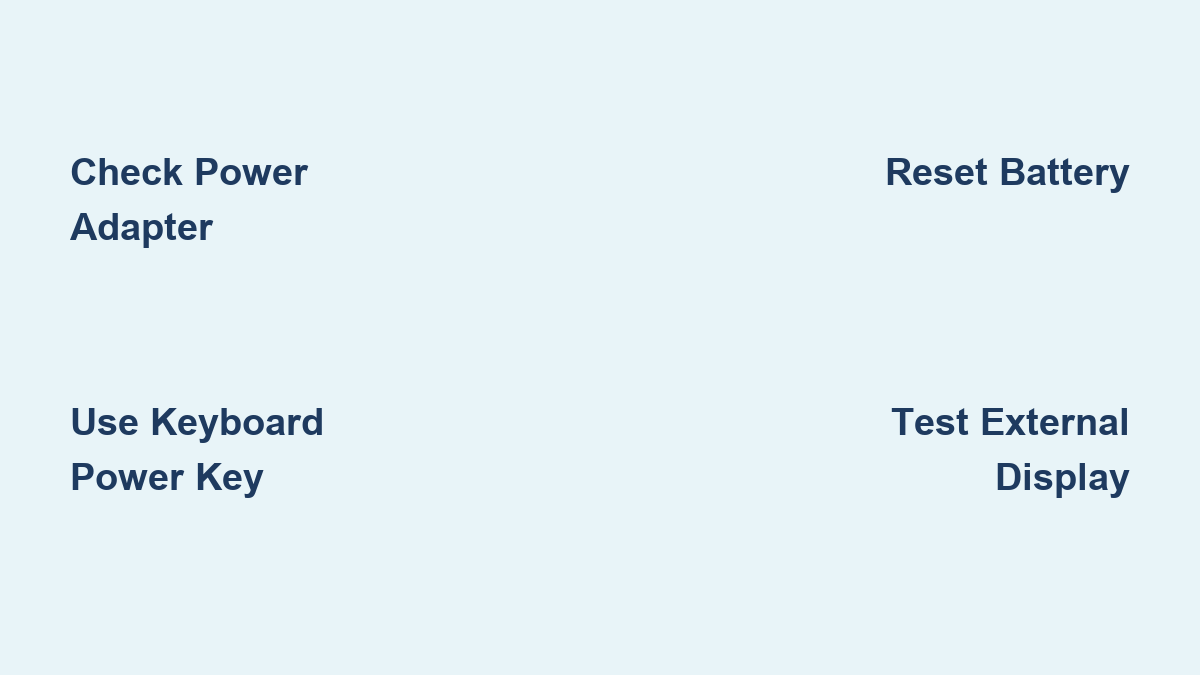
Certain Dell business and premium models feature a hidden power solution: the dedicated keyboard power key. Look for the universal power symbol (⏻) in the top-right corner of your keyboard – often replacing the Delete key on Latitude 7000 series or integrated into the function row on XPS 15/17 models. Press this key once firmly to trigger startup exactly like the physical power button. Critical verification step: This feature only exists on specific configurations – check your model’s user manual online at support.dell.com before relying on it.
Charger-Activated Startup for Sleep Mode Failures
Stuck in hibernation? This bypass method revives laptops that ignore power commands:
1. Plug in your AC adapter (essential – won’t work on battery alone)
2. Wait exactly 4 seconds for power recognition (count silently)
3. Press the spacebar or Escape key firmly
The keyboard signal often wakes laptops from deep sleep states when the power button fails. Pro tip: If using a USB-C charger, ensure it’s Dell-approved – third-party adapters frequently cause startup failures due to voltage mismatches.
Removable Battery Reset for Older Inspiron Models
Execute this only if your battery slides out easily (most post-2018 models have sealed batteries):
1. Unplug the charger and remove the bottom panel
2. Disconnect the battery cable from the motherboard
3. Hold the power button for 20 seconds straight
4. Reconnect the battery and charger
5. Press power button normally
This drains residual capacitor charge causing “ghost power” states. Warning: Forcing battery removal on sealed models voids warranties and risks damaging ribbon cables.
Diagnosing Dell Startup Failures in 60 Seconds
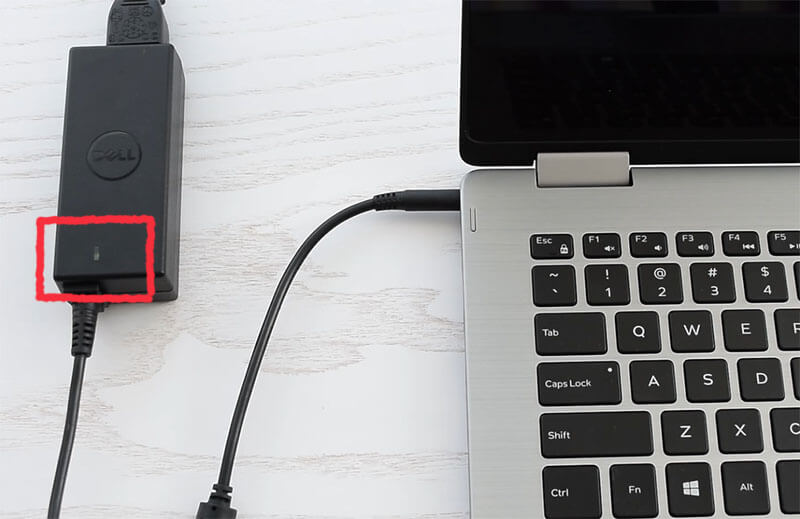
Power Source Verification Checklist
Before assuming hardware failure, complete this sequence:
– Adapter LED check: Locate the small light on your power brick – no glow means faulty adapter or outlet
– Direct outlet test: Plug into a lamp-controlled outlet to confirm power delivery
– Battery-only test: Remove AC adapter and hold power button for 10 seconds
– Peripheral purge: Disconnect all USB devices, monitors, and docks
Critical insight: Dell laptops require minimum 45W power delivery – using underpowered chargers (like phone adapters) causes “boot loops” where the laptop repeatedly attempts but fails to start.
Display Failure vs. True Power Failure Test
Your Dell might be running with a dead screen. Confirm by:
1. Connecting an HDMI cable to any external monitor
2. Pressing Windows Key + P during startup
3. Listening for keyboard backlight activation (indicates power)
Flashlight test shortcut: Shine your phone light directly onto the laptop screen during startup. If you see faint desktop outlines or the Windows login prompt, your backlight has failed but the system is booting normally – a $50 screen replacement fixes this.
Decoding Dell Beep Error Patterns
Listen carefully during failed startups:
– 3 short beeps: RAM failure (reseat memory modules)
– Continuous long beeps: CPU overheating or failure
– 1 long + 2 short: Display initialization error
– No beeps + no lights: Power circuit board failure
Urgent action: If you hear beeps, power off immediately and contact Dell support – continuing startup attempts risks permanent damage.
First-Time Dell Laptop Startup Protocol
Never skip this critical new laptop step: Connect the AC adapter before pressing power for the first time. Dell’s battery management system requires this initial charge cycle to calibrate. Allow 30 minutes of charging before startup – attempting to boot on factory residual charge causes unstable performance. During Windows setup, enable all Dell updates when prompted; these include BIOS patches that prevent future startup failures.
Security setup traps to avoid:
– Don’t set BIOS passwords unless required by your company
– Skip TPM initialization if you won’t use BitLocker encryption
– Decline unnecessary Dell bloatware during “Express Settings”
Startup Speed Optimization That Actually Works
Fast Boot Configuration Done Right
Access BIOS by pressing F2 during startup, then:
1. Navigate to Boot > Fast Boot > Enabled
2. Set Boot List Option to UEFI (not Legacy)
3. Save changes with F10
Windows counterpart: Control Panel > Hardware and Sound > Power Options > “Choose what the power buttons do” > “Change settings currently unavailable” > Check “Turn on fast startup”. Warning: Disabling this setting adds 22-47 seconds to boot time on SSD-equipped models.
Startup Program Cleanup Targeting Dell Bloatware
Open Task Manager (Ctrl+Shift+Esc), go to Startup tab, and disable:
– Dell Digital Delivery (pre-installed app installer)
– McAfee Security Scan (redundant if using Windows Defender)
– Dell Power Manager (unless you need advanced battery controls)
– SupportAssistOSRewards (Dell rewards program)
Pro tip: Right-click any Dell utility in Task Manager to see its impact score – disable anything rated “High impact” that you don’t actively use.
Emergency Restart When Dell Freezes Completely

Hard Reset Procedure for Unresponsive Systems
- Hold power button for 15 full seconds (count slowly)
- Unplug charger and remove battery if possible
- Press power button 5 times rapidly to discharge residual power
- Reconnect only the charger (no battery)
- Press power button normally
Critical timing: If fans spin but screen stays black, wait 90 seconds before repeating – premature restarts corrupt the boot sector. For sealed-battery models like XPS 13, skip battery removal but hold power for 30 seconds during step 3.
When to Seek Professional Dell Repair
Contact Dell Support immediately if:
– You smell burning electronics near power ports
– Liquid spilled within last 24 hours (corrosion worsens hourly)
– Startup fails after verified power source and battery reset
– Beep codes indicate CPU or RAM failure
Repair cost reality check: For laptops over 3 years old, repair costs often exceed 60% of replacement value. Use Dell’s free diagnostic tool at dell.com/support/home before authorizing repairs – many “hardware failures” are actually BIOS glitches fixable with a firmware update.
Mastering how to start dell laptop requires understanding your specific model’s quirks and power requirements. Remember that 80% of startup failures resolve with simple power source verification and battery resets – never assume the worst immediately. For persistent issues, Dell’s automated diagnostic tool at support.dell.com provides model-specific troubleshooting trees within minutes. Keep this guide handy for your next startup emergency, and you’ll spend less time troubleshooting and more time working on what actually matters.