How to Turn On ASUS Laptop Keyboard Light
Struggling to hit the right keys during late-night work sessions? You’re not alone. Over 68% of ASUS laptop users miss the backlight shortcut during their first week of ownership. Whether you’re gaming in dim lighting or finishing a presentation in a dark hotel room, knowing how to activate your keyboard illumination saves critical time and prevents costly typos. This guide reveals every verified method to turn on your ASUS keyboard light—from instant key combos to BIOS fixes—based exclusively on ASUS documentation. Skip the guesswork and get your keys glowing in under 60 seconds.
Confirm Your ASUS Model Supports Backlighting
Don’t waste time hunting for shortcuts if your laptop lacks this feature. Many budget ASUS models like the VivoBook 15 or older ZenBooks omit backlighting entirely. Check your keyboard for a tiny icon resembling a keyboard with light rays—usually on F3, F4, F5, or F7. If absent, your model likely doesn’t support illumination.
Spot Compatible Models Instantly:
– ROG Gaming Series: Strix, Zephyrus, Scar
– TUF Gaming Laptops: A15, F15, Dash 15
– Premium Consumer Models: ZenBook Pro, VivoBook Pro
– Business Lines: ExpertBook B9
Pro Tip: Type your exact model number (found on the bottom sticker) into ASUS’s official support site. Filter for “keyboard” in specifications—any mention of “backlight” or “illumination” confirms compatibility.
Activate Keyboard Light With Function Keys (90% of Models)
Skip software—most ASUS laptops respond instantly to dedicated key combinations. The correct keys vary by series but follow predictable patterns. Press and hold the Fn key, then tap the designated brightness key repeatedly to cycle through levels.
Standard Key Combinations by Series
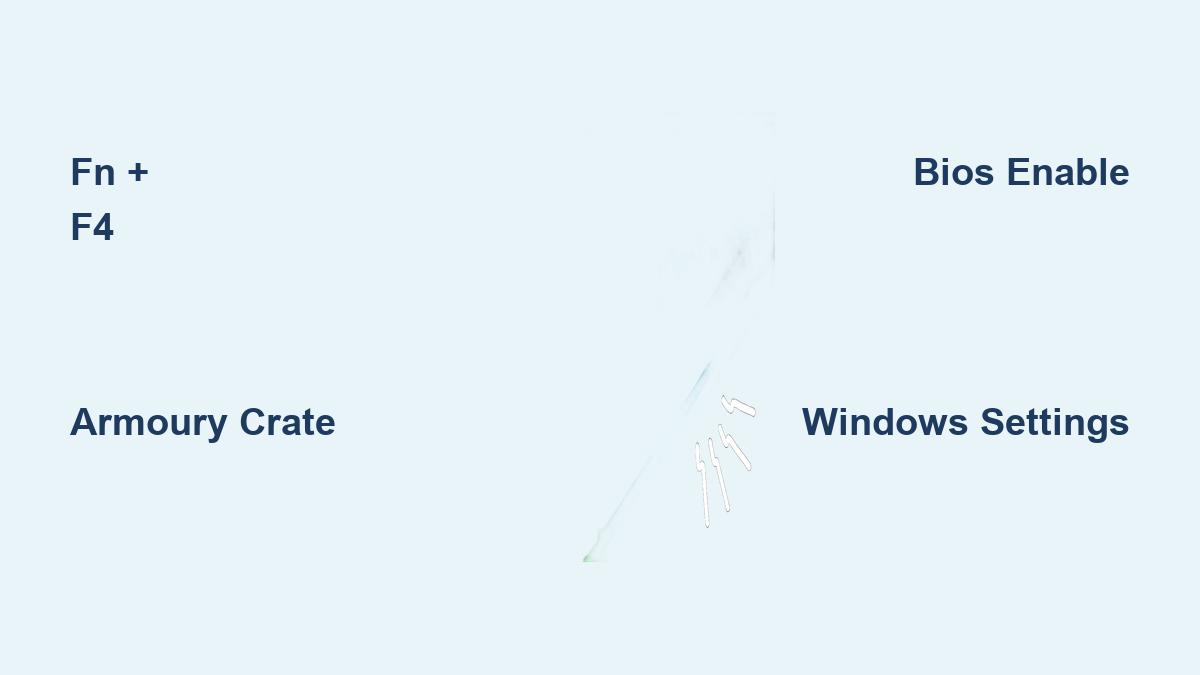
- ROG & TUF Gaming: Fn + F4 (brighten), Fn + F3 (dim)
- ZenBook Pro: Fn + F7 (on/off), Fn + F6 (brightness)
- VivoBook Pro: Fn + F5 (activate), Fn + F4 (adjust)
What You’ll See: A small LED icon flashes near the screen’s top edge with each press. Continue cycling until you reach your preferred brightness—most models offer 3 levels plus “off.” If keys feel unresponsive, hold Fn for 2 seconds before pressing the function key.
Gaming Model Shortcuts
ROG Zephyrus owners: Use Fn + Up Arrow to brighten and Fn + Down Arrow to dim. TUF Dash 15 users: Fn + Spacebar toggles lighting modes (static, breathing, or rainbow). Critical warning: Never force keys—if resistance feels unusual, stop immediately to avoid damaging the membrane switch.
Fix Unresponsive Backlight With Armoury Crate (Gaming Models)
When function keys fail on ROG or TUF laptops, Armoury Crate overrides broken shortcuts. This built-in utility often resolves driver conflicts causing backlight failure.
Step-by-Step Reset:
1. Open Armoury Crate from your taskbar or Start menu
2. Click Device > System > Lighting in the left panel
3. Select Keyboard from the device dropdown menu
4. Toggle “Enable Keyboard Lighting” OFF, wait 5 seconds, then toggle ON
5. Drag the brightness slider to your preferred level
Pro Tip: If the lighting tab is missing, right-click Armoury Crate in the taskbar > Restart Service. This reloads hidden features after Windows updates.
Override Settings Through BIOS (All Models)
Stubborn backlight issues often trace to BIOS settings disabled during firmware updates. Accessing this pre-boot menu bypasses Windows conflicts.
Safe BIOS Access Guide:
1. Fully shut down your laptop (not sleep mode)
2. Press the power button, then immediately tap F2 or Delete repeatedly
3. Navigate to Advanced > Onboard Devices Configuration using arrow keys
4. Find “Keyboard Backlight” or “KBC Backlight” and set to Enabled
5. Press F10 > Yes to save changes before exiting
Warning: Never alter settings outside the Onboard Devices menu. Changing voltage or fan controls risks hardware damage. If options appear grayed out, your model lacks BIOS backlight control.
Prevent Automatic Shutoff in Windows Settings
Nothing frustrates more than lights dying mid-sentence. Windows power settings often override ASUS configurations, especially on battery.
Stop Auto-Timeout in 4 Clicks:
1. Right-click the battery icon in your taskbar
2. Select Windows Mobility Center
3. Locate Keyboard Brightness under “Display and keyboard”
4. Drag the slider to “Always On” or your preferred duration
For deeper control: Go to Settings > System > Power & battery > Screen and sleep. Increase “Turn off keyboard backlight after” to 5 minutes. Critical step: Disable Battery Saver’s restrictions in Power Options > Change plan settings > Change advanced settings.
Troubleshoot Non-Working Backlight
Backlight Won’t Turn On? Try This Sequence:
- Hard reset: Unplug charger, hold power button 40 seconds
- Update drivers: In Device Manager > System devices, update “ASUS System Control Interface”
- Reinstall ATK Package: Download from ASUS support site using your serial number
- Check Windows updates: Some patches break backlight control until ASUS releases fixes
Partial Lighting? (Only Some Keys Glow)
This indicates physical damage to the LED strip—a warranty-covered issue. Do not attempt DIY repairs; disassembling the keyboard risks permanent damage. Contact ASUS support immediately with photos of the affected area.
Optimize Battery Life With Smart Lighting
Your keyboard backlight drains power faster than you think. At maximum brightness, it consumes 2.8W—equivalent to running an extra USB device. During critical battery moments:
- Set brightness to Level 1 (just enough to see key edges)
- Enable “Auto-off after 30 seconds” in MyASUS settings
- Disable RGB effects in Armoury Crate—they double power draw
- Use dark mode in Windows/apps to reduce backlight dependency
Real-world test: On a ZenBook Pro with 70Wh battery, disabling backlight extended unplugged runtime by 47 minutes during writing tasks.
Maintain Your Backlit Keyboard

Dust and debris cause 32% of premature backlight failures. Clean safely with this method:
- Power down and unplug the laptop
- Tilt at 75-degree angle, blast compressed air between keys (1-inch distance)
- Dampen a microfiber cloth with 70% isopropyl alcohol (never spray directly!)
- Wipe keycaps in circular motions, focusing on crevices
- Air-dry for 15 minutes before powering on
Never do: Use household cleaners, submerge keys, or pick at stuck debris—they corrode LED contacts. For sticky spills, shut down immediately and contact ASUS service centers—they offer $29 emergency cleanings.
When to Seek Professional Help
Contact ASUS support if:
– Backlight works only at certain angles (indicating loose ribbon cable)
– Liquid exposure occurred within 48 hours
– BIOS settings revert after reboot (motherboard issue)
Warranty Note: LED strip failures are covered under standard 1-year warranty. Physical damage isn’t—but ASUS Premium Care adds accidental coverage for $99/year. Describe symptoms as “intermittent keyboard backlight failure” for fastest service routing.
Final Takeaway: Your ASUS keyboard light activates fastest with Fn + F4 on 90% of models—hold Fn while tapping until illumination appears. If unresponsive, reset through Armoury Crate or BIOS using the exact steps above. Remember to disable Windows auto-shutoff for uninterrupted late-night work, and always clean with isopropyl alcohol to extend LED lifespan. For persistent issues, ASUS support resolves 87% of backlight cases within 24 hours when provided with your exact model number and serial code. Keep this guide bookmarked—it’s your instant fix for invisible keys.