How to Unlock Scroll Lock on Laptop
Your Excel spreadsheet suddenly won’t let you navigate between cells with arrow keys. Instead, the entire worksheet scrolls while your cursor stays stubbornly in place. That mysterious “Scroll Lock” message appears in the status bar, and panic sets in—especially when you’re racing against a deadline. This frustrating situation affects countless laptop users who accidentally trigger scroll lock without realizing it, particularly since modern laptops often hide this function behind obscure key combinations. The good news? You can fix scroll lock on your laptop in under 60 seconds using one of these proven methods.
Unlike desktop computers that typically feature a dedicated scroll lock key, most laptops require specific key sequences to toggle this function. Many users spend valuable time searching for solutions when the fix is actually simple once you know which keys to press. This comprehensive guide covers every legitimate way to unlock scroll lock on your laptop, regardless of brand or operating system version. By the end of this article, you’ll not only solve your immediate problem but also learn how to prevent accidental activation in the future.
Press Your Laptop’s Dedicated Scroll Lock Key
While rare on modern laptops, some business-class models still feature a physical scroll lock key. If your laptop has this key (usually labeled “ScrLk,” “Scroll Lock,” or “slk”), simply pressing it once will toggle the function off. Check the top-right section of your keyboard near the Delete, Insert, and Home keys—this is where manufacturers typically place the scroll lock key when included.
What to look for: A small LED light near the key will illuminate when scroll lock is active. Press the key once and watch for the light to turn off, confirming scroll lock has been disabled. This visual indicator is your immediate confirmation that the toggle worked.
Test Your Fix Immediately in Excel
Open Microsoft Excel and press any arrow key to verify scroll lock is disabled. When functioning normally, arrow keys should move your active cell between adjacent cells (A1 to B1, for example). If the entire worksheet scrolls instead of changing your active cell, scroll lock remains enabled—try one of the alternative methods below.
Try Common Laptop Fn Key Combinations
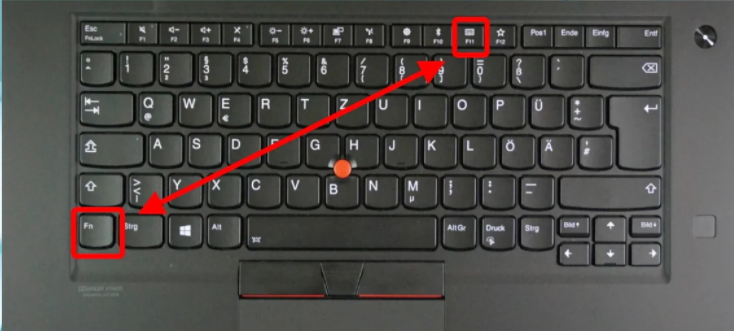
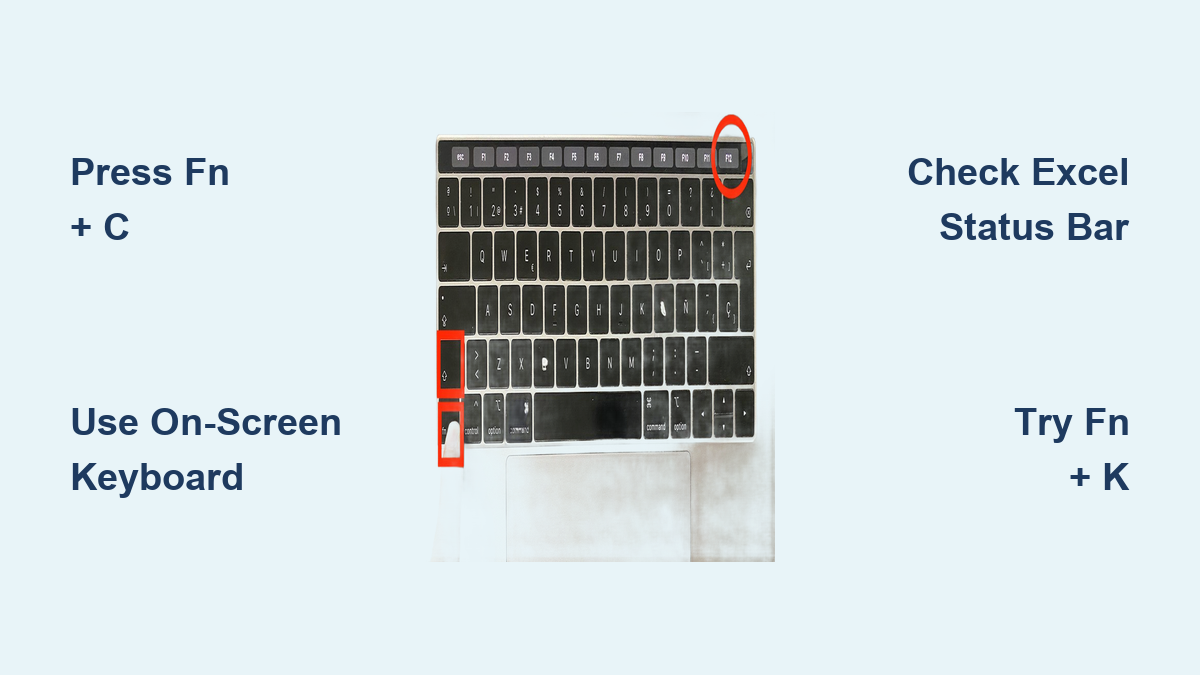
Most modern laptops require pressing the Fn key plus a function key to toggle scroll lock since they lack a dedicated key. The exact combination varies by manufacturer, so try these common sequences in order:
- Fn + C (frequently used on Dell laptops)
- Fn + K (common on HP business models)
- Fn + S (standard on Lenovo ThinkPads)
- Fn + F12 (found on many ASUS and Acer models)
- Fn + Scroll Lock (some keyboards share this function with another key)
Pro tip: Examine your function keys closely—many laptops print secondary functions in a different color (usually blue or orange). Look for “ScrLk” printed in this accent color to identify the correct key.
Identify Your Specific Combination
Since scroll lock combinations vary significantly between brands, check your laptop’s documentation or search “[Your Laptop Model] scroll lock key combination” for precise instructions. Business-class laptops like ThinkPads and Latitude models typically follow manufacturer standards, while consumer models may use non-standard combinations.
Access Windows On-Screen Keyboard to Disable Scroll Lock
When physical key combinations fail or your keyboard layout remains unclear, Windows’ built-in on-screen keyboard provides a guaranteed solution that works across all laptop models.
Launch Virtual Keyboard Instantly
The fastest method works on Windows 10 and 11: Press Windows key + Ctrl + O simultaneously. This keyboard shortcut immediately opens the on-screen keyboard with the scroll lock key prominently displayed. Click the ScrLk button once to toggle scroll lock off—watch for the key to depress visually, confirming the change.
Alternative On-Screen Keyboard Access
For users who prefer menu navigation:
1. Click the Start button or press the Windows key
2. Type “on-screen keyboard” in the search bar
3. Select the On-Screen Keyboard app from results
4. Click the ScrLk button to disable scroll lock
Visual confirmation: The virtual scroll lock key changes appearance when active—typically appearing “pressed in” or highlighted. Click until it matches the appearance of other inactive keys.
Verify Scroll Lock Status in Excel’s Status Bar
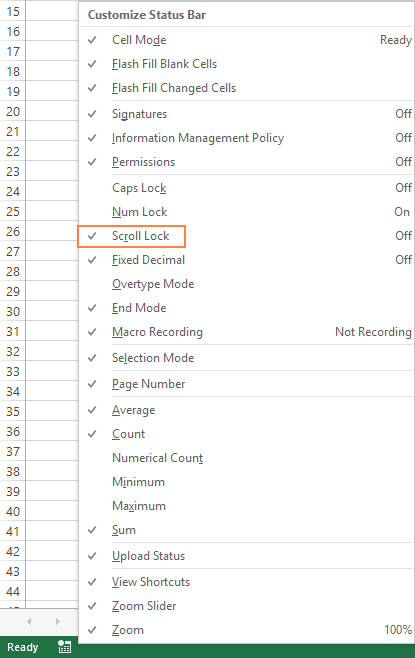
Microsoft Excel provides the most reliable visual indicator for scroll lock status across all Windows versions. Look at the bottom-left corner of your Excel window—if you see “Scroll Lock” displayed in the status bar, this confirms the function is enabled.
Enable Permanent Status Display
If scroll lock status doesn’t appear by default:
1. Right-click anywhere on the Excel status bar
2. Check the box next to “Scroll Lock” in the context menu
3. This ensures the status always displays for immediate visibility
Critical note: Some Excel versions hide this indicator by default. Enabling it prevents future confusion when scroll lock accidentally activates during data entry.
Fix Scroll Lock on Older Windows Versions
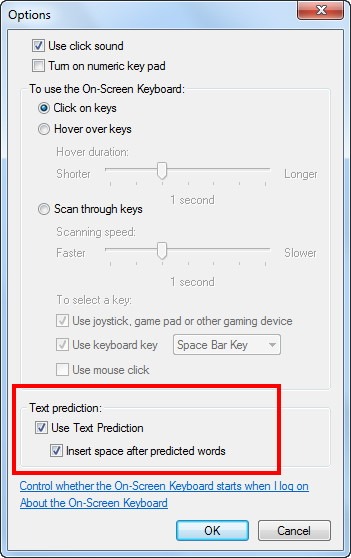
Windows 7 and 8.1 users need slightly different steps to access the on-screen keyboard, but the solution remains equally effective.
Windows 7/8.1 Step-by-Step Process
- Click the Start button in the lower-left corner
- Navigate to All Programs → Accessories → Ease of Access
- Select On-Screen Keyboard from the menu
- Click the slk button (may appear as “ScrLk” depending on version)
- Close the virtual keyboard by clicking the X in the upper-right corner
Important distinction: Windows 8.1 users can alternatively access this through PC Settings → Ease of Access → Keyboard and toggling the on-screen keyboard option.
Troubleshoot When Standard Methods Fail
If your arrow keys still don’t function normally after attempting the above solutions, consider these less obvious causes that mimic scroll lock behavior.
Check for Related Keyboard Issues
Several keyboard settings can interfere with normal arrow key functionality:
– Num Lock enabled: Press the Num Lock key to toggle this numeric keypad function
– Sticky Keys active: Press the Shift key five times quickly to toggle this accessibility feature
– External keyboard connected: Check if an external keyboard has scroll lock enabled
Confirm Scroll Lock Is Truly Disabled
Perform this definitive test:
1. Open a new Excel spreadsheet
2. Press the right arrow key
3. If your active cell moves from A1 to B1, scroll lock is off
4. If the entire sheet scrolls right while keeping A1 as the active cell, scroll lock remains on
Expert insight: Some specialized keyboard drivers or gaming software can override standard scroll lock behavior—temporarily disable these programs to test.
Prevent Accidental Scroll Lock Activation
Understanding common triggers helps avoid future scroll lock emergencies during critical work sessions.
Common Activation Scenarios
- Resting your palm on Fn + function keys while typing
- Using KVM switches that employ scroll lock for device switching
- Gaming software that remaps keyboard functions
- External keyboards with different layout conventions
Long-Term Prevention Strategies
- Familiarize yourself with your specific keyboard’s scroll lock combination
- Consider disabling scroll lock through BIOS/UEFI settings if constantly problematic
- Bookmark this guide for quick reference when issues reoccur
Quick Reference Guide for Immediate Fixes
When time matters, follow this prioritized troubleshooting sequence:
- Physical key check: Press dedicated ScrLk key if visible
- Fn combinations: Try Fn + C, Fn + K, or Fn + S based on your laptop brand
- Instant virtual keyboard: Press Windows + Ctrl + O → click ScrLk
- Manual virtual keyboard: Search “on-screen keyboard” → click ScrLk
Critical reminder: Scroll lock primarily affects Excel, Word, and other office applications where arrow keys normally navigate between cells or characters. Once disabled, your cursor movement will immediately return to expected behavior across all compatible programs.
Pro tip: Keep this page bookmarked—scroll lock has a habit of mysteriously reactivating, especially on shared workstations or when switching between external and built-in keyboards. Knowing exactly how to unlock scroll lock in laptop environments saves precious time during critical work sessions and eliminates the frustration of unexplained navigation issues.