How to Zoom In on a Laptop Screen
Can you read the tiny text on your laptop screen without squinting? You’re not alone—millions struggle daily with small fonts in documents, websites, and applications. Knowing how to zoom in a laptop screen is essential for reducing eye strain, reviewing detailed work, and making digital content accessible to everyone. Whether you’re analyzing spreadsheet data, reading fine print, or helping someone with visual challenges, these built-in Windows solutions deliver instant relief without third-party software.
This guide reveals the fastest, most reliable ways to magnify your laptop display using tools already on your system. You’ll master keyboard shortcuts that activate zoom in milliseconds, discover precision mouse controls for perfect magnification levels, and learn pro techniques to customize your viewing experience. No technical skills required—just practical methods that work immediately on Windows 10 and 11.
Windows Key Plus Shortcut for Instant Magnification

Press Windows key + Plus (+) to activate Magnifier in one fluid motion. This single keystroke transforms your entire screen into a magnified view without navigating menus or settings. The tool launches in full-screen mode by default, immediately enlarging everything beneath your cursor.
Each subsequent press of Windows key + Plus (+) increases magnification in precise increments. Start at 100% (normal view) and watch as content smoothly scales to 200%, 300%, and beyond with each keystroke. This incremental approach lets you find the perfect zoom level without overshooting your target.
Finding Your Ideal Zoom Threshold
Most users settle between 200-400% for comfortable reading of standard text documents and webpages. When examining photo details or graphic elements, 800-1000% often provides the necessary clarity. Pay attention to visual cues like text pixelation or interface distortion—these indicate you’ve exceeded the optimal zoom level for your screen resolution.
Pro Tip: Test different magnification levels with your most-used applications. Some programs like Excel or Photoshop maintain functionality better at higher zoom levels than web browsers or email clients.
Mouse Wheel Zoom Control Without Keyboard Shortcuts
Hold Ctrl + Alt while scrolling your mouse wheel up to increase zoom smoothly. This method creates a fluid magnification experience ideal for fine-tuning your view. Unlike keyboard shortcuts that jump between preset levels, mouse wheel control offers continuous adjustment for pinpoint accuracy.
Troubleshooting Mouse Zoom Issues
If Ctrl + Alt + Mouse wheel doesn’t respond, check these common culprits:
– Your mouse driver needs updating (visit manufacturer’s website)
– Conflicting software like gaming utilities has captured input
– You’re using a touchpad instead of a physical mouse (requires different gesture)
Critical Warning: Some laptops require enabling touchpad gestures separately in Settings > Devices > Touchpad. Without this step, two-finger zoom gestures won’t function properly.
Three-Second Method to Disable Magnifier
Press Windows key + Esc to exit Magnifier instantly when you’ve finished. This emergency exit works regardless of your current zoom level and returns you to normal viewing immediately. Keep this shortcut memorized—it’s your lifeline when magnification becomes disorienting during multitasking.
Progressive Zoom Reduction Technique
Prefer a smoother transition back to normal view? Press Windows key + Minus (-) repeatedly until reaching 100%. This gradual approach prevents visual whiplash, especially helpful when switching between magnified documents and standard desktop views. Each press reduces zoom by the same increment as the plus key increases it.
Pro Tip: Combine both methods—use Esc for urgent exits when presenting to others, but opt for progressive reduction when working alone to maintain visual continuity.
Customizing Magnifier for Specific Workflows
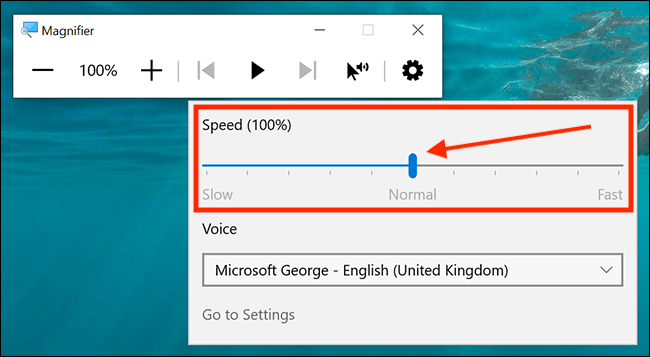
Access Magnifier settings by pressing Windows key + Plus (+) followed by Ctrl + M. This hidden menu lets you switch between three viewing modes:
– Full-screen mode (default): Magnifies entire display
– Lens mode: Creates movable magnifying glass over content
– Docked mode: Shows magnified section in top portion of screen
Optimizing for Different Tasks
For spreadsheet work, docked mode keeps formulas visible while magnifying cell contents. When editing photos, lens mode lets you inspect pixel details without losing context of the full image. These specialized configurations transform Magnifier from a basic accessibility tool into a productivity powerhouse.
Critical Warning: Avoid zoom levels above 1000% on standard HD displays—this causes severe distortion and makes navigation nearly impossible. Stick to 400% max for comfortable extended use.
Troubleshooting Unresponsive Zoom Controls
When Windows key + Plus (+) fails to activate Magnifier, verify these system requirements first:
– You’re using Windows 10 or 11 (Magnifier isn’t available in older versions)
– No conflicting accessibility software is running in background
– Your keyboard isn’t in filter mode (check Num Lock status)
Fixing Shortcut Conflicts
Gaming keyboards and utility software often override standard Windows shortcuts. Resolve this by:
1. Opening Settings > Ease of Access > Keyboard
2. Enabling “Use the print screen key to launch screen snipping”
3. Disabling any third-party keyboard managers temporarily
Pro Tip: Create a desktop shortcut to Magnifier as backup. Right-click desktop > New > Shortcut, then enter magnify.exe as location. Name it “Screen Zoom” for quick access.
Application-Specific Zoom Solutions

While system-wide Magnifier works universally, many programs offer built-in zoom controls that often provide better results. In web browsers, press Ctrl + Plus (+) to zoom page content without affecting toolbars. Microsoft Office applications use View > Zoom for document-specific magnification that preserves layout integrity.
Browser Zoom Limitations
Web page zoom via Ctrl + Plus (+) only affects content within the browser window—not the entire interface. This creates inconsistent magnification when switching between browser tabs and other applications. For seamless cross-application zooming, stick with system-level Magnifier shortcuts.
Critical Warning: Don’t rely solely on browser zoom for accessibility needs. Some websites override zoom settings through code, potentially trapping users at uncomfortable magnification levels.
Preventing Zoom-Related Eye Strain
Set your maximum comfortable zoom level and stick to it—constantly adjusting magnification strains your eyes more than consistent moderate zoom. Most vision specialists recommend 200-300% as the sweet spot for extended reading sessions on standard 15-inch laptop displays.
Creating Custom Zoom Profiles
Save time by creating task-specific zoom profiles:
– Document reading: 250% with docked mode
– Photo editing: 600% with lens mode
– Web browsing: 300% full-screen mode
Pro Tip: Use Windows’ Task View (Windows key + Tab) to maintain different zoom levels across virtual desktops. Create a dedicated workspace for magnified work without disrupting your standard setup.
When to Use Alternative Magnification Tools
Magnifier becomes less effective when working with high-resolution 4K displays where standard zoom levels don’t provide sufficient enlargement. In these cases, explore Windows’ display scaling settings (Settings > System > Display > Scale) for system-wide font and interface enlargement without pixelation.
Combining Methods for Maximum Effectiveness
For users with significant visual challenges, layer these approaches:
1. Set display scaling to 150% in Windows settings
2. Use Magnifier at 200% for critical tasks
3. Enable high-contrast mode for better text definition
Critical Warning: Avoid stacking too many magnification methods simultaneously—this often creates visual chaos and reduces readability rather than improving it.
Final Takeaway: Master these three essential zoom techniques—Windows + Plus for instant activation, Ctrl + Alt + Mouse wheel for precision adjustment, and Windows + Esc for quick exit. These methods work reliably across Windows 10 and 11 without additional software. For daily use, set your optimal zoom level between 200-400% to balance readability with screen real estate. Remember to test your preferred settings in your most-used applications, as some programs handle magnification differently. With these skills, you’ll transform your laptop into an adaptable workspace that meets your visual needs—no more squinting, no more eye strain, just clear, comfortable viewing whenever you need it.