Your high-resolution laptop screen sits idle while you struggle with a single monitor? That sleek display you already own can instantly double your workspace without buying another monitor. Whether you’re editing video timelines, managing complex spreadsheets, or gaming across multiple screens, repurposing your laptop as a secondary display unlocks serious productivity gains. Windows 10 and 11 systems manufactured after 2015 support this capability natively, and even older machines can leverage free software solutions. In this guide, you’ll discover exactly how to use laptop as monitor effectively—avoiding common pitfalls while maximizing performance for your specific workflow.
Windows Built-in Miracast Setup

Activate Your Laptop as Wireless Display Receiver
Launch the Connect app on your laptop by pressing Windows + Q and typing “Connect.” This built-in Windows feature enables your device to receive display signals wirelessly. Once opened, the app shows “Waiting for connection” – indicating it’s ready to pair. Critical requirement: Both devices must support Wi-Fi Direct, standard on Windows 10/11 systems from 2015 onward. If you don’t see the Connect app, your hardware likely lacks Miracast compatibility – check Device Manager under “Network adapters” for Wi-Fi Direct support.
Configure Primary Device Projection Settings
On your main computer, press Windows + P to open projection options. Select “Connect to a wireless display” and wait 10-15 seconds for your laptop to appear in the list. Choose your laptop name, then select “Extend” instead of “Duplicate” to create additional workspace. For seamless workflow, position your physical laptop to the right of your primary screen before connecting – Windows automatically maps this spatial arrangement, letting you drag windows intuitively between displays.
Minimize Latency in Wireless Connections
Place both devices within 10 feet of your Wi-Fi router and each other to maintain strong signal strength. Switch both machines to 5GHz Wi-Fi networks instead of 2.4GHz for significantly reduced lag. Close bandwidth-intensive applications like video calls or cloud backups during use. Expect 100-200ms latency – acceptable for office work but noticeable during fast-paced gaming. For critical tasks, temporarily disable Windows visual effects via System Properties > Advanced > Performance Settings.
Third-Party Software Solutions
Spacedesk Installation and Configuration
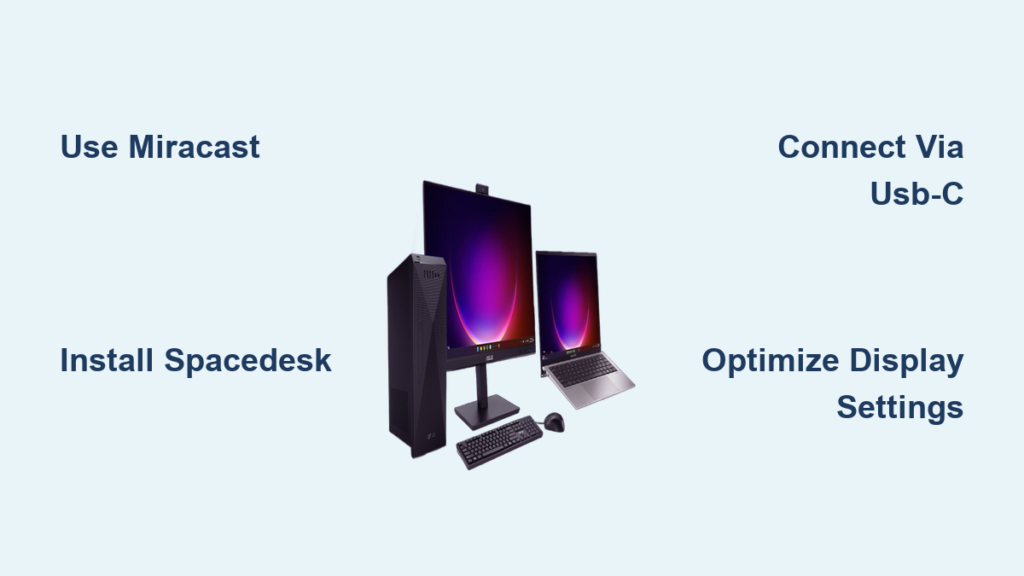
Download Spacedesk from the official website for both your primary PC and laptop. Install the driver component on your main computer first, then the viewer application on the laptop. Launch the viewer app, which automatically detects your primary PC on the same network. Tap the detected device to connect, then fine-tune display settings through Windows Display Settings. Note: This solution requires at least 50Mbps local network speed for HD content and works best with static applications like document editing rather than video playback.
Evaluate Alternative Software Options
Splashtop Wired XDisplay delivers near-zero latency through USB connections but requires paid licensing for business use. Deskreen offers open-source wireless connectivity with tablet support and browser-based operation. Test multiple solutions since compatibility varies by hardware – some older Intel graphics chipsets struggle with certain applications. Always download from official sources to avoid bundled malware, and check software requirements against your Windows version before installation.
Hardware Connection Methods
USB-C DisplayPort Alt Mode Direct Connection
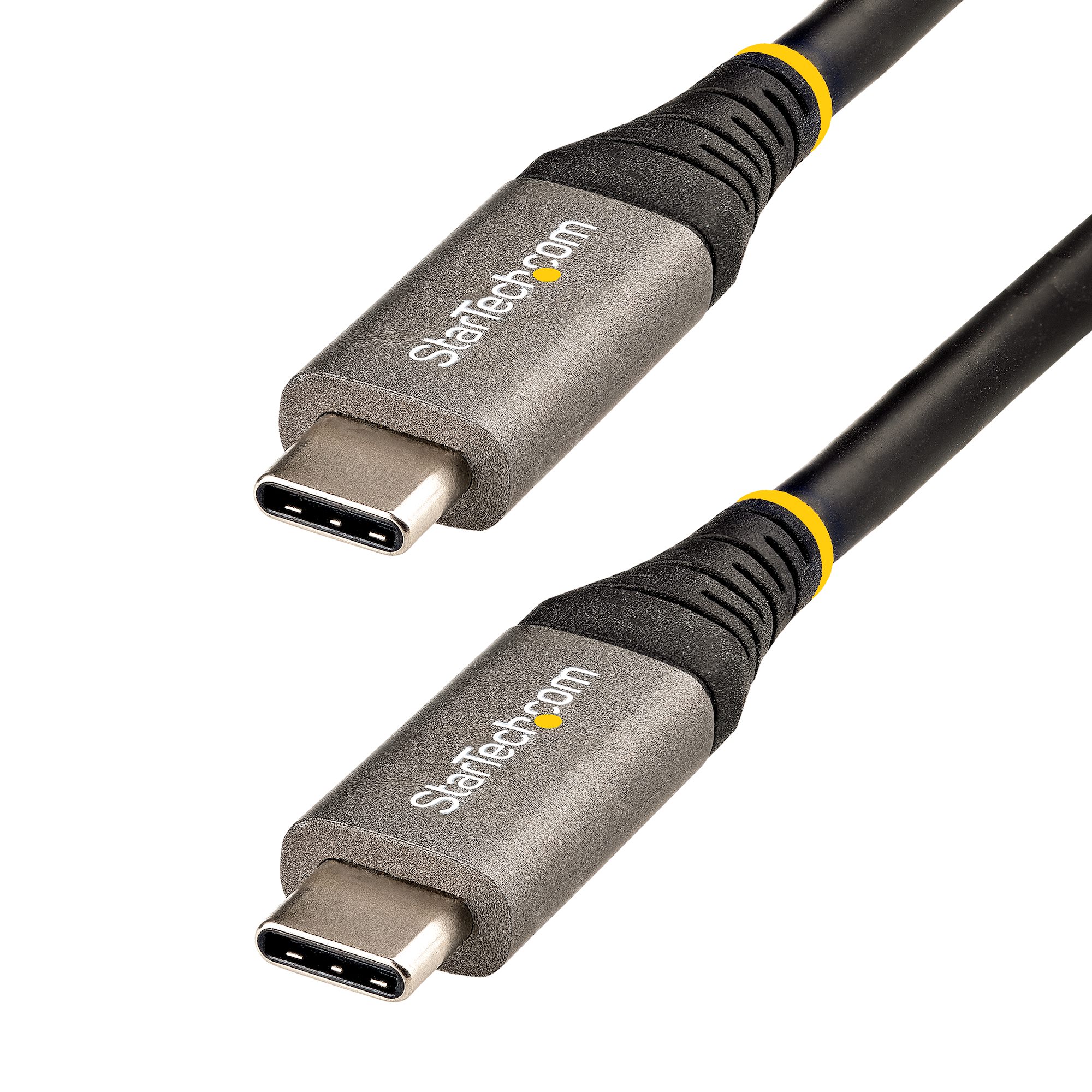
If both devices feature USB-C ports with DisplayPort Alt Mode support (identified by DP or Thunderbolt symbols), connect them directly with a USB-C cable. This wired method eliminates wireless lag and delivers full native resolution. On your laptop, enable “Projecting to this PC” in Windows Settings > System > Projecting to this PC. Set availability to “Available everywhere” for seamless connections. This solution provides true plug-and-play functionality but requires compatible ports on both machines – verify through your device specifications before purchasing cables.
Why HDMI Won’t Work Directly
Most laptops only include HDMI output ports, not input – making direct HDMI connections impossible. This fundamental hardware limitation affects 95% of consumer laptops. While USB-C alternatives work for newer machines, older laptops require a $50-$200 capture card to convert HDMI signals. These introduce noticeable lag (200ms+) and degrade image quality, making them impractical for daily productivity. Always check port functionality in your device manual before attempting HDMI solutions.
Display Configuration Mastery
Optimize Screen Arrangement Workflow
Right-click your desktop and select “Display settings.” Drag the numbered display icons to match your physical setup – this ensures mouse movement flows naturally between screens. Click “Identify” to confirm which number corresponds to each display. Crucially, set your laptop as “Extended” rather than primary display to maintain your main monitor’s taskbar layout. Use Windows + Shift + Left/Right Arrow to instantly move active windows between screens during multitasking.
Resolve Resolution and Scaling Conflicts
Set your laptop to its native resolution for sharpest text and images – find this in Display Settings under “Resolution.” When connecting displays with different resolutions, adjust scaling independently: 100-125% for standard monitors, 150-200% for high-DPI laptop screens. Mismatched scaling causes blurry application windows when moved between displays. Test critical applications like Excel or Photoshop after changes, as some older programs don’t handle scaling well.
Troubleshooting Connection Failures

Fix Persistent Disconnection Issues
Weak Wi-Fi signals cause 80% of Miracast failures. Move both devices closer to your router and switch to 5GHz band. Update wireless drivers through Device Manager – outdated Intel Wi-Fi drivers commonly break Miracast. Temporarily disable firewall software during connection attempts, then re-enable after successful pairing. For Spacedesk, ensure both devices are on the same subnet; corporate networks often block required ports.
Resolve Black Screen After Connection
If your laptop screen stays black post-connection, press Windows + P repeatedly to cycle through projection modes. In Display Settings, verify your laptop isn’t accidentally disabled (right-click display icon > “Enable”). Restart the Connect app or chosen software – sometimes background processes interfere. For hardware connections, press Windows + Ctrl + Shift + B to reset your graphics driver without rebooting.
Power and Longevity Management
Prevent Battery Drain During Extended Use
Laptop displays consume 30-40% more power when used as secondary monitors. Always connect both devices to AC power during extended sessions. Enable Battery Saver mode on the laptop monitor to reduce background activity. For temporary setups during outages, limit usage to 30-minute intervals to preserve battery health. Note: Continuous display use accelerates battery wear – consider removing the battery if your model allows during permanent workstation setups.
Configure Lid-Close Behavior
Prevent shutdowns when repositioning your laptop by setting lid behavior to “Do nothing.” Access this through Control Panel > Hardware and Sound > Power Options > Choose what closing the lid does. Set both “On battery” and “Plugged in” to “Do nothing.” Also disable sleep mode during active sessions via System Settings > Power & Sleep > Sleep > “Never.” This ensures your laptop stays active as a display regardless of physical position.
Advanced Setup Considerations
Maximize Multi-Display Potential
Most modern laptops support one external display plus their built-in screen. High-end gaming laptops with dedicated GPUs (NVIDIA RTX 3060 or better) can drive two external displays. Check your graphics specs – Intel Iris Xe supports three total displays, while AMD Radeon RX 6000 series handles four. For triple-monitor setups, connect your primary external display via HDMI and use your laptop wirelessly for the third screen.
Creative Workspace Arrangements
Rotate your laptop vertically for coding or document review by changing orientation in Display Settings > Display orientation > Portrait. This provides 30% more vertical space for scrolling through code or PDFs. Some professionals position the laptop below their main monitor for quick reference checks while keeping critical applications at eye level. Remember to adjust display numbering in Windows settings after physical repositioning.
Quick Setup Checklist Before Connecting
Primary Computer Preparation:
– Update graphics drivers via Device Manager
– Confirm Windows 10/11 with Wi-Fi Direct capability
– Close resource-heavy applications (Zoom, Chrome tabs)
Laptop Monitor Configuration:
– Install required software (Connect app or Spacedesk)
– Connect AC power adapter
– Position within 10 feet for wireless solutions
– Disable screen lock during setup
Network Optimization:
– Connect both devices to 5GHz Wi-Fi band
– Pause large downloads or cloud backups
– Verify minimum 50Mbps local network speed
Transforming your laptop into a functional second monitor costs nothing but a few minutes of configuration time. Start with Windows’ built-in Miracast for immediate wireless setup, then explore USB-C connections for demanding tasks like video editing. Remember to position your laptop for ergonomic comfort and always connect to power during extended use. With these techniques, you’ll instantly double your workspace using hardware you already own – turning that idle laptop screen into your most valuable productivity tool. For long-term use, rotate display content to prevent image retention and monitor temperature to maintain hardware longevity.