How to Use F4 Key on Laptop
Your F4 key is secretly one of the most powerful tools on your keyboard, yet most laptop users only discover its capabilities after fumbling during an important video call or struggling to close a frozen application. Whether you’re using a Dell Latitude for business meetings or any Windows laptop for daily tasks, understanding how to use F4 on laptop properly can save you precious seconds that add up to hours over time.
The F4 key transforms based on your laptop brand, active application, and key combinations. While Dell business laptops have turned F4 into an essential privacy tool for meetings, every Windows laptop leverages this key for critical functions you’re probably missing out on. You’ll never again wonder why your microphone isn’t working during Zoom calls or how to quickly close unresponsive applications.
Dell F4 Microphone Mute: Your Meeting Privacy Lifesaver

Dell business laptops have transformed the F4 key into your most reliable meeting companion. When you’re in the middle of an important Teams call and need to quickly silence yourself without hunting for software controls, this hardware-level mute works instantly across all microphone types—no driver dependencies required.
Activate Mute in Two Ways (No Software Needed)
Immediate Press Method
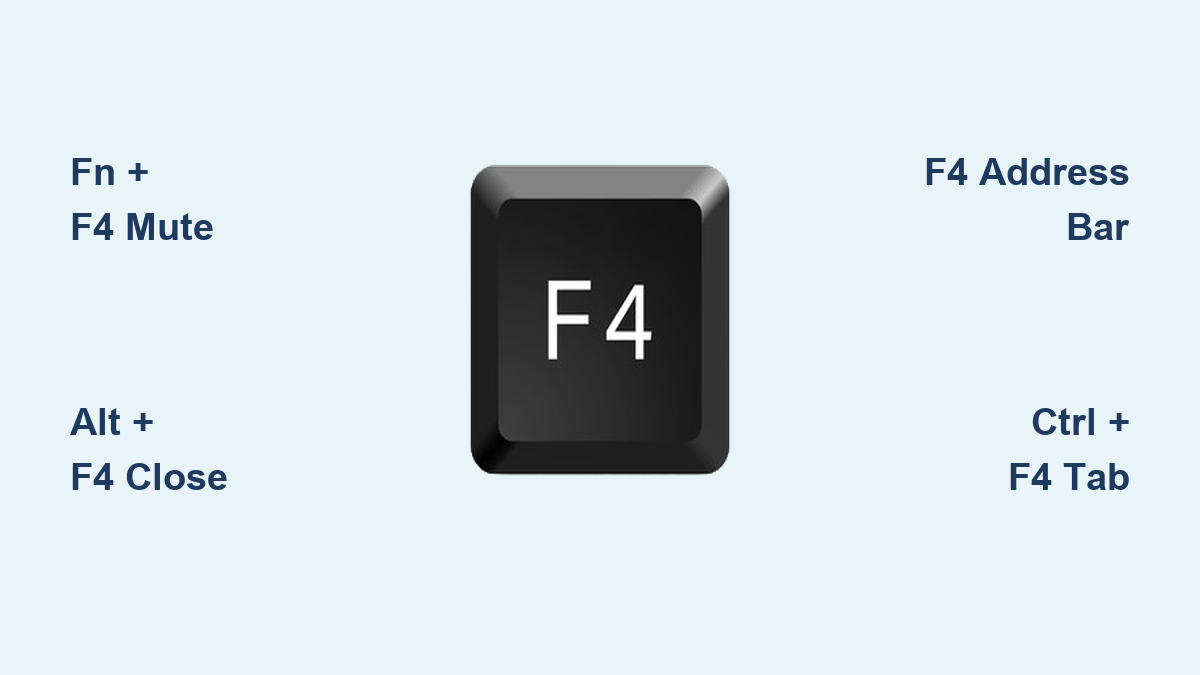
– Hold Fn + F4 simultaneously for instant muting
– LED illuminates to confirm mute status
– Press the same combination to unmute
– Works even when your laptop is frozen or unresponsive
Fn Lock Shortcut (For Frequent Users)
– Enable Fn lock in BIOS settings once
– Press F4 alone to toggle mute on/off
– Eliminates the need for two-handed operation
– Ideal for users who mute frequently during meetings
Reading Your F4 LED Status at a Glance
| LED Appearance | Microphone Status | What to Do |
|---|---|---|
| Solid White | Muted | Press F4 to unmute |
| No Light | Active | Microphone is live |
| Flashing | Connection issue | Restart audio services |
Critical tip: The LED responds within a split second—faster than software mute indicators. If your microphone still picks up sound when the LED is lit, check if you have multiple microphones connected that might not be affected by the hardware mute.
Universal F4 Functions That Work on Any Windows Laptop
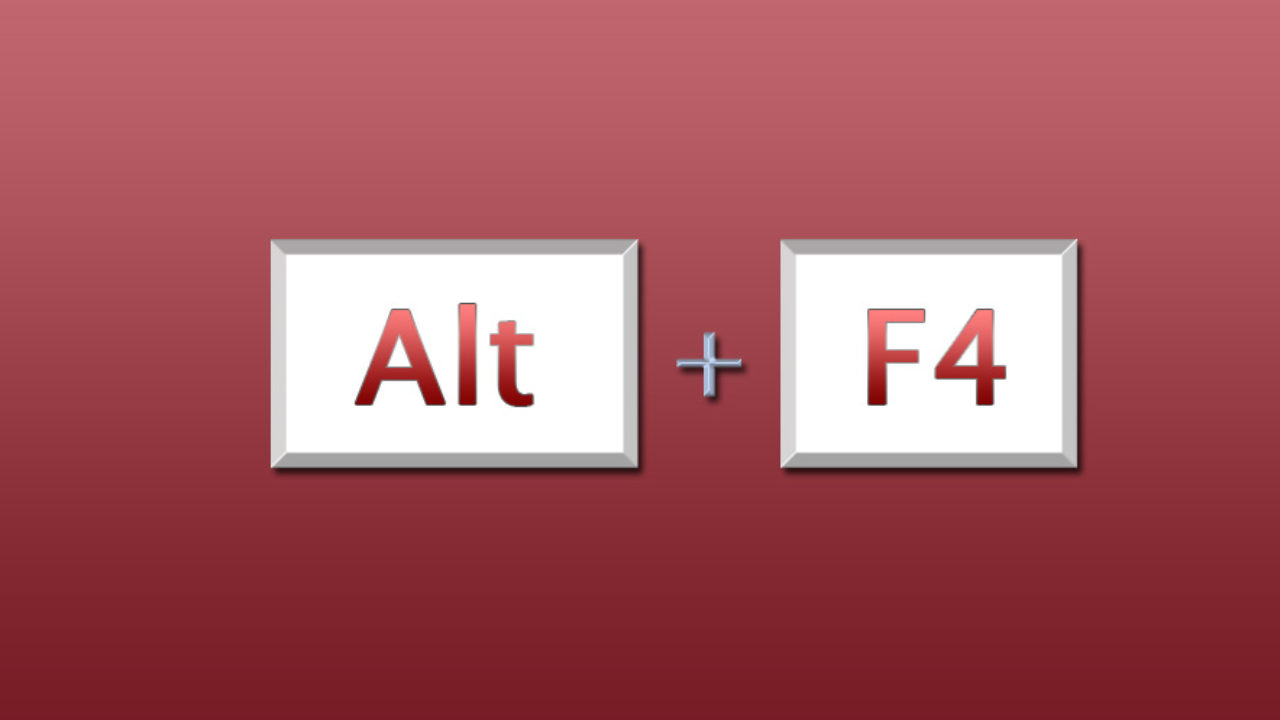
While Dell’s microphone mute feature gets the spotlight, the F4 key serves essential functions across all laptop brands that most users never discover. These shortcuts work identically whether you’re using HP, Lenovo, Asus, or any Windows machine.
Must-Know Windows Shortcuts
Alt + F4: The Nuclear Option for Frozen Apps
– Instantly closes any active window or application
– From your desktop, brings up the shutdown menu
– Works when your mouse is frozen or unresponsive
– Save time compared to hunting for the “X” button
Ctrl + F4: Tab and Document Manager
– Closes the current browser tab without closing the whole window
– Shuts individual Word documents while keeping the program open
– Exits active Excel worksheets while preserving other workbooks
F4 Alone: Context-Sensitive Power
– File Explorer: Jumps directly to the address bar for quick navigation
– Web Browsers: Focuses on the URL/search bar for instant typing
– Excel: Repeats your last action (formatting, formulas, entries)
– Word: Duplicates your last text insertion or formatting change
Browser Navigation Hacks You’ll Use Daily
| Browser | F4 Function | Pro Application |
|---|---|---|
| Chrome | Focuses address bar | Type URLs without touching your mouse |
| Firefox | Same as Chrome | Quick search navigation during research |
| Edge | Same as Chrome | Instant website access during multitasking |
| File Explorer | Address bar focus | Navigate folders 3x faster than clicking |
Fixing Dell F4 Microphone Problems in Under 2 Minutes
When your microphone suddenly stops working during a critical meeting, the F4 LED provides your fastest diagnostic clue. Dell support teams identify this as their #1 audio-related help desk call—most of which could be resolved in seconds with proper F4 knowledge.
Three-Step Emergency Diagnosis
Step 1: The LED Check (5 seconds)
– Glance at your F4 key while speaking
– If lit white: You’re muted (press F4 to fix)
– If dark: Problem requires deeper investigation
Step 2: Quick Verification (30 seconds)
– Press Fn + F4 even if Fn lock is enabled
– Test with different microphone types if available
– Open Windows Sound settings to verify input device
Step 3: When Standard Fixes Fail (60 seconds)
– Restart audio services via Task Manager
– Update audio drivers through Device Manager
– Check BIOS for Fn key behavior settings
Permanent Solutions for Recurring Issues
For persistent microphone problems:
1. Right-click the speaker icon in your taskbar
2. Select “Sound settings” then scroll to “Input”
3. Choose your primary microphone from the dropdown
4. Click “Test” to verify functionality
If F4 LED stays lit constantly:
– Press and hold F4 for 5 seconds to reset
– Toggle Fn lock mode with Fn + Esc
– Check for physical Fn key jamming
Which Dell Laptops Have the F4 Microphone Feature?
Not all Dell laptops treat F4 the same way—this microphone mute functionality appears primarily on business-class models designed for professional use. If you frequently join virtual meetings, knowing whether your Dell model supports this feature could transform your workflow.
Business-Class Models With F4 Mute
Precision Mobile Workstations
– All current Precision series models (5000, 7000 series)
– Precision 5570, 5770, 7670, and 7770
Latitude Rugged Tablets
– Latitude 7030, 7220EX, 7230, and 7330 models
– Built for field workers needing quick mute functionality
Popular 2-in-1 Convertibles
– Latitude 5290, 7200, 7210, 7320, 7350, 7390, and 7400 series
– Essential for presenters who switch between laptop and tablet modes
Standard Business Laptops
– Latitude 5300-5350, 7300-7350, 5400-5450, 5500-5550 series
– The workhorses of corporate IT departments worldwide
XPS Exception
– XPS 13 9315 and newer business-focused models
Control Your F4 Behavior With Fn Configuration
The biggest frustration users report isn’t that F4 doesn’t work—it’s that its behavior changes unexpectedly. Your laptop’s BIOS settings determine whether F4 functions require the Fn key or work directly, and you can toggle between these modes instantly.
Switch Between Two Operating Modes
Multimedia Keys First (Default on Most Laptops)
– F1-F12 keys control volume, brightness, etc.
– Must press Fn + F4 for traditional F4 functions
– Best for casual users who rarely need F4 features
Function Keys First (Recommended for Power Users)
– F1-F12 work as standard function keys
– Requires Fn + F4 for multimedia controls
– Ideal for Excel users and frequent F4 key users
Instant Toggle Method for Dell Laptops
Press Fn + Esc to switch between modes without rebooting. The Esc key’s LED indicates your current setting:
– LED illuminated: Function keys active (F4 works directly)
– LED off: Multimedia keys active (need Fn+F4)
This toggle persists until you change it again—perfect for adapting your keyboard to different tasks throughout your workday.
Application-Specific F4 Power Moves
Beyond basic functions, F4 becomes contextually intelligent within specific applications, saving you repetitive actions that eat into your productivity.
Microsoft Office Efficiency Boosters
Excel’s F4 Superpower
– Press F4 to repeat your last formatting action
– When editing formulas, cycles between absolute/relative references ($A$1 → A$1 → $A1 → A1)
– Saves 5-10 seconds per formula adjustment
Word’s Formatting Shortcut
– Duplicate last text insertion with a single keypress
– Repeat complex formatting across multiple sections
– Maintain consistency without manual reapplication
PowerPoint Design Accelerator
– Apply identical styling to multiple elements instantly
– Duplicate animation effects across slides
– Streamline presentation creation
Browser Navigation Mastery
Address Bar Control
– Press F4 to jump directly to your browser’s URL field
– Type new addresses without touching your mouse
– Combine with Ctrl + L for identical functionality
URL Management Shortcuts
– F4 + Ctrl + C: Copy current URL to clipboard
– F4 + Backspace: Clear address bar quickly
– F4 + Enter: Navigate to typed address immediately
Mastering how to use F4 on laptop transforms this often-overlooked key into your most valuable productivity tool. Whether you’re rapidly muting during video conferences on a Dell Latitude or closing unresponsive windows across any Windows laptop, these shortcuts become second nature with minimal practice. The LED indicator on Dell business models provides instant visual confirmation that eliminates those embarrassing “you’re still muted” moments in virtual meetings.
For persistent issues, always start with the simplest diagnostic—check your F4 LED status first. Most problems resolve with basic settings adjustments rather than hardware repairs. Keep this guide bookmarked until these shortcuts become automatic, and you’ll wonder how you ever worked without them. Within a week of consistent use, these F4 functions will save you countless minutes each day—time you can dedicate to more important work.