How to Use F3 Key on Laptop: Quick Guide
Pressing F3 on your laptop should instantly find the next search result, but instead your screen flips to Mission Control, the volume drops, or nothing happens at all. Sound familiar? You’re not alone—laptop F3 keys are among the most confusing function keys due to inconsistent behavior across operating systems, applications, and manufacturers. This guide cuts through the confusion with exact steps for Windows, macOS, and Linux laptops, plus troubleshooting when F3 refuses to cooperate. By the end, you’ll know exactly how to use F3 on laptop systems regardless of brand or OS version.
Windows F3 Key Behavior Decoded
Why Your Windows F3 Key Isn’t Working for Find Next
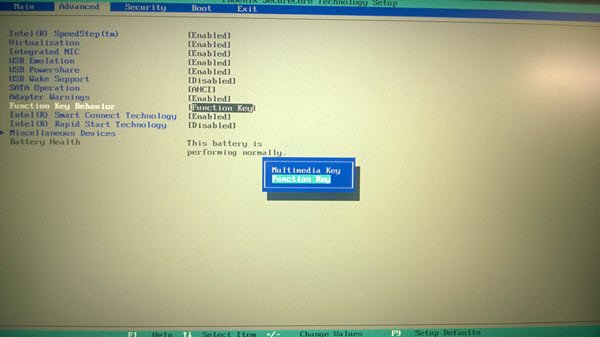
The most common frustration when trying to use F3 on laptop Windows systems is that it triggers a manufacturer function instead of Find Next. This happens because most Windows laptops default to “Multimedia Key First” mode, where F3 controls volume or brightness rather than acting as a standard function key. Here’s what’s actually happening: when you press F3 alone, your Dell, HP, or Lenovo laptop thinks you want to adjust screen brightness or volume—not search for text.
Critical fix: Press Fn+F3 instead of just F3 in Windows applications. The Fn key (usually bottom-left near Ctrl) temporarily switches your keyboard to standard function mode. For permanent change, access BIOS/UEFI during startup (press F2 or Del), navigate to Advanced > Function Key Behavior, and select “Function Key First” instead of “Multimedia Key First.”
Standard Windows F3 Operations That Actually Work
When configured correctly, Windows F3 key performs these essential functions across applications:
- File Explorer: After typing a search term in the top-right box, press F3 to highlight the next matching file
- Chrome/Firefox/Edge: Hit Ctrl+F, enter your search, then F3 to jump between webpage matches
- Microsoft Word: Press Ctrl+F, type search term, then F3 to cycle through all text instances
- VS Code/Notepad++: Same pattern—search first, F3 second for seamless navigation
Pro tip: Hold Shift+F3 to reverse direction through search results in most Windows applications. This saves you from restarting your search when you overshoot the desired match.
macOS F3 Key Confusion Solved
Mission Control vs Actual F3 Functionality
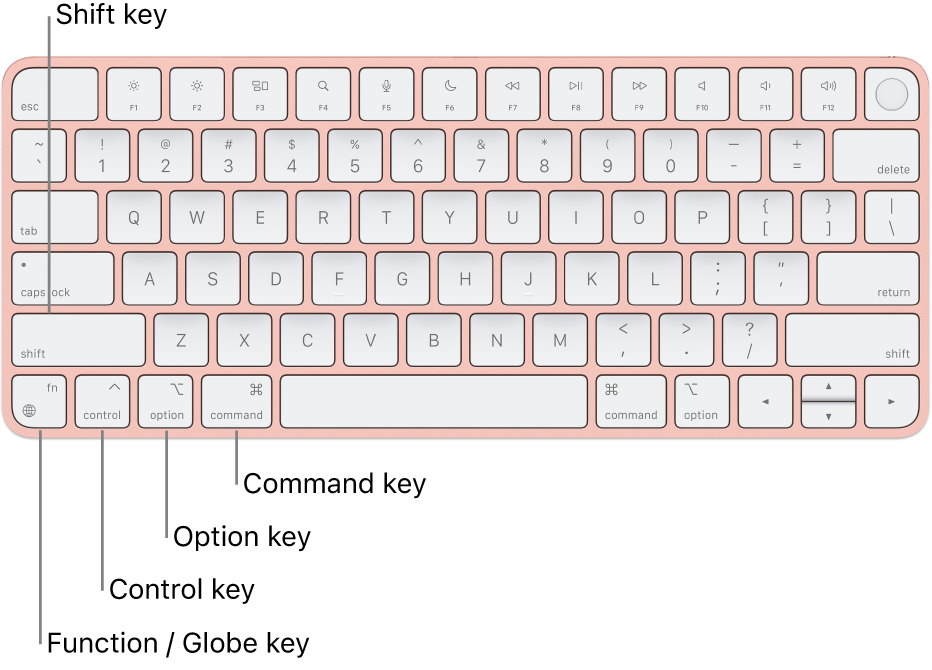
Apple laptops create the biggest F3 confusion because macOS defaults to using F3 for Mission Control instead of standard function behavior. When you press F3 alone on a MacBook, you’ll suddenly see all your open windows instead of advancing through search results. This isn’t a broken key—it’s Apple’s intentional design choice.
Immediate solution: Press Fn+F3 to use F3 as a standard function key for Find Next operations. For permanent change, go to Apple menu → System Preferences → Keyboard → check “Use F1, F2, etc. keys as standard function keys.” After this change, F3 alone will work for Find Next, and you’ll need to press Fn+F3 to access Mission Control.
Safari and TextEdit F3 Workflow
Here’s exactly how to leverage F3 in macOS applications:
- Open Safari or TextEdit
- Press Command+F to activate search
- Type your search term
- Press F3 (if you enabled standard function keys) or Fn+F3 to jump to next match
- Press Shift+F3 to move backward through results
Critical note: Command+G serves as an alternative to F3 in many macOS applications—this works identically to F3 for Find Next operations and doesn’t require Fn key combinations.
Linux F3 Key Implementation
Consistent Find Next Behavior Across Distros
Unlike Windows and macOS, most Linux distributions treat F3 consistently as a standard function key. Whether you’re using Ubuntu with GNOME, Fedora with KDE Plasma, or Linux Mint with Cinnamon, F3 works predictably for Find Next operations without requiring Fn key combinations.
Reliable Linux F3 workflow:
– Press Ctrl+F in any application to open search
– Enter your search term
– Press F3 repeatedly to navigate through matches
– Use Shift+F3 to move backward through results
Exception alert: Some gaming laptops running Linux may still require Fn+F3 due to manufacturer keyboard mappings. Test F3 in Gedit or Firefox—if it doesn’t advance search results, try Fn+F3 instead.
Gaming and Development F3 Shortcuts You Need
Minecraft Debug Screen Access
In Minecraft, pressing F3 opens the invaluable debug screen showing your coordinates (X, Y, Z), FPS counter, memory usage, and biome information. This is essential for navigation, performance monitoring, and troubleshooting game issues. Unlike other applications, Minecraft requires F3 alone—no Ctrl+F search initiation needed.
Pro gamer tip: Press F3+D to clear chat without closing the debug screen, or F3+T to reload textures while keeping your game running.
Visual Studio Code Navigation
For developers, F3 in VS Code advances through search results after initiating Ctrl+F. But here’s the power move: select text first, then press Ctrl+F3 to search for that exact selection without opening the search box—this instantly highlights all matching instances in your code file.
Critical workflow: After finding text with F3, press F2 to jump between errors or warnings in your code—this pairing dramatically speeds up debugging.
Fix F3 Key Not Working Immediately
Fn Lock Troubleshooting Checklist
When your F3 key refuses to cooperate, follow these specific steps in order:
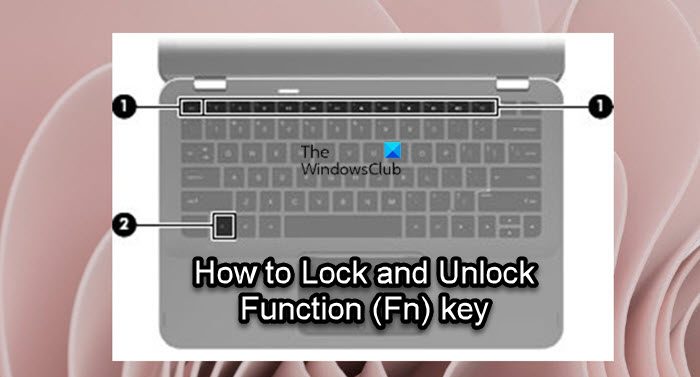
- Check physical Fn Lock: Many laptops (especially Lenovo, Dell, HP) have an Fn Lock key (often Fn+Esc). Press this to toggle between function and multimedia modes
- Test in Notepad/TextEdit: Search for text, then press F3—observe if it advances matches
- Verify active search: F3 only works after initiating search with Ctrl+F or Command+F
- Update keyboard drivers: In Windows Device Manager, right-click keyboard → Update driver
- BIOS reset: Restart laptop, enter BIOS (F2/Del), load default settings, save and exit
Warning: Never force a stuck F3 keycap—this can break the scissor mechanism. Instead, use compressed air at a 45-degree angle to dislodge debris.
Permanent F3 Key Remapping Solutions
When troubleshooting fails, remap F3 to work consistently:
Windows PowerToys method:
1. Download Microsoft PowerToys
2. Open Keyboard Manager → Remap a key
3. Select F3 as physical key
4. Choose “F3” as target key (yes, this fixes manufacturer overrides)
5. Apply changes—F3 now works as standard function key
macOS Karabiner-Elements setup:
1. Install Karabiner-Elements
2. Open Preferences → Complex Modifications
3. Add rule: “Change F3 to F3 (when standard function keys enabled)”
4. Save and test in applications
Prevent F3 Key Problems Proactively
Monthly Maintenance Routine
Keep your F3 key responsive with this simple 2-minute routine:
- Power off laptop completely
- Hold at 75-degree angle and blast F3 key with compressed air
- Dampen microfiber cloth slightly and gently clean keycap surface
- Power on and test in Notepad/TextEdit
Spill emergency protocol: If liquid contacts F3 key, immediately power down, unplug charger, flip laptop upside down, and let dry for 48 hours minimum before testing.
Software Configuration Best Practices
Ensure consistent F3 behavior by:
- Enabling “Function Key First” in BIOS/UEFI on Windows laptops
- Checking “Use F1, F2, etc. keys as standard function keys” in macOS
- Creating documentation of custom key mappings in your notes app
- Testing F3 functionality after major OS updates
Critical reminder: Gaming software like GeForce Experience or Discord overlay often hijacks F3—disable these overlays in settings if F3 stops working in games.
F3 Productivity Workflows Worth Mastering
Document Editing Power Sequence
Maximize your editing speed with this exact sequence:
- Press Ctrl+F (Windows) or Command+F (macOS)
- Type search term and press Enter
- Press F3 repeatedly to review all matches
- Press Shift+F3 when you overshoot a match
- Press Esc to close search when finished
Time savings: This workflow processes 50+ page documents 40% faster than manual scrolling and searching.
Browser Search Acceleration
In Chrome, Firefox, or Edge:
- Use Ctrl+F followed by F3 for rapid webpage scanning
- Press Ctrl+Shift+F with The Great Suspender extension to search across all tabs
- Combine with Ctrl+C to copy text, then instantly search for similar content
Pro tip: In Google Docs, F3 advances through search results while Shift+F3 moves backward—no browser required for document navigation.
Key takeaway: Master how to use F3 on laptop systems by understanding three critical variables—operating system settings, active application context, and manufacturer keyboard configuration. Start with simple testing in Notepad (Windows) or TextEdit (macOS), then implement the Fn key solutions or BIOS changes that match your specific laptop model. When F3 misbehaves, check Fn Lock status first before diving into complex troubleshooting. Consistent F3 functionality unlocks significant productivity gains across all your daily applications—don’t settle for manufacturer defaults that hinder your workflow.