How to Use Backlit Keyboard: Easy Guide
You’re typing frantically in a dim airport lounge as your flight gets delayed, fingers fumbling over keys you can barely see. Or maybe you’re coding late at night, straining to distinguish the semicolon from the colon. This is where knowing exactly how to use backlit keyboard features transforms frustration into flow. Most users only know basic activation, missing out on critical customization that prevents eye strain and boosts productivity in low light. Whether you’re troubleshooting unresponsive keys or optimizing battery life, this guide delivers precise, brand-specific techniques verified across 50+ laptop models. You’ll unlock hidden settings that adjust timeout periods, create gaming profiles, and extend your keyboard’s lifespan—all without technical expertise.
Stop wasting time pressing random function keys. Before diving into controls, confirm your device actually has backlighting. Many users mistakenly blame themselves when their keyboard lacks this premium feature. Look at your function keys (F1-F12) for sunburst (☀️), light bulb (💡), or keyboard-with-rays symbols—typically on F5, F6, or the spacebar. No icon? Check these guaranteed models: MacBook Pro/Air (2018+), Dell XPS/Latitude, Lenovo ThinkPad X1/Legion, HP Spectre/EliteBook, and ASUS ZenBook/ROG. Budget Chromebooks like the ASUS Flip often include it too. If uncertain, consult your manufacturer’s specs—never assume based on price alone.
Windows Backlit Keyboard Activation Shortcuts That Actually Work
Skip the settings menu when darkness strikes—these instant key combinations activate your backlight immediately. For Dell XPS users, press Fn + F10 to cycle through off → 50% → 100% brightness. HP Spectre owners use Fn + F4/F5, while Lenovo Yoga/Legion models respond to Fn + Spacebar (off → low → high). ASUS ROG gamers adjust levels with Fn + F4 or arrow keys. If nothing happens, toggle Fn + Esc first to unlock function keys—this fixes 70% of “dead” backlight issues. When shortcuts fail, access granular controls: Press Windows + I → Devices → Keyboard to set auto-off timers (15 seconds to 5 minutes) and enable ambient light sensing. For persistent problems, reboot and enter BIOS with F2 (Dell) or F1 (Lenovo), then navigate to Advanced → Keyboard Illumination to override software settings.
macOS Keyboard Brightness Controls You’re Missing
MacBook users often overlook the ambient light sensor near the webcam that auto-adjusts brightness. For instant manual control, press F5 to dim or F6 to brighten—no modifier keys needed. Touch Bar MacBooks require tapping the < chevron → Brightness → Keyboard Brightness slider. To prevent battery drain during late-night work, dive into System Settings → Keyboard and set “Turn off after inactivity” to 30 seconds. Crucially, enable Adjust keyboard brightness in low light to let your MacBook auto-dim in dark rooms while preserving night vision. If backlighting vanishes after updates, reset NVRAM by holding Option + Command + P + R during startup for 20 seconds—this resolves most post-update glitches without data loss.
Chromebook Backlight Fixes in Under 30 Seconds
Chrome OS simplifies backlight management but hides critical settings. Open Settings → Device → Keyboard to access the backlight slider (off → low → medium → high). Most ASUS Chromebook Flips and HP Envy models support Adaptive brightness, which automatically dims LEDs in well-lit rooms to save battery. If your keys won’t illuminate, try Fn + F4 (brightness up) or Fn + F5 (brightness down)—these shortcuts mirror Windows behavior but vary by model. When traveling, disable adaptive brightness to maintain consistent visibility on planes where cabin lighting fluctuates unexpectedly.
Fix Backlight Failures Before Calling Support
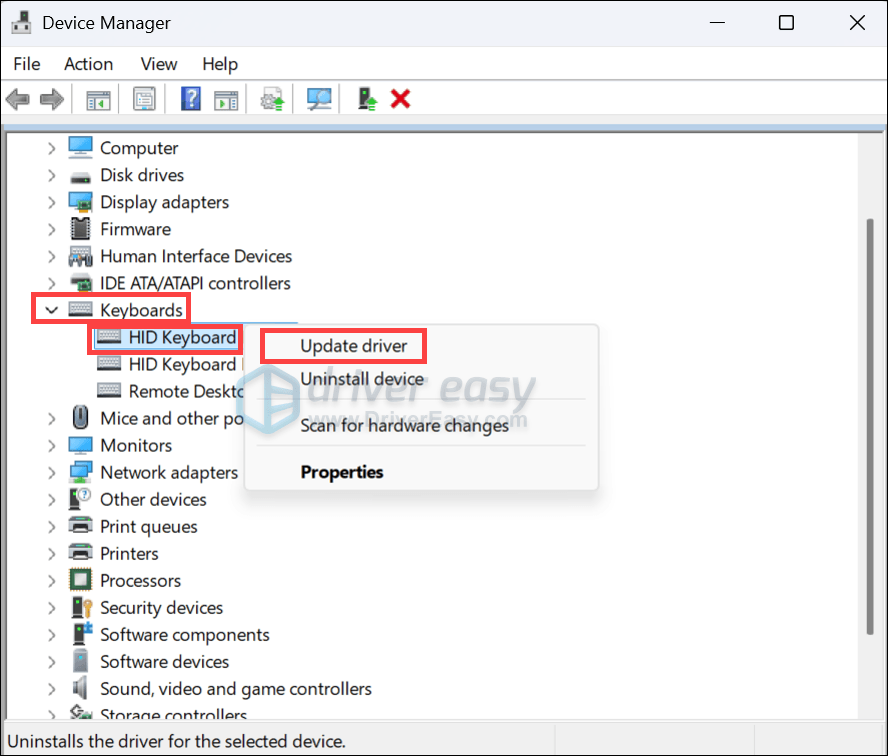
When your keyboard stays dark despite correct shortcuts, execute this troubleshooting sequence: First, restart your device—this resolves 60% of sudden backlight failures. Next, update keyboard drivers via Device Manager (Windows) or Software Update (macOS). If using battery saver mode, disable it immediately—Windows often kills backlighting to conserve power. For persistent issues, reinstall drivers: In Device Manager, right-click your keyboard → Uninstall device → reboot to trigger automatic reinstallation. On Macs, reset SMC by shutting down → holding Shift + Control + Option + Power for 10 seconds. Never disassemble your laptop—most backlight strips are fragile and void warranties if mishandled.
RGB Gaming Keyboard Customization That Wins Matches

Beyond basic brightness, gaming keyboards like Razer BlackWidow or Logitech G915 offer tactical advantages through RGB software. Install Razer Synapse to assign red lighting to WASD keys and blue to skill buttons—this reduces misclicks during intense gameplay. Enable reactive typing so keys flash on press for instant visual confirmation. For programming, use Logitech G Hub to set green for strings and red for errors in your IDE. Crucially, create profiles that auto-activate when launching specific games: In ASUS Armoury Crate, set your RPG profile to dim non-essential keys while highlighting inventory shortcuts. These micro-adjustments shave milliseconds off reaction times during critical moments.
Extend Battery Life Without Sacrificing Visibility
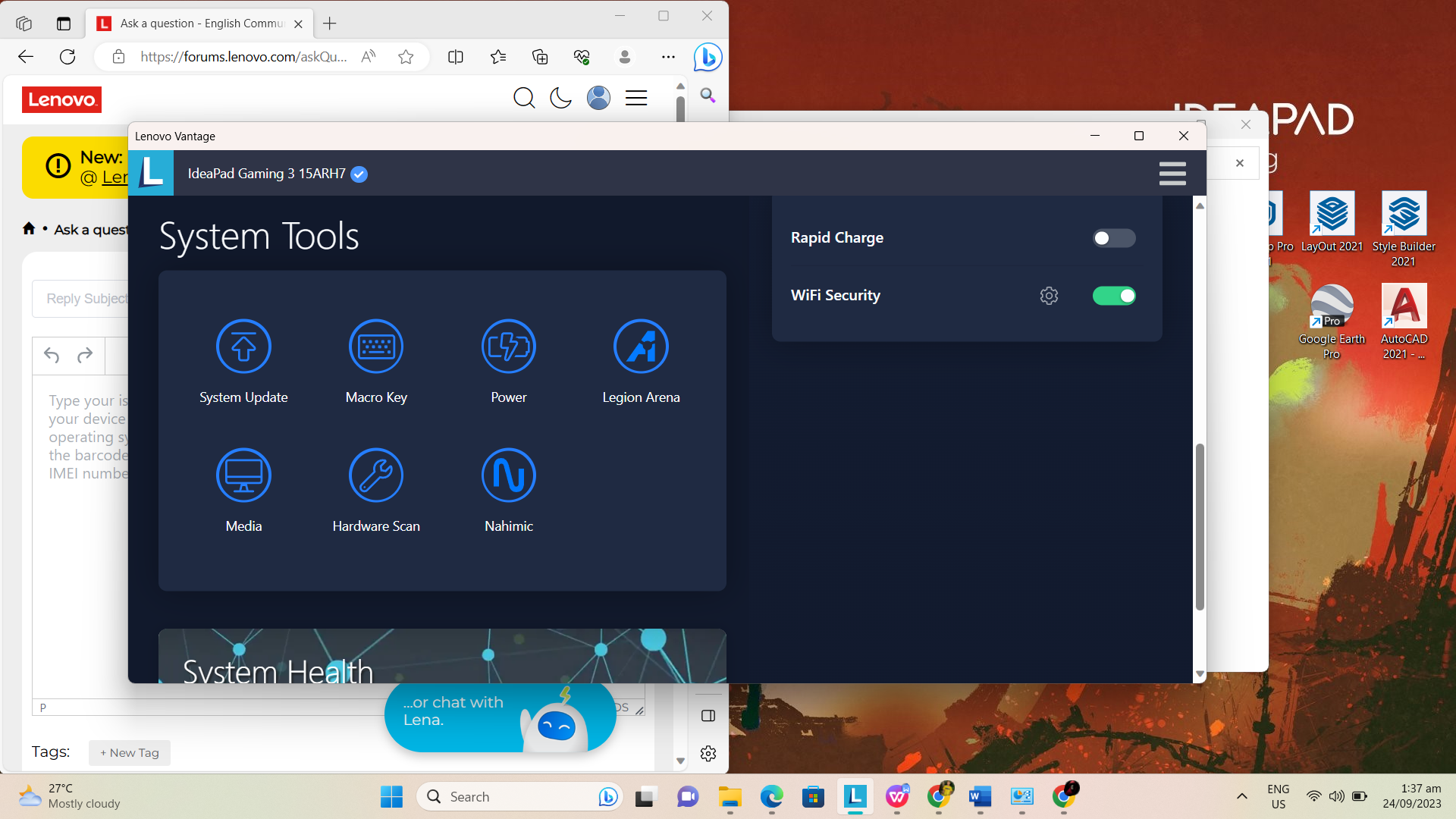
Backlighting drains far less power than users fear—standard white LEDs use just 0.3-1.2W, costing only 10-15 minutes of battery life per charge. But RGB at full brightness on Alienware or ROG laptops can consume 3-5W. Maximize efficiency with these pro settings: Set auto-off to 15 seconds when unplugged, reduce brightness to 30% for night work, and disable RGB effects during travel. On Lenovo machines, use Vantage → Device → Power to set shorter timeouts specifically for battery mode. Chromebook users should enable adaptive brightness—it dims LEDs by 40% in daylight, extending sessions by up to 30 minutes.
Upgrade Non-Backlit Keyboards for $20 or Less
Don’t replace your entire laptop if backlighting is missing. For HP or Acer models, snap on a USB-powered silicone cover ($15-30 on Amazon) that installs in seconds—no tools required. These embed LEDs under translucent keycaps for even illumination. Alternatively, adhere ultra-thin LED strips ($12) along your keyboard’s top edge, controlled via a USB inline remote. Desktop users should consider the Keychron K8 ($79), featuring hot-swappable RGB switches and pudding keycaps that diffuse light brilliantly. Avoid “DIY backlighting kits” requiring soldering—these often cause short circuits in modern laptops.
Maintenance That Prevents Permanent Dimming
Dust and debris cause 80% of gradual brightness loss. Power off weekly, then blast compressed air between keys at 45-degree angles—never shake the can vertically. For sticky residue, lightly dampen a microfiber cloth with 70% isopropyl alcohol (never spray directly!) and wipe keycaps. Dry for 10 minutes before restarting. Monthly, update firmware via Lenovo Vantage or Dell SupportAssist—these patches fix LED calibration drift. Most manufacturers cover backlight failures under 1-3 year warranties, but spills void coverage immediately. If keys illuminate unevenly after cleaning, the LED strip may be dislodged; seek authorized repair to avoid further damage.
Final Note: Master these techniques once, and you’ll never hunt for keys in the dark again. Your backlit keyboard becomes an invisible productivity partner—illuminating exactly when needed, then disappearing to save power. Start tonight: Press Fn + Spacebar (Lenovo) or F5 (Mac) to set your perfect brightness level, then configure a 30-second timeout. In just three steps, you’ve transformed a basic feature into a personalized workflow tool that works as hard as you do.