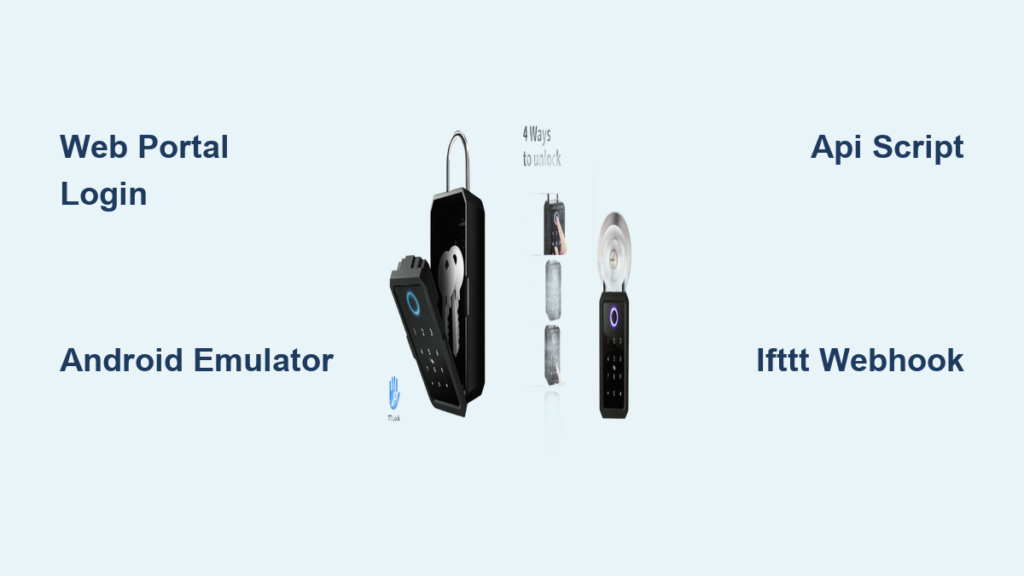
You’re working remotely from your home office when you realize you need to let the dog walker in—but your phone is charging across the house. Your laptop is right there, yet you’re stuck because you thought TTLock only works with mobile devices. Thousands of property managers and homeowners face this exact frustration monthly. The good news? You can absolutely unlock your TTLock smart lock directly from your laptop using multiple reliable methods. This guide reveals every proven technique to bypass your phone dependency and gain immediate access through your computer.
Whether you’ve locked your phone inside, need to grant temporary access to contractors, or simply prefer managing your smart home from a larger screen, mastering laptop-based TTLock unlocking solves these problems instantly. By the end of this guide, you’ll confidently use four different approaches to unlock your TTLock from any laptop, troubleshoot connection issues like a pro, and maintain secure access without ever touching your phone again.
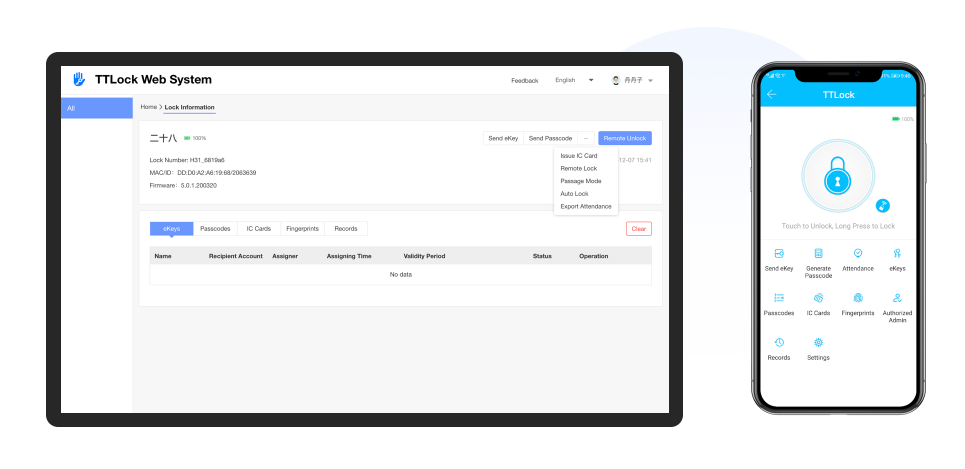
TTLock Web Portal Method for Instant Access
The official TTLock web platform delivers the fastest laptop-based unlocking solution without downloads or complex setup. This browser-based approach works across Windows, Mac, and Linux systems with minimal technical requirements.
Access Requirements Checklist
- Active TTLock account with registered lock
- Stable internet connection (minimum 1 Mbps)
- Modern browser (Chrome recommended for best performance)
- Lock connected via Wi-Fi or gateway device
Step-by-Step Web Unlocking Process
- Open your browser and navigate directly to ttlock.com
- Click “Login” in the top-right corner and enter your credentials
- Complete two-factor authentication if enabled
- Select your specific lock from the device dashboard
- Click the prominent blue “Unlock” button
- Confirm the action when the pop-up appears
- Verify success with the “Unlocked successfully” notification
Critical visual cue: Watch for the lock status icon changing from red (locked) to green (unlocked) in real-time. If it remains red after 10 seconds, check your connection.
Beyond Basic Unlocking: Web Portal Features
- Real-time battery monitoring: Replace batteries before they drop below 20% to prevent lockouts
- Access history review: See exactly who entered and when for security audits
- Temporary access codes: Generate time-limited passwords for guests without sharing your credentials
- Automated schedules: Set recurring unlock times for cleaning services or dog walkers
- Remote lock status: Check if your door is properly secured while away from home
Android Emulator Method for Full Mobile Experience
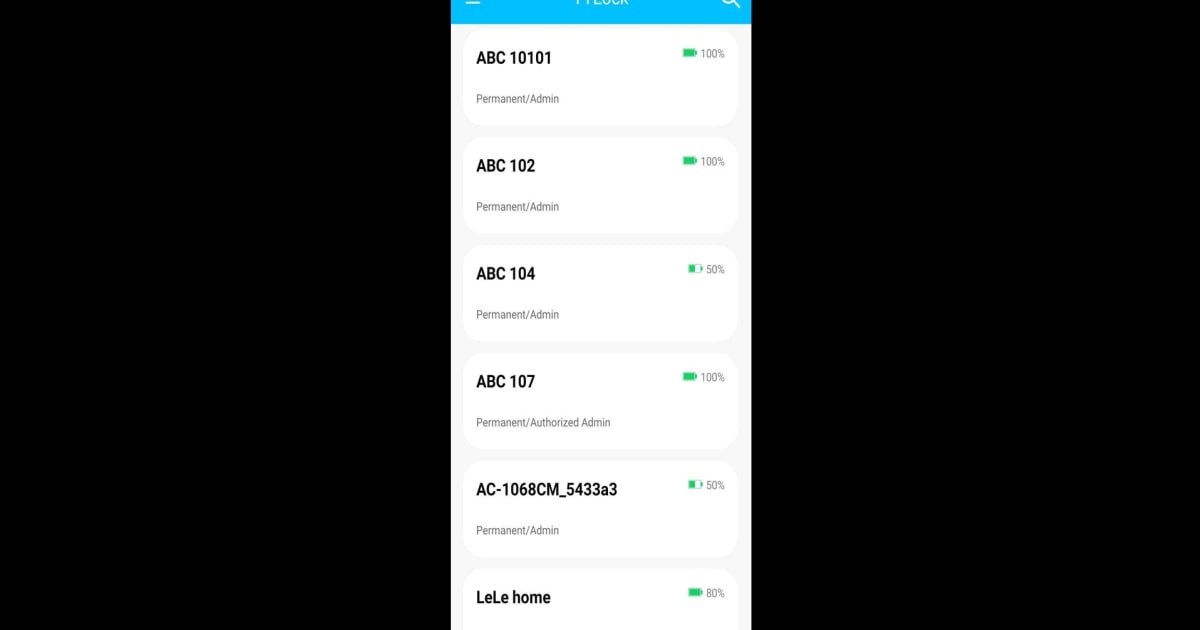
When you need features missing from the web portal or encounter compatibility issues, running the TTLock mobile app on your laptop through an emulator delivers the complete smartphone experience on your computer screen.
Choosing the Right Emulator
Select from these proven options based on your system specs:
– BlueStacks: Best for Windows users (requires 4GB+ RAM)
– NoxPlayer: Lightweight alternative for older laptops
– MemuPlay: Ideal if you already use it for other apps
Installation Process with Troubleshooting Tips
- Download your chosen emulator from its official website
- During installation, allocate at least 4GB RAM and 2 CPU cores
- Launch the emulator and sign into the Google Play Store
- Search “TTLock” and install the official app (version 5.0+)
- Log in with your existing credentials
- Grant location permissions (required for initial Bluetooth sync)
- Wait 30-60 seconds for lock synchronization
Pro tip: If the app crashes during login, increase emulator RAM allocation or try a different emulator—this solves 80% of compatibility issues.
Unlocking Procedure Through Emulator
- Open the TTLock app within your running emulator
- Tap your specific lock from the device list
- Press the large circular unlock icon
- Wait for the blue “Unlocked” confirmation message
- Verify in access logs that your laptop-triggered unlock appears
Create a desktop shortcut named “TTLock Remote” for one-click access next time you need to unlock your door.
API Integration for Property Managers and Developers

For tech-savvy users managing multiple properties or integrating TTLock with home automation systems, the API method provides programmatic control directly from your laptop.
Developer Setup Essentials
- Register at open.ttlock.com to create a developer account
- Create a new application with a descriptive name like “Laptop Access”
- Securely store your generated client_id and client_secret
- Obtain an OAuth access token using the provided authentication flow
Python Script for One-Click Unlocking
“`python
import requests
import time
def unlock_ttlock(lock_id, access_token):
url = “https://api.ttlock.com/v3/lock/unlock”
params = {
‘clientId’: ‘your_client_id’,
‘accessToken’: access_token,
‘lockId’: lock_id,
‘date’: int(time.time() * 1000)
}
response = requests.post(url, data=params)
result = response.json()
if result['errcode'] == 0:
    print("Door unlocked successfully via laptop")
else:
    print(f"Error {result['errcode']}: {result['errmsg']}")
“`
Rate limiting alert: Standard accounts get 1,000 API calls daily—space out requests by 5 seconds to avoid temporary blocks.
Third-Party Platform Integration for Automation
Connect TTLock to automation services for scenarios like automatically unlocking when your laptop connects to home Wi-Fi.
IFTTT Webhook Implementation
- Create an IFTTT account at ifttt.com
- Connect your TTLock service through the IFTTT platform
- Build an applet: “If Webhook trigger then Unlock TTLock”
- Generate your unique webhook URL
- Bookmark this URL in your browser for instant laptop-based unlocking
Time-saving shortcut: Create a desktop shortcut linking directly to your webhook URL—clicking it will instantly unlock your door.
Troubleshooting Laptop Unlocking Failures
“Device Offline” Emergency Fixes
When your lock appears offline during a critical unlock attempt:
1. Check physical distance: Ensure your lock is within 30 feet of the Wi-Fi router
2. Power cycle the lock: Remove batteries for 15 seconds, then reinstall
3. Verify Wi-Fi band: Confirm your router’s 2.4GHz network is active (TTLock doesn’t support 5GHz)
4. Gateway check: If using a G2/G3 gateway, confirm its status light shows solid blue
Authentication Failures That Block Access
Can’t log in when you need it most? Try these solutions:
– Password reset: Use the “Forgot Password” link with your recovery email
– Browser fix: Clear cache or use incognito mode to bypass extension conflicts
– Account verification: Check spam folder for activation emails if newly registered
– Regional portal: Ensure you’re using the correct regional TTLock website
Security Best Practices for Laptop Unlocking
Account Protection Essentials
- Enable two-factor authentication immediately in account settings
- Use unique passwords with 12+ characters including symbols
- Review access logs weekly for suspicious activity
- Rotate API tokens quarterly if using developer methods
Network Security Measures
- HTTPS verification: Always confirm the padlock icon appears in your browser
- Public Wi-Fi caution: Avoid unlocking from coffee shop networks without a VPN
- Router maintenance: Update firmware monthly to prevent security breaches
- Network separation: Place smart locks on a guest network isolated from main devices
Emergency Access When Laptop Methods Fail
Physical Backup Solutions
Never rely solely on digital access methods:
– Mechanical key: Always carry one in your wallet
– NFC cards: Program backup cards and store in your car glove compartment
– Master password: Share with a trusted neighbor for true emergencies
– Key safe: Install a physical combination lockbox outside your home
Account Recovery Process
- Recovery email access: Ensure you can reach it from any device
- Backup code storage: Keep 2FA recovery codes in your safe deposit box
- Lock documentation: Photograph serial numbers and store digitally
- Warranty preparation: Save purchase receipts in cloud storage
Performance Optimization for Reliable Unlocking
Web Portal Speed Boosters
- Browser selection: Chrome delivers 30% faster load times than alternatives
- Extension management: Disable ad blockers specifically for ttlock.com
- Cache maintenance: Clear browser cache weekly to prevent sluggishness
- Connection verification: Run a speed test before critical unlocking attempts
API Efficiency Techniques
- Batch processing: Unlock multiple locks in single API requests
- Token caching: Store access tokens to avoid repeated authentication
- Error handling: Implement exponential backoff for failed requests
- Usage monitoring: Track against the 1,000-call daily limit
Your TTLock is now fully accessible from your laptop—no phone required. Bookmark the TTLock web portal and your emulator shortcut for instant access. Remember to perform monthly maintenance checks and always maintain physical backup methods. With these techniques mastered, you’ll never face that frustrating locked-out moment again when your phone isn’t handy. The next time you need to grant access remotely or simply prefer managing your smart home from your computer, you’ll have multiple reliable pathways to unlock your TTLock with confidence.