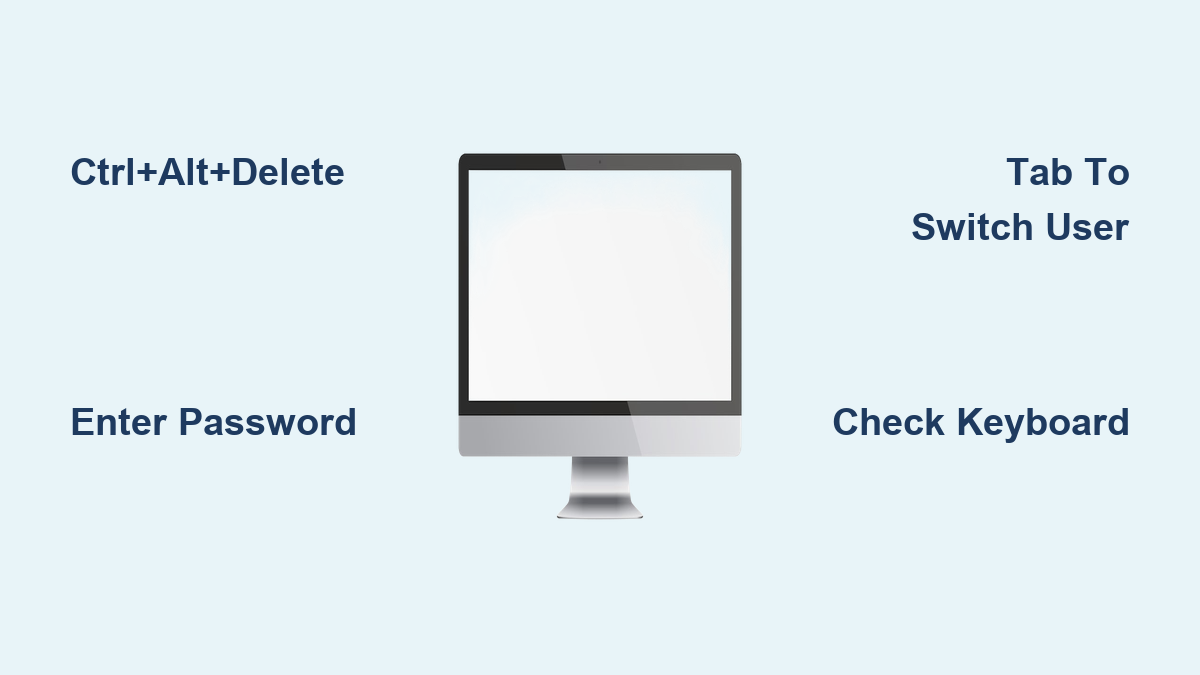
How to Unlock Computer Screen with Keyboard
That frustrating moment when you return to your desk only to find your computer locked—papers scattered, coffee cooling, and an urgent deadline looming. You instinctively reach for your mouse, but what if it’s not responding? What if you’re working on a laptop with a dead trackpad? The solution is simpler than you think: you can unlock your computer screen with keyboard commands alone, no pointing device required.
This guide reveals the exact keyboard sequence that works across all Windows versions to regain access to your locked computer. You’ll discover why Ctrl+Alt+Delete remains the universal unlock method, how to handle multi-account systems, and what to do when your keyboard seems unresponsive. Whether you accidentally triggered Windows+L or your system locked after inactivity, these keyboard techniques will get you back to work in seconds.
Immediate Unlock Sequence: Ctrl+Alt+Delete Method
:max_bytes(150000):strip_icc()/windows-10-ctrl-alt-del-5b475456c9e77c0037e730b3.png)
The fastest way to unlock your Windows computer screen with keyboard commands requires just three keys working in perfect harmony. This universal combination functions identically from Windows XP through the latest Windows 11 updates, making it the most reliable keyboard-only unlock method regardless of your system version.
Step-by-Step Unlock Procedure
- Press all three keys simultaneously: Hold down Ctrl and Alt, then tap Delete
- Release immediately after pressing Delete—no need to hold the keys down
- Type your password carefully in the prompt that appears
- Complete access by pressing Enter or clicking the arrow icon with your keyboard (Tab to navigate, Space to select)
Pro tip: If you’re using a laptop with a numeric keypad, ensure Num Lock is off to prevent unexpected character inputs during password entry.
Why This Sequence Works Every Time
The Ctrl+Alt+Delete command serves as a secure attention sequence recognized exclusively by the operating system. Unlike regular keypresses that applications might intercept, this combination bypasses all running programs and communicates directly with Windows security subsystem. That’s why it reliably brings up the login prompt even when other keyboard functions seem unresponsive.
Navigating Multi-User Account Lock Screens

When multiple people share a single computer, the lock screen becomes more complex. The wrong password attempt won’t just fail—it might switch you to another user’s session entirely, leaving your own work still inaccessible.
Identifying Your Active Session
- Look for your profile picture centered on the lock screen
- Verify the account name displayed below the password field matches your username
- Note any session-specific indicators like “Last active 2 minutes ago”
Switching Between User Accounts
If you’re greeted with the wrong user profile:
1. Press Ctrl+Alt+Delete to activate the login interface
2. Press Tab repeatedly until “Other user” is highlighted (typically at bottom left)
3. Press Enter to select this option
4. Type your exact username followed by your password
5. Press Enter to access your personal session
Warning: Entering another user’s credentials will unlock their session, not yours. Always confirm you’re accessing the correct account before typing any password.
Understanding Windows+L: The Lock Trigger
Knowing how your computer became locked prevents future frustration and accidental lockouts. The Windows+L keyboard shortcut is responsible for the majority of surprise lock screens—especially when working on laptops where keys sit close together.
Common Accidental Lock Scenarios
- Resting your palm near the keyboard while thinking
- Brushing the Windows key while reaching for the mouse
- Pets or children walking across an unattended keyboard
- Reaching for a coffee cup and accidentally pressing keys
Intentional Locking Benefits
Pressing Windows+L deliberately offers significant security advantages:
– Instantly hides all open programs and sensitive documents
– Prevents unauthorized access during brief absences
– Maintains all running applications exactly as left
– Works even when your computer appears unresponsive
Quick fix: If you just locked your computer by accident, simply use the Ctrl+Alt+Delete method to unlock computer screen with keyboard commands and resume work immediately.
Password Entry Optimization Techniques
The critical moment between pressing Ctrl+Alt+Delete and regaining access depends entirely on accurate password entry. Small mistakes here cause unnecessary delays when you’re already frustrated by the lock screen.
Common Password Entry Errors
- Caps Lock activated: Windows passwords are case-sensitive
- Num Lock status: Affects number key functionality on laptops
- Sticky Keys interference: Accessibility feature altering key behavior
- Keyboard layout mismatch: Especially problematic on international keyboards
Efficient Password Typing Strategies
- Check indicator lights for Caps Lock and Num Lock before typing
- Use rhythmic typing to build muscle memory for your password
- Count keystrokes mentally to catch missing characters
- Press Enter firmly to avoid hesitation-triggered typos
What Happens Behind the Locked Screen
Your locked computer remains far more active than you might realize. That security barrier protects your information while maintaining every detail of your work environment exactly as you left it.
Persistent Application State
- All programs continue running: Excel calculations, Photoshop edits, and video renders proceed uninterrupted
- Downloads and uploads persist: Cloud syncs and file transfers maintain progress
- Audio continues playing: Music and video streams keep running in the background
- Unsaved work remains intact: Document changes exist in memory, not lost
Resource Management During Lock
While locked, your computer uses slightly more memory than when fully idle because all applications remain loaded in the background. This design choice prevents the time-consuming process of reloading everything when you return—trading minimal extra RAM usage for significantly faster resume times.
Troubleshooting Unresponsive Keyboard Situations
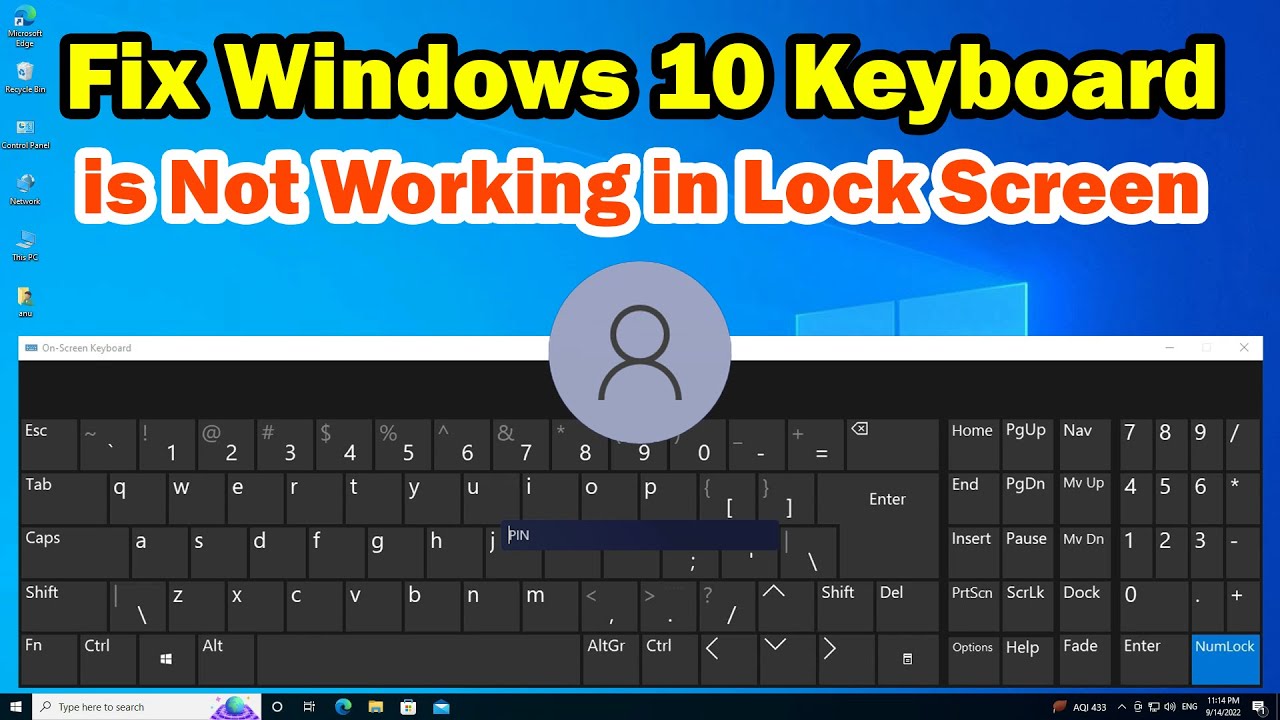
Sometimes the standard unlock sequence fails due to hardware or software issues. These targeted fixes address the most frequent keyboard-related lock screen problems.
When Keys Don’t Respond
- External keyboard test: Connect a USB keyboard to bypass laptop key issues
- Wireless connection check: For Bluetooth keyboards, verify pairing status
- Key jam inspection: Gently press each key to ensure none are physically stuck
When Password Prompt Doesn’t Appear
- Screen brightness adjustment: Increase brightness to reveal potentially dim prompt
- Multi-monitor verification: Check if prompt appeared on secondary display
- Sleep vs. lock distinction: Press spacebar to wake from sleep mode before attempting unlock
Forgotten Password Solutions
- Password reset disk: Use if created during initial account setup
- Administrator account: Have another admin reset your credentials
- Microsoft account recovery: Reset via another device if using online authentication
Preventing Future Lock Screen Frustrations
Smart configuration changes reduce how often you need to unlock computer screen with keyboard commands. These settings adjustments minimize accidental locks while maintaining security.
Customizing Lock Timing
- Navigate to Windows Settings → Accounts → Sign-in options
- Set “Require sign-in” to “When PC wakes up from sleep” or longer
- Adjust screen saver timeout to 30+ minutes in Display settings
- Modify power settings to prevent automatic lock during presentations
Alternative Authentication Methods
- Create a PIN: Set up a faster 4-digit code in Windows Security settings
- Enable Windows Hello: Configure facial recognition or fingerprint login if hardware supports it
- Use picture password: Draw three gestures on an image instead of typing
Quick Reference Cheat Sheet
Keep these essential keyboard combinations visible until they become second nature:
| Situation | Key Combination | Next Action |
|---|---|---|
| Standard lock screen | Ctrl+Alt+Delete | Enter password, press Enter |
| Wrong user profile shown | Ctrl+Alt+Delete → Tab to “Other user” | Enter correct username/password |
| Accidental Windows+L lock | Ctrl+Alt+Delete | Enter password immediately |
| Keyboard not responding | Try external keyboard first | Then check wireless connection |
Mastering these keyboard techniques transforms frustrating lock screen moments into brief, manageable interruptions. The Ctrl+Alt+Delete sequence remains your most reliable path to unlock computer screen with keyboard commands, while understanding Windows+L helps you use the feature intentionally rather than accidentally. Remember that your computer isn’t malfunctioning—it’s simply waiting for the correct authentication to restore your session exactly as you left it. With these methods in your toolkit, you’ll never be stranded at a lock screen again, mouse or no mouse.