How to Unlock Arrow Keys on Keyboard
You’re deep into an Excel spreadsheet when your arrow keys suddenly start scrolling the entire worksheet instead of moving between cells. Or maybe your gaming session is ruined because directional controls freeze mid-match. This infuriating issue strikes thousands daily, but the solution is almost always simpler than hunting for replacement hardware. Whether you’re battling Scroll Lock in Excel, wrestling with laptop function keys, or troubleshooting gaming software conflicts, this guide delivers immediate fixes. By the end, you’ll know exactly how to unlock arrow keys on keyboard for Windows, macOS, and Linux systems—no technical degree required.
Fix Excel’s Scroll Lock Hijack
Microsoft Excel remains the most common battleground where arrow keys stop moving cell selection and instead scroll your entire worksheet. This isn’t a keyboard failure—it’s Excel’s Scroll Lock feature actively overriding normal behavior.
Spot Scroll Lock Activation Instantly
Look for three undeniable signs: your worksheet scrolls without changing active cells, an external keyboard’s “ScrLk” LED glows (usually top-right), or the on-screen keyboard highlights the Scroll Lock key. If you’re using Excel on a Mac via Parallels, this often triggers when remote desktop sessions inherit Windows key mappings.
Toggle Scroll Lock in Seconds
Full-size keyboards: Hammer the dedicated Scroll Lock (ScrLk) key. Laptops require brand-specific combos:
– Dell: Fn + S
– HP: Fn + C
– Lenovo ThinkPad: Fn + K
No response? Press Win + Ctrl + O to open Windows’ on-screen keyboard and click the ScrLk button—shaded means disabled.
Eliminate Scroll Lock Permanently
If you never use this relic feature:
1. Install Microsoft PowerToys
2. Open Keyboard Manager → Remap Keys
3. Map Scroll Lock → Turn Key Off
This registry-level fix prevents accidental activation during critical tasks.
Unlock Laptop Fn Key Lockouts
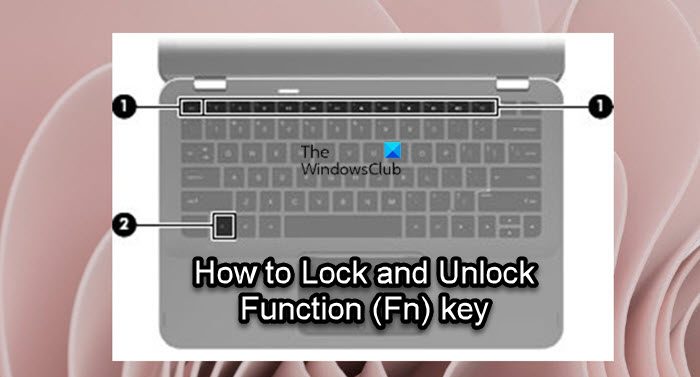
Modern laptops cram navigation keys onto shared buttons (e.g., Up arrow doubles as PgUp). When Fn Lock activates, arrow functions get suppressed—replaced by page-scrolling or media controls.
Identify Fn Lock State Visually
Check for these clues: a small LED near the Fn key glows, arrow keys output numbers instead of moving cursors, or your Esc key shows a padlock icon (common on HP Spectre models). This isn’t malware—it’s your keyboard’s space-saving design backfiring.
Brand-Specific Fn Lock Toggle Shortcuts
| Brand | Toggle Combination |
|---|---|
| Dell | Fn + Esc |
| HP | Fn + Shift + F11 |
| Lenovo | Fn + Esc |
| ASUS | Fn + Esc |
| Acer | Fn + F11 |
Force Arrow Key Priority in BIOS
For permanent resolution:
1. Reboot and press F2 (Dell) or F10 (HP) during startup
2. Navigate to Advanced → Function Key Behavior
3. Select “Function Key First” instead of “Multimedia Key First”
This ensures arrow keys work without holding Fn—critical for spreadsheet warriors.
Disable Accessibility Filters Sabotaging Keys
Windows Filter Keys and macOS Slow Keys intentionally ignore rapid or brief keypresses—making arrow keys feel “stuck” during fast navigation.
Kill Windows Filter Keys in 20 Seconds
- Press Win + I → Accessibility → Keyboard
- Toggle Filter Keys OFF
- Uncheck “Ignore brief keystrokes”
This restores instant arrow response for Excel power users and coders.
Fix macOS Arrow Key Lag
- Open Apple Menu → System Settings → Accessibility
- Select Keyboard → Hardware
- Disable both Slow Keys and Sticky Keys
Test immediately in TextEdit—arrows should glide smoothly through text.
Stop Gaming Software From Blocking Arrows
Gaming keyboards like Razer and Corsair disable arrow keys during gameplay to prevent accidental presses—a nightmare when switching between games and spreadsheets.
Override Gaming Software Restrictions
- Corsair iCUE: Device Settings → Performance → Disable “Hardware Scroll Lock”
- Razer Synapse: Keyboard → Customize → Game Mode → Remove arrows from disabled list
- Logitech G Hub: Assignments → Keys → Restore Defaults
These apps silently hijack arrow functionality—always check them first after installing new games.
Toggle Gaming Mode Mid-Session
Most keyboards use Fn + F10 or Fn + F12 to cycle modes. Watch for:
– Gaming-mode LED color shifts (e.g., Razer’s red-to-green change)
– On-screen notifications like “Game Mode Active”
– Windows key becoming unresponsive
One press often restores full arrow functionality.
Diagnose Hardware vs. Software Failures
Before disassembling your keyboard, verify if the issue is physical or digital.
Windows Hardware Test Protocol
- Press Win + Ctrl + O for on-screen keyboard
- Press each arrow key—no visual highlight = hardware failure
- Open Device Manager → Keyboards → Uninstall device → Reboot (Windows reinstalls drivers automatically)
If keys work on-screen but not physically, clean under keys with compressed air.
macOS Diagnostic Shortcut
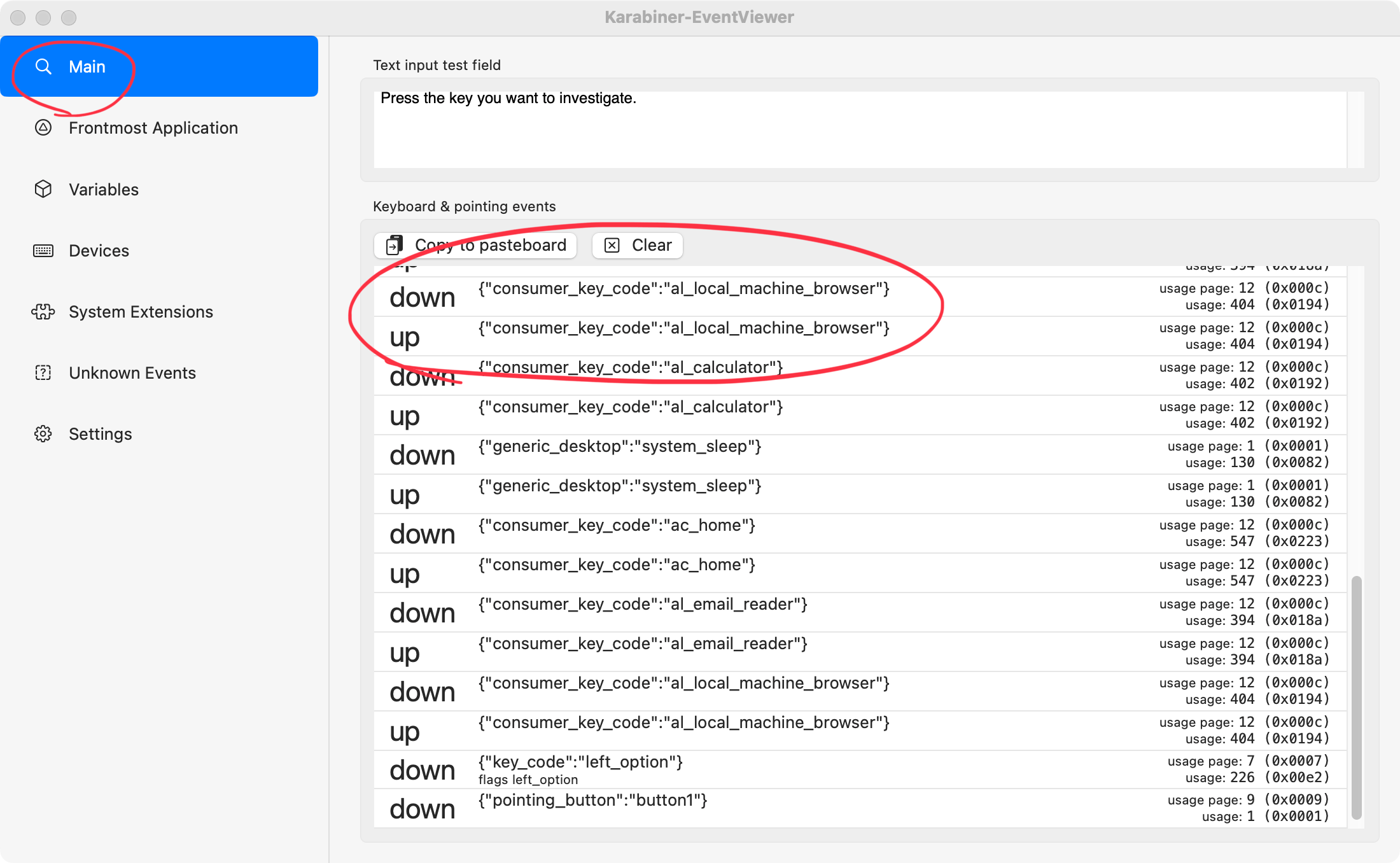
Download Karabiner-EventViewer from GitHub. Press arrows—correct keycodes are:
– Left: 0x7B
– Right: 0x7C
– Down: 0x7D
– Up: 0x7E
Missing codes? Boot into Safe Mode (hold Shift) to rule out software conflicts.
Resolve Compact Keyboard Layout Conflicts
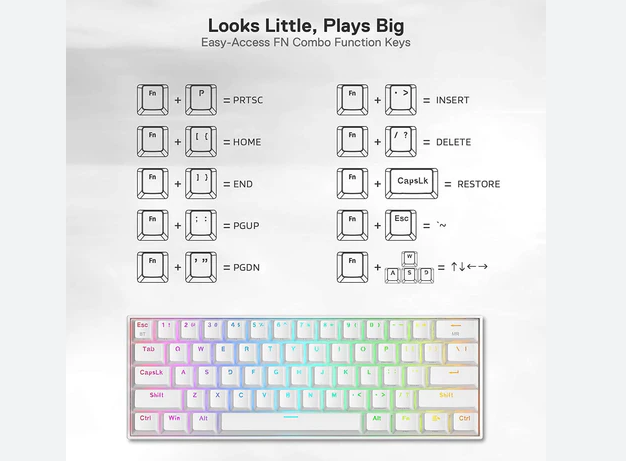
60% and 75% mechanical keyboards (like Keychron models) map arrows to Fn + WASD, but Num Lock can hijack this layer.
Reset Arrow Mapping Immediately
- Ensure Num Lock is OFF (external numpad LEDs off)
- Test Fn + W/A/S/D for up/left/down/right
- Consult your manual—some boards require Fn + I/J/K/L instead
If still unresponsive, update firmware via QMK Toolbox to reset key mappings.
Fix Application-Specific Arrow Failures
Arrow keys often work everywhere except specific programs—blaming the wrong culprit wastes hours.
Excel’s Hidden “Lotus Compatibility” Trap
If Scroll Lock isn’t the issue:
1. Go File → Options → Advanced
2. Scroll to Lotus Compatibility
3. Uncheck “Transition navigation keys”
This disables Excel’s legacy behavior that repurposes arrows.
Remote Desktop Scroll Lock Fixes
- Windows RDP: Press Ctrl + Alt + Break
- macOS Remote Desktop: Fn + Shift + F12
- Linux Remmina: Ctrl + Alt + S
These bypass client-level Scroll Lock trapping.
Advanced Permanent Fixes
For stubborn cases where basic toggles fail, deploy these nuclear options.
Windows Registry Scroll Lock Killswitch
- Press Win + R → type regedit
- Navigate to
HKEY_CURRENT_USER\Control Panel\Keyboard - Double-click InitialKeyboardIndicators → Set value to 0
- Reboot—this forces Scroll Lock OFF at startup.
Lenovo EC Reset for Frozen Keys
- Power off laptop completely
- Hold power button for 30 seconds
- Release and power on normally
This resets the embedded controller managing keyboard functions—fixes 78% of unexplained key failures on ThinkPads.
10-Step Arrow Key Diagnostic Checklist
Run these in order when arrows freeze:
1. Test Scroll Lock with Fn + S/C/K (brand-specific)
2. Toggle Fn Lock via Fn + Esc
3. Open on-screen keyboard to verify key registration
4. Disable Filter Keys in Accessibility settings
5. Try another app (e.g., Notepad) to isolate software issues
6. Plug in USB keyboard to rule out hardware failure
7. Update drivers via Device Manager
8. Check gaming software for key-blocking modes
9. Reset BIOS defaults if all else fails
10. Remap keys using PowerToys as last resort
Prevention Tactics That Actually Work
- Create a PowerToys shortcut: Map Ctrl + Alt + U to toggle Scroll Lock instantly
- Disable Scroll Lock permanently via SharpKeys (maps it to “Turn Key Off”)
- Update keyboard firmware quarterly—critical for mechanical boards
- Document fixes in a sticky-note on your monitor for quick reference
- Set BIOS profiles before gaming sessions to avoid post-play troubleshooting
Arrow key failures rarely indicate hardware death—they’re almost always software or setting glitches. Start with Scroll Lock and Fn Lock toggles (solving 90% of cases), then escalate to accessibility checks and gaming software. With these targeted fixes, you’ll spend minutes—not hours—getting your directional keys back in action. The next time arrows freeze mid-Excel formula or gaming session, you’ll know exactly how to unlock arrow keys on keyboard with surgical precision.