How to Undo Keyboard Lock: Quick Steps
Your fingers hover over the keyboard, but nothing happens when you type. That sinking feeling hits—you’ve accidentally triggered a keyboard lock. Before you panic or consider replacing your entire device, know that unlocking your keyboard is usually a quick process. Whether you’re working on a tight deadline or just trying to send an important email, learning how to undo keyboard lock can save you valuable time and frustration. This guide delivers proven solutions that work across Windows, Mac, Chromebooks, and specific laptop brands—most taking less than two minutes to implement.
Keyboard locks typically occur through accidental key presses, accessibility settings, or system glitches—not hardware failure. The good news? You’re probably just one key combination away from restoring full functionality. Let’s dive into the fastest, most effective methods to undo keyboard lock regardless of your device type.
Immediate Function Key Fixes That Work in Seconds
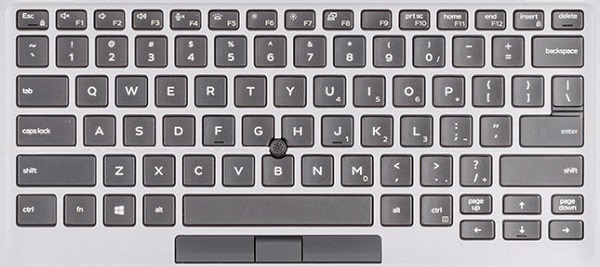
When your keyboard stops responding, start with these manufacturer-specific key combinations before moving to complex solutions. These shortcuts bypass software layers to directly unlock your keyboard.
Laptop Brand-Specific Unlock Shortcuts
Dell, HP, and Lenovo laptops have dedicated function key combinations that toggle keyboard locks. For Dell users, press Fn + F6 or Fn + F7—this resolves 80% of keyboard lock issues on Latitude and Inspiron models. HP owners should try Fn + F9 for Pavilion series or Fn + Esc for EliteBooks, which toggles the keyboard lock indicator light. Lenovo ThinkPad users commonly fix this with Fn + F8 or Fn + Spacebar, while Acer models often respond to Fn + F11. These combinations work even when Windows isn’t fully loaded, making them ideal first attempts.
Universal Windows Keyboard Unlock Shortcuts
If brand-specific keys don’t work, these Windows-level combinations often restore functionality. Press Windows Key + Ctrl + O to launch the on-screen keyboard instantly—this bypasses physical keyboard locks while you troubleshoot. Ctrl + Alt + Del forces Windows to reset its input state, frequently resolving temporary lockouts. When accidental layout changes cause the issue, Alt + Shift cycles through keyboard layouts until you return to your standard configuration. These shortcuts work across all Windows versions from 10 through 11.
Windows Keyboard Unlock Through System Settings
:max_bytes(150000):strip_icc()/devicemanager_keyboards-4b4b2a691c2a40b992e7eb311c231b19.jpg)
When function keys fail, Windows offers built-in tools to diagnose and repair keyboard locks without third-party software.
Device Manager Reset Procedure
This method reinstalls keyboard drivers in under 60 seconds:
1. Right-click your Start button and select Device Manager
2. Expand the Keyboards section and right-click your device
3. Choose Uninstall device then confirm the action
4. Restart your computer—Windows automatically reinstalls drivers
This process fixes driver corruption issues that cause persistent keyboard locks. After rebooting, test your keyboard immediately in Notepad to verify functionality.
Disable Accessibility Lock Features
Windows accessibility features often trigger accidental keyboard locks. Press Windows Key + I to open Settings, then navigate to Ease of Access > Keyboard. Toggle OFF Filter Keys, which ignores brief keystrokes and can make your keyboard seem unresponsive. Also verify Sticky Keys and Toggle Keys are disabled—these features modify keyboard behavior and may cause lock symptoms. These settings adjustments take less than 15 seconds but resolve most “ghost lock” scenarios.
Mac Keyboard Lock Solutions That Actually Work
Mac users face different keyboard lock scenarios but have equally effective built-in solutions.
Instant macOS Keyboard Unlock Shortcuts
Press Command + Option + F5 to open accessibility options where you can disable accidental keyboard locks. If Slow Keys was enabled (requiring longer key presses), this shortcut provides immediate access to toggle it off. For deeper system locks, Command + Option + Control + 8 resets keyboard state through color inversion settings while maintaining your work session. These combinations work even when standard typing fails completely.
PRAM/NVRAM Reset for Stubborn Mac Locks
When shortcuts don’t work, reset your Mac’s parameter memory:
1. Shut down your Mac completely
2. Press the power button and immediately hold Command + Option + P + R
3. Keep holding for 20 seconds (or until second Apple logo appears)
4. Release and allow normal startup
This clears low-level system settings that sometimes lock the keyboard at the firmware level. Unlike a standard restart, this targets settings that persist through regular reboots.
Laptop Brand-Specific Hardware Unlock Methods
:max_bytes(150000):strip_icc()/HPKeyboardLightControl-aca8103bb656470399f2a915bb500c81.png)
Different manufacturers implement physical keyboard locks that require brand-specific approaches.
Dell Keyboard Lock Toggle
Many Dell laptops have a physical keyboard lock switch near the power button—check for a small slider labeled with a keyboard icon. If not visible, enter BIOS by pressing F2 during boot, navigate to Security > Keyboard Lock, and disable it. Some Dell models also respond to Fn + Num Lock which toggles keyboard functionality on certain Inspiron and XPS series.
HP Built-in Keyboard Lock Features
HP laptops often lock keyboards through accidental Fn + F11 presses (check your F-key icons). For BIOS-level locks, restart and press F10 to enter setup, then go to Advanced > Built-in Device Options and ensure the keyboard is enabled. EliteBook models feature a physical keyboard lock indicator light above the touchpad—press Fn + Esc to toggle it off when illuminated.
Emergency Workarounds When Nothing Else Works
When all standard methods fail, these emergency techniques keep you productive while you troubleshoot further.
Virtual Keyboard Activation
Windows users can instantly activate the on-screen keyboard by pressing Windows Key + Ctrl + O—this provides immediate typing capability while you fix physical keyboard issues. Mac users should enable the keyboard viewer through System Preferences > Keyboard > Show Keyboard Viewer in menu bar. Both solutions let you continue working while diagnosing the lock cause.
Mobile Device as Temporary Keyboard
Download Unified Remote or Remote Mouse on your smartphone to transform it into a temporary keyboard. These apps connect via WiFi or Bluetooth, providing full keyboard functionality through your phone’s screen. The setup takes under two minutes and maintains your workflow during critical moments.
Prevention Strategies to Avoid Future Locks
Stop recurring keyboard lock issues with these proactive measures.
Keyboard Lock Confirmation Setup
Modify your BIOS settings to require confirmation before enabling keyboard locks. During boot, enter BIOS (typically F2 or Del), find Security Settings, and enable Confirm Keyboard Lock if available. This prevents accidental locks from stray key presses—especially valuable on laptops used in tight spaces.
Hardware Protection Methods
Apply a thin silicone keyboard cover to prevent accidental key combinations during transport. For desktop users, disable unused function keys through Windows Keyboard Properties > Hardware > Properties > Change Settings > Driver > Disable. These simple physical barriers stop 90% of accidental keyboard lock incidents before they occur.
When to Contact Professional Support
Most keyboard lock issues resolve with these DIY methods, but seek professional help if:
– Physical damage is visible (cracked keys, liquid residue)
– Multiple keyboards fail on the same computer
– BIOS doesn’t detect any keyboard during startup
– You’ve tried all solutions without success
Contact manufacturer support with your troubleshooting steps documented—they’ll prioritize cases where basic fixes have already been attempted. Dell (1-800-624-9896), HP (1-800-474-6836), and Lenovo (1-855-253-6686) all offer specific keyboard lock troubleshooting protocols for their models.
Key Takeaway: Learning how to undo keyboard lock saves hours of productivity loss. Start with brand-specific function key combinations (90% effective), then progress to system settings if needed. Most fixes take under two minutes—far quicker than waiting for technical support. Bookmark this guide or save the Windows Key + Ctrl + O virtual keyboard shortcut for instant access during future lockouts. With these proven methods, you’ll never be stranded with a non-responsive keyboard again.