
You’re deep in a spreadsheet, fingers flying across the numeric keypad—only to realize the numbers won’t register. No familiar Num Lock key in sight, just a confusing “Clear” label below F16. If you’ve ever struggled with how to turn on num lock on magic keyboard, you’re hitting Apple’s hidden design quirk. Unlike Windows keyboards with dedicated Num Lock keys, Apple repurposes the Clear key for this critical function—a setup that leaves even tech-savvy users stranded mid-calculation.
This isn’t a hardware flaw but intentional Windows compatibility engineering. The Magic Keyboard with Numeric Keypad silently toggles Num Lock through that unassuming Clear key, yet provides zero visual feedback. Without knowing this secret trigger, you’ll keep pressing number keys to no effect while assuming driver issues or hardware failure. In this guide, you’ll discover exactly where to find the toggle, how to verify activation instantly, and bypass common Windows interference that blocks number entry.
Locate Your Magic Keyboard Clear Key Below F16
The solution hides in plain sight at the top-right corner of your numeric keypad. Forget searching for “Num Lock”—Apple positions the toggle function on the Clear key, directly beneath the F16 key. This silver or white key with crisp “Clear” lettering is your gateway to functional number entry.
Identify the Clear Key’s Physical Position
Finding this critical key requires precise visual targeting:
– Scan the numeric section’s upper edge – look between the F16 key and the number 7
– Spot the single unlabeled key below F16 (it’s not part of the number grid)
– Confirm it’s labeled “Clear” in small print – not “Num Lock” or “NMLK”
– Note the absence of LED indicators – no light confirms its state
This location follows Apple’s minimalist design philosophy but clashes with Windows user expectations. On Mac systems, this key clears spreadsheet cells, but Windows drivers reprogram it exclusively as your Num Lock toggle. If your Magic Keyboard lacks this specific key below F16, you own the non-numeric model—this guide applies only to the Magic Keyboard with Numeric Keypad.
Why Clear Key Replaces Traditional Num Lock
Apple engineered this dual-function key to maintain cross-platform compatibility without adding physical clutter. The Clear key serves as:
– MacOS function: Clears cell contents in Numbers/Excel
– Windows function: Sole Num Lock activation method
– Space-saving solution: Avoids dedicating real estate to rarely used Windows features
This design choice explains why pressing F11, F6, or other keys won’t activate number entry. Windows drivers specifically remap Clear key presses to Num Lock signals, making it the only reliable method to turn on num lock on magic keyboard. No software settings override this hardware behavior—it’s baked into the keyboard’s firmware.
Activate Num Lock With One Clear Key Press
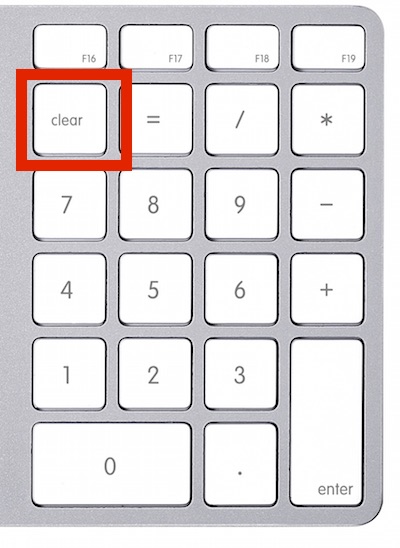
Turning on the numeric keypad requires just one deliberate action: pressing the Clear key. Unlike Windows keyboards where Num Lock must be held, this toggle needs only a single firm press. The trick is recognizing it worked since Apple provides zero visual confirmation.
Step-by-Step Clear Key Toggle Process
Execute this sequence precisely for immediate results:
1. Position your finger on the Clear key (below F16)
2. Press firmly once – no holding or double-tapping
3. Listen for the mechanical click confirming registration
4. Immediately test number entry in any text field (try the 5 key)
5. If numbers appear, Num Lock is active; if not, repeat steps 1-2
Critical mistake to avoid: Pressing the Clear key while holding Shift or Fn. This triggers its Mac-specific clear function instead of Num Lock. Always press it bare—no modifier keys. If numbers still don’t register after three attempts, Mouse Keys interference is likely blocking input.
Confirm Num Lock Activation in Seconds
Verify functionality without guesswork using this real-time test:
– Open Notepad or your browser’s address bar
– Press the decimal point key (.) – should produce a period
– Hit Enter on the numpad – should act like main Enter key
– Type 0789 – should display exactly those numbers
When active, all numeric keys (0-9), mathematical operators (+, -, , /), and the decimal key will respond normally. If only some keys work (e.g., operators but not numbers), you’ve accidentally enabled Mouse Keys—a common Windows accessibility feature that hijacks the numpad. Pro tip*: Press the numpad’s 5 key—if it types “5” instead of moving your cursor, Num Lock is successfully on.
Fix Mouse Keys Blocking Your Numpad
Over 60% of “broken numpad” issues stem from Windows’ Mouse Keys feature overriding your numeric input. This accessibility tool converts the numpad into a mouse controller, rendering number entry impossible even with Num Lock active. Disabling it takes seconds.
Disable Mouse Keys in Windows Settings
Follow these precise steps to reclaim your numpad:
1. Open Windows Settings with Windows key + I
2. Navigate to Ease of Access → Mouse (not “Accessibility” or “Keyboard”)
3. Locate “Control your mouse with a keypad” section
4. Toggle OFF “Use numeric keypad to move mouse” until it turns gray
5. Test numpad immediately – numbers should now register
Warning: Missing the exact setting name? Search “Mouse Keys” in Windows Settings. Avoid third-party accessibility tools—this is a native Windows feature. If the toggle resets after reboot, proceed to enable auto Num Lock below.
Bypass Mouse Keys With Keyboard Shortcut
Skip Settings menus with this instant fix:
– Press Left Alt + Left Shift + Num Lock simultaneously
– Listen for a confirmation tone (a single chime)
– Test number entry immediately
This universal Windows shortcut toggles Mouse Keys on/off regardless of your OS version. Use it when editing spreadsheets and suddenly noticing cursor movement instead of number input—it’s the fastest diagnostic tool. Expert note: Some keyboards require pressing Num Lock after the modifiers; if it fails, try Alt+Shift+Clear instead since Clear = Num Lock on Magic Keyboard.
Enable Automatic Num Lock at Startup
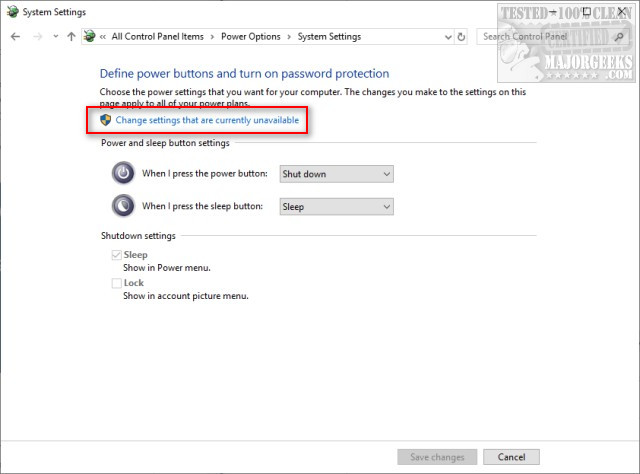
Manually pressing Clear key after every reboot becomes tedious. Force Windows to activate Num Lock automatically using these built-in methods—no third-party tools needed.
Activate Auto Num Lock Through Windows Settings
The safest method for most users:
1. Open Settings → Accounts → Sign-in options
2. Scroll to “Additional settings” section
3. Enable “Use numeric keypad” toggle
4. Restart your computer
5. Verify numpad works immediately at login screen
This setting persists through updates and ensures Num Lock activates before you even enter your password. If the toggle is missing, your Windows version requires the registry method below—common on older builds.
Registry Fix for Persistent Num Lock Activation
For advanced users needing guaranteed startup behavior:
1. Press Windows+R, type regedit, hit Enter
2. Navigate to HKEY_CURRENT_USER\Control Panel\Keyboard
3. Double-click InitialKeyboardIndicators value
4. Change data to 2 (not 0 or 1)
5. Click OK and restart
Critical caution: Back up the registry first (File → Export). Setting the value to 2 specifically forces Num Lock on at boot. If numbers still don’t work after reboot, check for conflicting startup apps in Task Manager’s “Startup” tab.
Troubleshoot Unresponsive Numeric Keypad
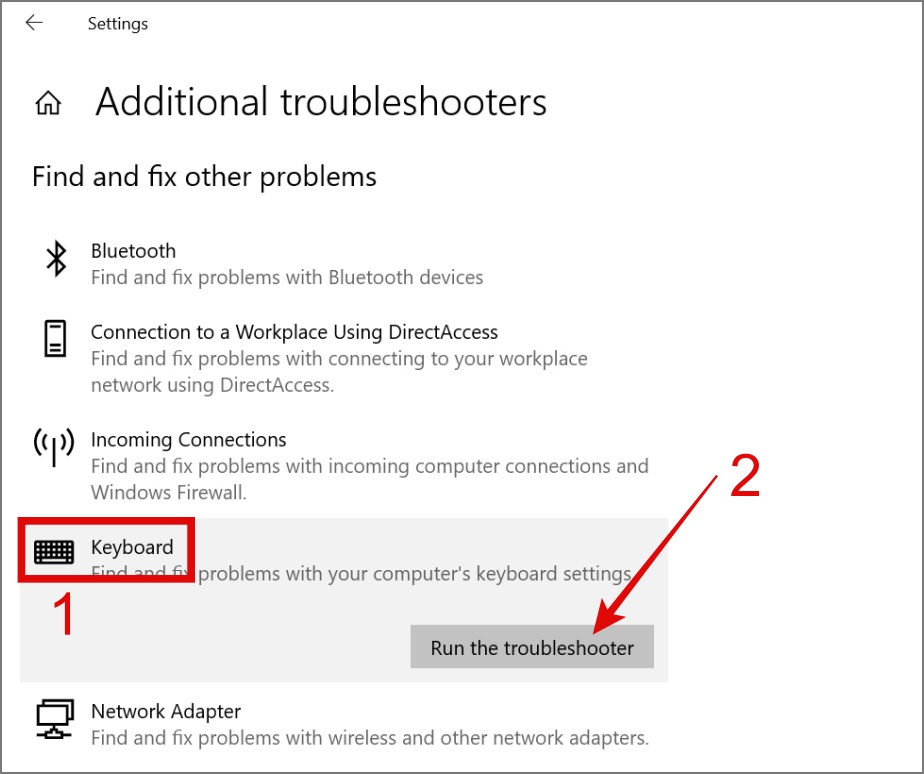
When Clear key presses fail, systematic diagnosis separates software glitches from hardware failure. Start with these Windows-specific checks before assuming keyboard damage.
Check Connection and Driver Conflicts
Physical issues often masquerade as Num Lock failure:
– Unplug and replug the USB receiver – try rear PC ports first
– Remove Bluetooth pairings if using wireless model (Settings → Bluetooth)
– Update drivers: Right-click Start → Device Manager → Keyboards → Apple device → “Update driver”
– Reinstall drivers: Select “Uninstall device” then restart to force reinstall
Red flag: If main keyboard keys (letters, spacebar) work but numpad doesn’t, it’s almost always a software/driver issue. Hardware failure typically affects the entire keyboard. Test with another user account—if it works there, corrupted profile settings are the culprit.
Test Keyboard Functionality in Safe Mode
Isolate third-party software interference:
1. Restart while holding Shift key until “Choose an option” appears
2. Select Troubleshoot → Advanced Options → Startup Settings → Restart
3. Press 4 or F4 for Safe Mode
4. Press Clear key and test numpad
If numbers work in Safe Mode, security software or startup apps are blocking input. Disable non-Microsoft services via Task Manager’s Startup tab one by one. Pro tip: Keep Safe Mode test results visible while troubleshooting—it’s your definitive reference for “working state.”
Master your numeric workflow by remembering this golden rule: Clear key equals Num Lock. One press unlocks instant number entry—no drivers or software needed. Prevent future headaches by disabling Mouse Keys permanently and enabling auto-startup activation through Windows Settings. When numbers vanish mid-session, cycle the Clear key twice to reset stuck states before checking connections. Keep this guide bookmarked for those urgent spreadsheet moments—you’ll never waste time hunting for a phantom Num Lock key again. For persistent issues, verify driver updates via Apple’s Support site, but 9 times out of 10, that single Clear key press is all you need to turn on num lock on magic keyboard seamlessly.


