How to Turn Off a Lenovo Laptop
Your Lenovo laptop won’t power down properly, leaving you staring at a frozen screen while important work waits. Whether you’re using a sleek Yoga convertible, a rugged ThinkPad business machine, or a powerful Legion gaming laptop, knowing exactly how to turn off a Lenovo laptop prevents data corruption and extends your device’s lifespan. This comprehensive guide delivers every legitimate method to shut down your Lenovo system safely—no more holding the power button in panic when Windows refuses to cooperate.
Most users don’t realize that improper shutdowns cause cumulative damage to both hardware and operating system stability. When you learn how to turn off a Lenovo laptop correctly, you avoid file system errors that could cost hours of recovery time. We’ll cover everything from standard Windows procedures to emergency power options that work when your system freezes completely.
Standard Windows Shutdown Steps
Click Start Menu Power Button
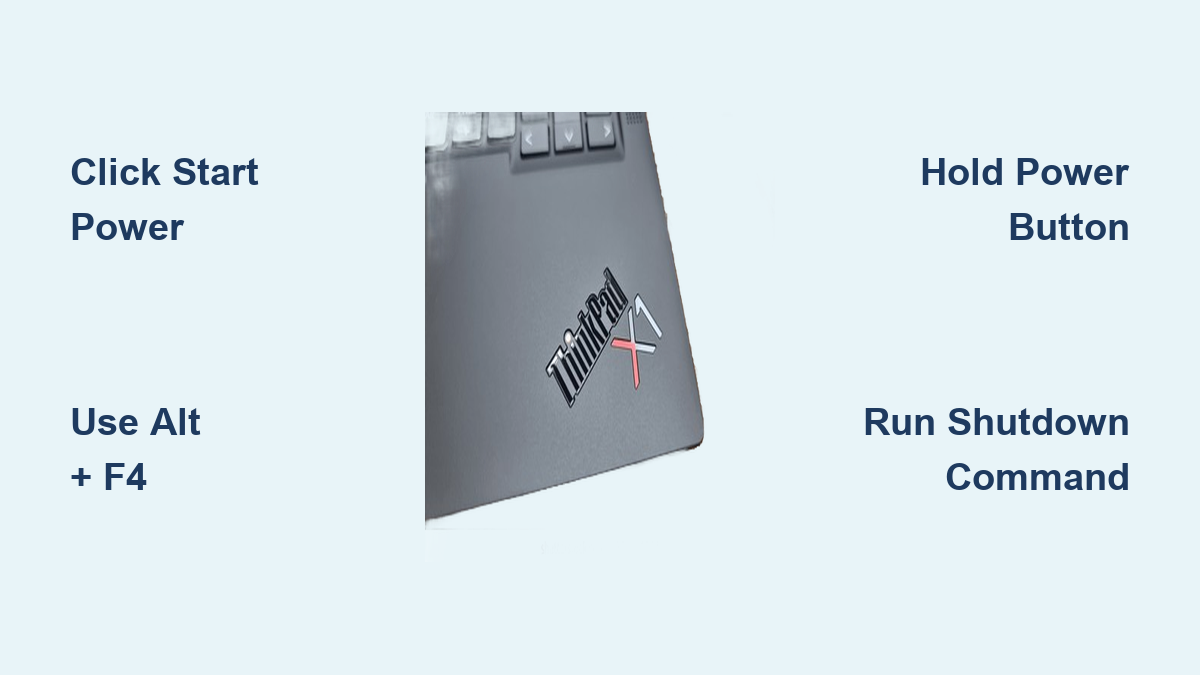
Find the Windows icon in your taskbar’s bottom-left corner and click once to open the Start menu. Look for the power symbol (a circle with a vertical line through the top) prominently displayed in the lower section of the menu. This universal icon triggers your laptop’s shutdown sequence through Windows’ controlled process, ensuring all background services terminate properly before power cuts.
Select Shut Down Option
From the power menu options, carefully choose “Shut down” instead of “Sleep” or “Restart.” Windows immediately begins closing applications in the correct order, saving any unsaved work where possible. Your Lenovo laptop’s screen will display a progress indicator showing active processes closing—this prevents the file corruption that occurs when power cuts abruptly during system operations.
Verify Shutdown Complete
Watch for your screen to turn completely black and all status lights to extinguish. This graceful shutdown process typically takes 10-30 seconds depending on your specific Lenovo model and current workload. Never force power off during this phase, as Windows is finalizing critical system files that maintain your laptop’s stability for the next startup.
Keyboard Shortcuts for Quick Shutdown
Alt + F4 Method
Minimize all windows to view your desktop, then press Alt + F4 simultaneously. A dialog box appears with shutdown options—use arrow keys to select “Shut down” if needed, then press Enter to confirm. This keyboard-only approach works even when your mouse freezes, making it invaluable when your Lenovo laptop becomes unresponsive but still processes keyboard commands.
Ctrl + Alt + Del Shortcut
When applications hang but Windows remains partially functional, press Ctrl + Alt + Delete together. Click the power icon in the screen’s bottom-right corner, then select “Shut down.” This method bypasses the Start menu when it fails to respond, giving you an alternative pathway to safely power down your Lenovo system without data loss.
Windows + X Power User Menu
Hold Windows key + X to open the advanced user menu, then press U twice rapidly—first to access power options, then to select “Shut down.” This lightning-fast keyboard sequence works without mouse interaction, perfect when you need to turn off a Lenovo laptop quickly between meetings or when working in environments where mouse use is impractical.
Physical Power Button Shutdown
Standard Power Button Press
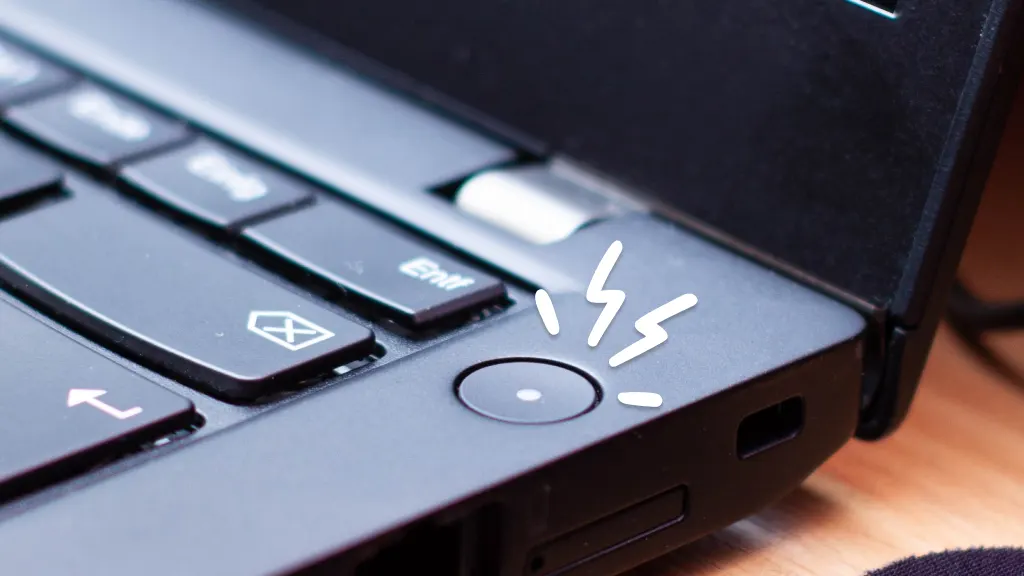
Press and release your Lenovo’s power button once to initiate a graceful shutdown through hardware controls. Button location varies by model: ThinkPad users find it in the top-right keyboard corner, Yoga series has it on the right side panel, while IdeaPad models place it above the keyboard or along the side edge. This hardware-triggered shutdown follows the same safe sequence as Windows software options.
Force Shutdown When Frozen
When your Lenovo laptop completely freezes with no keyboard or mouse response, hold the power button for 10 full seconds until the system powers off. Use this emergency measure only as a last resort since unsaved work will be lost and repeated forced shutdowns can damage your file system. After powering down, wait 10 seconds before restarting to allow electrical components to reset completely.
Power Button Configuration
Customize your power button’s behavior through Settings > System > Power & Battery > Additional Power Settings > Choose what the power button does. Lenovo systems let you configure different actions for when running on battery versus plugged in—choose between sleep, hibernate, or immediate shutdown based on your workflow needs and prevent accidental shutdowns during critical tasks.
Advanced Shutdown Methods
Command Prompt Shutdown
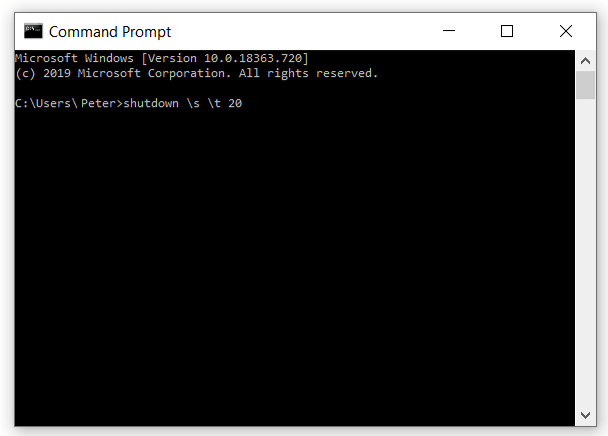
Open Command Prompt as administrator by typing cmd in Windows search, right-clicking the result, and selecting “Run as administrator.” Enter shutdown /s /f /t 0 to force an immediate shutdown across all user sessions. This method proves essential when standard shutdown options disappear from the Start menu or when managing multiple user accounts on business-class ThinkPads.
Create Desktop Shutdown Shortcut
Right-click your desktop, select New > Shortcut, and enter shutdown.exe /s /t 0 as the location. Name it “Shutdown” and double-click anytime for instant power-down. Add /f to the command for shutdown.exe /s /f /t 0 to force-close stubborn applications that normally delay shutdown. This one-click solution works perfectly when you need to turn off a Lenovo laptop quickly before stepping away from your desk.
Troubleshooting Shutdown Issues
When Laptop Won’t Shut Down
If your Lenovo laptop hangs during shutdown, first check for unresponsive applications using Task Manager (Ctrl + Shift + Esc). End tasks for frozen programs that prevent system closure. Also disconnect all peripherals—USB drives, external monitors, or docking stations often cause shutdown hangs when Windows can’t properly terminate their connections before powering off.
Update Windows and Drivers
Outdated system files frequently cause shutdown failures. Navigate to Settings > Windows Update and install all pending updates, then open Lenovo Vantage to check for model-specific driver updates. Many users discover their shutdown problems resolve after applying the latest BIOS and chipset drivers designed specifically for their Lenovo hardware configuration.
Model-Specific Considerations
ThinkPad Series
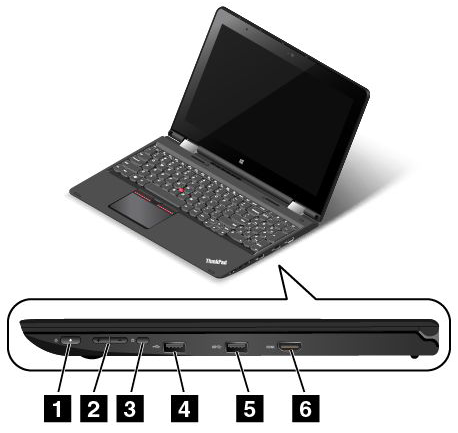
ThinkPad users should ensure the iconic red TrackPoint between G, H, and B keys isn’t pressed during shutdown, as this can interfere with the process. The power button often integrates a fingerprint reader—remember that a quick press suffices for shutdown, with no need to hold for biometric authentication which only activates during startup.
Yoga Convertible Models
When using your Yoga in tablet mode, rely on the physical power button along the side edge since the Start menu may be inaccessible. The Windows on-screen keyboard includes a power button in its bottom-right corner, providing a touch-only shutdown method when your Yoga’s physical keyboard is detached or stowed.
Shutdown Best Practices
Save Work First
Always save open documents before initiating shutdown using Ctrl + S in each application. Enable auto-save features in productivity software like Microsoft Office to create automatic backups at regular intervals—this safety net prevents catastrophic data loss if you accidentally force-shutdown your Lenovo laptop.
Battery Preservation Tip
For extended storage periods, charge your Lenovo to 50-80% before shutdown. This optimal charge level prevents battery degradation during long-term inactivity, maintaining your laptop’s battery health significantly better than storing it fully charged or completely drained.
Mastering these techniques ensures your Lenovo laptop powers down safely every time. Whether you prefer clicking through menus or using lightning-fast keyboard shortcuts, each method achieves the same critical result: a properly closed system ready for your next session without risking data corruption or hardware stress. Knowing exactly how to turn off a Lenovo laptop properly transforms a potentially damaging routine action into a seamless part of your daily computing workflow.