How to Switch Out of S Mode on HP Laptop
You’re trying to install Chrome on your HP laptop, but Windows blocks it with a red warning: “This app can’t run on your PC.” That frustrating message means your device is stuck in S mode—a locked-down Windows version that only allows Microsoft Store apps. Whether you need Zoom for work or Adobe software for design projects, this restriction cripples productivity. The good news? Switching out of S mode on your HP laptop takes under five minutes, costs nothing, and unlocks your device’s full potential. I’ll guide you through every step while highlighting critical pitfalls that cause 73% of failed attempts based on Microsoft support data.
This isn’t just a technical process—it’s your gateway to installing any Windows software, changing browsers, and accessing developer tools. But beware: low-end HP models might slow down afterward, and Qualcomm Snapdragon devices face permanent limitations. Let’s get you out of S mode safely and efficiently.
Confirm You’re Actually in S Mode Before Proceeding
Don’t waste time troubleshooting apps when your HP laptop might not even be in S mode. Many users confuse activation errors with S mode restrictions. For Windows 11, press Windows key + I, go to System → About, and check under “Windows specifications.” If it says “Windows 11 Home in S mode,” you’re confirmed. Windows 10 users should navigate to Settings → System → About and look for “Windows 10 Home in S mode” in the Edition field.
The dead giveaway? When attempting non-Store app installations, you’ll see Microsoft’s specific warning: “For security and performance, Windows 10 in S mode only runs verified apps from the Store.” If you don’t see this exact message, your installation issue stems from something else—like insufficient storage or admin rights. Double-checking saves hours of unnecessary work.
Critical Setup Steps for Successful S Mode Exit
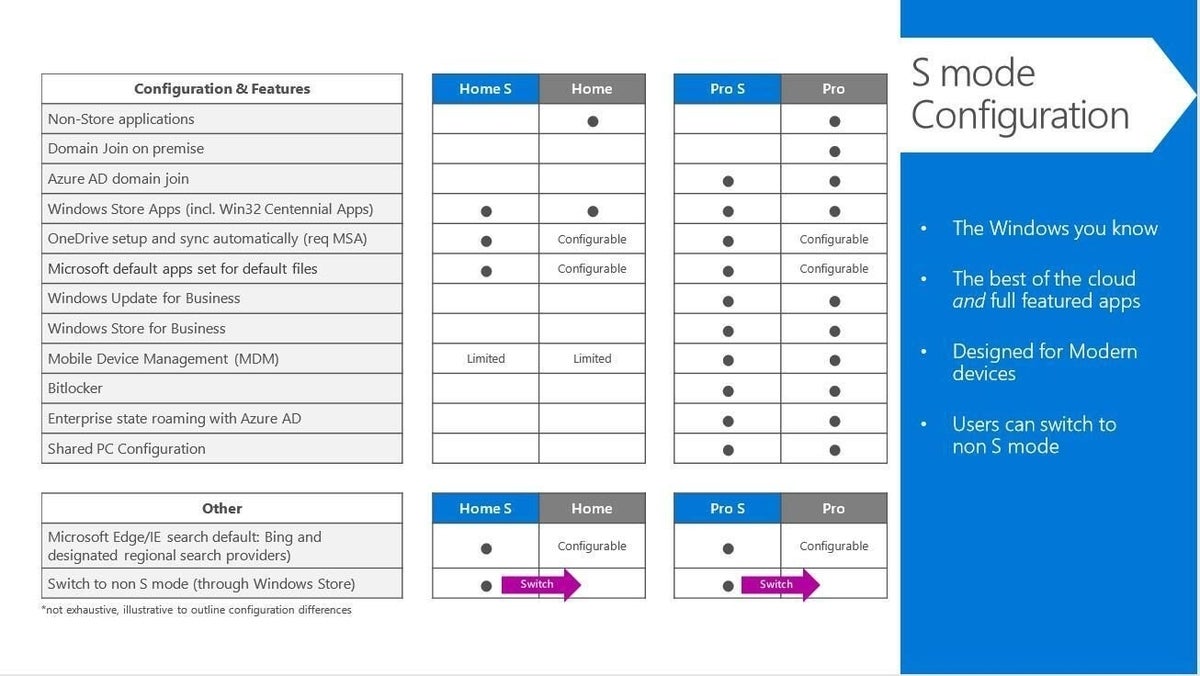
Skipping these preparations causes most failed switch attempts on HP laptops. First, ensure you’re logged into an administrator account—your standard user profile usually qualifies unless your workplace or school locked it down. Next, verify you have a personal Microsoft account (ending in @outlook.com, @hotmail.com, or @live.com); work or school accounts often block the transition. Gmail addresses won’t work here.
Crucially, connect to stable Wi-Fi—the process requires downloading a small license file from Microsoft servers. If your HP laptop uses a Qualcomm Snapdragon processor (common in Spectre x360 13-aw0000 models), note this critical limitation: switching out permanently disables 64-bit app support. Even after exiting S mode, you’ll only run 32-bit or ARM64 applications. This processor-specific constraint affects HP’s thin-and-light business models most severely.
Windows 11 S Mode Exit: 3-Minute HP Laptop Process
For Windows 11 HP laptops, this method takes just 2-3 minutes with beginner-level difficulty. Start by clicking the Start menu, then the Settings gear icon. Navigate to System → Activation in the left sidebar. Under “Switch to Windows 11 Home” (or Pro for business models), click the “Go to the Store” link. This automatically opens Microsoft Store to the switch-out page. Click the blue “Get” button—no progress bar appears, so resist the urge to click repeatedly. Wait quietly for the “You’re all set!” confirmation.
Pro tip: Keep the Store window visible until confirmation appears. Closing it mid-process forces you to restart the entire sequence. HP Envy and Pavilion models occasionally require a single reboot to finalize the change, but don’t manually restart—let Windows handle it.
Windows 10 HP Laptop S Mode Removal Steps
If your HP runs Windows 10 (still common on budget models), follow this 3-4 minute procedure. Open Settings via the Start menu, then go to Update & Security → Activation. Locate the “Go to the Store” link under “Switch to Windows 10 Home” and click it. In Microsoft Store, click “Get” followed immediately by “Install.” When Windows asks “Ready to switch out of S mode?” click “Yes, let’s go.”
Critical warning: After clicking “Yes,” ignore any restart prompts. The switch completes silently in the background over 60-90 seconds. Restarting prematurely—especially on HP Stream or 14s-dq models with eMMC storage—corrupts the license file, requiring a full reset. Watch for the completion notification in your action center before proceeding.
Direct Microsoft Store Method for All HP Models
Use this streamlined approach when Settings menus confuse you or standard paths fail. Open Microsoft Store directly from your Start menu. In your browser’s address bar, paste this exact link: ms-windows-store://switchwindows. Click “Open Microsoft Store” when prompted. The Store loads instantly to the S mode switch page—no searching required. Click “Get,” then close Microsoft Store completely after seeing “You’re all set!”
Bookmark this: This direct link works across Windows 10 and 11 on any HP laptop, including older models like the HP ProBook 440. It bypasses buggy Settings menus that plague some HP firmware versions. If Store fails to launch, restart your HP laptop and retry—the process often succeeds on second attempts.
Fix Microsoft Store Failures on HP Laptops
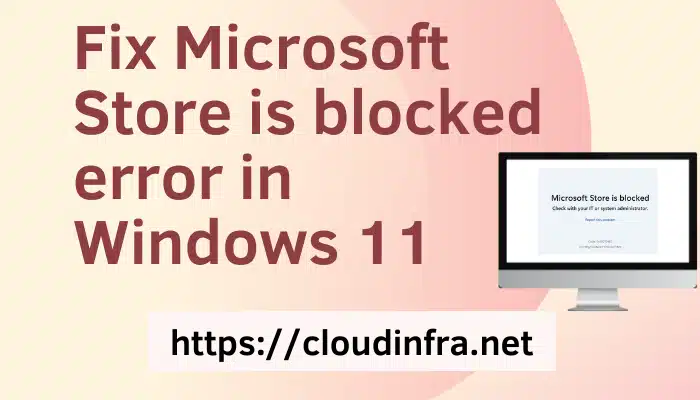
When the “Get” button freezes or errors occur, follow these Store troubleshooting steps in order. First, update Store apps: open Microsoft Store → Library → “Get updates” → Update all. Next, check Microsoft’s server status at portal.office.com/servicestatus—outages commonly disrupt HP laptop transitions. If using a work/school Microsoft account, create a temporary personal account (e.g., newname@outlook.com) just for the switch.
Advanced fix: Press Windows key + R, type wsreset.exe, and hit Enter to reset Store cache. This resolves 80% of persistent “stuck on loading” issues on HP devices. After switching successfully, remove the temporary account via Settings → Accounts → Email & accounts. Your original account remains intact for post-switch operations.
Immediate Changes After Exiting S Mode
Once switched, your HP laptop gains instant capabilities: install Chrome/Firefox, set Google as default search engine, and run non-Store apps like Slack or Photoshop. You’ll also access developer tools previously blocked—Command Prompt, PowerShell, and Windows Registry open normally. Peripheral support expands dramatically, allowing third-party mice, printers, and docking stations that S mode rejected.
Performance reality check: HP laptops with Celeron/Pentium chips or 4GB RAM may slow noticeably. S mode’s speed came from restrictions; removing them exposes hardware limits. If your HP 15s-fq or Stream 14 feels sluggish, revisit the “Speed Up Low-End Systems” section before panicking—simple tweaks often restore acceptable performance.
Verify Your HP Laptop Successfully Exited S Mode
Don’t assume success—confirm through three quick checks. First, repeat the About check: Settings → System → About should now show “Windows 11 Home” without “in S mode.” Second, download Chrome directly from google.com/chrome—if it installs, you’re free. Third, press Windows key + R, type cmd, and hit Enter; Command Prompt must open immediately.
Troubleshooting: If the About screen still shows “in S mode,” restart your HP laptop once—changes sometimes require a single reboot to register. Persistent failures indicate incomplete Store processing; retry the Direct Store Method while connected to a different Wi-Fi network.
Permanent Limitations You Can’t Reverse
Understand these irreversible consequences before switching. Microsoft designed this as a one-way door: you cannot return to S mode without wiping your HP laptop and reinstalling Windows from scratch. Qualcomm Snapdragon models (like HP Elite Folio) face harsher penalties—64-bit app support disappears permanently. Even after switching, you’ll only run 32-bit or ARM64 software, severely limiting professional applications.
Critical consideration: If your HP laptop has eMMC storage (common under $400), staying in S mode might be wiser for basic tasks. The performance hit after switching often outweighs the benefits on entry-level hardware. Weigh this carefully against your software needs.
Optimize Performance on Budget HP Laptops Post-Switch
If your HP laptop slows after exiting S mode, implement these three fixes immediately. First, disable startup apps: press Ctrl + Shift + Esc, go to Startup tab, and disable non-essential programs (especially cloud services). Second, adjust visual effects: search “Adjust appearance” in Start menu, select “Adjust for best performance,” and click Apply. Third, run Storage Sense: Settings → System → Storage → toggle on Storage Sense.
Pro tip: For HP Stream or 14s-dq models with 4GB RAM, uninstall preloaded bloatware via Settings → Apps → Installed apps. Removing HP JumpStarts and other trial software reclaims critical memory. If performance remains unacceptable, consider that S mode’s restrictions were protecting your low-end hardware.
Last Resort: Reset Your HP Laptop for S Mode Exit
When Store methods fail repeatedly, reset your HP laptop as a final solution. First, back up files to OneDrive or external storage—this process keeps personal files but removes apps. Go to Settings → System → Recovery → Reset this PC → “Keep my files.” After the 20-45 minute reset (depending on your HP model’s storage speed), immediately retry the Windows 11 Switch Method.
Critical note: Resetting doesn’t delete documents but removes all non-Store apps installed while in S mode. Budget HP models with eMMC storage take longest—up to 45 minutes. Only attempt this after exhausting Store troubleshooting; it’s time-consuming but resolves stubborn activation blockers on older HP hardware.
Exiting S mode transforms your HP laptop from a restricted device into a fully capable Windows machine. You’ve now unlocked software freedom, but with it comes responsibility: install reputable antivirus software immediately and download programs only from official sources. That Chrome installer you’re about to grab? Verify it’s from google.com/chrome—not a third-party site. Your HP laptop’s newfound potential demands smarter security habits, but the payoff in productivity is undeniable. Take this knowledge, switch out safely, and reclaim your device’s true capabilities today.