
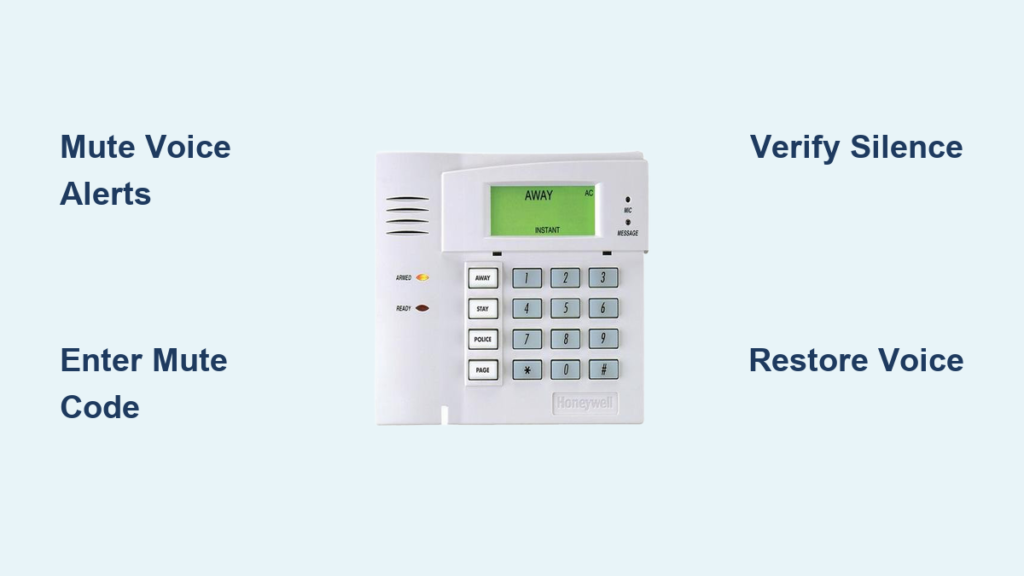
Your Honeywell alarm keypad won’t stop announcing every door opening, arming sequence, or system status change. Whether you’re dealing with a sleeping baby, working late, or simply want a quieter home environment, learning how to silence Honeywell alarm keypad is straightforward once you know the exact steps. This persistent voice feedback can be incredibly disruptive during quiet hours, but fortunately, Honeywell provides simple command sequences to mute these announcements without compromising your security system’s functionality.
This guide walks you through the precise command sequences for both LYNX Touch and VISTA systems, including quick verification methods and reverse procedures. You’ll learn the difference between muting voice announcements and disabling all sounds, plus when each approach makes sense for your specific situation. Whether you have a wired or wireless system, these methods work instantly with no programming required—just a few quick button presses to achieve the quiet operation you need.
Identify Your Honeywell System Type Before Muting

LYNX Touch vs VISTA: Critical Differences You Must Recognize
Before entering any commands to silence Honeywell alarm keypad, you must correctly identify your system type in under 10 seconds. Pressing the wrong sequence on the wrong system won’t work and may trigger error beeps that add to the noise you’re trying to eliminate.
Examine your keypad closely:
– LYNX Touch: Features a full-color touchscreen display with graphical icons
– VISTA: Uses traditional physical buttons with either LED indicators or a basic monochrome LCD screen
Check your system documentation: Your owner’s manual clearly identifies your system type on the cover or first page. If you don’t have the manual, look for the model number sticker inside the keypad battery compartment or on the back panel—this is your definitive identification source.
Why this matters: LYNX Touch systems use three-digit mute commands while VISTA systems require four digits. Using the wrong sequence won’t silence your Honeywell alarm keypad and wastes valuable time when you need quiet immediately.
Execute LYNX Touch Keypad Muting Sequence
Verify Voice Status Before Muting Your Keypad
Press the * key once and listen carefully. If you hear “System ready” or any status announcement, voice features are active and you need to silence Honeywell alarm keypad. Complete silence indicates your keypad is already muted—no further action required.
Pro tip: Test this during system disarm when you’re most likely to hear announcements. This verification step takes just 5 seconds but prevents unnecessary button pressing that could accidentally trigger other system functions.
Complete LYNX Touch Mute Process in 3 Seconds
Enter this exact combination rapidly—timing is critical for success:
[#] → [2] → [1]
The keypad responds with immediate silence on all future voice announcements. Unlike many system functions, there’s no confirmation beep or visual indicator—just instant quiet.
Common failure points: Pressing buttons too slowly (must be within 3 seconds total), or accidentally pressing [3] instead of [1]. If voice announcements continue, repeat the sequence with faster, more deliberate presses.
Confirm Your Honeywell Keypad Is Successfully Muted
Press * again to verify. Complete silence confirms your success in how to silence Honeywell alarm keypad. If you still hear announcements, check your system type—many homeowners mistakenly use VISTA commands on LYNX systems or vice versa.
Troubleshooting tip: If muting fails repeatedly, ensure no other keypads are active in your system. Multi-keypad installations require muting each unit individually.
Implement VISTA System Keypad Muting

Check VISTA Voice Status Before Command Entry
Press the * key once (or twice on older models) and listen. Any spoken response indicates active voice features requiring muting. Silence means your keypad is already muted—don’t waste time entering commands unnecessarily.
Critical note: Some VISTA keypads require two presses of * for status check. If you hear nothing after first press, try a second press before proceeding with muting commands.
Enter Correct VISTA Mute Sequence Without Errors
This four-digit sequence must be entered rapidly:
[#] → [0] → [2] → [1]
Like LYNX systems, VISTA responds with immediate silence rather than confirmation tones. The [0] is the most commonly missed digit—skipping it renders the command ineffective.
Time-sensitive execution: These commands must be entered within 3 seconds total. Practice the sequence before executing to ensure proper timing. If you hear error beeps, start over with faster inputs.
Validate VISTA Muting Success Immediately
Press * to test. The absence of voice feedback confirms successful muting. If announcements continue, double-check your button sequence—missing the [0] is the most frequent error preventing how to silence Honeywell alarm keypad from working on VISTA systems.
Restore Voice Functionality When Needed
Reactivate LYNX Touch Voice Announcements
To restore voice features after silencing Honeywell alarm keypad:
[#] → [2] → [3]
This command serves dual purpose as “Voice Volume Up”—press multiple times to gradually increase volume from mute to full. Each press increments the volume level, allowing precise control over announcement loudness.
Pro tip: Use this volume control feature when you want quieter announcements rather than complete silence, perfect for nighttime operation when you still want some audible feedback.
Reactivate VISTA System Voice Features
Restore voice announcements with:
[#] → [0] → [2] → [3]
Similar to LYNX systems, this serves as volume control. Each press increases volume incrementally, allowing you to find the perfect balance between quiet operation and necessary audible feedback.
Important distinction: Volume adjustment works differently than complete muting—understanding this difference is crucial for how to silence Honeywell alarm keypad effectively while maintaining desired functionality.
Understand What Changes After Muting
Sounds Eliminated by Keypad Muting
- Status announcements: “System ready,” “System armed,” “Entry delay” messages
- Zone identification: Specific door/window voice prompts like “Front door”
- System status reports: Voice feedback during arming and disarming sequences
Critical Sounds That Remain Active
- Button press beeps: Essential confirmation tones for key presses
- System alerts: Main panel sirens and emergency notifications
- Chime features: Door/window open tones (unless separately disabled)
Safety note: Muting affects only the keypad speakers. Your main alarm panel continues all emergency alerts at full volume—silencing Honeywell alarm keypad never compromises critical security functions.
Alternative Volume Control Method
Instead of complete muting, adjust voice levels for graduated control:
LYNX Touch: Use [#] + [2] + [2] to decrease volume incrementally
VISTA: Use [#] + [0] + [2] + [2] to lower volume in steps
This approach provides perfect middle ground—quieter operation without complete silence. Each press reduces volume by one level, allowing precise customization for different times of day or household needs.
When to use this: Ideal for households with hearing-impaired members who need some audible feedback but find default volume too loud. The volume control alternative gives you flexibility that complete muting doesn’t provide.
5828V Wireless Keypad Specific Instructions
The Honeywell 5828V wireless keypad follows LYNX Touch commands regardless of your main system type. This wireless unit maintains communication even when muted, ensuring all commands and status updates reach your security system without interruption.
Battery impact: Muting doesn’t affect battery life—voice announcements consume minimal power. Your wireless keypad will maintain the same operational duration whether muted or not.
Installation note: The 5828V keypad functions identically to LYNX Touch keypads for muting purposes, making it the exception to standard VISTA command rules.
Quick Reference Commands Card
| System | Mute Command | Unmute/Volume Up | Volume Down |
|---|---|---|---|
| LYNX Touch | [#][2][1] | [#][2][3] | [#][2][2] |
| VISTA | [#][0][2][1] | [#][0][2][3] | [#][0][2][2] |
| 5828V Wireless | [#][2][1] | [#][2][3] | [#][2][2] |
Print and post this near your keypad for instant access when you need to silence Honeywell alarm keypad quickly. Laminate it for durability and write your system type at the top for immediate reference.
Troubleshoot Common Muting Problems
Problem: Mute command doesn’t work after multiple attempts
Solution: Verify system type—LYNX and VISTA use different sequences. Ensure rapid button entry within 3 seconds.
Problem: Keypad muted but still hear announcements
Solution: Check if you have multiple keypads—each mutes independently. Mute all units for complete silence.
Problem: Accidentally muted during emergency
Solution: Press unmute sequence immediately or use volume up commands to restore voice feedback.
Essential Maintenance Practices
- Weekly verification: Test mute status by pressing * during disarm
- Battery backup: Mute settings persist during power outages—no reconfiguration needed
- System updates: Firmware upgrades don’t affect mute settings
- Multiple keypads: Remember each unit requires individual muting—no global mute exists
Your Honeywell alarm keypad should now provide the quiet operation you need while maintaining full security functionality. Remember these commands work instantly—no programming mode required—and reverse just as easily when you want voice features restored. For permanent voice disable or if commands produce error messages, contact your security installer with the specific error details for professional assistance.


