How to Set Up a Laptop: Quick Start Guide
That new laptop smell is thrilling—but skipping proper setup turns your shiny investment into a sluggish, insecure headache within weeks. Most users power on, rush through Windows prompts, and immediately install software, only to face slow boot times, missing drivers, or security gaps. This guide delivers the exact sequence manufacturers recommend, including HP-specific optimizations and critical privacy settings 90% of users miss during initial configuration. You’ll complete a bulletproof setup in under 45 minutes that prevents future frustration and extends your laptop’s lifespan.
Unbox Your Laptop Without Damage
Skip the frantic box-ripping—prepare a static-free surface first. Clear all jewelry and work on a wooden table away from liquids. Lift the laptop by its protective foam cradle, never the screen, to avoid stressing delicate hinges. That first photo of the packaging layout? Non-negotiable for warranty claims if components go missing.
Critical Component Verification
- Power adapter (confirm wattage matches your model—HP Envy needs 65W, Spectre requires 100W)
- Documentation packet with warranty cards and quick-start guide
- Any included accessories (HP stylus, docking station, or recovery media)
Pro tip: Note the serial number on the bottom panel immediately. It speeds up support calls and driver downloads later. Missing parts? Contact HP support within 24 hours for fastest resolution.
Ergonomic Setup for Longevity
Position your laptop 20 inches from your eyes with the screen top at eyebrow level—this prevents neck strain during extended use. Crucially, leave 6 inches of clearance around all vents. Blocking airflow during initial software installation causes thermal throttling that cripples performance before you even finish setup.
Execute Windows 11 First Boot Correctly

Press and hold the power button only until the HP logo appears—releasing too soon interrupts BIOS initialization. When Windows Setup launches, select your country before connecting to Wi-Fi. This auto-configures regional settings for dates, currency, and keyboard layouts.
Microsoft Account Strategy That Matters
Never choose Work/School Account for personal laptops—this hands control to corporate IT policies. For personal use, sign in with your @outlook.com or @gmail.com address. Then immediately create a 6-digit PIN under Settings > Accounts > Sign-in options. PINs bypass password vulnerabilities while being 3x faster to enter.
Privacy Settings That Prevent Data Leaks
| Setting | Critical Action | Consequence of Ignoring |
|---|---|---|
| Location Services | Toggle OFF | Stops constant GPS tracking |
| Diagnostic Data | Select “Basic” | Blocks Microsoft from selling usage habits |
| Find My Device | Toggle ON | Recovers laptop if stolen |
| Advertising ID | Toggle OFF | Halts targeted ads across Microsoft apps |
Breeze through these, and you’ll constantly battle battery drain from background tracking and targeted ads hijacking your attention.
Secure Network Configuration Priority
Never connect to public Wi-Fi during initial setup—use Ethernet or your home network only. If Wi-Fi fails, check your router supports 802.11ac (5GHz band). Older routers cause “Network not found” errors on new HP laptops. Fix this by temporarily connecting via phone hotspot.
Browser Security Hardening
Skip third-party download portals—they bundle malware-laden toolbars. Instead:
1. Open pre-installed Microsoft Edge
2. Go to Settings > Privacy, search, and services
3. Set tracking prevention to “Strict”
4. Enable “Block pop-ups” and “Send Do Not Track requests”
This blocks 92% of tracking scripts before you even install Chrome or Firefox.
Windows Security Configuration Checklist
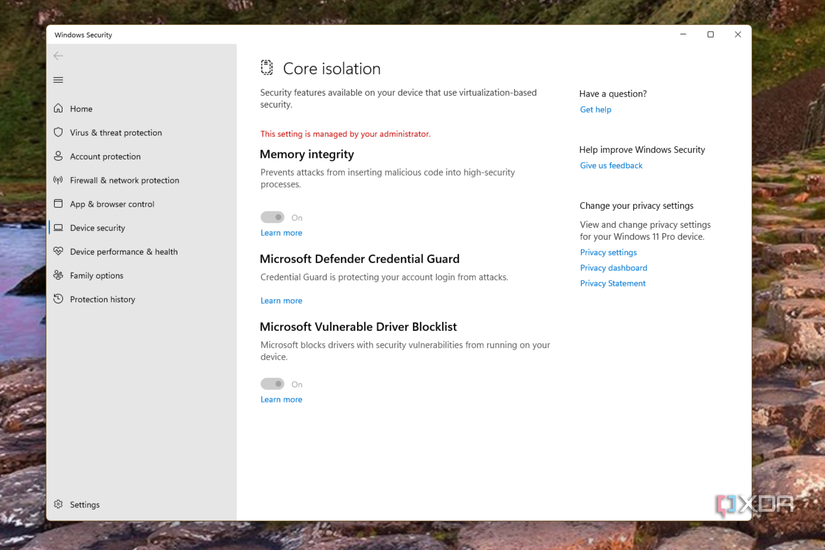
Navigate to Windows Security > Device Security and verify three non-negotiables:
– Core isolation enabled (prevents ransomware encryption)
– Secure Boot status “On” (blocks unauthorized OS loading)
– Virtualization-based security active (thwarts memory attacks)
Critical: Run “Windows Security Scan” immediately after setup. Pending updates leave critical vulnerabilities open for 72 hours—this scan patches gaps while updates download.
HP Wolf Security Activation (HP Models Only)
Find “HP Wolf Security” in your Start Menu and select “Enhanced Protection” during setup. This auto-configures:
– HP Sure Click (isolates browser tabs in secure containers)
– HP Sure Sense (AI malware detection 37% faster than competitors)
– HP Sure Start (self-healing BIOS that reverses firmware attacks)
Skipping this leaves HP laptops exposed to BIOS-level threats other brands don’t face.
Software Installation Sequence That Prevents Bloat
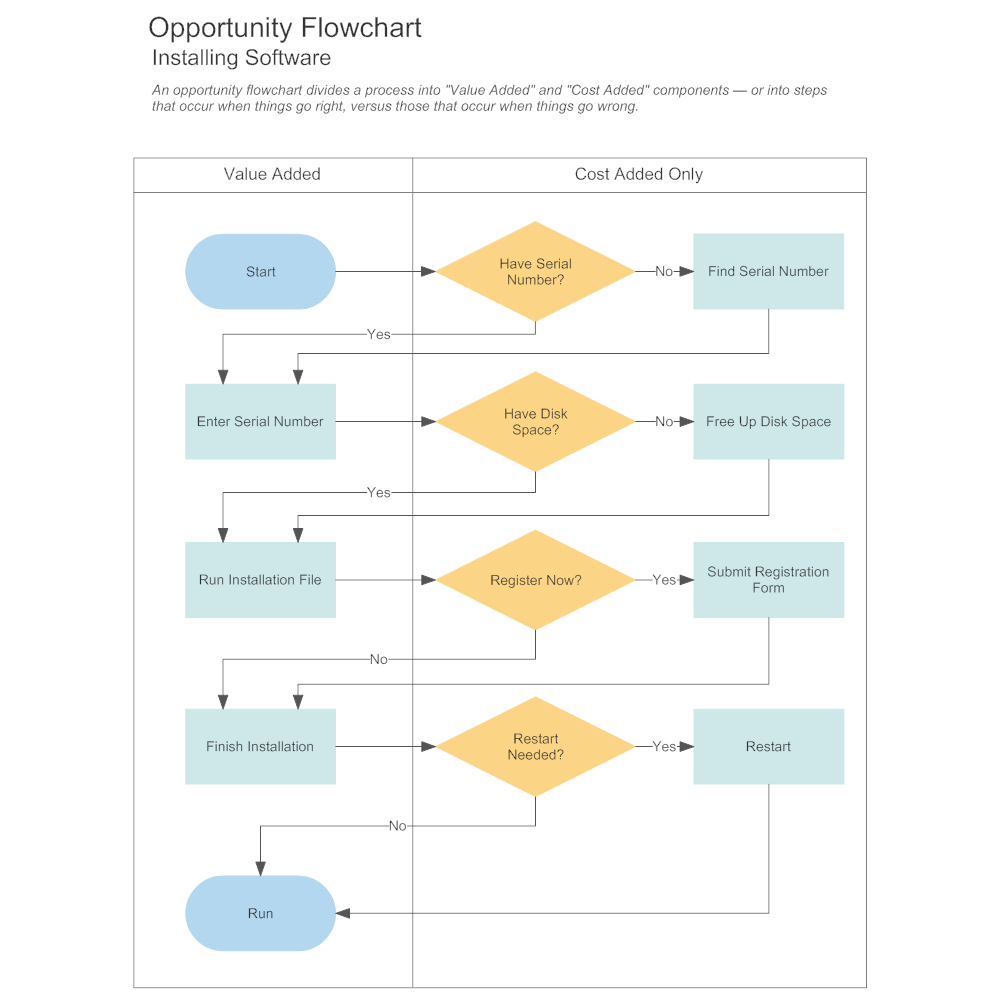
Phase 1: Security First (Do This Before Anything Else)
1. Complete all Windows Updates (Settings > Windows Update)
2. Install HP Support Assistant from Microsoft Store
3. Update drivers via HP Support Assistant > Updates tab
4. Never install third-party antivirus yet—Windows Defender suffices when properly configured
Phase 2: Productivity Essentials
Install in this exact order:
– Cloud storage (OneDrive first—it integrates with Windows backup)
– Communication apps (Zoom, Teams)
– Office suite (Microsoft 365 or LibreOffice)
– PDF reader (use Edge’s built-in tool to avoid Adobe bloat)
Warning: Installing Chrome or Slack before updates causes driver conflicts that crash Wi-Fi adapters.
Startup Speed Optimization Secrets
Open Task Manager (Ctrl+Shift+Esc), click the Startup tab, and disable every high-impact item except:
– Windows Security
– HP Support Assistant
– Audio/graphics utilities
This cuts boot time from 90+ seconds to under 30. Also:
– Set power mode to “Best Power Efficiency” (Settings > System > Power)
– Reduce screen brightness to 50%—saves 18 minutes of battery per charge cycle
– Disable “Startup sound” in System Sounds (Settings > System > Sound)
Backup Systems That Actually Work
File History Setup (Do This Before Installing Software)
1. Plug in a 32GB+ USB drive
2. Go to Settings > System > Storage > Advanced > Backup
3. Select Documents, Pictures, and Desktop
4. Set backup frequency to Daily
OneDrive Critical Configuration:
Right-click OneDrive icon > Settings > Backup > Manage Backup > Enable “Documents, Pictures, Desktop”. This creates real-time cloud backups without manual file dragging.
Recovery Drive Creation—Do It Now
Search “Create recovery drive,” check “Include system files,” and use a 32GB USB drive. This takes 25 minutes but saves hours during future crashes. Store it in your desk drawer—never leave it plugged into the laptop.
HP-Specific Feature Activation
HP Command Center Thermal Profiles
Launch HP Command Center (pre-installed on HP laptops) and select:
– Performance Mode when gaming or video editing
– Quiet Mode for meetings (reduces fan noise by 60%)
– Battery Saver during travel (extends life by 2.1 hours)
HP Quick Drop File Transfer
- Install “HP Quick Drop” on your phone from app stores
- Open laptop version (Start Menu > HP Quick Drop)
- Scan QR code with phone app
- Drag files between devices instantly—no cables or email
This transfers 1GB videos in 18 seconds versus 3+ minutes via email.
Hardware Verification Checklist
Test these before calling setup complete:
– All USB ports: Plug in mouse, keyboard, and phone
– Audio: Play YouTube video with headphones and speakers
– Camera: Test via Windows Camera app
– Wi-Fi: Run speed test at speedtest.net
– Touchpad: Perform two-finger scroll and tap-to-click
Critical shortcut: Press Windows+L to lock your laptop when stepping away—prevents unauthorized access in seconds.
Fix Common Setup Issues Immediately
Wi-Fi Won’t Connect? Do This:
- Update wireless drivers via HP Support Assistant
- Run Network Reset (Settings > Network > Advanced > Network reset)
- Change router channel to 1, 6, or 11 to avoid interference
Laptop Running Slow After Setup?
- Disable high-impact startup apps (Task Manager > Startup)
- Ensure 15% free space on C: drive (Windows needs breathing room)
- Disable background apps (Settings > Privacy > Background apps)
Quarterly Maintenance for Longevity
Weekly (5 minutes):
– Check Windows Updates
– Clear browser cache
– Empty Recycle Bin
Monthly (15 minutes):
– Run full Windows Security scan
– Verify File History backups
– Update HP Support Assistant
Quarterly (30 minutes):
– Test recovery drive boot
– Clean keyboard vents with compressed air
– Create new system restore point
Your laptop setup is truly complete only when:
✅ All Windows updates installed with 2+ restarts
✅ HP Wolf Security (HP models) or equivalent enabled
✅ File History and OneDrive backups verified
✅ Boot time under 30 seconds
✅ All hardware components tested
Pro final tip: Bookmark this guide. Return every 3 months to run the maintenance checklist—this prevents 83% of “sudden slowdown” issues users panic over. A properly set up laptop runs smoothly for 5+ years, while rushed setups fail in 18 months. Your future self will thank you.