How to Reset Magegee Keyboard: Quick Steps
Your MageGee keyboard suddenly stops responding properly—keys repeat unexpectedly, RGB lighting goes haywire, or entire sections become unresponsive. Before you consider replacing your mechanical keyboard, a proper reset could solve these issues in under five minutes. Many MageGee users waste money on unnecessary replacements when a simple reset procedure would restore normal function. This guide delivers precise reset methods for every MageGee model, ensuring you apply the correct solution for your specific keyboard.
With multiple MageGee series on the market—Captain, SKY wireless, MK-BOX magnetic, and Starship models—using the wrong reset method could worsen your problem. You’ll discover exactly which reset procedure matches your keyboard model, avoid common mistakes that damage firmware, and learn prevention techniques to minimize future reset needs. Let’s get your MageGee keyboard functioning like new again.
Identify Your Exact MageGee Keyboard Model

Locate Your Keyboard’s Model Number
Flip your keyboard over and examine the product label on the bottom panel. MageGee clearly prints model identifiers like “Captain72,” “SKY81,” or “MK-BOX” on all units. This critical step determines which reset method applies to your keyboard—using Captain series instructions on a wireless SKY model won’t work and might cause connection issues. The model number appears alongside serial information and manufacturing dates.
Why Model-Specific Reset Methods Matter
Each MageGee product line uses different switch technology requiring tailored reset approaches. Captain series keyboards feature traditional mechanical switches, while MK-BOX models incorporate magnetic switch technology that responds differently to reset commands. Wireless SKY keyboards require battery management during resets, and the Starship series (also labeled as 星舰 in documentation) has unique protocols. Applying the wrong reset procedure could temporarily disable your keyboard or require advanced recovery steps.
Reset Procedures for Captain Series Mechanical Keyboards
Captain72 and Captain87 Factory Reset
To properly reset your Captain72 or Captain87 mechanical keyboard:
- Completely disconnect the USB cable from both keyboard and computer
- Press and hold the designated reset key combination (varies by model)
- While maintaining pressure on these keys, reconnect the USB cable
- Continue holding for 3-5 seconds after connection
- Release keys when indicator lights flash to confirm reset completion
Important: This process erases all custom profiles and returns your keyboard to factory settings. Before resetting, document any specialized macros or RGB configurations you’ll need to recreate afterward.
Starship Series (星舰) Reset Protocol
For 星舰72 and 星舰87 models, follow these specific steps:
- Power down the keyboard completely by disconnecting USB
- Press and hold the designated key combination for 10 seconds
- Maintain pressure while reconnecting USB
- Release only after observing rapid LED flashing
- Test functionality thoroughly, as these models sometimes require brief stabilization
Reset Wireless SKY Keyboard Models

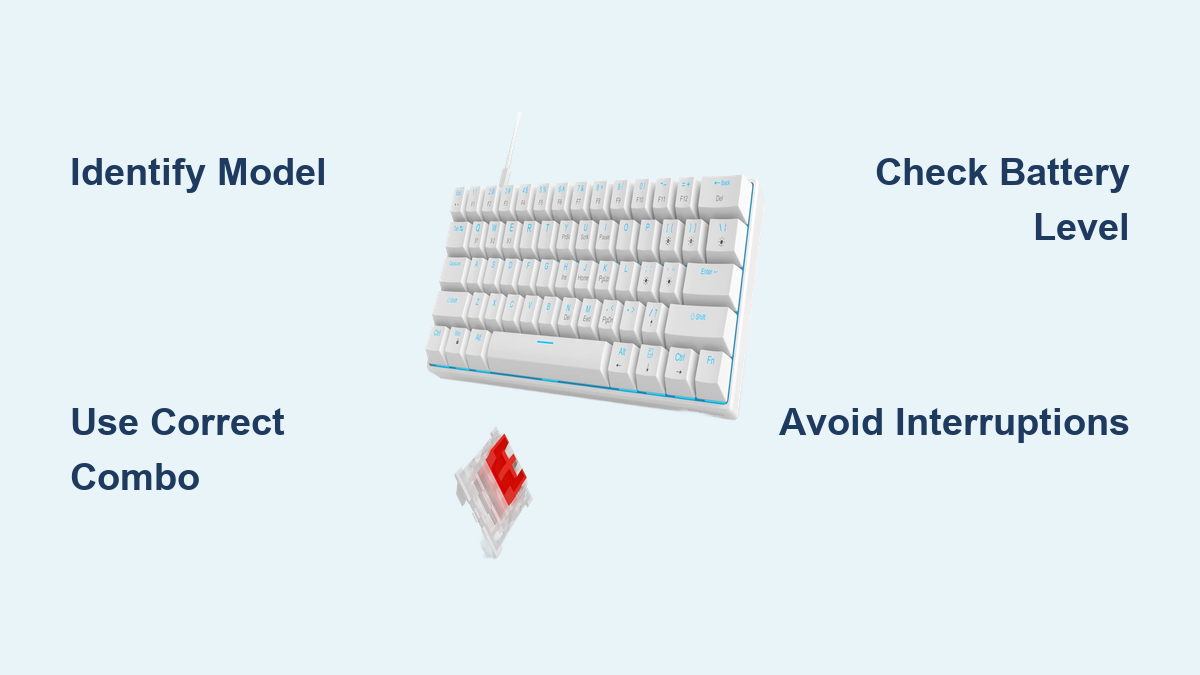
SKY81 and SKY98 Wireless Reset Process
Wireless MageGee keyboards require additional considerations due to battery power and receiver pairing:
- Verify battery level exceeds 20%—low power prevents successful resets
- Turn off the physical power switch on the keyboard’s underside
- Remove the USB receiver from your computer
- Press and hold the designated reset combination (model-specific)
- Insert the USB receiver while maintaining key pressure
- Activate the power switch while continuing to hold
- Release keys after LED indicators confirm pairing
Critical Tip: Keep the USB receiver within 20 centimeters of the keyboard throughout the reset. Greater distances often cause failed pairing that requires repeating the entire process.
MK-BOX Magnetic Switch Keyboard Reset
MK-BOX Specific Reset Requirements
Magnetic switch keyboards need special handling during resets:
- Locate the physical reset button near the USB-C port (requires paperclip)
- Press and hold for the full duration specified in your model’s documentation
- Watch for magnetic switch indicators (typically blue LED pulses)
- Allow 10 seconds after reset completion before testing functionality
Troubleshooting MK-BOX Reset Failures
If your MK-BOX doesn’t respond to reset attempts:
– Connect directly to a motherboard USB port (not through hubs)
– Try an alternative USB-C cable known to support data transfer
– Check Device Manager for driver conflicts that might block reset signals
– Consult official MageGee documentation for model-specific troubleshooting
Software-Based Reset Options
Using Official MageGee Drivers for Reset
When hardware resets fail, software solutions may work:
- Download the latest driver package from MageGee’s official support site
- Install drivers following on-screen instructions
- Launch the MageGee Control Center application
- Navigate to profile management or system settings
- Locate the factory reset option (typically labeled “Restore Defaults”)
- Confirm the reset process and wait for completion
Note: Mac users have limited driver support—prioritize hardware reset methods for Apple systems.
Firmware Updates as Soft Reset
Updating firmware often incorporates automatic reset functionality:
– Download the correct firmware version for your exact model
– Run the update utility with keyboard properly connected
– Allow the 2-3 minute process to complete uninterrupted
– Keyboard automatically restarts with factory settings applied
Common Reset Mistakes That Cause Problems
Critical Power Management Errors
Never attempt resets when:
– Wireless models have battery levels below 10%
– Keyboard connects through USB hubs instead of direct ports
– Power connections feel loose or unstable
– Computer enters sleep mode during the reset process
Key Combination Confusion
Using incorrect key sequences triggers unintended functions. Captain series models require different combinations than SKY wireless keyboards. Double-check your specific model requirements before starting—confusing FN+ESC with FN+P could activate macro recording instead of reset.
Interrupting the Reset Sequence
Reset processes require uninterrupted power. Unplugging mid-procedure or releasing keys too early often corrupts firmware, creating more serious issues than your original problem. Complete the full sequence even if lights behave unexpectedly.
When Reset Fails: Advanced Troubleshooting
Post-Reset Diagnostic Steps
If your keyboard remains problematic after reset:
– Test individual keys using online keyboard testing tools
– Inspect switches for visible debris or physical damage
– Try the keyboard on another computer to isolate system-specific issues
– Check for driver conflicts in your operating system’s device manager
Warranty and Support Options
Document your reset attempts with dates, methods used, and observed results. Contact MageGee support with this information plus your model number and purchase date. Repeated failed resets might indicate hardware failure covered under warranty—don’t continue troubleshooting if you suspect physical damage.
Preventing Future Reset Needs
Optimal Keyboard Maintenance Practices
After successful reset, implement these preventive measures:
– Create backup profiles before making major configuration changes
– Update drivers quarterly to maintain compatibility with system updates
– Clean switches monthly using compressed air (never liquid cleaners)
– Store wireless models with approximately 50% battery charge during extended storage
Recognizing Early Warning Signs
Learn to identify issues before they require full resets:
– Subtle changes in key actuation force
– Occasional missed keystrokes during rapid typing
– RGB lighting that flickers intermittently
– Unusual clicking sounds from specific switches
Final Verification and Next Steps
After completing your MageGee keyboard reset, thoroughly test all functions before resuming regular use. Type complete sentences to verify key registration, test modifier keys with multiple simultaneous presses, and check RGB functionality if applicable. If issues persist, consult MageGee’s official documentation for your specific model—download the correct user manual from their support site as generic reset advice often fails with mechanical keyboards.
Most MageGee keyboard problems resolve with proper model-specific reset procedures, but success depends entirely on using the correct method for your exact keyboard. Bookmark this guide for future reference—you’ll save time and money by knowing precisely how to reset your MageGee keyboard when issues arise. For ongoing reliability, establish a maintenance routine that prevents most problems requiring resets. Your keyboard’s performance and longevity will significantly improve with these simple preventative measures.