How to Remove Pressure Marks from Laptop Screen
You’re working on an important project when you notice it—a dark, circular spot marring your laptop screen. That frustrating pressure mark likely appeared when you closed your laptop with keys or glasses accidentally left on the keyboard. These unsightly blemishes occur when physical pressure compresses the liquid crystal layer inside your display, creating visible distortions that can range from temporary annoyances to permanent damage. The good news is that many pressure marks respond well to careful treatment, especially when addressed quickly. This guide delivers proven, step-by-step methods to eliminate those stubborn spots and restore your screen’s pristine appearance—plus essential prevention strategies to avoid future damage.
Identify Your Screen’s True Pressure Damage

Before attempting any fixes, confirm you’re dealing with actual pressure damage rather than dead pixels or backlight issues. Pressure marks typically appear as localized dark or light spots with defined circular or irregular edges. Unlike dead pixels that remain stubbornly one color regardless of background, pressure marks often shift slightly when you change viewing angles. Proper identification prevents wasted effort on inappropriate fixes that could worsen the problem.
Visual Inspection That Reveals Real Pressure Damage
Power down your laptop completely and wipe the screen with a microfiber cloth to eliminate smudges. Under bright, even lighting, examine the display from multiple angles. Display solid colors—white, black, red, green, and blue—using any plain-color app or browser window. Note the exact location, size, and whether the mark appears darker or lighter than surrounding pixels. True pressure damage often becomes more visible against certain color backgrounds.
Critical test: Gently flex the screen bezel near the affected area. If the mark changes shape or intensity as you apply slight pressure, you’re dealing with genuine pressure damage rather than pixel-level failure. This responsiveness indicates the liquid crystals might still be salvageable.
Distinguish Pressure Marks From Other Screen Problems
- Dead pixels: Single stubborn points that stay black or one color regardless of background
- Backlight bleeding: Light streaks visible primarily along screen edges on dark backgrounds
- Physical cracks: Distinct fracture lines with sharp, irregular patterns you can often feel
- Pressure marks: Defined spots that respond to angle changes and gentle manipulation
Apply Immediate First Response Techniques
Act within the first 24 hours—temporary pressure marks can become permanent if left untreated. First, identify and remove any pressure source. Check for pens, USB drives, or debris pressing against the screen when closed. Your quick response dramatically increases the chance of successful DIY repair before the liquid crystals fully settle into their compressed state.
Gentle Massage Technique That Actually Works
Use extreme caution with this method—improper technique can worsen damage:
- Fold a microfiber cloth 4-6 times to create a soft buffer between your fingers and screen
- Using circular motions, start from outside the affected area and work toward the center
- Apply feather-light pressure—never press directly on the mark itself
- Limit massage to 90-120 seconds maximum per session
- Check results immediately—stop if marks appear darker or spread
Pro tip: Place your index finger on the back of the screen directly behind the mark to feel for proper pressure distribution. You should detect only the faintest vibration through the screen.
Temperature Cycling Method for Liquid Crystal Recovery
This scientifically-backed technique helps compressed liquid crystals redistribute naturally:
- Power off and unplug your laptop completely
- Remove the battery if your model allows (consult your manual)
- Allow the laptop to cool to room temperature for 30 minutes
- Gently warm your palms by rubbing them together for 20 seconds
- Hold your warmed palms 1-2 inches from the screen back for 3-5 minutes
- Let cool naturally for 30 minutes before checking results
Repeat this cycle once if needed, but allow 30-minute intervals between attempts to prevent thermal shock to sensitive components.
Master Proper Heat Treatment Application
Heat can relax compressed liquid crystals, but requires precise temperature control. Many people ruin their screens by using hair dryers or other direct heat sources—these can melt internal components and damage anti-reflective coatings. Proper heat application targets just the right temperature range (40-45°C) to encourage liquid crystal movement without causing additional damage.
Safe Heat Pad Method for Stubborn Marks
- Power off and unplug your laptop completely
- Remove battery if possible to prevent electrical risks
- Wrap a heating pad in a thick towel, set to LOW (never medium or high)
- Apply to the back of the screen for 5-7 minutes—not directly on the mark
- Allow natural cooling for 30 minutes before checking results
- Maximum 2 cycles; stop if no improvement after second attempt
Warning: Test heating pad temperature on your inner wrist first—it should feel comfortably warm, never hot. Exceeding 45°C risks permanent damage to screen layers.
Body Heat Alternative When Tools Aren’t Available
No heating pad? Use your body heat effectively:
- Rub your hands together vigorously for 30 seconds
- Cup your hands and breathe into them to add moisture and warmth
- Hold your warmed palms 1 inch from the screen back for 3-4 minutes
- Move slowly across the affected area in circular patterns
- Allow complete cooling before powering on
This method delivers gentler, more controlled warmth than improvised heat sources.
Use Pixel Refresher Software Strategically
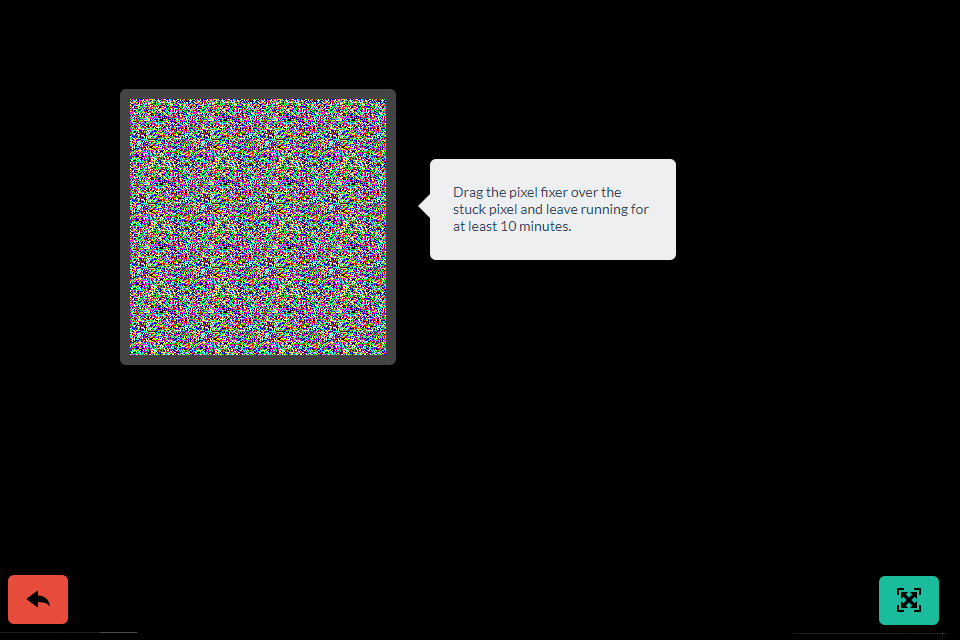
For pressure marks affecting individual pixels, software solutions can sometimes unstick compressed pixels through rapid color cycling. These tools stimulate pixel response without physical contact, making them ideal for delicate screens or when you’re unsure about manual techniques.
JScreenFix Web Tool for Targeted Repair
- Visit jscreenfix.com on another device and cast to your affected laptop
- Drag the pixel fixer box directly over the affected area
- Run for 20-30 minutes maximum—check every 10 minutes
- Combine with gentle palm warming for stubborn marks
Pro tip: Run JScreenFix in full-screen mode to maximize pixel stimulation around the damaged area.
Built-in Manufacturer Utilities You Already Own
Most major laptop brands include screen refresh utilities in their diagnostic tools:
- Dell: Access via BIOS (press F12 during boot)
- HP: Use HP Support Assistant diagnostics
- Lenovo: Run through Lenovo Vantage application
- Apple: Apple Diagnostics (hold D during startup)
These manufacturer-specific tools often deliver better results than third-party software since they’re calibrated for your exact display technology.
Implement Foolproof Prevention Strategies

Prevention saves hundreds in repair costs. Most pressure damage occurs during transport or storage when unsuspecting objects press against the screen.
Daily Screen Protection Habits
- Pre-closure check: Make it a ritual to verify nothing sits on the keyboard
- Tempered glass protector: Adds 0.3mm protective layer without affecting clarity
- Padded transport: Use sleeves with rigid screen protection, not just fabric
- Cleaning discipline: Apply zero pressure—let cleaning solution dissolve grime
Critical Storage Practices That Prevent Damage
- Horizontal positioning: Never store laptop standing on edge
- Weight awareness: Don’t stack books or devices on closed laptop
- Temperature control: Avoid hot cars where battery swelling occurs
- Dedicated compartments: Use bags with separate, cushioned laptop sections
Pro tip: Place a folded microfiber cloth between keyboard and screen when storing long-term—it creates a protective buffer while allowing airflow.
Manage Permanent Marks When DIY Fails
When pressure marks persist after proper treatment, several strategies minimize their impact on your workflow without costly replacement.
Software Compensation Techniques
- Color calibration: Adjust display settings to reduce mark visibility
- Dark mode adoption: Makes light pressure marks less noticeable
- Strategic wallpaper: Use busy patterns or dark backgrounds
- Window management: Keep important content away from damaged areas
Viewing Adjustments That Reduce Distraction
- Angle optimization: Slight screen tilt often reduces mark prominence
- Lighting control: Position away from direct light sources that highlight imperfections
- Brightness reduction: Lower settings make marks less visible
- External monitor pairing: Use for critical work while keeping laptop portable
Emergency Response Protocol for Sudden Damage
When pressure marks appear during critical work:
- Immediate backup: Secure all important files while screen remains functional
- External monitor connection: Restore full functionality within minutes
- Brightness reduction: Prevents additional stress on damaged pixels
- Damage documentation: Photograph from multiple angles for insurance claims
- Professional consultation: Get assessment before attempting risky fixes
Temporary solution: Use screen masking software like DimScreen to black out damaged portions, creating a functional workspace while you arrange proper repair.
Your success in removing pressure marks depends on quick action and proper technique. Temporary marks from brief pressure often resolve completely with gentle heat and massage within 48 hours. Permanent damage from sustained pressure or battery swelling typically requires screen replacement. By following these proven methods and prevention strategies, you’ll maximize your chances of screen recovery while protecting your investment from future damage. Remember—when in doubt, stop and consult a professional rather than risk worsening the damage through excessive handling.