How to Remove Admin Account from Chromebook
You’re staring at your Chromebook login screen, frustrated by the “This device is managed by your organization” message blocking your access. Maybe you bought a second-hand Chromebook from a school auction, or perhaps you’ve graduated and need to wipe your educational account. Thousands of Chromebook users face this exact problem when trying to regain control of their devices. This happens because admin accounts enforce policies through Google Workspace enrollment, locking down settings and restricting user access. Don’t panic—this guide delivers proven solutions tailored to your specific situation, whether you’re dealing with a personal device, school-managed Chromebook, or Family Link restrictions. You’ll learn exactly how to remove admin account from Chromebook laptop without damaging your device.
Before attempting any removal process, correctly identifying your admin account type prevents wasted effort and potential data loss. Jumping straight to Powerwash could be disastrous if your device remains enterprise-enrolled. The critical first step involves checking your Chromebook’s management status to determine your actual path forward.
Check Enterprise Enrollment Status Immediately
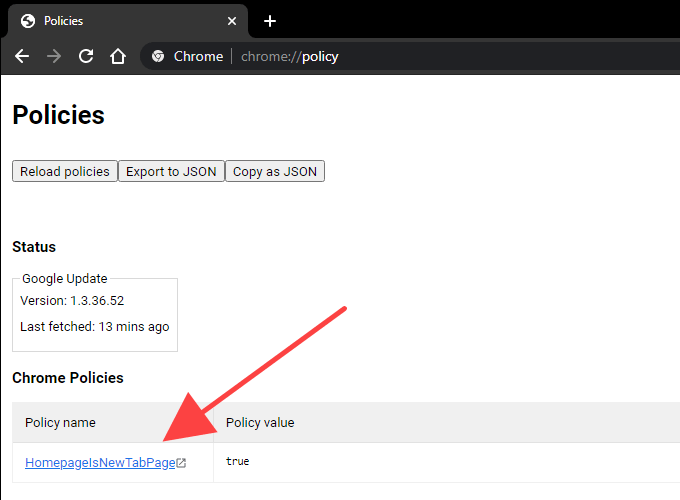
Open Chrome and type chrome://policy in the address bar. If you see “No policies loaded,” your device is personal and ready for removal. But if specific policies appear—like enforced extensions or restricted settings—you’re dealing with enterprise management. For absolute confirmation, navigate to Settings > About Chrome OS > Additional details and scroll to the bottom. The “Enterprise enrollment” field will clearly state whether your device is managed by an organization. This single check determines whether you can proceed independently or must contact an administrator.
Spot Family Link Restrictions Early
Child accounts display “Managed by Family Link” directly on the sign-in screen. During setup, you’ll encounter grayed-out settings options and constant prompts to “Ask your parent” when attempting changes. These restrictions originate from the Family Link app on the parent’s device, not standard admin policies. Attempting enterprise removal methods here wastes time—parental intervention through the Family Link app is the only solution.
Execute Powerwash for Personal Chromebooks
For personally owned devices without enterprise enrollment, Powerwash provides the cleanest admin account removal method. This factory reset returns your Chromebook to its out-of-box state, eliminating all accounts and local data. Begin by signing out completely—click your system tray profile picture and select “Sign out.” Once at the login screen, press Ctrl + Alt + Shift + R simultaneously. When the dialog box appears, select “Powerwash” and click “Restart.” During the subsequent setup process, skip any enterprise enrollment prompts when connecting to WiFi and sign in with your personal Google account instead of the admin profile.
Critical Powerwash Warnings You Must Know
This process permanently erases all local files in your Downloads folder and any unsynced data. All user accounts vanish simultaneously—you cannot selectively preserve secondary accounts. Most importantly, if your device remains enterprise-enrolled, policies will automatically reapply after connecting to WiFi. Always verify enrollment status first using chrome://policy. Powerwash only works for personal devices; attempting it on school or work Chromebooks merely triggers automatic re-enrollment.
Remove Secondary Admin Accounts Safely
When Powerwash seems excessive for removing non-owner accounts, this method preserves your data while eliminating unwanted admin access. Sign in using the device owner account—the first Google profile ever added to the Chromebook. Click your system tray profile picture, select Settings, then navigate to People > Manage other people. Locate the target admin account in the user list, click “Remove this person,” and confirm the deletion. Verify success by checking the login screen for the account’s absence.
Account Removal Roadblocks Explained
Grayed-out accounts indicate enterprise management—you cannot remove these through standard settings. The owner account itself is permanently locked and requires Powerwash for removal. If the admin account reappears after deletion, your device remains enrolled in an organization’s management system. In this case, Powerwash becomes necessary followed by careful setup to avoid re-enrollment.
Enterprise Admin Console Removal Process
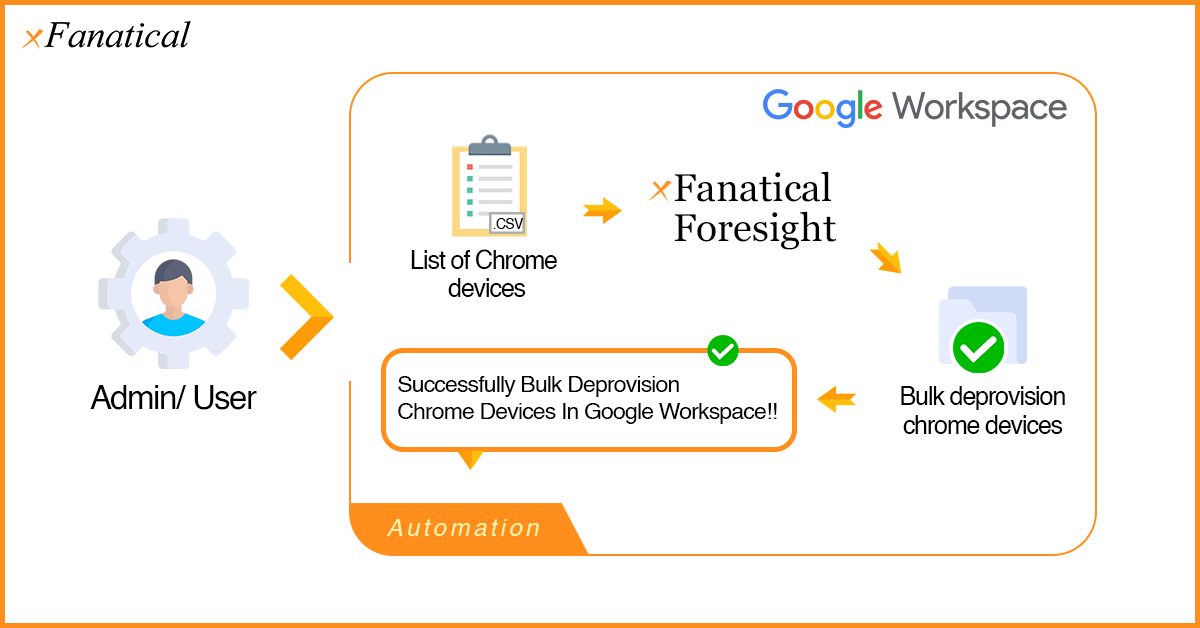
School and workplace Chromebooks require authorized deprovisioning through Google Admin Console. This method preserves device enrollment while removing specific user access—crucial for IT administrators resetting student or employee devices. Navigate to admin.google.com and sign in with super admin credentials. Go to Devices > Chrome > Devices, select your specific Chromebook from the list, then click “Deprovision.” Choose an appropriate reason from the dropdown menu (like “Device no longer in use”) and confirm with organizational details. Finally, Powerwash the device to complete policy removal.
Verify Enterprise Removal Success
After deprovisioning, check chrome://policy—it must show “No policies loaded.” Test unrestricted settings access by attempting to install extensions or change network configurations. Confirm no enterprise-specific apps auto-install during setup. If policies persist, the device serial number remains registered in the organization’s console—contact the administrator with your Chromebook’s exact model and serial number for manual removal.
Recovery Mode for Locked Chromebooks
When standard methods fail due to forgotten passwords or corrupted admin access, Recovery Mode reinstalls ChromeOS completely. Power off your Chromebook, then hold Esc + Refresh (F3) + Power simultaneously until the recovery screen appears. Connect an 8GB+ USB drive containing a ChromeOS recovery image (created via chrome://imageburner on another computer). Follow the prompts to reinstall the operating system, then complete fresh setup without enrolling in enterprise management.
Create Essential Recovery Media Now
Preempt future lockouts by creating recovery media today. Insert an 8GB USB drive into a working computer, open Chrome, and visit chrome://imageburner. Select your Chromebook model from the dropdown, download the recovery image, and burn it to the drive. Label this drive clearly—it’s your emergency key for bypassing admin restrictions when all else fails.
Troubleshoot Common Removal Errors
“Device Managed by Organization” Persists
This unavoidable message confirms enterprise enrollment. Contact your IT administrator immediately with your Chromebook’s serial number (found in Settings > About Chrome OS). They must manually deprovision your device through the Admin Console—no user-level workaround exists. Attempting to bypass this violates Google’s terms of service and typically triggers security locks.
“Account Already Exists” During Setup
Clear browser data by visiting chrome://settings/clearBrowserData and selecting “All time” with cookies and site data checked. Remove the conflicting account from your Google Account settings online. For initial sign-in, use incognito mode (Ctrl+Shift+N) to prevent cached credentials from interfering. If problems persist, temporarily sign in with a different Google account to complete setup.
Verify Complete Admin Removal Success
Immediate Verification Checklist
After any removal attempt, run these critical checks: Visit chrome://policy to confirm “No policies loaded,” attempt to add/remove user accounts freely, and verify unrestricted access to settings like Developer Mode. Test installing extensions from the Chrome Web Store—if blocked, enterprise policies remain active. Any restriction during these tests means your device still answers to an admin console.
Deep Verification Tests
Enable Developer Mode (requires another Powerwash) to confirm full system access. Connect to various WiFi networks to check for forced re-enrollment. Attempt unrestricted browsing to sites previously blocked by admin policies. If any test fails, your Chromebook’s serial number remains registered in an organization’s management system—only the administrator can resolve this.
Backup Data Before Any Removal Attempt
Essential Pre-Removal Backup Steps
Before Powerwashing or deprovisioning, secure your data: Download local files from the Downloads folder to an external drive, export bookmarks via chrome://bookmarks > Organize > Export bookmarks, and save WiFi passwords using a password manager. Note installed apps/extensions for quick reinstallation. Remember—Google Drive files already sync to the cloud, but local screenshots and downloads vanish permanently during reset.
Post-Cleanup Restoration Guide
After successful admin removal, restore functionality efficiently: Import your bookmarks file during Chrome setup, reinstall essential extensions from the Web Store, and reconfigure sync settings for seamless Google service integration. Reconnect printers through Settings > Bluetooth & devices > Printers. Avoid restoring all extensions immediately—audit for unnecessary ones to maintain optimal performance.
When Admin Removal Isn’t Possible
Legitimate Access Strategies
If enterprise enrollment persists despite your efforts, use Guest Mode for temporary browsing without signing in. Create a new user profile alongside the admin account for limited personal use. For advanced users, booting Linux from USB provides full system access but requires technical expertise. Always contact the original administrator—schools and businesses often deprovision devices upon request with proper ownership verification.
Security Considerations After Removal
Enterprise policies may reapply if your Chromebook reconnects to managed networks. Avoid previously used school or work WiFi networks. Regularly check chrome://policy for unexpected changes. Never use personal accounts on managed devices—this creates security risks and potential policy conflicts. Document your successful removal process including dates and methods for future troubleshooting reference.
Successfully removing admin account from Chromebook laptop depends entirely on identifying your management type first. Personal devices yield to Powerwash when executed correctly, while school or work Chromebooks require administrator cooperation through Google Admin Console. Always verify complete removal using the chrome://policy check and unrestricted settings access test. Remember: persistent “managed by organization” messages mean your device serial remains registered—you cannot bypass legitimate enterprise management. For personally owned Chromebooks, Powerwash remains your most reliable solution when performed after confirming no enterprise enrollment. If all methods fail, contact the original administrator with your device serial number—they hold the only key to permanent deprovisioning. Your Chromebook can be yours again with the right approach.