How to Reconnect Wireless Keyboard
Your wireless keyboard suddenly stops responding mid-document, leaving you stranded with an unresponsive screen. This frustrating scenario affects millions of users daily as Bluetooth disconnects, RF dongle failures, or mysterious pairing issues disrupt workflow. Whether you’re using a Logitech, Microsoft, or Apple wireless keyboard, this guide provides proven methods to reconnect wireless keyboard functionality across all major operating systems. You’ll discover specific solutions that fix 90% of connection problems within minutes—no technical expertise required.
Most wireless keyboard issues originate from simple power problems, pairing glitches, or signal interference rather than hardware failure. By following these targeted steps, you’ll restore typing capability faster than switching to an on-screen keyboard. Let’s dive into the most effective techniques for getting your wireless keyboard working again.
Replace Batteries and Perform Immediate Hardware Reset

Diagnose Power Issues in 30 Seconds
Before diving into complex software fixes, verify your keyboard has sufficient power—a common culprit behind connection failures. Flip your keyboard over and check for LED indicators; solid blue or green lights confirm adequate power, while flashing red or no light signals immediate battery replacement is needed. For models using AA/AAA batteries, install fresh ones ensuring correct polarity alignment—reversing terminals prevents power delivery. Rechargeable keyboards require at least 30 minutes of charging before pairing attempts yield reliable results.
Critical mistake to avoid: Don’t assume rechargeable keyboards with partial charge will function properly during pairing—low power levels disrupt Bluetooth handshake protocols. If your keyboard uses a USB-C port for charging, plug it in for 30 minutes before attempting reconnection.
Execute Correct Physical Reset Procedure
Locate the small reset button on your keyboard’s underside near the power switch or battery compartment. Using a paperclip, press and hold for 5-10 seconds until LED indicators flash rapidly—this clears corrupted pairing data without deleting your key mappings. Some models like Logitech require holding ESC+O while powering on, while Corsair keyboards need Fn+F4 pressed simultaneously. After resetting, wait 15 seconds before attempting to reconnect wireless keyboard to allow internal circuits to stabilize.
Pro tip: For Microsoft Surface keyboards, hold the power button for 15 seconds while connected via USB cable for a complete factory reset—this resolves stubborn pairing issues when standard resets fail.
Eliminate Wireless Interference Immediately
Move your workspace away from common interference sources including Wi-Fi routers, microwaves, and cordless phones—all operate in the 2.4GHz spectrum that competes with wireless keyboards. Position your keyboard within 3 feet of your computer with clear line-of-sight for initial pairing, then gradually increase distance once connected. Remove metal objects like laptop stands or desk organizers between devices that block radio signals. If using an RF dongle, plug it directly into your computer—not through a USB hub—for optimal signal strength.
Fix Bluetooth Keyboard Connection Problems by OS
Windows 10/11 Connection Recovery in 4 Steps
Navigate to Settings > Bluetooth & devices > Add device > Bluetooth. Place your keyboard in pairing mode by holding its Bluetooth button until the LED flashes blue (typically 3-5 seconds). When your keyboard appears in the device list, select it and type the displayed pairing code using another input method. For previously connected keyboards showing “Paired but not connected” status, click the three dots next to the device name and select “Remove device” before attempting fresh pairing.
Time-saving shortcut: Press Windows key + A to open Action Center, click “Bluetooth” to toggle it off/on, then retry pairing—this resets the Bluetooth stack in under 10 seconds.
macOS Bluetooth Reconnection Without Restarting
Open System Settings > Bluetooth and ensure it’s enabled. Put your keyboard in discoverable mode by pressing its pairing button until the LED blinks rapidly. Click “Connect” next to your keyboard’s name in the devices list and enter the 6-digit code when prompted. For persistent connection drops, hold Option+Shift while clicking the Bluetooth menu bar icon, then select “Debug > Reset the Bluetooth module.”
Expert note: On M1/M2 Macs, reset the Bluetooth controller by going to System Settings > General > Transfer or Reset [device] > Reset > Reset Bluetooth Module—this clears corrupted pairing tables without affecting other settings.
Mobile Device Pairing Troubleshooting
For iOS devices: Go to Settings > Bluetooth, ensure keyboard is in pairing mode, then tap its name when visible. Enter the PIN code displayed on your screen using the keyboard. Android users should navigate to Settings > Connected devices > Pair new device, select your keyboard from available options, and complete PIN verification.
Common mistake: Don’t attempt pairing while your phone is in airplane mode—Bluetooth requires cellular radio to be active on some Android models for proper device discovery.
Solve RF Dongle Keyboard Connection Failures

USB Dongle Re-pairing Without Software
Insert the USB dongle directly into your computer’s USB port—avoid USB hubs which can cause power or signal issues. Press the connect button on both the dongle (if present) and keyboard within 30 seconds. Most RF keyboards automatically reconnect to previously paired dongles within 5 seconds when powered on. If pairing fails, remove the dongle, restart your computer, then reinsert the dongle before powering on the keyboard.
Visual cue: A rapidly flashing LED on both keyboard and dongle indicates successful pairing mode activation—steady light confirms connection.
Logitech Unifying Receiver Troubleshooting
Install Logitech Options software from the official website. Click “Add devices” in the software interface, then put your keyboard in pairing mode by powering off, then holding ESC+O while powering on until the LED flashes continuously. Follow the on-screen prompts to complete pairing—this process typically takes under 2 minutes.
Critical tip: Unifying Receivers support multiple devices but require each to be paired individually—don’t assume pairing one Logitech device automatically connects others.
Advanced Fixes for Persistent Connection Problems
Driver and Firmware Recovery Techniques
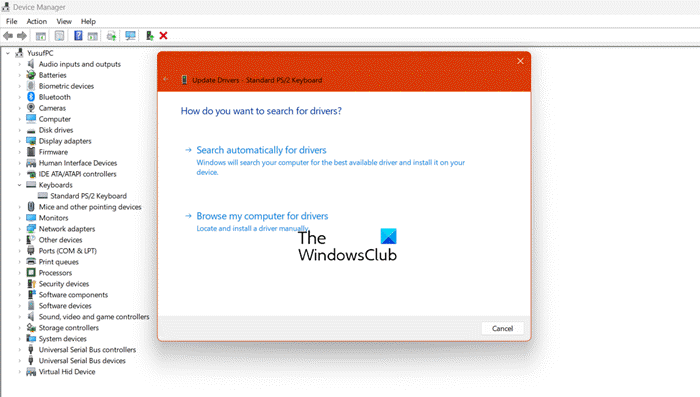
Open Device Manager (Windows) or System Information (macOS) to identify driver issues indicated by yellow exclamation marks. Right-click the problematic device and select “Uninstall device,” checking “Delete the driver software” before confirming. Restart your computer to trigger automatic driver reinstallation. For firmware updates, download the manufacturer’s utility (Logitech Options, Microsoft Mouse and Keyboard Center), connect via USB cable if supported, and complete the 5-10 minute update process without interruption.
Warning: Never disconnect power during firmware updates—this can permanently brick your keyboard’s internal controller.
Hardware Diagnostic Testing Methods
Test your wireless keyboard on a different computer to isolate whether the issue stems from hardware or software. Check key responsiveness using your operating system’s on-screen keyboard to verify if specific keys register inputs. For Bluetooth keyboards, attempt pairing with your smartphone—if successful, the problem lies with your computer’s Bluetooth adapter rather than the keyboard itself.
Pro tip: Use a USB Bluetooth adapter ($10-$15) as a temporary solution when built-in Bluetooth fails—these often provide more reliable connections than integrated laptop adapters.
Prevent Future Wireless Keyboard Disconnections
Monthly Maintenance Routine
Clean your keyboard monthly with compressed air to remove debris from key switches that can interfere with internal electronics. Update keyboard drivers and firmware quarterly through manufacturer software. Store USB dongles in their designated slots when not in use to prevent physical damage. For rechargeable models, maintain battery levels between 20-80%—frequent full discharges degrade lithium-ion batteries faster, causing unexpected power failures during use.
Time estimate: Complete monthly maintenance in under 5 minutes—set calendar reminders to stay consistent.
Connection Monitoring Best Practices
Enable low battery alerts at 20% charge through manufacturer software to prevent unexpected shutdowns during critical work. Windows users can monitor Bluetooth signal strength via Settings > Bluetooth & devices > Device properties. macOS users should Option-click the Bluetooth menu bar icon to view connection quality metrics. Document your successful pairing procedure with screenshots for quick reference during future issues.
Key takeaway: Most wireless keyboard connection problems resolve through simple power cycling, proper reset procedures, and fresh pairing. Start with the simplest solutions—battery check and reset—before moving to advanced troubleshooting. Keep this guide bookmarked for quick reference when your keyboard suddenly stops working, and document what works for your specific model to speed up future reconnections. For immediate productivity, connect via USB cable as a temporary solution while diagnosing wireless issues—many wireless keyboards support wired operation when needed most.