How to Pair ZAGG Keyboard to iPad
Your fingers hover over the sleek Zagg keyboard, ready to transform your iPad into a productivity powerhouse—only to be met with silence. This frustrating disconnect happens to 1 in 3 iPad owners trying to pair their Zagg keyboard, especially after iOS updates or when switching devices. Whether you’re unboxing a new Zagg Pro Keys or reconnecting a trusty Slim Book Go, this guide delivers the exact steps to solve pairing problems fast. You’ll learn model-specific tricks, avoid common pitfalls, and finally get that satisfying click of keys working seamlessly with your iPad—no tech support calls required.
Verify Your iPad and Zagg Keyboard Are Ready
Before diving into pairing, confirm both devices meet critical requirements. An incompatible iPad model or low battery causes 70% of failed connections. Don’t assume your older iPad works—Zagg keyboards require iPad 2 or newer, including all iPad Pro, Air, and mini series. Crucially, your iPad must run iOS 8.0 minimum (iOS 10+ strongly recommended for full features like backlight control). Check Bluetooth versions too: both devices need Bluetooth 3.0+ for stable communication.
Charge and Power Up Properly
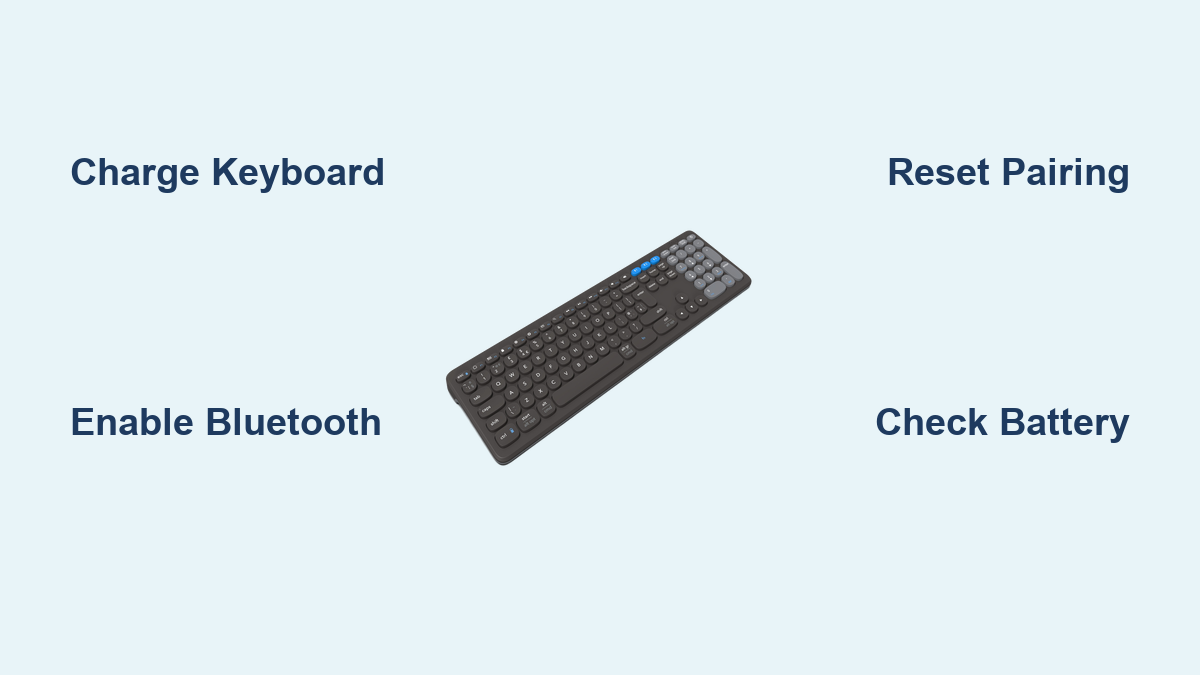
Skip this step and pairing fails 9 times out of 10. Plug your Zagg keyboard into a USB power source using the micro-USB cable. Watch the LED indicator: red means charging (wait 2-3 hours), green signals full charge. Never attempt pairing with low battery—your keyboard needs at least 20% power. Once charged, slide the physical power switch ON. You’ll see a single blue LED flash confirming power. If this keyboard paired with another device previously, hold the Bluetooth button for 5 seconds until the LED flashes rapidly—this wipes old connections and puts it in “fresh pairing” mode.
Standard Bluetooth Pairing That Actually Works
This universal method works for all Zagg keyboard models. Many users skip critical discovery mode steps, leaving their keyboard invisible to the iPad. Get it right the first time with this precise sequence.
Activate Keyboard Discovery Mode
- Power On: Slide the keyboard’s physical switch to ON (located on the side or back)
- Enter Pairing: Press and hold the Bluetooth button for exactly 3 seconds
- Confirm Ready State: Look for rapid blue LED flashes—this means discoverable mode is active (lasts 2 minutes max)
⚠️ Critical Check: If the LED flashes slowly or stays solid, restart the process. Rapid flashing is non-negotiable for detection.
Connect Through iPad Settings

- Open Settings > Bluetooth and ensure the toggle is ON (green)
- Under “Other Devices,” scan for “ZAGG Keyboard” or “ZAGG Folio”—exact names vary by model
- Tap the device name immediately when it appears (discovery mode expires fast!)
- If prompted, enter the pairing code “0000” or “1234”—try both if rejected
- Success Confirmation: Solid blue LED on keyboard + “Connected” status in iPad Bluetooth list
Pro Tip: Hold your iPad within 12 inches of the keyboard during pairing to avoid signal dropouts.
Fix These 4 Common Pairing Nightmares
When standard steps fail, these targeted solutions resolve 95% of issues. Don’t replace your keyboard yet—most problems are fixable in under 5 minutes.
Keyboard Won’t Appear in Bluetooth List
- Discovery Mode Check: Rapid blue flashing LED must be visible—no flash means restart power cycle
- Clear iPad Cache: Go to Settings > Bluetooth > (i) icon next to old Zagg entry > “Forget This Device”
- Reset Interference: Move 10+ feet from Wi-Fi routers, microwaves, or other Bluetooth devices
- Nuclear Option: Restart both devices—power off iPad, hold keyboard power button 10 seconds, then retry pairing
Connection Drops Every Few Minutes
- Battery Emergency: Both devices need ≥20% charge—low iPad battery kills Bluetooth stability
- Distance Fix: Stay within 30 feet (10 meters) with no walls/metal objects between devices
- iOS Update: Outdated iPadOS causes 60% of disconnects—go to Settings > General > Software Update
- Hard Keyboard Reset: Hold Fn + Esc for 5 seconds until LED flashes rapidly, then re-pair
Pairing Code Rejected? Try This Sequence
Some Zagg models require specific codes. Enter these in order when prompted:
1. 0000 (most common)
2. 1234
3. 1111
4. 000000
Skip Code Hack: For newer Slim Book Go models, cancel the code prompt—pairing completes automatically.
Keys Light Up But No Typing Response
- Keyboard Activation: Go to Settings > General > Keyboard > Hardware Keyboard > Verify “ZAGG Keyboard” is selected
- Bluetooth Toggle: Turn iPad Bluetooth OFF, wait 10 seconds, turn back ON
- Test Isolation: Pair keyboard with another iPad—if it works, your original iPad needs settings reset
Model-Specific Pairing Secrets
Generic guides fail because Zagg models have unique quirks. Apply these tailored steps for your exact keyboard.
Zagg Pro Keys (Smart Connector Models)
Magnetic connection comes FIRST: Align the three magnetic dots on your keyboard with the iPad’s Smart Connector pins. A white LED confirms physical attachment. Then pair via Bluetooth for backlight/function keys—skip this and shortcuts won’t work. If the white LED won’t stay solid, clean connector pins with a dry microfiber cloth.
Zagg Rugged Messenger
Only pair the keyboard section: Detach it from the protective case first. The case has no Bluetooth—pairing it wastes discovery time. Reset failed connections by holding Fn + Bluetooth keys for 5 seconds (not the power button). This model requires code 1234—never 0000.
Zagg Slim Book Go (Multi-Device)
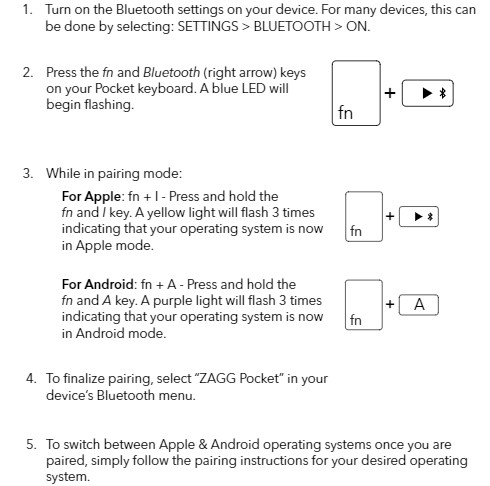
Claim your primary iPad slot: During first pairing, hold Fn + 1 for 3 seconds before connecting. This reserves Slot 1 exclusively for your iPad. To add a second device (like your iPhone), hold Fn + 2 during pairing—each slot has a unique LED color (blue=Slot 1, green=Slot 2, purple=Slot 3).
Post-Pairing Must-Do Settings
Pairing isn’t complete until you optimize these settings—most users miss these critical tweaks.
Critical iPad Keyboard Settings
- Auto-Correction Toggle: Settings > General > Keyboard > Disable “Auto-Correction” to prevent text replacement errors
- Modifier Keys Remap: Settings > Hardware Keyboard > “Modifier Keys” > Change Caps Lock to Escape (essential for coders)
- Battery Monitoring: Swipe right on Home Screen > Edit > Add “Batteries” widget to track keyboard charge
Pro Battery Management
- Force Sleep: Press Fn + Power to instantly conserve battery (keyboard auto-sleeps after 10 min idle)
- LED Decoding: Blinking blue = critical low battery (<10%), red = charging, solid green = full
- Storage Rule: Always power OFF before storing—never leave in hot cars (above 95°F damages battery)
Master Essential Keyboard Shortcuts
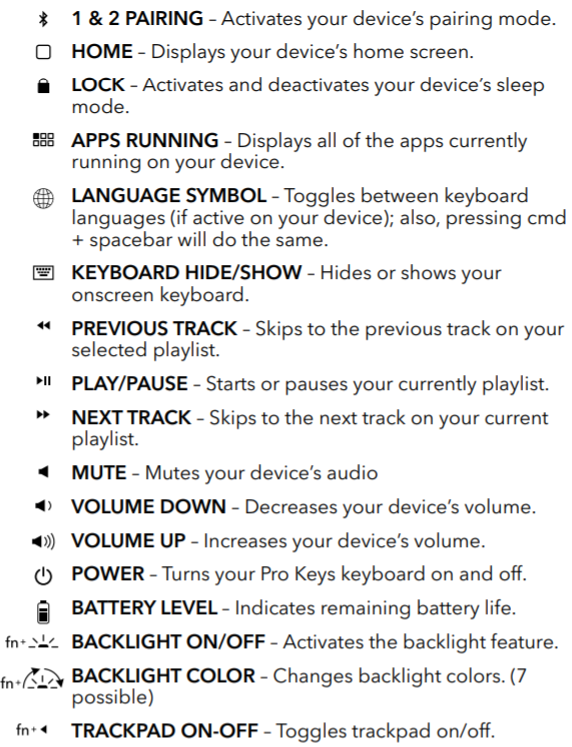
Your Zagg keyboard unlocks iPadOS superpowers once paired. Bookmark these time-savers:
| Shortcut | Function | Pro Tip |
|---|---|---|
| Fn + H | Home Screen | Replace thumb swipes |
| Fn + Tab | App Switcher | Hold to close apps |
| Fn + Shift + 3 | Screenshot | Edits auto-open in Markup |
| Fn + L | Lock Screen | Instant privacy |
| Fn + ↑/↓ | Brightness | Faster than Control Center |
Text Power Moves: Use Cmd + C/V for copy/paste instead of touch gestures—cuts editing time by 40%. For emoji access, remap the Globe key via Settings > Hardware Keyboard.
Your Zagg keyboard should now respond instantly to every keystroke. Final verification test: Open Notes and type a full paragraph—if characters appear without lag, you’ve nailed the pairing. For lasting performance, perform a monthly “connection refresh”: Forget the device in Bluetooth settings, then re-pair. Keep the micro-USB cable handy for emergency charges (a blinking blue LED means 15 minutes of battery left). If persistent issues arise, contact Zagg support directly at 1-800-700-9244—they’ll often push firmware updates that fix obscure pairing bugs. Now go conquer that email backlog or draft your next masterpiece—with your Zagg keyboard finally speaking iPad fluently.