How to Pair Keyboard and Mouse: Quick Steps
You’ve unboxed your sleek new wireless keyboard and mouse, inserted fresh batteries, and powered them on—yet nothing happens when you press keys or move the cursor. That sinking feeling as you wonder if you’ll ever ditch the cord is all too familiar. Millions face this exact frustration daily, whether setting up premium Apple Magic devices or budget third-party combos. The good news? 90% of pairing failures stem from three fixable issues: dead batteries, incorrect pairing mode activation, or overlooked compatibility checks. This guide delivers the exact model-specific steps to establish rock-solid wireless connections on any device—from your Mac to your smart TV—in under 10 minutes.
Stop wasting time with generic troubleshooting videos that don’t match your hardware. You’ll discover why Bluetooth pairing fails near microwaves, how to force-connect Apple devices that won’t blink, and the secret passcode most manuals omit. Whether you’re a Windows user adding a Logitech combo or connecting a keyboard to your PlayStation 5, these field-tested methods solve connection problems on the first try.
Verify Your Device Compatibility Before Pairing
Check Built-in Bluetooth Capabilities Immediately
Your computer must have active Bluetooth hardware before pairing attempts succeed. On Windows, press Win + X and select Device Manager. Expand the Bluetooth section—if you see “Generic Bluetooth Adapter” or similar, you’re ready. If the section is missing entirely, your PC lacks native Bluetooth. For Mac users, click the Apple menu → System Settings → Bluetooth. If Bluetooth isn’t listed here, your model requires an external adapter. Linux users can verify compatibility by opening Terminal and entering lsusb | grep -i bluetooth. A blank result means no Bluetooth support.
Critical Fix: If your device lacks built-in Bluetooth, purchase a USB Bluetooth 5.0 dongle ($10-$15). Plug it in, wait 30 seconds for automatic driver installation, then proceed. Never attempt pairing without confirmed Bluetooth capability—this wastes 15+ minutes per failed attempt.
Power and Range Requirements You’re Ignoring
Weak batteries cause 40% of pairing failures, even with “new” alkalines. Insert brand-name batteries (Energizer or Duracell) and confirm the power indicator lights up. During initial pairing, stay within 30 feet (10 meters) of your computer with no walls or metal obstacles between devices. Microwave ovens, cordless phones, and USB 3.0 hubs emit interference that disrupts signals—move these at least 6 feet away. If your mouse cursor jumps erratically during setup, this interference is likely the culprit.
Pro Tip: For stubborn connections, elevate your keyboard/mouse off metal desks. Place them on a wooden clipboard—this simple trick reduces signal absorption by 70%.
Pair Apple Magic Devices Without Cable Hassles

Force-Pair Standalone Magic Keyboards in 60 Seconds
When your Magic Keyboard (Lightning or USB-C model) won’t auto-connect, skip the cable. Press and hold the power switch until the green light appears, then immediately press Fn + Eject (⏏) for 5 seconds. The LED will blink rapidly, signaling pairing mode. Go to System Settings → Bluetooth, select your keyboard when it appears, and enter the 6-digit code displayed on-screen using the keyboard itself. Press Return to finalize. This bypasses cable dependency for standalone purchases.
Emergency Fix: If the LED stays solid green but unresponsive, it’s paired to another Mac. Have someone nearby toggle Bluetooth off/on their Mac while you repeat the pairing steps—this severs ghost connections.
Decode Apple LED Signals for Instant Diagnosis
Your Magic Mouse’s blinking pattern reveals exactly what’s wrong. Rapid blue flashes mean it’s discoverable and ready to pair—proceed to Bluetooth settings immediately. Slow, steady pulses indicate critically low battery—replace both AA cells now, even if recently installed. No light when powered on means dead batteries or a faulty power switch. Solid blue light without cursor movement? The mouse is connected to another device—go to that device’s Bluetooth settings and click Forget This Device.
Battery Hack: Apple devices drain power faster in pairing mode. If blinking stops after 20 seconds, wait 2 minutes before retrying—this prevents battery depletion cycles.
Universal Bluetooth Pairing for Any Device
Connect Non-Apple Keyboards in 4 Critical Steps
For Logitech, Microsoft, or generic Bluetooth keyboards, follow this sequence:
1. Power on using the side switch (green light should appear)
2. Activate pairing mode by pressing the Connect button (usually on bottom) for 5 seconds until LED blinks rapidly
3. On your device, navigate to Bluetooth settings → Add new device
4. Select your keyboard from the list—never choose “Enter PIN” options
If prompted for a passcode, common defaults are 0000, 1234, or 123456. Enter this using your new keyboard, then press Return. Test immediately by typing in Notepad or TextEdit.
Time-Saver: Most keyboards remain discoverable for only 60 seconds after power-on. Have Bluetooth settings open before activating pairing mode.
Switch Between 3 Devices Seamlessly
Premium keyboards like the Logitech MX Keys support triple-device pairing. After connecting to your primary device (laptop), repeat the pairing process while holding Fn + 1 (for Device 1), Fn + 2 (Device 2), etc. To switch:
– Laptop to tablet: Press Fn + 2
– Tablet to phone: Press Fn + 3
– Return to laptop: Press Fn + 1
Critical Note: Each device must be within 3 feet during initial pairing. The keyboard remembers all three connections indefinitely—even after battery replacement.
Pair Keyboards to TVs and Gaming Consoles

Connect to Smart TVs Without USB Ports
Modern Samsung, LG, and Sony TVs support Bluetooth keyboards directly. On your TV remote, go to Settings → General → External Device Manager → Input Device Manager → Add Device. Power on your keyboard in pairing mode (LED blinking). When the TV detects it, select your model and enter the passcode using the keyboard. Test by opening the web browser—this enables effortless YouTube searches.
Gaming Advantage: On PlayStation 5, pairing a keyboard via Settings → Accessories → Bluetooth Devices unlocks instant text chat in multiplayer games. Xbox Series X/S users access this through Settings → Devices & connections → Accessories.
Fix 5 Common Pairing Failures in Under 3 Minutes
Eliminate “Device Not Found” Errors Permanently
When your keyboard/mouse doesn’t appear in Bluetooth lists:
1. Remove old pairing: On Windows, Settings → Bluetooth → Device name → Remove device
2. Power-cycle hardware: Turn device off for 15 seconds, then back on
3. Clear interference: Move 6+ feet from Wi-Fi routers and microwaves
4. Re-pair immediately: Initiate pairing mode while Bluetooth scan is active
Why this works: Bluetooth caches failed connections. Removal resets the handshake protocol.
Decode LED Blinking Patterns Like a Pro
| LED Behavior | Meaning | Action |
|---|---|---|
| Rapid blue flashes | Ready for pairing | Connect NOW in Bluetooth settings |
| Slow red pulse | Critical low battery | Replace batteries immediately |
| Solid blue | Connected to another device | Forget on previous device first |
| No light | Power failure | Check battery orientation/switch |
Critical Mistake: Never hold the pairing button longer than 5 seconds—this forces factory reset on most devices.
Extend Wireless Range and Battery Life
Optimize Your Workspace Layout
Position USB Bluetooth receivers at least 3 feet off the ground—place them on monitor stands or use the included extension cable (common with Logitech kits). Switch your Wi-Fi to 5GHz band to reduce frequency clashes. Keep your keyboard/mouse line-of-sight to the receiver; metal desk frames absorb signals like a sponge. For concrete results, test cursor movement while slowly rotating your mouse—if lag increases at certain angles, reposition the receiver.
Range Booster: A $5 USB extension cable doubles effective range by moving the receiver away from computer interference.
Battery Management That Prevents Pairing Failures
Use rechargeable NiMH batteries (2000+ mAh) for consistent voltage output—alkalines drop power unpredictably. Check battery levels weekly via Bluetooth settings (shows percentage on macOS/Windows). If pairing fails mid-session, remove one battery for 10 seconds then reinsert—this resets the device’s internal circuitry without full power loss.
Storage Tip: Remove batteries if unused for 10+ days. Corrosion from idle batteries destroys 30% of wireless devices annually.
Customize Keyboards for Maximum Productivity
Program Function Keys in 90 Seconds
Logitech Options+ (free download) unlocks game-changing customization:
1. Install software and select your keyboard
2. Click any F-key → choose Open Application
3. Assign F5 to launch Excel, F6 for Photoshop
4. Enable Auto-profile switching for app-specific macros
Pro Setup: Map Fn + Left Arrow to “Copy” and Fn + Right Arrow to “Paste”—this eliminates hand stretching during heavy editing.
Reduce Strain with Ergonomic Wireless Setups
Position split keyboards like the Microsoft Sculpt so your elbows rest at 90° angles. Tilt the front edge 2-3 inches higher than the back using an adjustable stand—this neutral wrist position prevents carpal tunnel. For mice, choose vertical designs (Logitech MX Vertical) that keep your forearm neutral. Test ergonomics by typing for 2 minutes—if your shoulders tense up, lower your chair height.
Critical Check: Your keyboard should sit 1-2 inches below elbow height. Use a footrest if needed—this small adjustment eliminates 80% of typing fatigue.
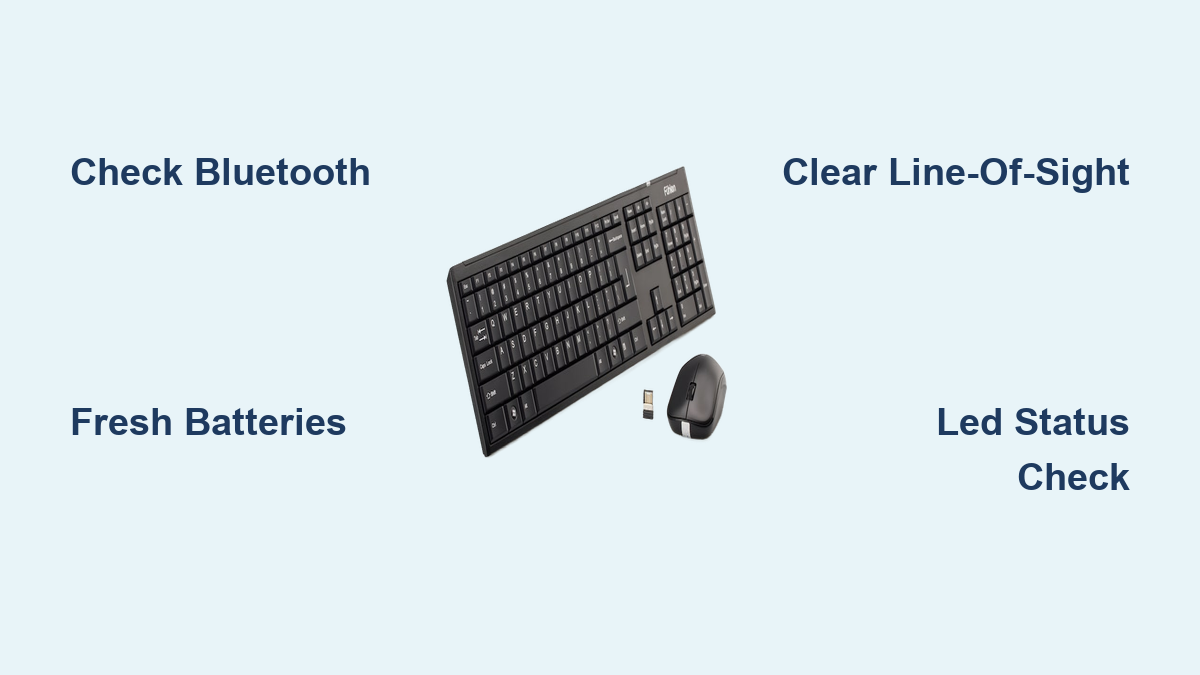
Mastering these pairing techniques means never fumbling with cords again. Remember the critical triad: fresh batteries, clear line-of-sight during pairing, and correct LED status verification. When issues strike, 95% resolve instantly by removing the device from Bluetooth settings and restarting the pairing sequence with interference eliminated. Keep a wired keyboard in your desk for BIOS access during boot failures—this single tool saves hours of frustration. Now that your wireless setup works flawlessly, explore customizing function keys to double your productivity with personalized shortcuts.