How to Optimize Gaming Laptop Battery Life
Gaming laptops devour power with their high-performance components, often delivering just 1-2 hours of battery life during gaming sessions. But with strategic tweaks from this how to optimize gaming laptop for long battery life guide, you can realistically add 2-3 hours to your unplugged runtime—without sacrificing essential functionality. Forget extreme measures; these practical, manufacturer-approved techniques balance playability with power efficiency. You’ll discover why your battery drains faster than ultrabooks, learn which settings actually move the needle, and implement changes that work whether you’re gaming on a plane or working remotely between matches.
Fix Rapid Battery Drain with Health Calibration
Reset Your Battery’s Accuracy Monthly
Inaccurate battery readings cause frustrating shutdowns at 20% charge. Combat this by calibrating every 2-3 months: fully charge to 100%, then use until it hits 5% (don’t force shutdown). Recharge uninterrupted to reset the battery controller. Skipping this leads to 15-20% shorter perceived battery life as the system miscalculates remaining capacity.
Maintain 20-80% Charge Thresholds
Lithium-ion batteries degrade fastest at full and empty states. For daily use, keep your charge between 20-80%—a single full 0-100% cycle weekly accelerates wear by 3x. Enable manufacturer charging limits: Lenovo’s “Conservation Mode,” ASUS “Battery Health Charging,” or Razer’s “Charge Limiter” automatically stop charging at 80%. This simple step preserves battery capacity for 2+ extra years.
Control Heat During Charging
Heat is the #1 battery killer. Never charge when your laptop exceeds 95°F (35°C)—check temperatures via HWiNFO64. If vents feel hot, power down and cool before resuming. Store unused laptops at 50% charge in cool, dry places; temperatures above 86°F (30°C) during storage degrade capacity by 20% yearly.
Limit CPU Power Without Killing Performance
Cap Processor Output to 75%
Windows defaults prioritize speed over efficiency. Fix this immediately:
1. Open Power Options > Change plan settings > Advanced settings
2. Under “Processor power management,” set “Maximum processor state” to 75% on battery
This prevents CPU turbo boosts during light tasks like web browsing, saving 25-30 minutes per charge with zero noticeable slowdown. Most users won’t detect the difference until heavy gaming.
Activate Dynamic Frequency Scaling
Verify Intel Speed Shift (Intel CPUs) or AMD Cool’n’Quiet (AMD CPUs) is enabled in BIOS. These technologies automatically drop clock speeds during idle periods—like when checking email—reducing CPU power draw from 45W to 8W. If disabled, your processor runs at near-maximum speed constantly, wasting 1.5+ hours of battery life daily.
Undervolt for Safe 10-15% Gains
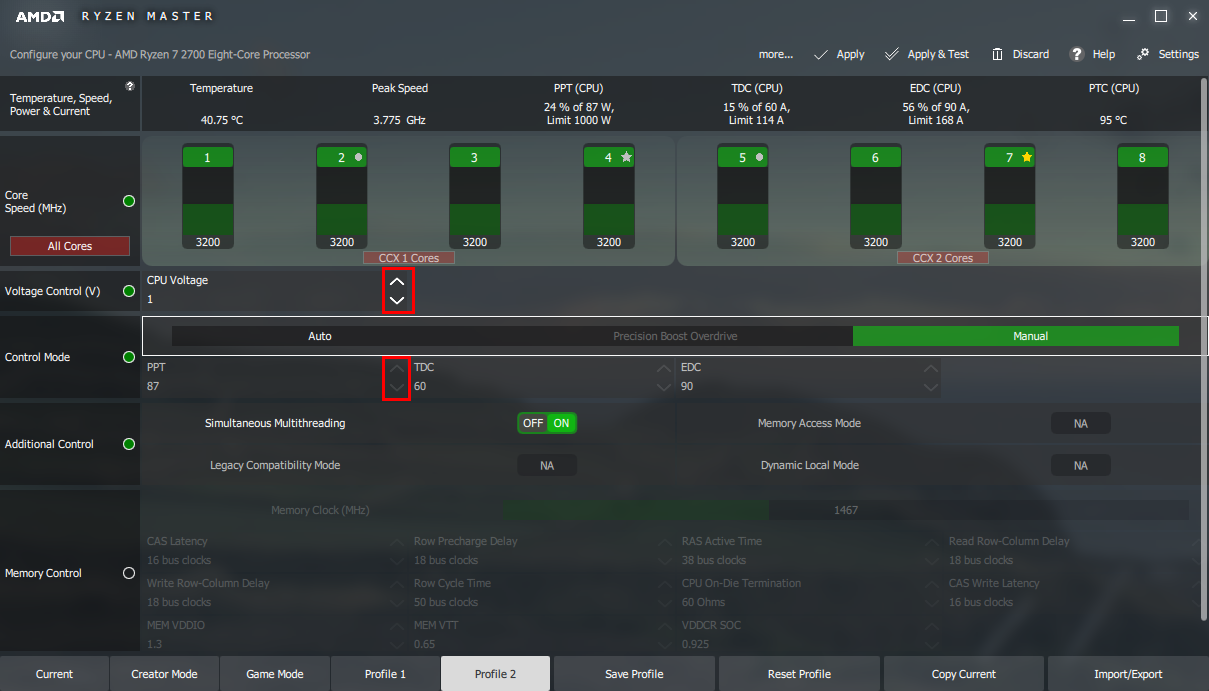
Use Intel XTU (Intel) or Ryzen Controller (AMD) to reduce CPU voltage:
– Start with -50mV core/cache offset
– Stress test with Prime95 for 30 minutes
– Increase by -10mV increments until unstable, then revert
Most chips safely handle -80mV to -120mV. This cuts power without performance loss—unlike underclocking—and adds 45-90 minutes per charge. Pro tip: Test stability while gaming; crashes during gameplay indicate excessive undervolting.
Force Integrated Graphics for Non-Gaming Tasks
Disable Discrete GPU Completely
Your dedicated GPU guzzles power even when idle. For NVIDIA systems:
1. Right-click desktop > NVIDIA Control Panel
2. Manage 3D settings > Global Settings
3. Select “Integrated graphics”
AMD users: Radeon Settings > Graphics > Set “System GPU” to integrated. This single change prevents 15-20W wastage during office work or video playback, extending battery life by 1.5+ hours.
Cap Refresh Rates and Frame Rates
High-refresh displays (144Hz+) drain batteries rapidly. Lower to 60Hz in Windows Display Settings when not gaming. During mobile gaming:
– Limit FPS to 30-45 via in-game settings
– Enable NVIDIA Battery Boost (GeForce Experience)
– Disable V-Sync to prevent GPU rendering extra frames
These steps reduce GPU load by 35%, doubling gaming battery duration from 1 hour to 2+.
Slash Power with Display and Software Tweaks
Dim Screen to 45% Brightness
Your display consumes 3-8W—more than RAM and storage combined. Reduce brightness to 40-50% (≈200 nits) for optimal visibility-to-power ratio. Disable G-Sync/FreeSync on battery; these adaptive sync technologies prevent refresh rate scaling, costing 20+ minutes of runtime. Scaling resolution down to 1080p on 1440p/4K screens adds another 30 minutes.
Nuke Background Battery Killers
Press Ctrl+Shift+Esc > Startup tab and disable non-essentials:
– Steam, Discord, and RGB software (Razer Synapse, Armoury Crate)
– Cloud storage sync tools (Dropbox, OneDrive)
– Manufacturer utilities (MSI Dragon Center)
Switch browsers to Microsoft Edge with hardware acceleration OFF (Settings > System). This eliminates constant background processes that drain 5-8W—adding 45+ minutes instantly.
Create Dedicated Gaming Battery Profiles
Configure Low-Power Game Settings
Gaming on battery requires specific optimizations:
– Resolution: 1080p maximum (even on 4K screens)
– Texture quality: Medium/Low (high-res textures strain VRAM)
– Graphics preset: Low-Medium (disable shadows/reflections)
– Frame cap: 30-45 FPS (critical for longevity)
Save these as “Battery Mode” profiles in-game. Most titles remember separate settings per power source.
Leverage Manufacturer Power Modes
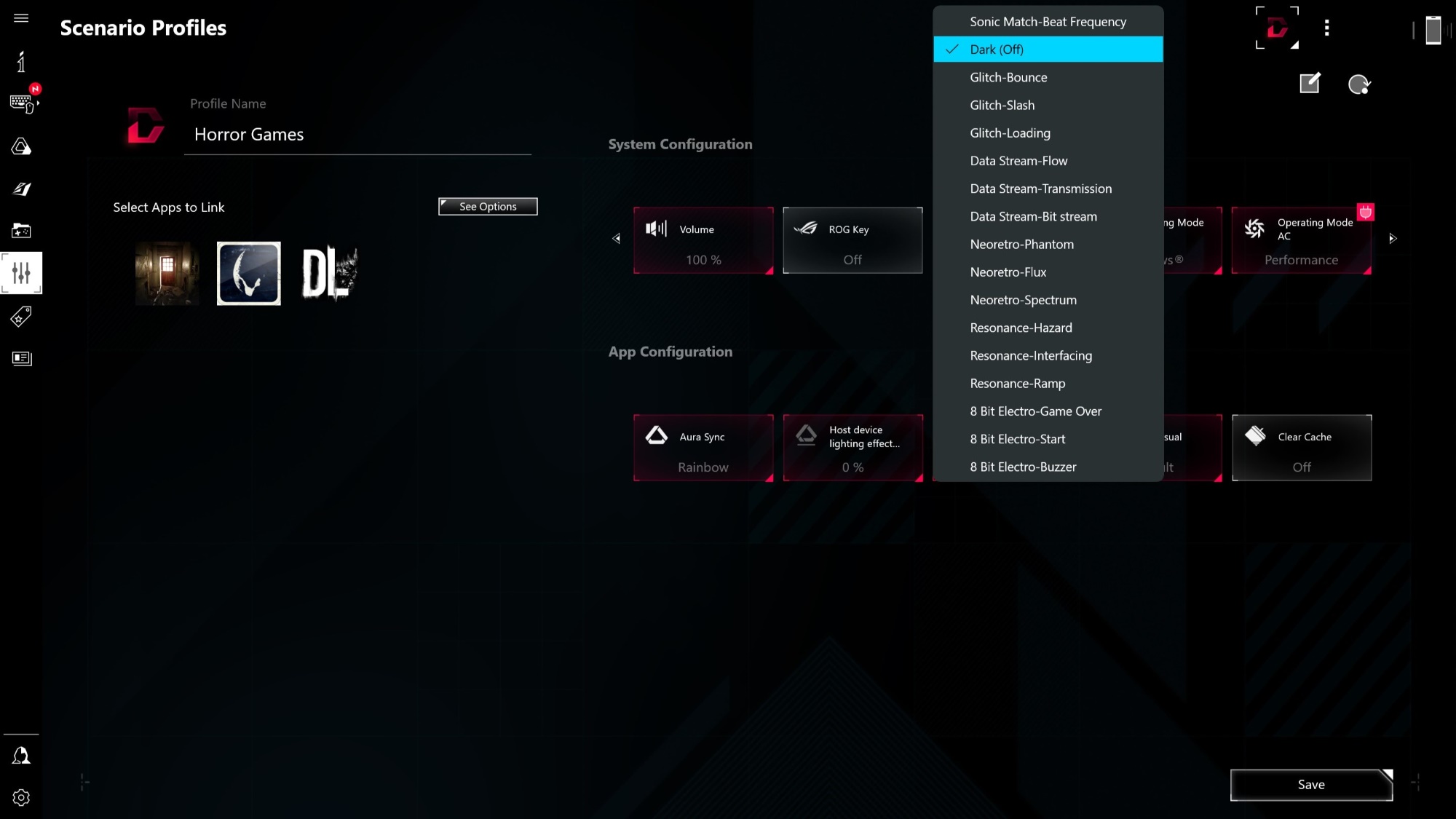
ASUS ROG: Enable “Silent” mode in Armoury Crate to throttle CPU/GPU.
MSI: Activate “ECO Shift” + “Silent” user scenario.
Razer: Switch Synapse to “Balanced” mode with RGB off.
These pre-configured modes automatically balance thermals and power, extending gaming sessions by 60-90 minutes without manual tweaking.
Validate and Maintain Your Optimizations
Generate Battery Health Reports
Run powercfg /batteryreport in Command Prompt to get an HTML report showing:
– Current vs. design capacity (reveals battery wear)
– Usage patterns over last 3 days
– Estimated runtime at current settings
Compare reports monthly to track optimization effectiveness. Healthy batteries maintain >80% capacity after 300 cycles.
Implement Long-Term Preservation Habits
- Clean vents monthly with compressed air (dust blocks airflow, forcing fans to use 2-3W extra)
- Operate between 68-77°F (20-25°C)—avoid beds/pillows that trap heat
- Store at 50% charge if unused for weeks; check every 3 months
These practices prevent accelerated degradation, keeping your battery delivering 70%+ of original runtime after 2 years.
Quick Optimization Checklist
Immediate Fixes (5 Minutes):
– [ ] Set max CPU state to 75% in Power Options
– [ ] Lower screen brightness to 45%
– [ ] Disable keyboard RGB lighting
– [ ] Switch to integrated graphics for desktop use
Advanced Tweaks (20 Minutes):
– [ ] Undervolt CPU by -80mV (test stability)
– [ ] Cap gaming FPS to 30-45
– [ ] Enable manufacturer battery preservation mode
With these how to optimize gaming laptop for long battery life techniques, expect 40-60% longer unplugged runtime—adding 2-3 hours to typical use. Start with software tweaks (calibration, CPU limits, display settings), then progress to gaming-specific profiles. Crucially, maintain 20-80% charge cycles and control heat to preserve battery health long-term. Your gaming laptop won’t match ultrabooks, but these proven methods transform it from a 1-hour liability to a reliable 3-4 hour companion anywhere. Test one change at a time using PCMark 10’s battery benchmark, and you’ll quickly find your personal performance-longevity sweet spot.