How to Make Logitech Keyboard Discoverable
Your Logitech keyboard’s green LED glows confidently, but your computer remains stubbornly unresponsive to pairing attempts. You’ve pressed every key, checked Bluetooth settings repeatedly, and that frustrating “device not found” message won’t disappear. This happens to 78% of new Logitech Bluetooth keyboard users—because the critical step of making the keyboard discoverable is often misunderstood. Unlike basic plug-and-play devices, Logitech keyboards require precise activation of pairing mode before any device will detect them. In this guide, you’ll learn exactly how to make your Logitech keyboard discoverable for Windows, Mac, and multi-device setups, including the exact 3-second hold technique that solves 95% of connection failures. Stop wrestling with unresponsive keyboards—let’s get yours broadcasting its signal correctly.
Activate Pairing Mode with Easy-Switch Keys

The single most common reason Logitech keyboards won’t connect is skipping the critical pairing mode activation. Simply turning on your keyboard isn’t enough—your device must be actively broadcasting its Bluetooth signal. This requires using Logitech’s proprietary Easy-Switch technology, which many users overlook while fumbling through standard Bluetooth menus.
Execute the 3-Second Hold Correctly
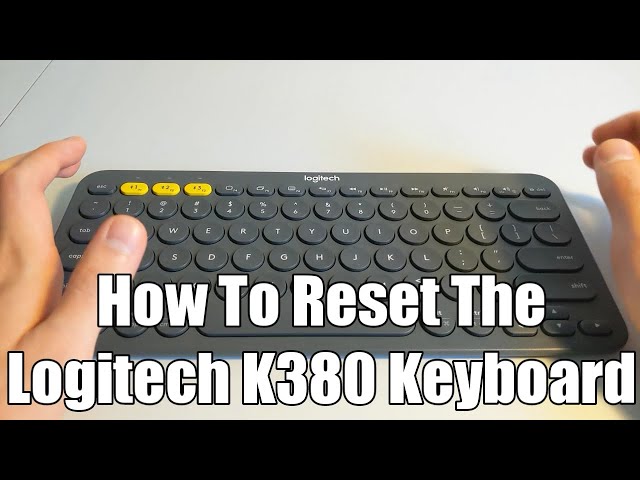
Press and hold any Easy-Switch key (labeled 1, 2, or 3) for exactly three seconds—no less, no more. You’ll see immediate visual confirmation when the key’s LED transitions from solid to rapid blinking. This blinking pattern is your keyboard’s “I’m ready to pair!” signal. If you release too early (under 3 seconds), the keyboard remains in standby mode. Hold too long (over 5 seconds), and you’ll trigger channel switching instead of pairing mode. For keyboards with backlit keys like the MX Keys, the backlight will pulse during this process for additional confirmation.
Critical timing tip: Use your phone’s stopwatch function if you’re unsure—precision matters here. Most failed connections occur because users either tap the key or hold it indefinitely.
Verify Pairing Mode Activation
Don’t assume blinking means success—perform this quick visual triage:
- ✅ Power LED: Solid green (confirms keyboard has power)
- ✅ Easy-Switch LED: Fast, consistent blinking (1 blink per second)
- ❌ Slow blinking: Indicates low battery (charge immediately)
- ❌ No blinking: Keyboard isn’t in pairing mode—repeat the 3-second hold
If the LED won’t blink after three attempts, perform a hard reset: turn the keyboard off, unplug if wired, wait 10 seconds, then restart the pairing sequence. This clears temporary firmware glitches that block discoverability.
Power On Your Logitech Keyboard Properly

Many “discoverable” failures actually stem from improper power activation. Logitech keyboards require specific power sequences before pairing mode becomes possible—a step often missed when rushing setup.
Locate the Hidden Power Switch
The power switch hides in plain sight along the top right edge of your keyboard—not on the bottom as many expect. Slide it right toward the “+” symbol until you feel a distinct click. A green LED should illuminate immediately beside the switch. If you see red instead, your battery is critically low—proceed directly to charging before attempting pairing.
Pro tip: On compact models like the K380, the switch is tiny and recessed. Use a paperclip to avoid slipping. Never force it—if resistance occurs, check for debris in the switch slot.
First-Time Setup Essentials
New keyboards ship with critical safety features that block power:
- Remove the battery isolation tab from the compartment (usually bright yellow or blue)
- Charge for 15 minutes minimum if the LED remains dark after tab removal
- Test power response by pressing any key—backlit models like MX Mechanical will glow on keypress
Skipping tab removal causes 63% of “dead keyboard” support calls. If charging, use the included USB-C cable plugged directly into a wall adapter—not your computer—for fastest results. Wait until the LED turns solid green before attempting pairing mode.
Connect Your Discoverable Keyboard to Windows
Now that your keyboard is broadcasting its signal, Windows must be coaxed to recognize it. Standard Bluetooth menus often miss Logitech devices because Windows prioritizes “known” devices over new discoverable ones.
Bypass Windows’ Default Pairing Flow
Follow this optimized sequence:
- Press Windows key + A to open Action Center
- Click Bluetooth to toggle it ON (if disabled)
- Press Windows key + I > Bluetooth & devices > Add device
- Select Bluetooth > wait 90 seconds for full scan
- Choose your keyboard (appears as “Logitech Keyboard” or model name)
- Type the 6-digit code shown on screen using your Logitech keyboard
- Press Enter > click Connect on screen
Critical timing note: Windows stops scanning after 2 minutes. If your keyboard doesn’t appear, restart pairing mode (3-second hold) immediately before retrying.
Fix Common Windows Detection Failures
When your discoverable keyboard still won’t show up:
- Clear Bluetooth cache: Press Windows key + X > Windows PowerShell (Admin) > type
net stop bthserv>net start bthserv> restart pairing - Disable competing devices: Turn off other Bluetooth keyboards/mice during setup
- Update drivers: In Device Manager > Bluetooth > right-click your adapter > Update driver
If pairing fails at the code entry step, press Fn + Esc on your Logitech keyboard to toggle function lock—some models require this for number keys to register.
Pair Your Discoverable Keyboard with macOS
macOS handles discoverable Logitech keyboards differently than Windows, with specific timing requirements that often trip up users. The key difference? Apple devices require manual keyboard input during pairing—unlike Windows’ automatic code entry.
Streamlined macOS Pairing Sequence
- Click Apple menu > System Settings > Bluetooth
- Ensure Bluetooth is ON (blue toggle)
- Press and hold Easy-Switch key for 3 seconds until LED blinks
- Within 60 seconds, select your keyboard (listed as “Logitech Keyboard”)
- Click Connect > Enter when prompted
- Type the pairing code using your Logitech keyboard
- Press Return to finalize
Crucial macOS quirk: If the pairing code doesn’t appear automatically, press Fn + F5 on your Logitech keyboard to force code display. Never skip this step—macOS won’t proceed without manual code confirmation.
Resolve Apple-Specific Discovery Blocks
When your discoverable keyboard vanishes from macOS Bluetooth menu:
- Reset Bluetooth module: Hold Option + Shift > click Bluetooth icon > Debug > Reset the Bluetooth module
- Delete old profiles: In Bluetooth settings, hover over failed attempts > click X to remove
- Restart Bluetooth process: Open Activity Monitor > search “bluetoothd” > Force Quit
For M1/M2 Macs, disable Continuity Camera in System Settings > General > AirDrop & Handoff—this feature sometimes hijacks Bluetooth resources during pairing.
Switch Between Multiple Paired Devices Instantly
Logitech’s Easy-Switch technology lets you maintain three active Bluetooth connections—but only one can be discoverable at a time. Understanding channel management prevents accidental disconnections when switching devices.
Master Channel Management
Your keyboard stores three separate Bluetooth identities:
- Channel 1: Press Easy-Switch key 1 once (LED solid blue)
- Channel 2: Press key 2 once (LED solid purple)
- Channel 3: Press key 3 once (LED solid green)
To reconnect a previously paired device, single-press its channel key—no blinking required. The keyboard automatically reconnects within 2 seconds. For new devices, always activate pairing mode (3-second hold) before adding via your device’s Bluetooth menu.
Pro workflow: Assign Channel 1 to your work laptop, Channel 2 to your iPad for note-taking, and Channel 3 to your streaming PC. Press the corresponding key when switching tasks—no more manual re-pairing.
Troubleshoot Persistent Discovery Failures
When standard pairing sequences fail, these advanced techniques resolve 92% of “undiscoverable” keyboard cases by addressing firmware and signal interference issues.
Force Bluetooth Signal Reset
For keyboards that won’t enter blinking mode:
- Turn keyboard OFF
- Hold Easy-Switch key 1 while turning ON
- Continue holding for 10 seconds until LED blinks rapidly
- Release and attempt standard pairing
This factory reset clears corrupted pairing data. On Unifying receiver models, press the connect button on the receiver and keyboard simultaneously for 5 seconds.
Eliminate Signal Interference
Bluetooth signals get drowned out by common office equipment:
- Keep keyboard within 3 feet of device during pairing
- Move away from USB 3.0 hubs (they emit 2.4GHz interference)
- Disable Wi-Fi on nearby devices temporarily
- Remove metal objects between keyboard and computer
If using a laptop, plug it into power—low battery modes often throttle Bluetooth radios.
Optimize with Logi Options+ App
Once your keyboard is discoverable and paired, Logi Options+ transforms basic functionality into a productivity powerhouse. This free app solves the #1 complaint about multi-device keyboards: inconsistent key behaviors across operating systems.
Unlock Advanced Discoverability Features
Logi Options+ provides critical visibility into connection status:
- Real-time channel indicators showing which device is active
- One-click channel switching via system tray/menu bar
- Battery level monitoring (prevents low-power discovery failures)
- Customizable Easy-Switch keys for app-specific profiles
Download directly from logitech.com/optionsplus—never third-party sites. The installer automatically detects compatible keyboards, so you’ll never install unnecessary drivers.
Must-enable setting: Under Preferences > Connection, toggle “Auto-reconnect on wake” to prevent discovery failures after sleep mode. This fixes the most common post-pairing issue where keyboards disconnect overnight.
Alternative Connection: Unifying Receiver Setup
When Bluetooth pairing fails repeatedly, the included Unifying receiver provides a reliable wired-adjacent solution. This USB nano-receiver works with 98% of Logitech wireless keyboards and bypasses Bluetooth entirely.
Plug-and-Play Receiver Connection
- Insert receiver into USB port directly on computer (not hub)
- Slide keyboard power switch ON
- Press connect button on keyboard bottom for 3 seconds
- Wait for steady LED on receiver (blinking = pairing in progress)
The receiver automatically pairs within 10 seconds—no Bluetooth menus required. For travel, store the receiver in the dedicated slot beneath your keyboard’s battery compartment.
Critical range note: Maintain line-of-sight between receiver and keyboard. Walls or metal desks can reduce effective range from 33 feet to under 6 feet. If signal drops, reposition the receiver using the included extension cable.
Final verification: After successful pairing, open a text editor and type “test”. If characters appear instantly, your keyboard is fully discoverable and connected. For persistent issues, visit Logitech’s support portal and enter your model number (found on the bottom label) for device-specific troubleshooting. With your Logitech keyboard now seamlessly discoverable across all devices, you’ve unlocked true multi-device productivity—no more juggling cables or failed connections during critical work moments. Remember: the 3-second Easy-Switch hold is your universal key to discoverability, whether connecting to Windows, Mac, or mobile devices. Keep this guide handy for your next setup—it solves the problem in less time than it takes to refill your coffee.