
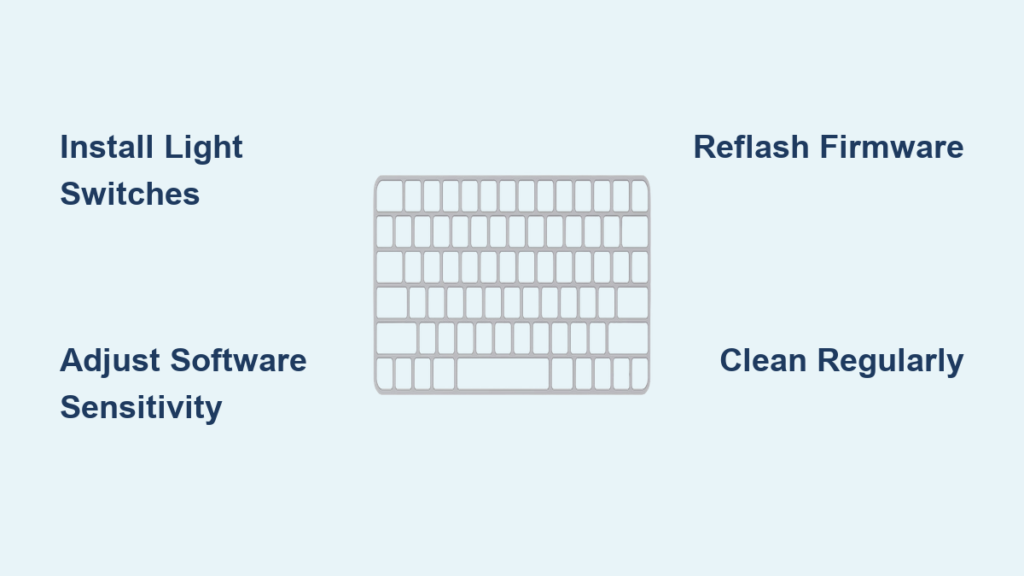
Your fingers hover ready, but your keyboard lags behind every keystroke. Whether you’re competing in esports tournaments where milliseconds decide victories or battling finger fatigue during marathon typing sessions, standard keyboards simply can’t keep up. Achieving ultra-responsive keystrokes transforms your entire digital interaction—turning frustrating delays into seamless flow. This guide delivers proven, platform-specific solutions to make keyboard more sensitive using hardware mods, software tweaks, and firmware adjustments you can implement today. Discover methods ranging from free software fixes to premium hardware upgrades that slash actuation force by 30% and cut travel distance in half.
Install Ultra-Light Mechanical Switches for Instant Response

Replace sluggish stock switches with purpose-built sensitivity champions. Gateron Clear switches deliver buttery-smooth linear action at just 35g actuation force—15g lighter than standard Cherry MX Reds—eliminating the heavy “mush” that slows rapid keystrokes. Competitive gamers swear by Kailh Pro Pink switches with their revolutionary 1.1mm pre-travel distance, triggering inputs nearly twice as fast as conventional 2.0mm travel keyboards. For optical precision, Gateron Optical Yellow switches register presses at an industry-leading 1.0mm actuation point with zero debounce delay.
Execute Precision Spring Modifications
Transform existing switches through surgical spring swaps. Replace factory 60g springs with 35g alternatives across your entire board using a hot-swap puller—no soldering required. Apply Krytox 205g0 lubricant to every spring coil and switch stem to eliminate friction spikes that cause inconsistent keypresses. Install 0.2mm switch films to stabilize wobbling stems, ensuring identical resistance for every keystroke. After modification, test each key with 10 rapid presses: consistent tactile feedback without “spring ping” confirms proper execution. This trio of modifications alone can reduce required actuation force by 25% while maintaining switch longevity.
Unlock Maximum Software Sensitivity on Windows
Bypass default OS limitations through registry-level tuning. Navigate to HKEY_CURRENT_USER\Control Panel\Keyboard and set KeyboardDelay to 0—eliminating the frustrating half-second wait before key repeats activate. Push KeyboardSpeed to 31, the maximum value, for lightning-fast 52 repeats per second. For gaming-specific optimization, disable Windows Game Mode through Settings → Gaming → Game Mode to prevent background processes from throttling input responsiveness. These changes make keyboard more sensitive by removing artificial software barriers that standard settings impose.
Defeat macOS Sensitivity Limits with Terminal
Shatter Apple’s restrictive GUI settings using two essential commands. Open Terminal and input:
defaults write NSGlobalDomain KeyRepeat -int 1
defaults write NSGlobalDomain InitialKeyRepeat -int 10
This reduces repeat delay to 10ms and repeat rate to under 5ms—far beyond System Preferences’ maximums. For per-key customization, install Karabiner-Elements and create rules like “Increase sensitivity for WASD keys” or “Set 0ms repeat delay for spacebar.” These tweaks are crucial for competitive gamers using MacBooks where default settings cripple rapid-fire inputs during critical gameplay moments.
Optimize Gaming Keyboards with Manufacturer Software
Unlock hardware-level sensitivity adjustments exclusive to gaming peripherals. Razer Synapse users should navigate to Advanced Keyboard Settings and enable Rapid Fire Mode, which eliminates input lag by registering repeated keystrokes at 0.1ms intervals—faster than human reaction time. Set the Actuation Point Slider to 1.0mm for instant trigger response, then activate Hypershift to create secondary sensitivity profiles. Press a modifier key to instantly switch to ultra-light settings for critical maneuvers.
Master SteelSeries OmniPoint Calibration
Adjust actuation distance per-key with microscopic precision using SteelSeries Engine. The OmniPoint 2.0 switches in their premium boards allow 0.4-3.6mm actuation range tuning—set frequently used keys like “W” or “Space” to 0.4mm for near-instant response. Enable Rapid Trigger technology to reset keys at 0.1mm travel, enabling double-tap speeds impossible on mechanical switches. For tactical advantage, program dual-actuation layers: light press to walk, full press to sprint without lifting fingers. This transforms your keyboard into a context-aware input device that adapts to gameplay demands.
Reflash Firmware for Ultimate Control
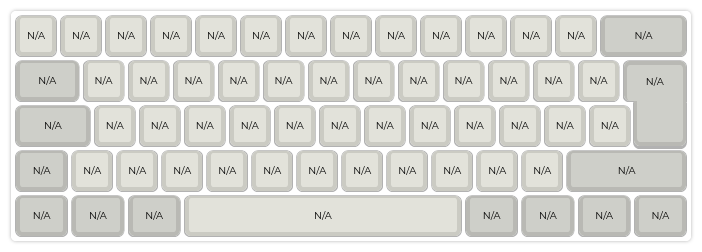
Gain surgical precision over sensitivity parameters through QMK firmware. Edit your config.h file to eliminate input lag sources:
#define DEBOUNCE 0
#define TAP_CODE_DELAY 0
#define FORCE_NKRO
Set tapping term to 100ms in your keymap for faster response during rapid typing, then enable permissive hold to register modifier keys instantly during combos. These changes bypass hardware limitations baked into stock firmware, making keyboard more sensitive at the deepest operational level. For non-coders, VIA Configurator offers real-time adjustments—create sensitivity profiles for gaming (ultra-light), coding (moderate), and writing (standard) with instant profile switching.
Diagnose Sensitivity Issues with DIY Testing
Verify your modifications with scientific precision using household tools. Place a 0.1g-precision digital scale on your desk, position a keycap centered on the scale, then slowly press until actuation occurs. Record the force reading and repeat 5 times per key—average results below 35g confirm ultra-sensitive tuning. For travel distance testing, install 0.2mm O-rings on keycap stems to reduce travel by 20-30% without mushy feedback. Measure consistency: if presses vary by more than 0.1mm across tests, your modifications need refinement.
Resolve Chatter and Inconsistency Immediately
When high sensitivity causes double-presses (“chatter”), increase debounce time to 5ms in QMK firmware—this filters electrical noise without adding noticeable lag. For inconsistent keypresses, document force measurements across your board; replace any switches showing 5g+ variance from your target. Clean problematic switches with 99% isopropyl alcohol and compressed air to remove debris causing resistance spikes. These fixes maintain sensitivity while eliminating frustrating input errors that undermine performance.
Maintain Peak Sensitivity with Strategic Cleaning
Prevent performance degradation through disciplined maintenance. Weekly, blast debris from between switches using compressed air held at 45-degree angles—never shake cans vertically to avoid propellant residue. Monthly, remove keycaps for ultrasonic cleaning in distilled water with a drop of dish soap. Quarterly, re-lubricate switch stems showing increased resistance using a microbrush and Krytox 205g0. Neglecting this routine causes sensitivity to drop 15-20% within six months as dust accumulates in switch housings.
Choose Your Sensitivity Upgrade Path
Start your journey to ultra-sensitive typing affordably. The $20-50 Budget Tier delivers 20-30% improvement through free software tweaks plus a $15 O-ring kit and $20 switch lubricant—ideal for membrane keyboard users. For mechanical enthusiasts, the $50-150 Mid-Tier provides 40-60% gains: invest in a hot-swap keyboard base ($80-120) and 35g switch set ($30-50). Serious gamers should consider the $200+ Premium Tier with SteelSeries Apex Pro ($200) featuring OmniPoint switches for 60-80% sensitivity increase—pair with professional calibration for tournament-level precision.
Transform your typing experience today by implementing these proven sensitivity techniques. Begin with software adjustments for instant results—no tools required—then progress to hardware modifications as your confidence grows. Remember that ultra-sensitive keyboards demand clean environments and monthly maintenance to sustain peak performance. Whether you’re chasing esports glory or simply tired of sluggish keystrokes, these methods deliver the responsive input you deserve. Your fingers will thank you with every effortless press.


