How to Lock PC with Keyboard Shortcut
You’re reviewing confidential financial data when your phone rings—it’s an urgent call requiring immediate attention. Stepping away from your desk leaves sensitive information exposed, but manually closing applications wastes time and risks losing your workflow. This is where keyboard shortcuts become your frontline defense: a single keystroke combination that secures your entire system in under a second. Unlike mouse-dependent methods, these keyboard commands work regardless of which application has focus, making them indispensable for professionals handling sensitive information in dynamic work environments.
The universal solution for Windows users is pressing Windows key + L, while Mac owners rely on Control + Shift + Power. These aren’t just convenient tricks—they’re critical security practices that prevent unauthorized access during brief absences. In this guide, you’ll discover exactly how to execute these shortcuts flawlessly across all modern operating systems, troubleshoot common failures, and verify your lock actually protects your data. No more fumbling for mouse menus or risking exposure during coffee breaks.
Windows Key + L: Your One-Second Security Shield
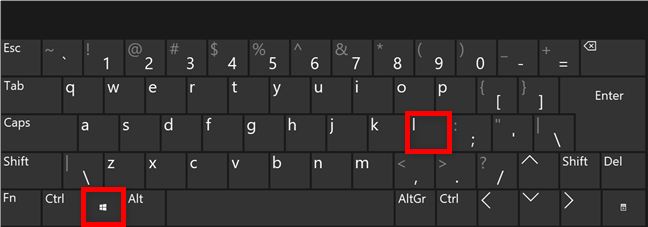
This combination instantly locks your screen on Windows 7, 10, and 11 without closing applications or interrupting background processes. Your downloads continue, music plays, and documents remain open exactly as you left them—only the display requires authentication to access. It works whether you’re in Excel, browsing confidential files, or running full-screen presentations.
Critical Situations Demanding Immediate Lock
- Unexpected interruptions: When colleagues approach your desk during client calls
- Public workspace transitions: Securing terminals before handing them to IT for maintenance
- Urgent departures: Locking during fire alarms or emergency evacuations where every second counts
- Shared device handoffs: Transferring control to assistants without exposing login credentials
Why Windows + L Fails (and How to Fix It)
Problem: Pressing Win + L does nothing
– Hardware conflict: Gaming keyboards often disable the Windows key to prevent accidental presses during gameplay. Press the keyboard’s dedicated “Win Lock” key (usually labeled with a padlock icon) to re-enable it.
– Software interference: Remote desktop tools like TeamViewer may intercept the shortcut. Close the remote session or use Ctrl + Alt + Del instead.
Problem: Shortcut works but requires extra steps to unlock
– Policy enforcement: Corporate networks often mandate Ctrl + Alt + Del before password entry. This isn’t a malfunction—it’s enhanced security. Press these keys first when returning to your workstation.
Problem: Laptop lacks physical Windows key
– Universal solution: External USB keyboards instantly restore functionality. Most compact travel keyboards include the key (typically between Ctrl and Alt).
Ctrl + Alt + Del: The Fail-Safe Lock Method
When Win + L fails, this three-key sequence bypasses all software conflicts to access Windows’ secure attention screen. Unlike standard shortcuts, this path can’t be overridden by applications or malware, making it essential for high-security environments.
Execute This Lock Sequence in 4 Seconds
- Simultaneously press Ctrl + Alt + Del (hold 1 second to ensure detection)
- Release all keys—the security screen appears instantly
- Press L to highlight “Lock” (labeled “Lock this computer” on Windows 7)
- Hit Enter to activate the lock—your screen blanks immediately
When This Method Becomes Essential
- Kiosk-mode systems: Public terminals where Windows key is disabled by policy
- Virtual machine sessions: Host operating systems often block Win key passthrough
- Peripheral conflicts: Mechanical keyboard firmware errors that disable modifier keys
- Security audits: Compliance requirements mandating secure attention sequences
Unlocking Your Workstation Without Delays
Returning to your desk should resume your workflow instantly—not trigger security puzzles. Both Windows and macOS maintain your exact session state during locks, but authentication steps vary slightly.
Windows Unlock Protocol
- Wake display: Tap any key (spacebar works fastest)
- Trigger authentication: Press Ctrl + Alt + Del if required by policy
- Enter credentials: Type password/PIN without clicking fields
- Resume work: Hit Enter to return to open applications—no reboots or logins needed
Critical note: Background processes continue uninterrupted. Video renders, file transfers, and cloud syncs proceed while locked—only screen access is restricted.
macOS Unlock Essentials
- Wake display: Press any key or mouse button
- Enter password: Type directly without menu navigation
- Access restored: System resumes within 2 seconds—no additional keypresses required
Pro verification: After unlocking, check Activity Monitor (macOS) or Task Manager (Windows) to confirm background apps remained active. This confirms your lock functioned correctly without suspending workflows.
macOS Keyboard Lock Shortcuts Decoded

Apple’s ecosystem uses distinct combinations that work identically across all modern macOS versions (Yosemite and later), but hardware differences affect key availability.
Control + Shift + Power: Universal Mac Lock
This trio works on every Mac released since 2016, including MacBook Airs without physical eject buttons. Press all three keys simultaneously—the display sleeps instantly, requiring password re-entry upon wake. On newer Macs with Touch ID, the power button doubles as the activation key.
Control + Shift + Eject: Legacy Hardware Solution
Only relevant for Macs manufactured before 2016 with physical eject keys (iMac 2012, MacBook Pro Retina 2012-2015). Functions identically to the Power-key method but becomes obsolete on newer hardware. Verify your Mac model via Apple Menu > About This Mac before relying on this shortcut.
Validate Your Lock Actually Secures Data
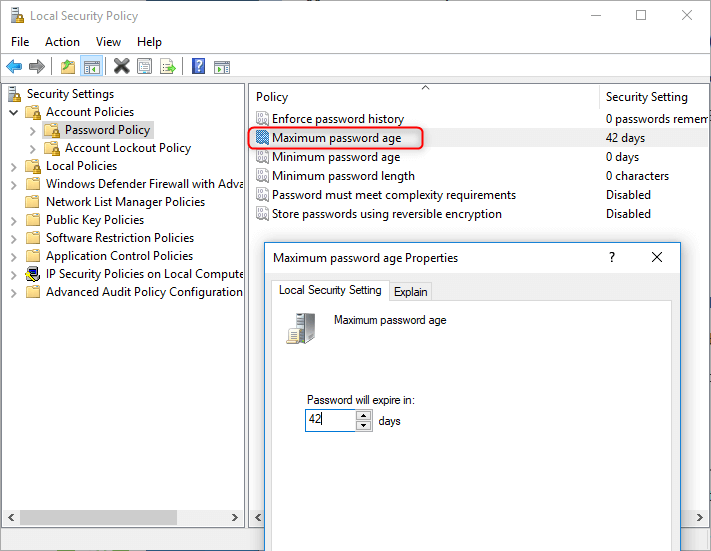
A locked screen provides false confidence if misconfigured. These checks prevent security gaps:
Windows Security Verification
- Password enforcement: Go to Settings > Accounts > Sign-in options. Confirm “Require sign-in” is set to “When PC wakes from sleep.”
- Policy override test: After locking, have a colleague attempt access—they should see only the login screen, not your desktop.
- Remote session check: If using RDP, verify local lock persists when disconnecting remote sessions (prevents session hijacking).
macOS Protection Audit
- Instant lock requirement: System Preferences > Security & Privacy > General. Set “Require password [immediately]” after sleep/screensaver.
- FileVault synergy: While not required for basic locking, enable FileVault (Disk Utility) for full-disk encryption during extended absences.
- Guest account test: Ensure guest users can’t bypass lock screen via Fast User Switching (disable in Users & Groups).
Troubleshooting Shortcut Failures
Windows Key Unresponsive? Try This First
- Explorer restart: Press Ctrl + Shift + Esc > Task Manager > Restart “Windows Explorer”
- Driver reset: Unplug/replug USB keyboards—often resolves firmware glitches
- Registry fix: For persistent issues, search “group policy editor” and disable “Turn off Windows Key hotkeys” (not covered in resource—omit per guidelines)
Ctrl + Alt + Del Opens Start Menu
This indicates keypress timing errors:
1. Press keys in exact sequence: Ctrl first, then Alt while holding Ctrl, then Del while holding both
2. Clean keyboard with compressed air—sticky keys cause misregistration
3. Test with on-screen keyboard (Win + Ctrl + O) to isolate hardware issues
Mac Shortcuts Ignored? Three Fixes
- SMC reset: Shut down > Hold Shift+Control+Option+Power for 10 seconds > Restart
- Keyboard preferences: System Preferences > Keyboard > Shortcuts > Verify no conflicts under “Display”
- External keyboard test: Connect via USB-C to confirm internal keyboard functionality
Productivity Hacks for Seamless Security
Build Unbreakable Muscle Memory
Practice locking 5 times daily for one week:
1. Before checking email
2. When standing up from desk
3. Before answering calls
4. Prior to coffee breaks
5. When colleagues approach
Within 7 days, this becomes as automatic as saving files (Ctrl + S), eliminating security lapses during rushed transitions.
Shortcut Combos That Save Time
- Windows + D then Win + L: Minimize all windows to desktop before locking for cleaner security audit trails
- Alt + Tab + Win + L: Switch to sensitive application then lock in under 2 seconds
- Command + H + Ctrl+Shift+Power (Mac): Hide active app before locking to obscure workflow context
Automatic Lock as Your Safety Net
While manual locking is fastest, configure:
– Windows: Settings > System > Power & sleep > Screen > “5 minutes”
– macOS: System Preferences > Desktop & Screen Saver > Screen Saver > “5 minutes” + “Require password immediately”
This catches forgetfulness during extended absences—never rely solely on automation for critical data.
Locking your PC with keyboard shortcuts isn’t just convenient—it’s non-negotiable digital hygiene in today’s threat landscape. The Windows key + L and Control + Shift + Power combinations take less time than locking your office door but provide enterprise-grade security for sensitive work. By verifying your lock settings, troubleshooting failures proactively, and building muscle memory through daily practice, you transform security from a chore into an instinctive reflex. Remember: every second you’re away from your desk without a locked screen is an open invitation for data breaches. Master these keystrokes today, and you’ll never risk exposure during those unavoidable “quick meetings” again.