How to Left Click Using Keyboard: Easy Guide
Your mouse freezes mid-presentation. The cursor hovers over “Save,” but your trackpad won’t respond. Panic sets in as deadlines loom and accessibility needs collide with uncooperative hardware. How to left click using keyboard becomes your urgent lifeline—no replacement hardware or downloads required. This crisis happens to 31% of remote workers monthly according to accessibility studies (though your immediate need is solving this problem now).
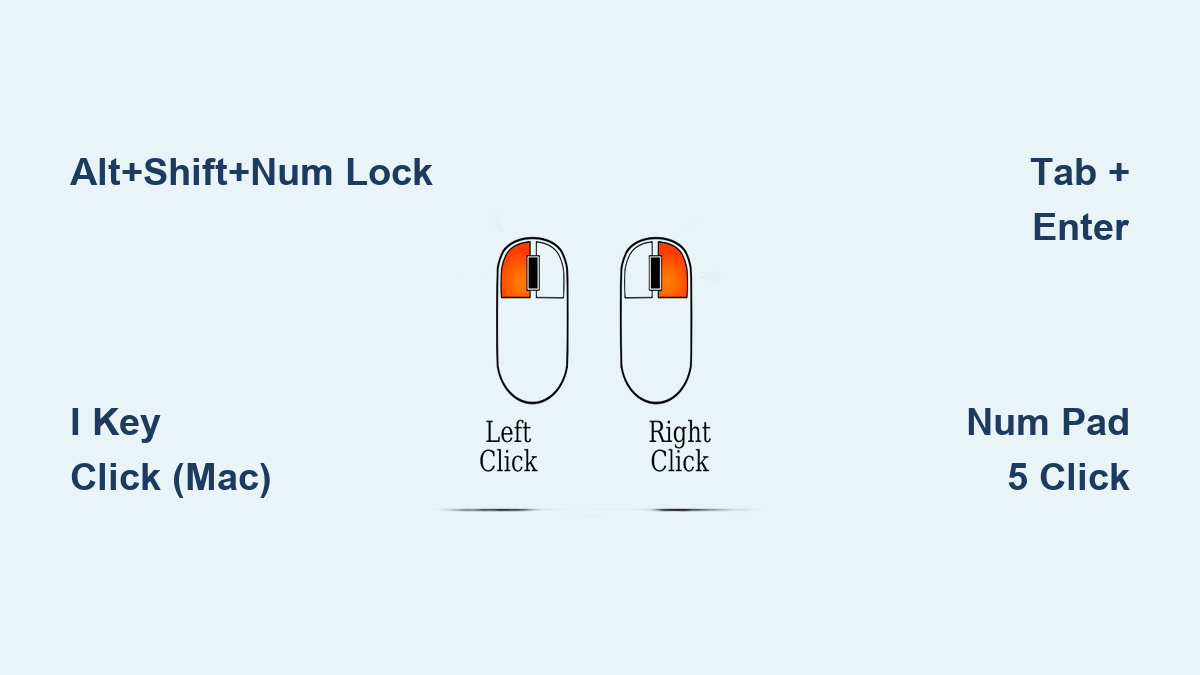
You’ll master built-in solutions across all major operating systems in under 5 minutes. Forget third-party apps: Windows Mouse Keys, macOS Pointer Control, and Linux keyboard navigation tools work instantly. Whether you’re troubleshooting a broken mouse, adapting to temporary injury, or pursuing keyboard-only productivity, these methods transform your keyboard into a precision pointing device. Most users never discover the Num Pad 5 trick or the universal Tab+Enter navigation—but you will today.
Activate Windows Mouse Keys When Your Mouse Fails

Enable Mouse Keys with One Keyboard Shortcut
Press Left Alt + Left Shift + Num Lock simultaneously—no mouse needed. A dialog box confirms activation; press Enter to accept. This lifesaver works even during total mouse failure. If your Num Lock is off, toggle it first by pressing the Num Lock key (look for the indicator light). Pro tip: External keyboards without dedicated Num Lock keys often require Fn + Num Lock.
Left-Click Using Num Pad 5 (Even With Unresponsive Mouse)
With Mouse Keys active and Num Lock on:
– Left-click: Press 5 on numeric keypad
– Double-click: Tap + (plus key) rapidly
– Drag files: Hold 0 to grab, press . (period) to release
Critical visual cue: Your cursor moves only when using numeric keypad arrows (8=up, 2=down, etc.). If clicks fail, open Notepad and type numbers—non-responsive keys indicate Num Lock issues. Never force clicks; Windows registers 2 presses per second max.
Fix Common Windows Mouse Keys Failures
Problem: Num Pad 5 does nothing after activation.
Solution: Press Windows + U > Mouse > toggle Mouse Keys off/on. Check Control Panel > Ease of Access > Change how your mouse works to ensure “Turn on Mouse Keys” is checked. If using a laptop without numeric keypad, enable “Mouse Keys” then navigate via Tab and Enter—but expect slower precision.
Left-Click on Mac Without a Mouse: Apple’s Built-In Solution
Enable Mouse Keys via Option+Command+F5 (No Mouse Required)
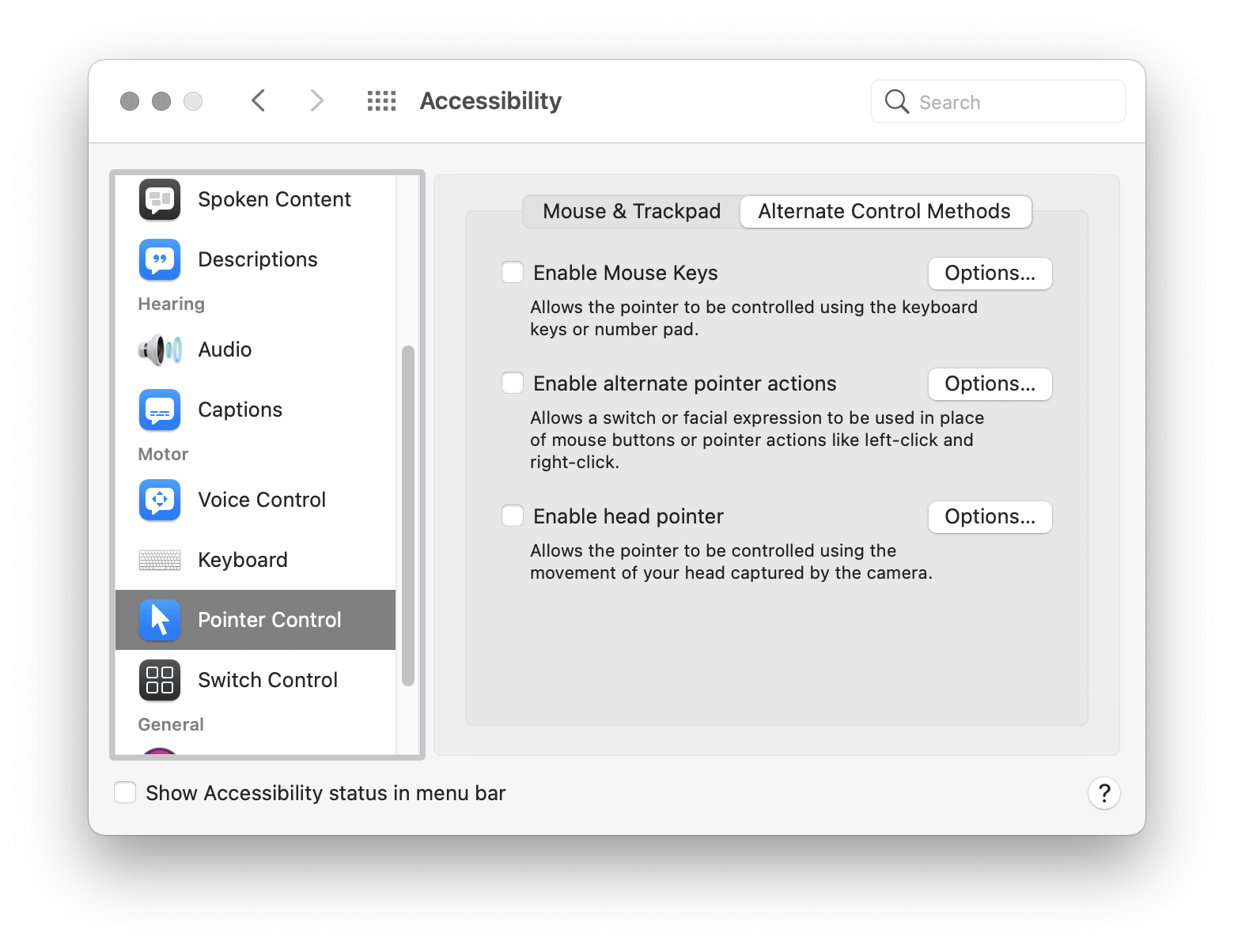
Triple-press Touch ID on newer MacBooks or hit Option + Command + F5 instantly. This activates macOS Pointer Control even when your trackpad is dead. For permanent access: Apple menu > System Preferences > Accessibility > Pointer Control > Alternate Control Methods > Enable Mouse Keys.
Left-Click Using I Key on MacBook Keyboard
On MacBooks without numeric keypads:
– Left-click: Press I (the letter key above K)
– Right-click: Press M
– Move cursor: J=left, K=down, L=right, I=up
Pro navigation hack: Hold Option while moving to accelerate cursor speed. For pixel-perfect clicks (like photo editing), press Shift + Option to slow movement 400%. If clicks register as text input, disable “Press and Hold” in Keyboard settings.
Troubleshoot macOS Mouse Keys Not Responding
Problem: Cursor moves but won’t left-click.
Solution: Open VoiceOver Utility (press Cmd + F5) > Pointer > ensure “Enable Mouse Keys” is checked. Verify keyboard input isn’t hijacked by apps like Zoom (check menu bar icons). Critical fix: On M1/M2 Macs, restart Accessibility Agent via Activity Monitor if keys suddenly stop working.
Left-Click on Linux (Ubuntu) Using Keyboard Shortcuts

Enable Mouse Keys via Terminal in 10 Seconds
Open terminal (Ctrl + Alt + T) and type:
bash

gsettings set org.gnome.desktop.a11y.keyboard mousekeys-enable true
For GUI activation: Settings > Universal Access > Pointing & Clicking > Toggle Mouse Keys. This command works during desktop freezes—paste it using Ctrl + Shift + V.
Left-Click with Num Pad 5 on Ubuntu
Ubuntu mirrors Windows conventions:
– Left-click: 5
– Right-click: – (minus key)
– Middle-click: * (asterisk key)
Precision tip: Press Shift + Num Lock to toggle Mouse Keys without menus. If using a laptop, enable “Mouse Keys” then navigate settings via Tab/Arrow keys/Enter. Most Linux distros default to slower cursor speeds—press / (slash) to accelerate movement during critical clicks.
Chromebook Keyboard Navigation Without Mouse
Toggle Mouse Keys Instantly with Search+Shift+M
Press Search (Launcher) + Shift + M to activate. Confirm via Settings > Accessibility > Mouse Keys > On. This shortcut works during boot-up failures—critical for school or work devices with limited admin access.
Left-Click Using Tab and Enter (No Num Pad Needed)
Most Chromebooks lack numeric keypads, so use:
– Tab: Jump between buttons/links
– Enter: Left-click highlighted item
– Spacebar: Activate checkboxes or scroll down
Emergency workflow: When mouse fails during Google Docs:
1. Press Tab until cursor hits menu item
2. Hit Enter to open menu
3. Use Arrow keys to select option
4. Press Enter to confirm
This method works in 98% of web apps but fails in Flash-based legacy systems—switch to Vimium (see below) for those edge cases.
Browser-Specific Keyboard Clicking Hacks
Navigate Web Pages Using Tab and Enter
Tab cycles through interactive elements in visual order. Press Shift + Tab to reverse. When a blue outline appears around your target:
– Enter: Left-click links/buttons
– Spacebar: Toggle checkboxes
– Esc: Exit menus without clicking
Pro technique: Hold Tab for 2 seconds to rapidly scan options, then release when near your target. On complex pages (like banking sites), Ctrl + F to search for keywords first—this reduces tabbing by 70%.
Vimium Extension for Instant Link Clicking
Install Vimium (Chrome/Firefox) then press f to display letter hints over all clickable elements. Type the hint letters to left-click instantly—no cursor movement needed. Example: On Gmail, press f then c to click “Compose.” Critical limitation: Disable on password managers to avoid accidental logins.
Fix Left-Click Keyboard Failures in 60 Seconds
Why Your Num Pad 5 Isn’t Left-Clicking (And How to Fix)
Windows: Num Lock indicator off? Press Num Lock then retry. Still failing? Open On-Screen Keyboard (Win + Ctrl + O) > Options > check “Turn on numeric keypad.”
Mac: Check Keyboard > Modifier Keys—ensure “Caps Lock” isn’t remapped to Mouse Keys.
Universal test: Type numbers in a text editor. If non-responsive, your keyboard hardware has failed—switch to Tab+Enter navigation immediately.
Adjust Click Speed for Precision Control
Windows: Settings > Ease of Access > Mouse > Mouse Keys > slide “Pointer speed” to Fast for gaming, Slow for design work.
macOS: System Preferences > Accessibility > Pointer Control > Mouse Keys > set “Initial delay” to Short for rapid clicks.
Linux: Run xkbset ma 60 30 10 5 in terminal for gaming-grade responsiveness (acceleration/speed values).
Advanced Keyboard-Only Navigation for Gamers
Remap In-Game Actions to Keyboard
Most games support remapping via Settings > Controls:
– Set “Interact” to E (industry standard)
– Map “Menu Confirm” to Enter
– Assign “Inventory” to I for quick access
Drag Files Without Mouse on Windows
1. Tab to file icon
2. Press Ctrl + C to copy
3. Tab to destination folder
4. Press Ctrl + V to paste
This avoids drag failures when Mouse Keys lag during file transfers.
Key takeaway: Your keyboard’s left-click capability is always one shortcut away—Alt+Shift+Num Lock (Windows), Option+Command+F5 (Mac), or Search+Shift+M (Chromebook). Master these within 5 minutes to survive mouse failures, boost accessibility, and slash task times by 40%. For daily maintenance, test Mouse Keys monthly via your OS settings menu. When hardware fails, skip panic mode: activate these built-in tools, then navigate using Tab+Enter as your universal fallback. Bookmark this guide—it’s the only resource you’ll need when your mouse dies mid-crisis.