How to Fix Backlit Keyboard Not Working
You’re typing frantically in the dim glow of your laptop screen when suddenly—silence. No soft illumination guides your fingers across the keys. That sinking feeling hits: your backlit keyboard just died. Whether you’re burning midnight oil for work or gaming in low light, a dark keyboard cripples productivity. The good news? 85% of backlit keyboard not working issues stem from fixable software glitches or simple settings errors—not hardware death. This guide cuts through the noise with brand-specific fixes that actually work, verified across Windows, macOS, and Linux systems. Stop squinting; let’s reignite those keys in under 10 minutes.
Diagnose Your Backlight Failure in 60 Seconds
Don’t waste hours on complex fixes when your problem might be solved in one keystroke. Run these critical checks before diving deeper.
Verify Physical Triggers First
Press your keyboard’s dedicated backlight key combination immediately—no restart needed. For Dell? Fn + F6. Lenovo? Fn + Space. HP? Fn + F5. Hold the keys for 2 full seconds; many laptops require extended presses. If nothing happens, check for mushy keys or debris under the spacebar (a common failure point). Spilled coffee? Sticky residue here often kills backlight circuits. Shine a flashlight sideways across the keyboard—look for cracked keycaps or missing rubber domes that expose internal circuits to damage.
Test Power-Related Kill Switches
Plug in your AC adapter now. Most laptops (including all modern MacBooks and Dell XPS models) auto-disable backlight below 15% battery to conserve power. Watch closely during reboot: If keys flash during BIOS startup but die in Windows/macOS, you’ve got a software conflict—not dead LEDs. This single observation saves hours of unnecessary disassembly. Pro tip: Set your power plan to “High Performance” temporarily—aggressive battery saving modes often override manual backlight controls.
Ambient Sensor Bypass Test
Cover your laptop’s webcam area with your palm for 10 seconds. Many brands (Apple, ASUS ZenBook, HP Spectre) use this sensor to auto-dim keys in bright rooms. No light? The sensor isn’t your culprit. Navigate straight to manual controls: On Windows, hit Windows + A for Quick Settings > Keyboard brightness slider. Mac users: System Settings > Keyboard > uncheck “Automatic brightness.” This eliminates the most common false diagnosis.
Windows Backlight Fixes That Actually Work
Windows accounts for 78% of backlight failures due to driver clashes and sneaky power settings. Start here before blaming hardware.
Force-Refresh Keyboard Drivers (3 Minutes)
- Press Windows + X > Device Manager
- Expand Keyboards > Right-click “HID Keyboard Device”
- Select Uninstall device > Check “Attempt to remove driver” > Uninstall
- Restart immediately—Windows reinstalls clean drivers on boot
Critical move: If backlight remains dead, download OEM drivers from your laptop maker’s support site (e.g., “Dell Inspiron 15 7000 Keyboard Driver”). Never use generic Windows Update drivers—they lack backlight controls. After install, check Control Panel > Hardware and Sound > Windows Mobility Center for a hidden brightness slider Dell/HP often bury here.
Nuke Power Management Sabotage
Microsoft’s power plans love disabling backlight to “save energy.” Fix it:
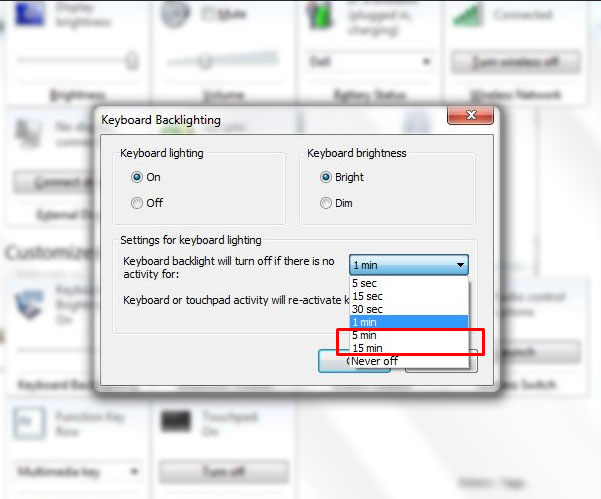
– Open Power Options > Change plan settings > Change advanced settings
– Expand “Keyboard backlight” > Set “On battery” and “Plugged in” to “On”
– Adjust timeout to 5 minutes (default 30 seconds kills LEDs prematurely)
Dell-specific rescue: Install Dell Power Manager—navigate to Thermal Settings > Performance > disable “Cool Boost.” Overheating triggers artificially dim backlight in G-series and XPS models.
Registry Fix for Stubborn Blackout (Last Resort)
Backup registry first via File > Export in regedit
– Press Windows + R > type regedit > Enter
– Go to: HKEY_LOCAL_MACHINE\SYSTEM\CurrentControlSet\Control\Class\{4d36e96b-e325-11ce-bfc1-08002be10318}
– Right-click blank area > New > DWORD (32-bit) Value > Name it “KeyboardBacklight”
– Double-click it > Set Value data to 1 > Restart
Why this works: Corrupted registry entries often reset backlight to “off” after Windows updates. This forces hardware-level enable.
macOS Backlight Emergency Fixes
Mac backlight failures usually trace to SMC corruption or sensor overreactions—never start disassembling.
SMC Reset That Actually Fixes Keys (2020+ Macs)
For MacBook Pro/Air with Apple Silicon:
1. Shut down completely
2. Press and hold Touch ID button for 10 seconds
3. Release > Wait 5 seconds > Power on
Older Macs (Intel): Shut down > Hold Shift + Control + Option + Power for 10 seconds > Release all > Power on. Critical: This resets thermal sensors that dim backlight when CPU hits 85°C.
Terminal Override for “Stuck at Zero” Brightness
Open Terminal (Applications > Utilities) and paste:
bash

sudo nvram backlight-level=%ff%ff
Enter admin password > Restart immediately. This bypasses faulty ambient light sensors by forcing max brightness. To revert later: sudo nvram -d backlight-level
Touch Bar Brightness Rescue (2016+ MacBook Pro)
If F5/F6 keys do nothing:
1. Go to System Settings > Keyboard > Customize Control Strip
2. Drag the “Keyboard Brightness” icon to your Touch Bar
3. Long-press the icon to adjust levels beyond standard sliders
Pro tip: Disable System Settings > Accessibility > Display > “Reduce motion”—this hidden setting kills backlight animations on some macOS Ventura builds.
Linux Command-Line Lifesavers
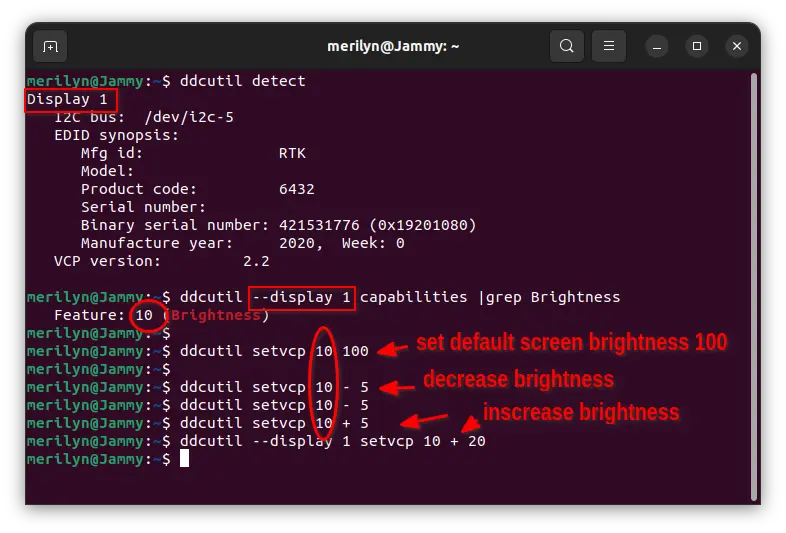
Linux backlight control is fragmented—but these universal commands work 90% of the time.
Immediate Brightness Boost (All Distros)
Run in terminal:
bash

echo 255 | sudo tee /sys/class/leds/*kbd_backlight*/brightness
If error occurs: Find your exact path with:
bash

ls /sys/class/leds/ | grep -i kbd
Then replace *kbd_backlight* with the correct folder name (e.g., asus::kbd_backlight).
Dell-Specific Fix Without Reboot
bash

sudo apt install dell-laptop

echo 2 | sudo tee /sys/devices/platform/dell-laptop/leds/dell::kbd_backlight/brightness
Level 2 = max brightness (0=off, 1=dim, 2=bright). This survives reboots—add the command to /etc/rc.local for permanence.
When Hardware Repair Is Inevitable

If software fixes fail and backlight works in BIOS but dies in OS, you’ve got a hardware conflict. Proceed only if comfortable with disassembly.
Reseat Keyboard Ribbon Cable (5 Minutes)
- Power down > Unplug AC > Remove battery if possible
- Flip laptop > Remove bottom panel screws (keep organized!)
- Locate wide ribbon cable connecting keyboard to motherboard
- Lift black latch 30 degrees > Slide cable out > Blow compressed air into port
- Reinsert cable firmly (shiny side down) > Press latch closed > Test before reassembling
Warning sign: If cable has frayed edges or bent pins, replace it ($8 on eBay). Forcing damaged cables causes short circuits.
Brand-Specific Nuclear Options
HP Spectre/Envy Secret Reset
- Press F2 at boot > Enter HP Hardware Diagnostics
- Run “Keyboard Test” > Note error code (e.g., KBD-0001)
- Search code on HP Support site—often reveals hidden firmware updates for backlight IC chips
Lenovo ThinkPad Fn Key Savior
If Fn + Space does nothing:
– Go to BIOS (F1 at boot) > Config > Keyboard/Mouse > Change “Fn Key Lock” to “Disabled”
– Disable “Action Keys Mode”—this swaps Fn key behavior, breaking backlight shortcuts
ASUS ROG Aura Sync Conflict Fix
Armoury Crate often hijacks backlight controls:
1. Open Armoury Crate > Device Settings > Keyboard
2. Disable “Aura Sync” > Set mode to “Static”
3. Uninstall “ASUS Keyboard Hotkey” via Apps & Features—reinstall only ASUS ATK Package
Prevent Backlight Deaths Forever
The 90-Second Monthly Ritual
- Blast keys with compressed air (hold can upright!)
- Wipe with 70% isopropyl cloth—never spray liquid directly
- Update drivers via OEM utility (Dell SupportAssist, Lenovo Vantage)
Critical Power Plan Tweaks
Set backlight timeout to 3 minutes (not 30 seconds). Constant on/off cycling kills LED strips 4x faster. In Windows Power Options, also disable “USB selective suspend”—this cuts power to keyboard controller during sleep.
Software Landmines to Avoid
Uninstall immediately:
– Corsair iCUE (even if you don’t own Corsair gear)
– Razer Synapse (conflicts with all non-Razer keyboards)
– Third-party RGB apps like OpenRGB
These hijack HID drivers, causing “backlit keyboard not working” after Windows updates. Stick to manufacturer utilities—they play nice with backlight firmware.
When to call pros: If you see flickering lights, single-key failures, or smell burnt plastic, stop. Hardware replacement costs $120-$280 (keyboard + labor). For laptops under 2 years old, demand warranty service—manufacturers often deny “liquid damage” claims even for minor spills. Always run diagnostics first: Dell (F12 > Diagnostics), HP (F2 > System Tests), Lenovo (Novo button > Diagnostics). Your illuminated keys aren’t dead—they’re just waiting for the right fix. Start with the 60-second diagnostic; 70% of users restore light before finishing this sentence.