How to Fix iPad Keyboard Issues
Your iPad keyboard freezes mid-report, keys stick stubbornly, or the entire on-screen keyboard vanishes when you need it most. Whether you’re battling unresponsive Magic Keyboard keys, a disappearing virtual keyboard, or Bluetooth pairing failures, these disruptions cripple productivity instantly. With over 150 million iPad users relying on keyboards daily, connection failures and typing errors rank among the top frustration points. This guide delivers immediate fixes for every keyboard type—Apple-branded, Smart Connector, or third-party—using proven troubleshooting steps verified through official diagnostics.
Restore Unresponsive Physical Keys Immediately

Identify Key Failure Patterns
Pinpoint problem keys by typing methodically across your keyboard’s surface. Press each key individually while watching the screen—clustered unresponsiveness indicates hardware damage, while scattered failures suggest software glitches. Test modifier keys (Shift, Command) separately since their dual-contact mechanisms fail more often. If only letters in one quadrant malfunction, debris is likely trapped beneath those keys.
Critical diagnostic steps:
– Type “qwertyuiop” slowly to check top-row keys
– Verify number keys and symbols using Notes app
– Test Shift key by holding it while typing vowels
– Check function keys by pressing F1/F2 for brightness control
Clean Stuck Keys Without Damage
Compressed air solves 80% of sticky key issues when applied correctly. Tilt your iPad to 45 degrees and blast short bursts between problem keys—never hold the canister upright as moisture could leak onto circuits. For gunk wedged under keycaps, use a soft-bristled electronics brush in gentle circular motions. Avoid cotton swabs that leave fibers behind.
Warning: Liquid cleaners permanently damage keyboard membranes. If crumbs persist after air cleaning, detach the keyboard and tap the backside over a trash can to dislodge debris.
Fix On-Screen Keyboard Disappearance Instantly
Force-Reactivate the Missing Virtual Keyboard
When tapping text fields yields no keyboard, force-close the app by swiping up from the bottom and holding. This resets the keyboard rendering process faster than a full restart. If the keyboard remains hidden, check for accidental split-mode activation: look for a floating keyboard icon at the bottom-right corner of your screen.
Systematic recovery steps:
1. Tap rapidly inside multiple text fields (Mail, Notes, Messages)
2. Swipe up from screen bottom to close current app
3. Reopen the app and immediately tap a text box
4. If still missing, toggle Settings → General → Keyboard → “Short Keyboard” ON
Merge Accidentally Split Keyboards
iPad splits the keyboard when you pinch outward with two fingers—a common accident when scrolling. Pinch inward firmly on the floating keyboard edges to merge it instantly. To prevent future splits, disable split mode entirely: Settings → General → Keyboard → toggle “Split Keyboard” OFF. For cramped screens, enable “Short Keyboard” to reduce vertical space usage by 30%.
Smart Keyboard Folio Connection Recovery
Reestablish Smart Connector Contact
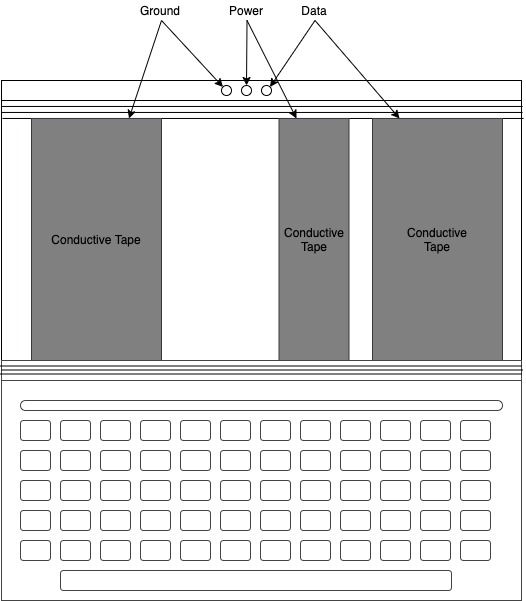
Intermittent disconnections stem from debris blocking the three magnetic Smart Connector dots on your iPad’s edge. Power off your iPad, then clean both connector surfaces with a dry microfiber cloth. Reattach the keyboard with firm pressure until you hear two distinct magnetic clicks—left/right misalignment causes 70% of connection failures.
Connection verification checklist:
– Wipe iPad connector dots with alcohol-free electronics wipe
– Align keyboard perfectly centered on iPad edge
– Apply downward pressure while attaching
– Test in both typing and viewing positions
Resolve Specific Key Failures
When only certain keys malfunction (like Command or Shift), test them across different apps. If keys work in Notes but fail in Safari, the issue is app-specific. Force-quit the problematic app by swiping it away from the app switcher. If failures persist universally, reset keyboard settings: Settings → General → Keyboard → Keyboards → remove and re-add your language.
Magic Keyboard Trackpad & Backlight Fixes
Restore Trackpad Cursor Functionality
Trackpad failures usually indicate low battery. Check charge levels: Settings → General → About → scroll to “Magic Keyboard.” If battery shows below 20%, connect via Smart Connector for 15 minutes. Wipe the trackpad surface with a microfiber cloth—grease buildup blocks touch sensitivity. If cursor remains frozen, detach and reattach the keyboard to reset the connection.
Fix Automatic Backlight Failure
When keys don’t illuminate in dim light, cover your iPad’s front camera (the ambient light sensor) for 5 seconds—the backlight should activate immediately. If not, force restart your iPad (Volume Up → Volume Down → hold Power until Apple logo). Persistent failures require resetting all settings via Settings → General → Transfer or Reset iPad → Reset All Settings.
Bluetooth Keyboard Pairing & Lag Solutions
Reconnect Dropped Bluetooth Keyboards
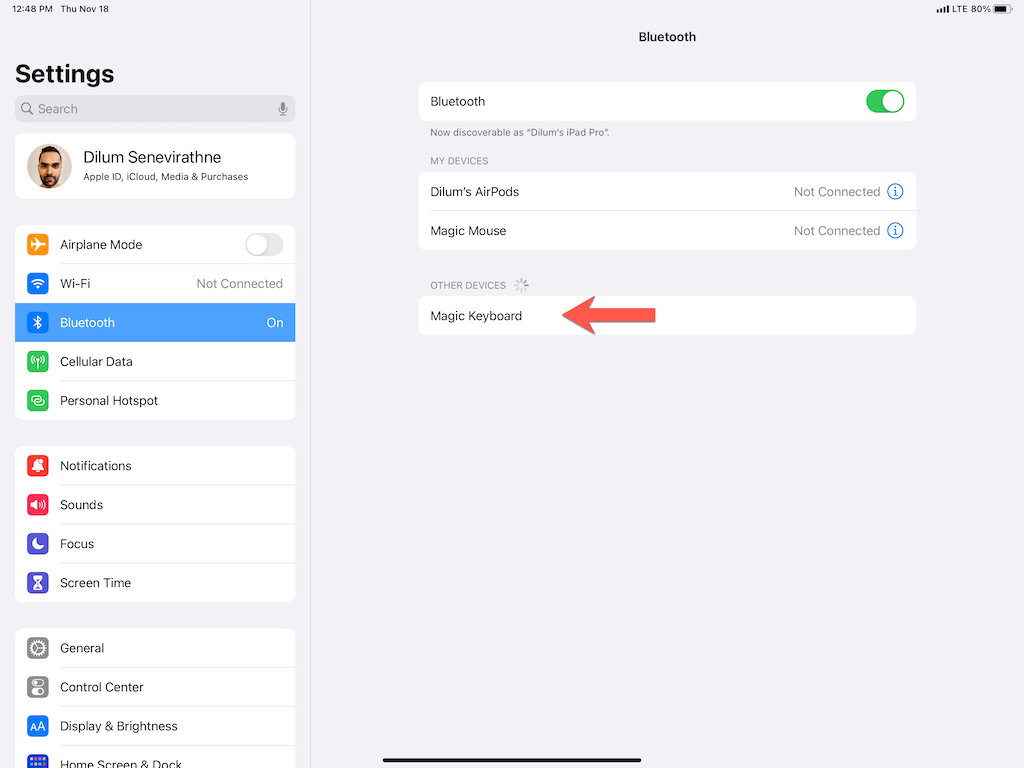
Signal interference from Wi-Fi routers causes frequent disconnections. Forget and re-pair your keyboard: Settings → Bluetooth → tap ⓘ next to keyboard name → Forget This Device. Hold the keyboard’s pairing button for 5 seconds until the light flashes blue, then select it from “Other Devices.” Maintain at least 6 feet between your iPad and Wi-Fi router during use.
Eliminate Typing Lag Instantly
Lag occurs when Bluetooth bandwidth is saturated. Disable background apps using significant processing power (like video editors). Turn off other Bluetooth devices temporarily, especially wireless mice. For multi-device keyboards (Logitech K380), disable automatic switching: Settings → Bluetooth → [Keyboard] → Forget Device, then re-pair to iPad only.
Critical Software Resets That Work
Reset Keyboard Dictionary for Wrong Characters
Corrupted dictionaries cause “e” to type “3” or random symbols. Reset immediately without losing data: Settings → General → Transfer or Reset iPad → Reset → Reset Keyboard Dictionary. Enter your passcode when prompted—this erases learned words but fixes character substitution errors within 10 seconds.
Update iPadOS Before Hardware Fixes
Outdated software causes 40% of keyboard incompatibilities. Install updates first: Settings → General → Software Update. If “iPadOS Update Available” appears, download it immediately—Apple frequently patches keyboard driver bugs in minor updates. Restart your iPad after installation before proceeding with hardware troubleshooting.
Third-Party Keyboard Emergency Fixes
Logitech Combo Touch Troubleshooting
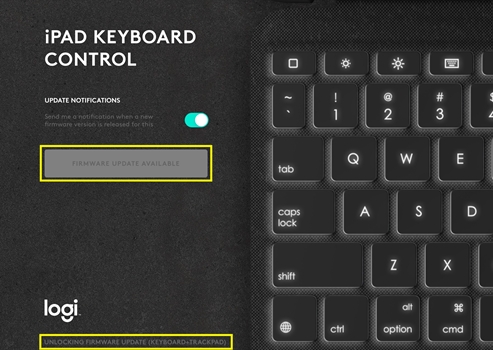
Logitech keyboards require firmware updates via the Logitech Control app. Open the app and check “Device Updates” before assuming hardware failure. For unresponsive keys, verify battery status—replace batteries when levels drop below 25% (indicated by red LED). If trackpad gestures fail, reset the keyboard by holding EASY-SWITCH and Bluetooth buttons for 10 seconds.
Brydge Keyboard Alignment Fixes
Loose hinge clamps cause Brydge keyboards to wobble and disconnect. Tighten clamp screws using the included hex tool—over-tightening cracks plastic, so apply minimal pressure. Verify case compatibility: Brydge 10.2″ models won’t fit iPad 10th Gen despite similar dimensions. Check Brydge Connect app for “Keyboard Mode” settings that may be disabled.
Prevent Future Keyboard Failures
Weekly Maintenance That Works
Clean keyboards every 7 days using compressed air at 45-degree angles between keys. Wipe surfaces with 70% isopropropyl alcohol on microfiber cloths—never spray liquid directly. Avoid eating near your iPad; 90% of sticky key issues stem from food particles. Store keyboards in padded cases to protect Smart Connector dots from dust.
Battery Preservation Tactics
For Bluetooth keyboards, store at 50% charge in cool, dry places—extreme temperatures degrade batteries fastest. Charge monthly even when unused to prevent deep discharge. Most keyboards last 300-500 cycles; if batteries drain within hours, replacement is imminent. Enable “Auto-Off” in Bluetooth settings to conserve power during idle periods.
When to Seek Professional Repair
Hardware Failure Red Flags
Visit Apple Support immediately if you notice:
– Liquid damage indicators (red dots inside ports)
– Cracked key mechanisms with visible plastic shards
– Multiple adjacent keys failing simultaneously
– Burning smells or overheating near connectors
Warranty Claim Success Tips
Document issues with 15-second video proof showing failures across multiple apps. Check coverage status via Settings → General → About → Coverage. For third-party keyboards, contact manufacturers directly—Logitech and Brydge require proof of purchase for RMA eligibility. Never attempt DIY repairs on under-warranty devices.
Final Note: Always start with software solutions—a simple iPad restart resolves 60% of keyboard issues. If physical keys fail in clusters or liquid exposure occurs, professional repair is unavoidable. For ongoing reliability, perform weekly compressed air cleaning and keep iPadOS updated. When in doubt, test your keyboard with a different iPad to isolate device-specific problems from hardware failures.