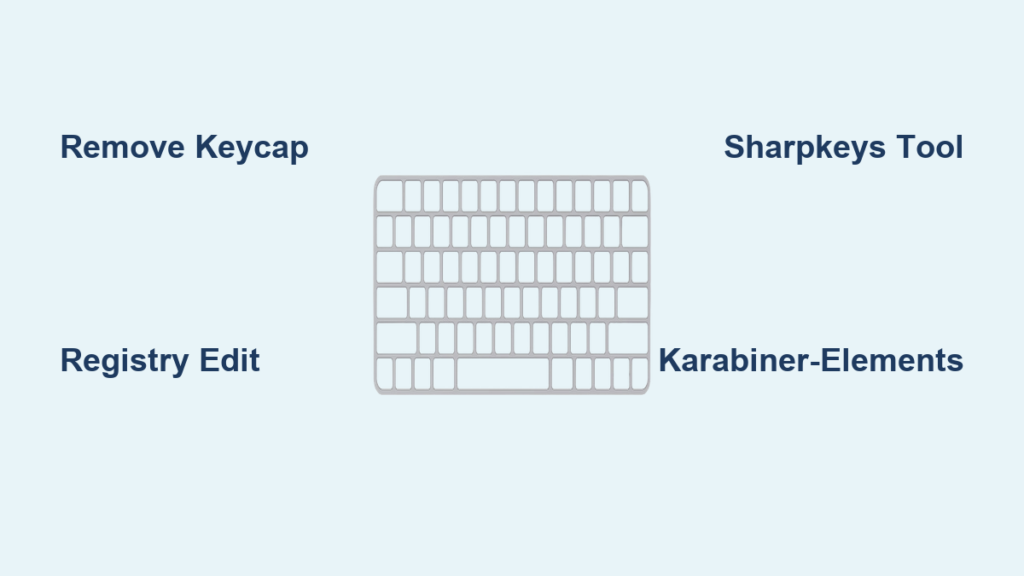
That sudden jump to the start of your line mid-sentence—sound familiar? One accidental tap of the Home key and your carefully crafted paragraph vanishes from view. Gamers know this frustration all too well when a crucial combo gets interrupted by an errant thumb. Whether you’re writing a novel, coding, or battling bosses, learning how to disable home button on keyboard transforms your workflow. This guide delivers proven methods to silence that troublesome key across Windows, macOS, and Linux without expensive hardware replacements.
Remove Home Key Cap Without Damage
Extract Keycap Safely with Proper Tools
Grab a plastic keycap puller—never metal—to avoid scratching your keyboard. Position it evenly under the Home key and lift straight up with steady pressure. The plastic stem should release with a soft click. Store the removed keycap in a small container for safekeeping. This physical solution works instantly on mechanical keyboards and creates a visual reminder to avoid that spot.
Create Non-Destructive Blockade
Can’t remove the keycap? Slide a tiny piece of electrical tape under the Home key before pressing it back down. The tape prevents the switch from fully activating while maintaining your keyboard’s appearance. Test by pressing firmly—the cursor shouldn’t jump. This method works on membrane keyboards too and takes less than 30 seconds to implement.
Windows Registry Editing Made Safe

Back Up Before Registry Modification
Before touching the registry, create a safety net. Press Windows+R, type “regedit,” and hit Enter. Navigate to File > Export and save as “Keyboard_Backup.reg” on your desktop. This single step prevents potential system issues—if anything goes wrong, double-click this file to restore original settings instantly.
Implement Permanent Home Key Disable
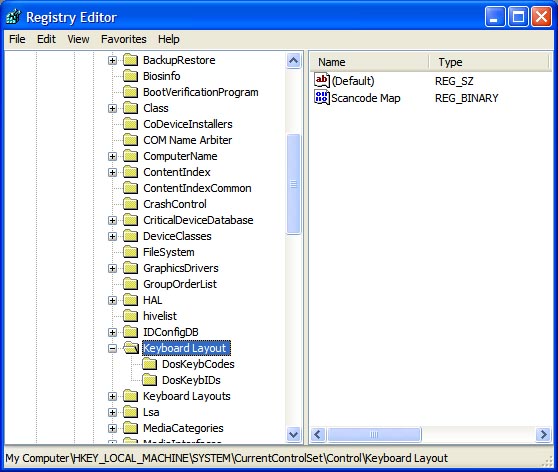
In Registry Editor, navigate to HKEY_LOCAL_MACHINE\SYSTEM\CurrentControlSet\Control\Keyboard Layout. Right-click the right panel, select New > Binary Value, and name it “Scancode Map.” Double-click it and enter this exact sequence:
00 00 00 00 00 00 00 00

02 00 00 00 00 00 47 E0

00 00 00 00
Click OK, restart your computer, and the Home key becomes completely unresponsive. To reverse, simply delete this registry entry and reboot.
Third-Party Windows Tools That Work Today
Use SharpKeys for One-Click Disable
Download SharpKeys from GitHub (not Microsoft Store—official version is free). Launch it and click “Add.” In the left column, scroll to “Home” under Special Keys. In the right column, select “Turn Key Off.” Click “Write to Registry,” then reboot. The interface clearly shows disabled keys with green checkmarks—no technical knowledge required.
Run AutoHotkey Background Script
Install AutoHotkey, then create a new text file named DisableHome.ahk. Paste this single line: Home::Return. Save and double-click to activate—the Home key immediately stops working. For permanent effect, right-click the file, select “Copy,” then press Windows+R and type “shell:startup” to open your startup folder. Paste the shortcut here. The script uses less than 5MB RAM.
Configure PowerToys Keyboard Manager
Install Microsoft PowerToys, then open Keyboard Manager. Click “Remap a key,” select “Home” from the physical key list, and choose “Disabled” as the mapped key. Click OK and Apply—changes take effect instantly without rebooting. This method shines for laptop users who share devices, as you can toggle the setting on/off with two clicks.
macOS Solutions Beyond System Preferences
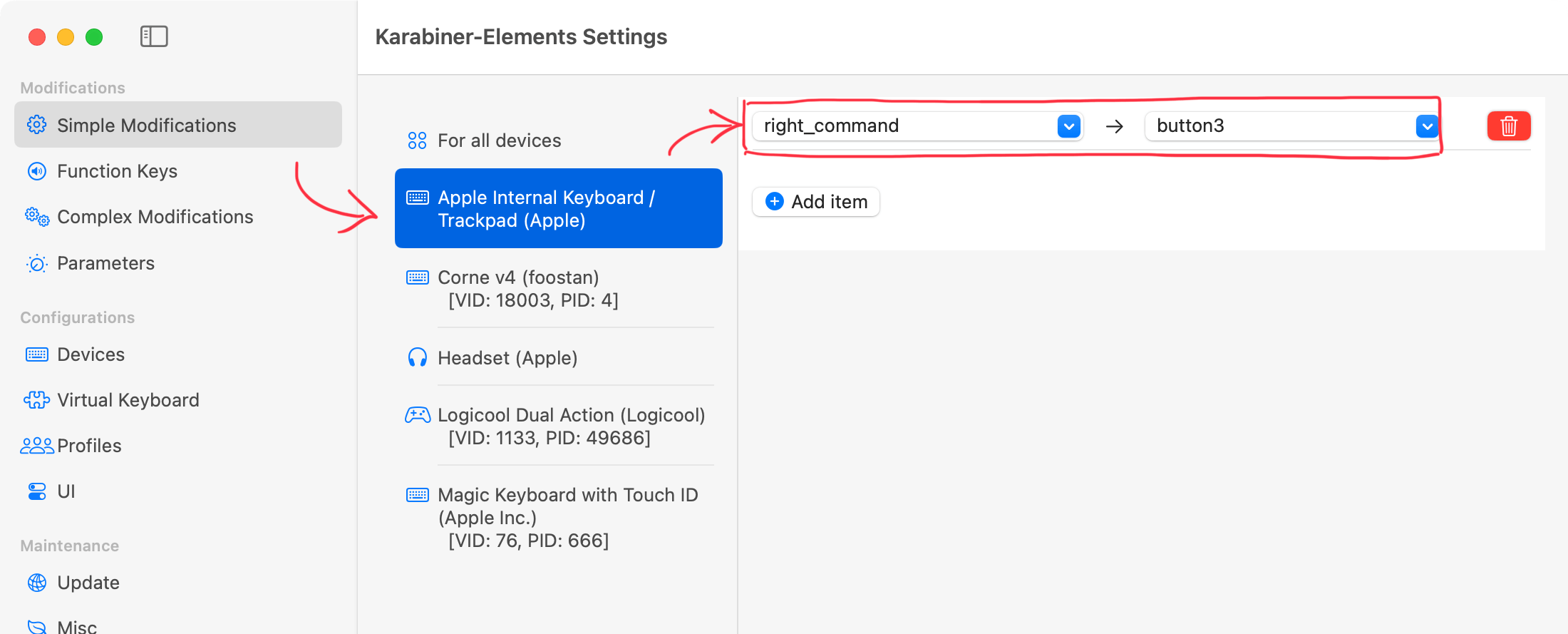
Remap with Karabiner-Elements
Download Karabiner-Elements, then open its Preferences window. Navigate to Simple Modifications > All Devices. Click “Add Rule,” select “home” in the “From key” dropdown, and choose “none” as the “To key.” The Home key stops working immediately across all apps. For MacBook users, this also disables the Fn+Left Arrow combination.
Execute Terminal Command for Instant Effect
Open Terminal and paste this command exactly:
hidutil property --set '{"UserKeyMapping":[{"HIDKeyboardModifierMappingSrc":0xFF5004,"HIDKeyboardModifierMappingDst":0xFF0000}]}'
Press Enter—the Home key becomes inert. To make this permanent, create a LaunchAgent that runs this command at login. This method bypasses Apple’s restrictions without disabling SIP (System Integrity Protection).
Linux Terminal Commands That Stick
Modify X11 Configuration File
Open a terminal and create a new config file:
sudo nano /etc/X11/xorg.conf.d/00-disable-home.conf
Paste this configuration:
Section "InputClass"

    Identifier "disable home key"

    MatchIsKeyboard "on"

    Option "XkbOptions" "home:clear"

EndSection
Save with Ctrl+O, exit with Ctrl+X, then restart your X session (log out and back in). Test by opening a text editor—pressing Home should do absolutely nothing.
Apply Immediate xmodmap Fix
Run this single command to disable the Home key instantly:
xmodmap -e "keycode 110 = NoSymbol NoSymbol NoSymbol"
To make it permanent, add this line to your ~/.profile file. Different Linux distributions use different keycodes—verify yours with xev before applying. This method works on Ubuntu, Fedora, and Arch-based systems.
Gaming Keyboard Software Hacks
Disable Home Key in Razer Synapse
Open Razer Synapse, select your keyboard under “DEVICES,” then click the “CUSTOMIZE” tab. Click the Home key on the visual layout, select “Keyboard Function,” then choose “Disable.” Name this profile “NoHome” and activate it when gaming. The change applies instantly—no restart needed.
Configure Corsair iCUE Gaming Profile
Launch iCUE, select your keyboard, and go to the “PERFORMANCE” tab. Click “Key Actions,” find the Home key, and set its action to “None.” Create a new profile called “Gaming Mode” containing this setting. Switch profiles with a single hotkey during gameplay—your combos stay intact.
Quick Reversal When Needed
Restore Default Settings Safely
Created a problem? Windows users should restore from the registry backup you made earlier. macOS users can open Karabiner-Elements and delete the modification rule. Linux users simply remove the config file with sudo rm /etc/X11/xorg.conf.d/00-disable-home.conf. Always test changes in a text editor before declaring success.
Verify Home Key Status Instantly
Open Notepad (Windows) or TextEdit (macOS) and type a paragraph. Press Home repeatedly—if your cursor stays put, the disable worked. In games, check if the key still triggers menus. If the Home key still functions, revisit your configuration—most issues come from incorrect keycodes or missed reboots.
Avoid These Common Disabling Mistakes
Don’t Skip the Registry Backup
Many Windows users dive straight into registry edits without backups. One typo can render your keyboard unusable until system restore. Always export the Keyboard Layout registry key first—it takes 10 seconds and saves hours of troubleshooting.
Ignore BIOS Options for Home Key
Most consumer BIOS versions don’t offer key-specific disabling. Don’t waste time hunting through UEFI menus looking for a “Disable Home” option—it likely doesn’t exist. Focus on software solutions that actually work across modern systems.
Your typing flow deserves protection from accidental cursor jumps. Whether you choose the registry method for Windows, Karabiner for Mac, or xmodmap for Linux, implementing how to disable home button on keyboard takes less time than fixing the damage from one accidental press. Start with reversible solutions like AutoHotkey or PowerToys before permanent modifications. Within minutes, you’ll type with newfound confidence—no more racing to Ctrl+Z after that stray Home key tap. Try one method today and reclaim your cursor control forever.