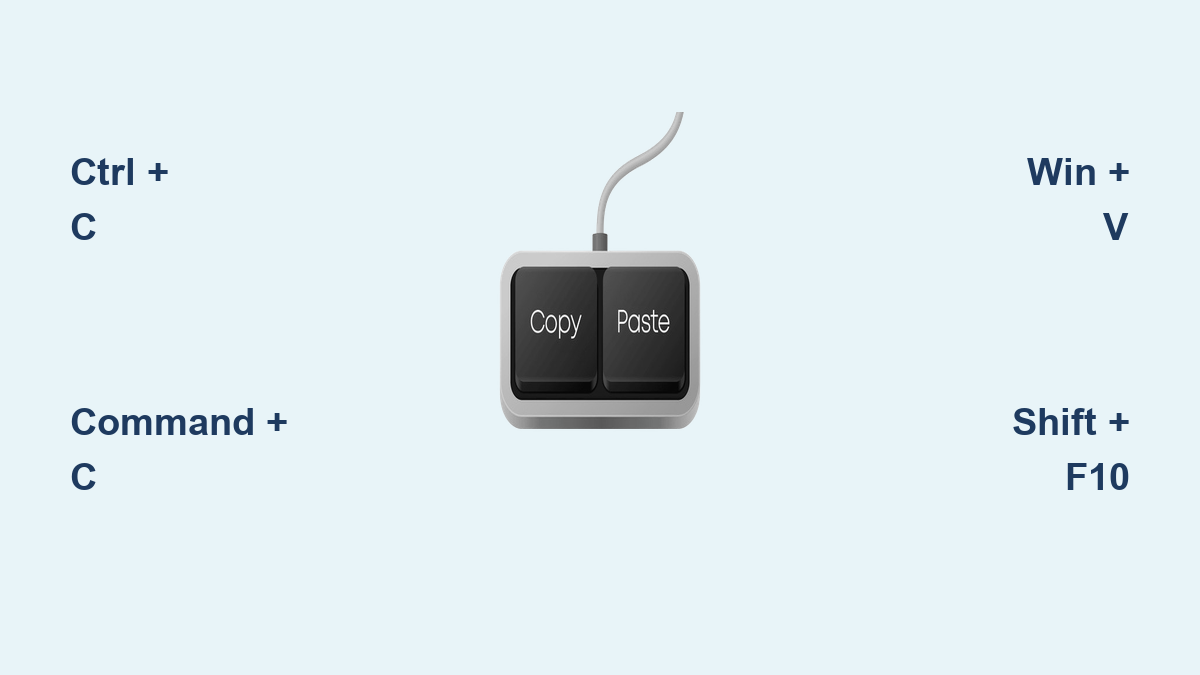
How to Copy with Keyboard Shortcut
Your fingers hover over the keyboard, ready to duplicate text or files—but reaching for the mouse breaks your flow. Learning how to copy with keyboard shortcuts saves 3-5 seconds per operation, reclaiming hours each week for actual work. Whether you’re coding, writing reports, or organizing files, these universal commands work across 95% of applications. This guide reveals every keyboard-only method for Windows, Mac, and Linux systems—including troubleshooting tricks most users never discover. You’ll master everything from basic text duplication to advanced clipboard management without touching your mouse.
Master the Universal Copy Shortcuts: Ctrl + C, Command + C & Ctrl + Insert
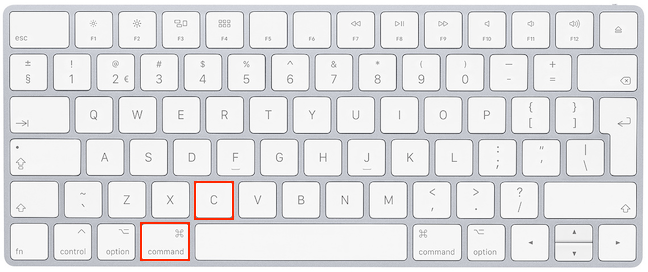
Ctrl + C dominates Windows and Linux environments, while Command + C handles macOS operations. These aren’t just alternatives—they’re identical in function across browsers, code editors, and file managers. Press the modifier key (Ctrl or Command), tap C, and release both: your selection instantly transfers to the clipboard. For stubborn applications, Ctrl + Insert works identically on Windows/Linux systems, especially in command-line interfaces where standard shortcuts fail.
Why These Shortcuts Beat Mouse Copying Every Time
- Speed: Execute in under 0.5 seconds versus 2+ seconds with mouse navigation
- Precision: Avoid accidental deselection when moving between windows
- Consistency: Same commands work in Word, Chrome, VS Code, and File Explorer
- Ergonomics: Eliminate wrist strain from constant mouse-hand switching
Step-by-Step: Copy Files and Text in Windows with Ctrl + C
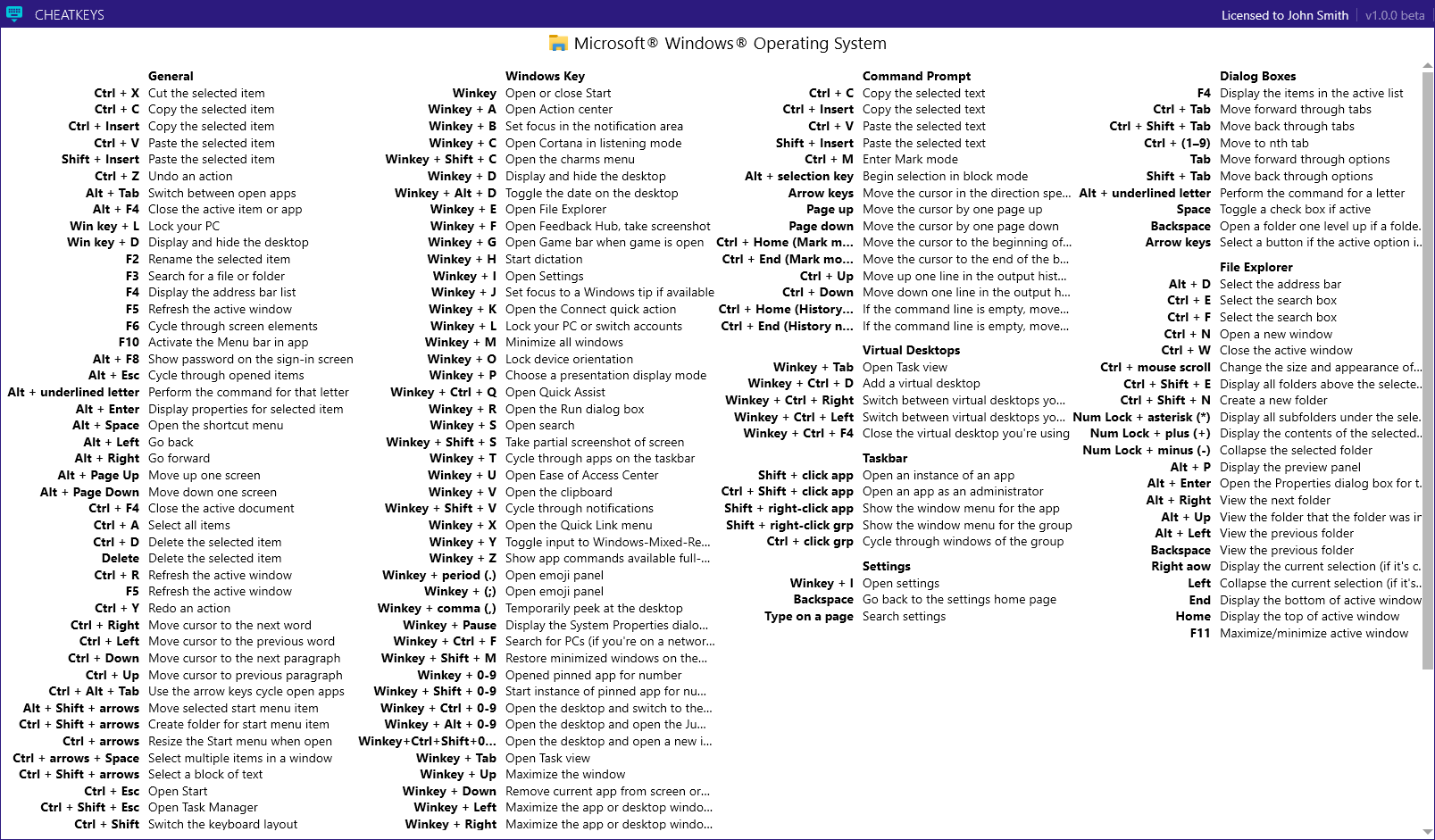
Copying isn’t just about the shortcut—it’s the sequence. Start by selecting content using keyboard navigation alone. For text, hold Shift + arrow keys to highlight characters word-by-word. In File Explorer, navigate folders with arrow keys and press Ctrl + click to select multiple files. Only then execute the copy command.
Critical File Copying Mistakes to Avoid
- Skipping selection confirmation: Verify files are highlighted before pressing Ctrl + C
- Releasing keys too early: Keep Ctrl held while tapping C (not Ctrl then C separately)
- Ignoring clipboard limits: Files over 4GB may fail—split large folders first
- Forgetting destination navigation: Use arrow keys to move to target folder before pasting
How to Copy on Mac: Command + C Explained for macOS Users
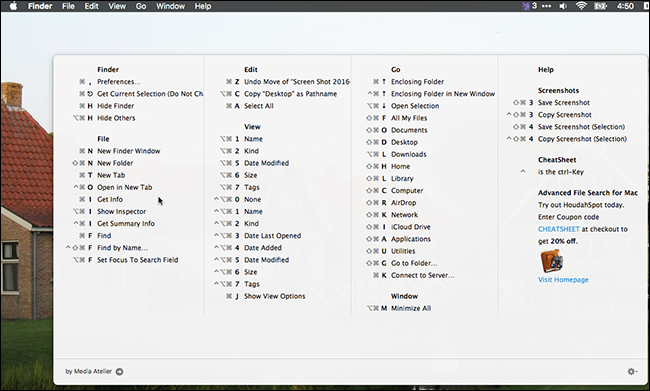
Mac users replace Ctrl with the Command (⌘) key, but the workflow differs subtly. After selecting text or files, hold Command while pressing C—don’t release Command until after tapping C. In Finder, select multiple items by holding Command + clicking (not Ctrl). Unlike Windows, macOS automatically clears the clipboard when copying new content, overwriting previous selections.
Finder-Specific Copying Pitfalls
- Handoff interference: Disable Bluetooth if copying fails between Apple devices
- Permission errors: Right-click files > Get Info > unlock padlock icon if blocked
- Terminal differences: Use Command + C only after selecting text with mouse
- Silent failures: No visual feedback—always paste immediately to verify
When Ctrl + C Fails: 3 Keyboard-Only Copy Alternatives
Standard shortcuts break in restricted applications like password managers or secured documents. When Ctrl + C does nothing, these fallback methods never fail:
Menu Bar Navigation (Works in All Apps)
- Select content with Shift + arrows
- Press Alt + E (Windows) to open Edit menu
- Tap C for Copy or use ↓ arrow to highlight option
- Press Enter to execute—no mouse required
Context Menu Access (Critical for Locked Apps)
- Windows: Press Shift + F10 after selection, arrow to “Copy,” hit Enter
- Mac: Hold Control + click (or Fn + F7), navigate to Copy with ↓, press Enter
- Linux: Press Menu key or Shift + F10, select Copy via keyboard
Copy Code, Links & Images: Specialized Keyboard Techniques
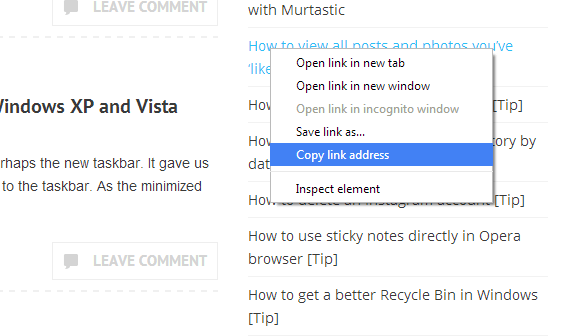
Web browsers and IDEs require tailored approaches. Copying links needs different handling than formatted text:
Browser-Specific Copying Secrets
- Links: Highlight URL in address bar, press Ctrl + C (Windows) or Command + C (Mac)
- Image URLs: Right-click image > Copy Image Address (keyboard: Shift + F10 > ↓ 3x > Enter)
- Plain text: Paste with Ctrl + Shift + V to strip formatting (Chrome/Firefox)
- Code blocks: Triple-click line number in GitHub, then Ctrl + C
Terminal Copying Without Mouse
- Press Ctrl + M to enter Mark mode
- Highlight text with Shift + arrows
- Press Ctrl + C or Ctrl + Insert
- Exit Mark mode by pressing Enter
Copy Multiple Files at Once: Ctrl + Click Shortcuts in Windows & Mac
Bulk copying files requires precise multi-selection. Never use mouse drags—keyboard methods prevent accidental deselection:
Windows File Explorer Method
- Navigate to first file with ↑/↓ arrows
- Hold Ctrl while pressing ↓ to select consecutive files
- For non-adjacent files: Hold Ctrl + click each item via Spacebar
- Press Ctrl + C → navigate to destination → Ctrl + V
Mac Finder Alternative
- Select first file with ↑/↓ arrows
- Hold Command while tapping ↓ for continuous selection
- For scattered files: Hold Command + Spacebar on each
- Copy with Command + C → paste via Command + V
Access Old Copies: Windows Clipboard History & Mac Universal Clipboard
Standard copy shortcuts overwrite previous clips—but these features retain history:
Windows 10/11 Clipboard History
- Enable via Win + V > Settings > toggle “Clipboard history”
- Access past 25 clips anytime with Win + V
- Paste older items: Arrow to selection > Enter
- Pin frequently used clips to keep them available
Mac Universal Clipboard Setup
- Go to System Preferences > General
- Check “Allow Handoff between this Mac and your iCloud devices”
- Copy on Mac with Command + C
- Paste on iPhone/iPad via Command + V within 2 minutes
Why Ctrl + C Isn’t Working? Instant Troubleshooting Fixes
Failed copies waste more time than the shortcut saves. Diagnose issues in seconds:
Immediate Verification Checklist
- Selection test: Press Ctrl + A (Windows) or Command + A (Mac)—does all content highlight?
- Focus check: Click once in the app window with Alt + Tab before copying
- Audio cue: Enable system “Copy sound” in Accessibility settings
- Paste test: Immediately press Ctrl + V in Notepad to verify
Fix Permission Blocks in 30 Seconds
- Right-click app icon > Properties (Windows) or Get Info (Mac)
- Under Security, check “Allow app downloads from identified developers”
- For enterprise systems: Contact IT to whitelist clipboard access
Save 2 Hours Daily: Pro Copy-Paste Keyboard Sequences
Elite users chain shortcuts into seamless workflows. Practice this sequence until it’s muscle memory:
The 2-Second Copy-Paste Loop
- Select: Shift + End (current line) or Ctrl + Shift + → (next word)
- Copy: Ctrl + C (Windows) / Command + C (Mac)
- Navigate: Ctrl + Tab between apps or Alt + Tab for windows
- Paste: Ctrl + V (formatted) or Ctrl + Shift + V (plain text)
Advanced Time-Saving Combos
- Duplicate lines in code: Ctrl + C → Ctrl + V (no navigation needed)
- Copy path only: In File Explorer, hold Shift + right-click > Copy as path
- Paste without formatting: Ctrl + Alt + V > U > Enter (Word-specific)
Final Key Takeaway: Mastering how to copy with keyboard transforms mundane tasks into lightning-fast operations. Start with Ctrl + C (Windows/Linux) or Command + C (Mac) for basic text, then implement clipboard history for multi-clip access. Verify every copy with an instant paste test, and use Shift + arrows for pixel-perfect selection. These 2-second techniques compound into hours of reclaimed productivity weekly—no mouse required. For ongoing mastery, practice one advanced method daily until muscle memory kicks in. Your future self will thank you when you’re the only one in the Zoom meeting who hasn’t fumbled for the copy button.