How to Change Keyboard Typing Style: Easy Tips
Struggling to type accents for your French class or switch between languages for work? You’re not alone. Over 75% of Windows users who need multilingual typing waste valuable time searching for the right keyboard setup. This frustration ends today. Changing your keyboard typing style in Windows is simpler than you think—and this guide shows you exactly how to do it without affecting your system language. Whether you’re a student, translator, or just need to type special characters occasionally, you’ll learn to modify your keyboard behavior in minutes.
By the end of this guide, you’ll confidently switch between QWERTY and AZERTY layouts, add language-specific characters to your English keyboard, and configure Windows for seamless multilingual typing. No more hunting for special characters or accidentally typing in the wrong language during important communications.
Identify Your Current Keyboard Layout Before Making Changes
Before altering your setup, verify your existing configuration to avoid conflicts and confusion. This crucial step prevents common mistakes like installing duplicate layouts or removing your primary typing style accidentally.
Find Installed Languages and Layouts
- Click Start → Settings (gear icon) → Time & language → Language & region
- Examine the Preferred languages section—this displays all installed language packs
- Each language may have multiple keyboard layouts attached to it
Pro Tip: Look for the language abbreviation in your system tray (bottom-right corner). If you see ENG, FRA, or another code, that’s your active keyboard layout indicator. Click it to see all available layouts.
Install New Language Packs for Additional Typing Styles
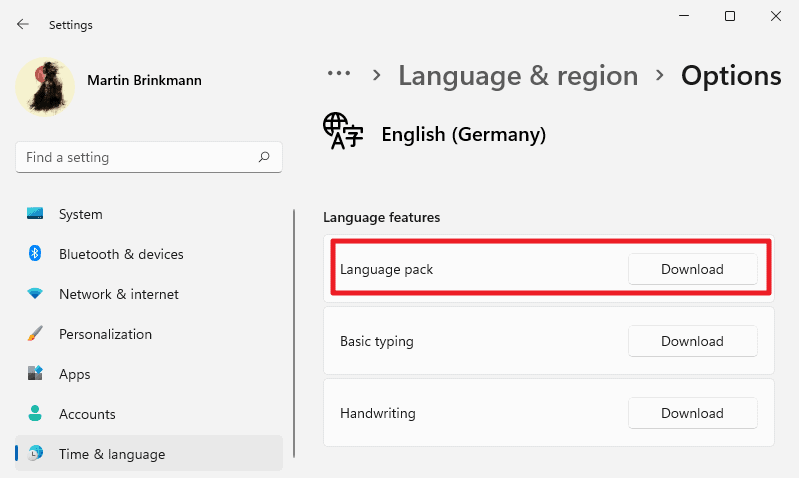
Need French accents or German umlauts without changing your entire Windows interface? Installing language packs adds both display options and keyboard layouts, giving you complete typing flexibility.
Download Requirements and Preparations
- Stable internet connection (language packs download from Microsoft servers)
- Save all work before starting—installation requires sign-out
- Check available storage (language packs range from 100MB to over 1GB)
Step-by-Step Installation Process
- Open Settings → Time & language → Language & region
- Click Add a language next to Preferred languages
- Search your desired language or scroll alphabetically
- Select language → Next
- Configure features (only check what you need):
– Set as my Windows display language (optional)
– Speech recognition (if available)
– Text-to-speech (for voice feedback)
– Handwriting (for touch devices) - Click Install and monitor the progress bar
Critical Warning: After installation, Windows forces a sign-out to apply changes. Your login screen may use the new keyboard layout—use the password reveal icon (👁️) if characters appear wrong when typing your password.
Single Language Edition Limitations
If you see “Only one language pack allowed,” your Windows edition restricts additional languages. Consider upgrading to Windows Pro for full language support or use the US International layout for basic accent needs without additional language packs.
Add Keyboard Layouts Without Changing Your Windows Language
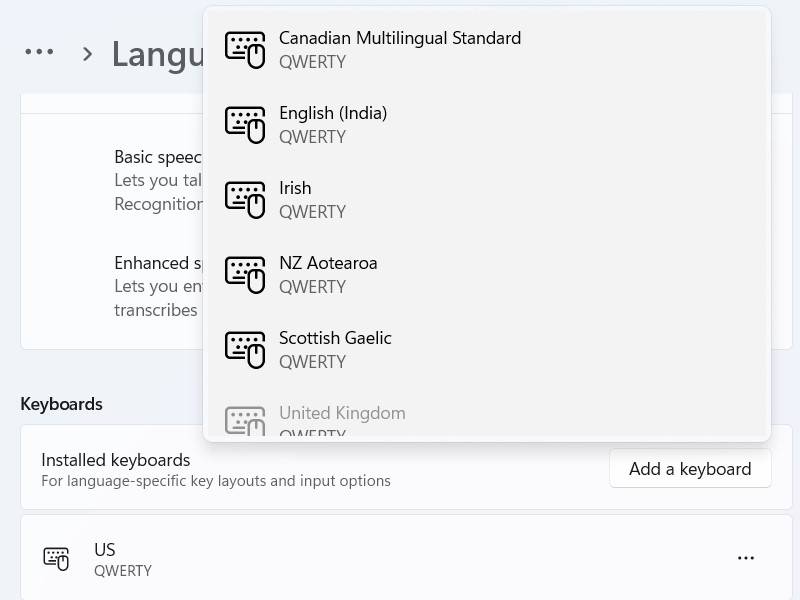
Keep Windows in English while typing French accents or German characters—this is the most common solution for multilingual typists who don’t need full interface translation.
How to Add Alternative Layouts
- Navigate to Settings → Time & language → Language & region
- Click … next to your display language → Language options
- Under Keyboards, click Add a keyboard
- Choose from these essential layouts:
– US International (adds accents to standard QWERTY)
– United Kingdom (different symbol placements)
– AZERTY (French layout)
– QWERTZ (German layout)
Troubleshooting Tip: If your desired layout isn’t listed, install the corresponding language pack first, then add the specific layout under that language’s options.
Switch Between Keyboard Layouts in Seconds
Master these quick-switching methods to avoid typing frustration when you need different characters frequently.
Three Ways to Change Your Typing Style Immediately
- Mouse Method: Click the language icon (ENG/FRA/etc.) in system tray → select layout
- Keyboard Shortcut: Hold Windows key + tap Spacebar (cycles through layouts)
- On-Screen Keyboard: Press Windows + Ctrl + O to see layout changes visually
Time-Saver: The keyboard shortcut becomes muscle memory after just 10 uses—memorize this to save hours over time.
Remove Unused Languages to Prevent Accidental Switches
Clean up your system by removing languages you no longer need, reducing confusion and accidental layout changes.
How to Remove a Complete Language Pack
- Go to Settings → Time & language → Language & region
- Click … next to language → Remove
- Confirm removal in dialog box
Important Restriction: Windows won’t let you remove your current display language. Change to another language first if needed.
Remove Specific Keyboard Layouts Only
- Navigate to Settings → Time & language → Language & region
- Click … next to language → Language options
- Under Keyboards, click … next to layout → Remove
Critical Note: You cannot remove the only keyboard layout for your current display language. Add another layout first to avoid being locked out of typing functionality.
Fix Common Keyboard Layout Problems Immediately
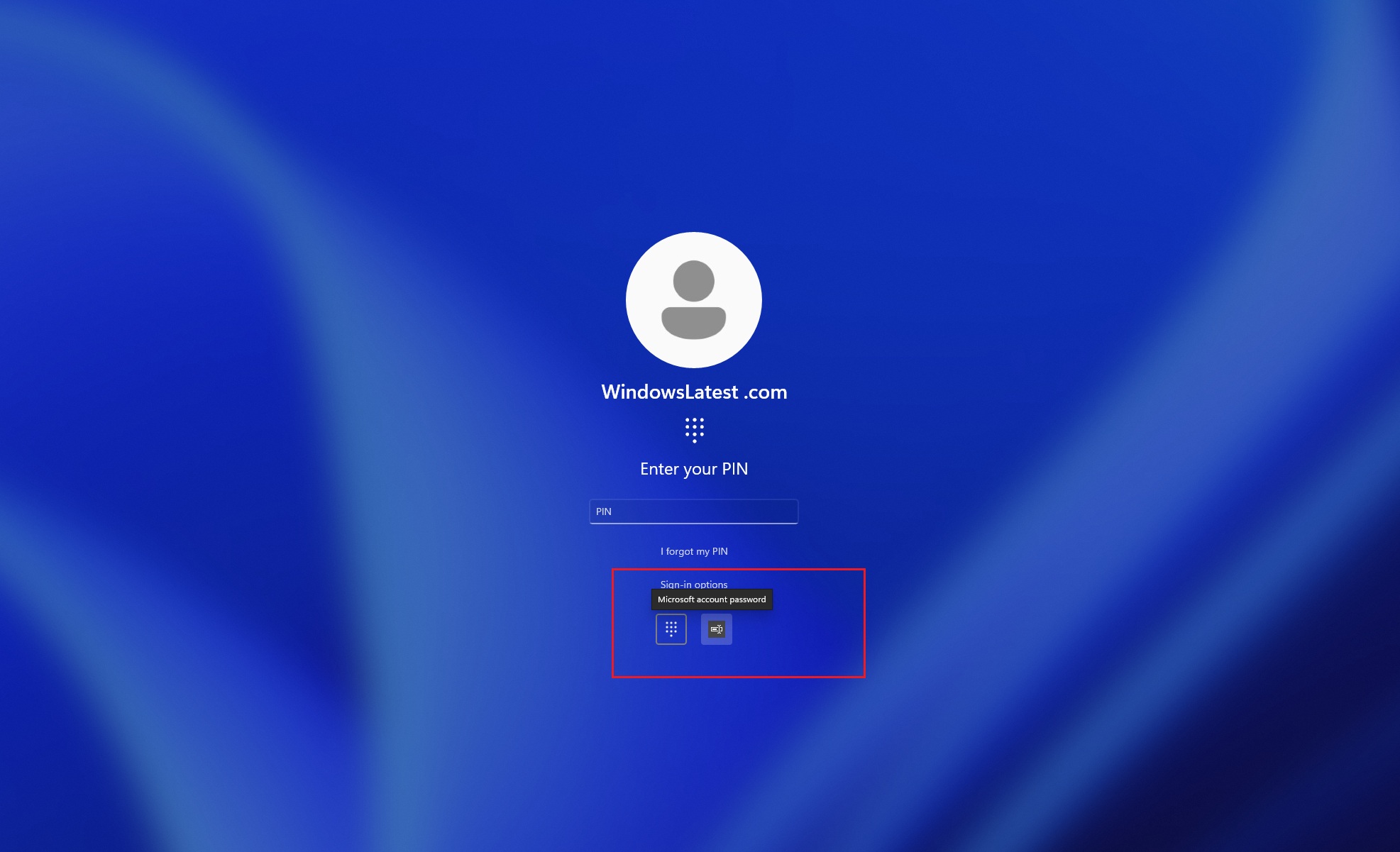
Solve these frequent issues that cause typing frustration after changing your keyboard setup.
Password Entry Problems at Login Screen
- Symptom: Characters don’t match what you type when logging in
- Solution: Check the language indicator at login screen → switch layouts using the icon
- Pro Tip: Always use password reveal icon (👁️) to verify correct entry
Keyboard Shortcut Isn’t Working
- Cause: Only one layout installed, or shortcut disabled
- Fix: Verify multiple layouts exist → check Settings → Time & language → Typing → Advanced keyboard settings
Missing Special Characters Despite Layout Change
- US International Solution: Type accent key (‘) followed by letter for é, è, etc.
- Universal Alternative: Press Windows key + . (period) to open emoji/symbol panel
- Fallback Method: Search “Character Map” in Start menu for any special character
Configure Microsoft Store Apps for Your Preferred Typing Language
Store apps use your Preferred languages order, not your display language—customize this for better app experiences.
Change App Language Priority
- Open Settings → Time & language → Language & region
- Under Preferred languages, drag your preferred language to the top
- This change affects Store apps and websites without altering Windows interface
Key Insight: This setting works independently from your display language, letting you keep Windows in English while apps appear in Spanish or French.
Optimize Your Multilingual Typing Workflow
Implement these professional techniques to make switching between typing styles seamless.
Essential Multilingual Typing Strategies
- Pin frequently used layouts to top of Preferred languages list
- Create physical keyboard stickers during transition to new layouts
- Use on-screen keyboard (Windows + Ctrl + O) when uncertain about layout
- Add US International layout for programmers needing special characters
Professional Applications:
– Translators: Install both source and target language layouts
– International Business: Configure regional layouts for client communications
– Language Learners: Switch between native and learning languages instantly
Change Windows Display Language Without Losing Your Typing Style
Modify system menus and dialogs to another language while maintaining your preferred keyboard layout.
How to Change Interface Language Only
- Ensure desired language is installed
- Go to Settings → Time & language → Language & region
- Under Windows display language, select new language
- Sign out when prompted
Warning: Partially localized languages may show some elements in English. This doesn’t affect your keyboard layout settings.
Install Speech Features for Complete Language Support
Add voice typing capabilities to your new typing styles for hands-free input.
Enable Speech Recognition
- Set language as display language first
- Navigate to Settings → Time & language → Language & region
- Click … → Language options → download under Language features
Availability Note: Not all languages support speech features. Missing download buttons indicate limited functionality for that language.
Final Tip: Start small when changing your keyboard typing style—add just one new layout before installing complete language packs. Remember that layout changes affect only what you type, while display language changes affect Windows interface elements. Keep your most-used layouts at the top of your preferred languages list and remove unused ones to prevent accidental switches. Within a week of regular use, switching between typing styles will become second nature, saving you valuable time on every multilingual task. For immediate help with specific characters, press Windows + . to access the symbol panel—this works regardless of your current keyboard layout.