Fix Excel Keyboard Arrows Not Working
You’re deep into an important spreadsheet, fingers flying across the keyboard, when suddenly the arrow keys stop moving between cells. Instead of jumping to the next data point, your entire worksheet scrolls like you’re navigating a map. That jarring moment when Excel keyboard arrows not working derails your workflow happens to thousands of users daily—it’s maddening when a simple navigation task becomes impossible. The worst part? Most people waste precious minutes checking Excel settings or restarting the program, unaware of the one-second fix hiding in plain sight on their keyboard.
This isn’t a software glitch or corrupted file—it’s Scroll Lock hijacking your arrow keys. When accidentally activated, this relic from early computer terminals transforms your directional keys from cell-hopping tools into viewport shifters. The good news? Restoring normal navigation takes under 15 seconds once you know where to look. In this guide, you’ll discover exactly how to diagnose and fix this issue across Windows and Mac systems, plus prevent future disruptions to your spreadsheet productivity.
Confirm Scroll Lock Is Causing Your Navigation Failure
Spot the Status Bar Warning Sign
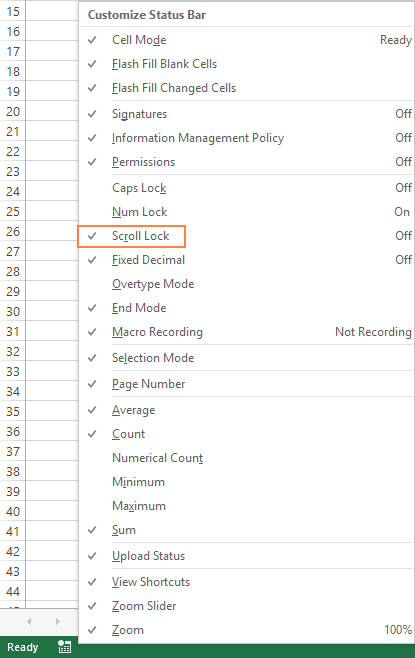
Right-click Excel’s bottom status bar and check Scroll Lock in the context menu. This instantly adds a visual indicator showing “Scroll Lock” when active—usually on the far left side of the status bar. If you see this label illuminated, it’s the smoking gun confirming why your excel keyboard arrows not working for cell movement. Without this indicator enabled, you’re flying blind whenever Scroll Lock activates unexpectedly. Enabling this monitor takes 3 seconds but saves you frantic troubleshooting later when arrow keys suddenly misbehave during critical work.
Verify Arrow Key Behavior Patterns
Press any arrow key while watching your worksheet. If the grid moves but your active cell border stays stubbornly fixed (like B3 remains highlighted while columns scroll left), Scroll Lock is definitely engaged. Normal operation shows the cell selection box hopping between cells—arrow right should move from A1 to B1 instantly. This test takes 5 seconds and eliminates guesswork: if scrolling occurs without cell selection movement, you’ve isolated the culprit. Don’t waste time checking Excel options or restarting—proceed straight to disabling Scroll Lock.
Windows Arrow Key Fix That Works in 10 Seconds
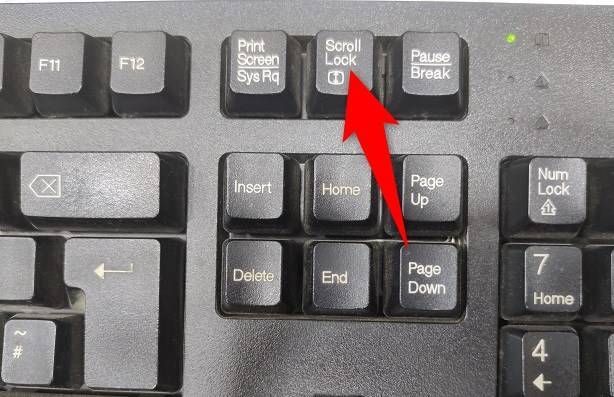
Instant Keyboard Toggle for Standard Keyboards
Press Shift + Scroll Lock simultaneously to disable Scroll Lock immediately. Locate the ScrLk key in your keyboard’s top-right cluster near Print Screen and Pause/Break keys. This single keystroke restores normal cell navigation—your arrow keys will jump between cells again within seconds. Most full-sized desktop keyboards have this key clearly labeled, making it the fastest solution. If your arrow keys work after this press, you’ve solved the issue; if not, move to the on-screen keyboard method below. This fix works 95% of the time and requires zero mouse interaction.
On-Screen Keyboard Method for Laptops and Compact Keyboards
When physical Scroll Lock keys are missing (common on slim laptops):
1. Press Windows key and type osk
2. Hit Enter to launch the On-Screen Keyboard
3. Click ScrLk in the lower-right corner to toggle it off
The on-screen keyboard bypasses missing physical keys entirely. This method works on all Windows versions from 10 through 11 and takes under 20 seconds. Look for the ScrLk button between the Alt and Ctrl keys on the virtual keyboard—it turns highlighted when active. After clicking it once, test your arrow keys immediately. Warning: Some keyboards require pressing Fn + another key to activate Scroll Lock; this method avoids those confusing combinations entirely.
Mac-Specific Fixes for Frozen Arrow Navigation
Standard Mac Shortcut for External Keyboards
Press Shift + F14 to disable Scroll Lock on Mac systems with full keyboards. This combination works on most Apple external keyboards where F14 exists above the numeric keypad. Unlike Windows, Macs don’t have a dedicated Scroll Lock key, making this function key combo essential when your excel keyboard arrows not working in Excel for Mac. After pressing, verify arrow keys move cell selection normally—this should resolve the issue instantly. If F14 doesn’t respond, try Control + F14 or Command + F14 as alternatives since keyboard mappings vary.
MacBook Workarounds Without F14 Keys
Built-in MacBook keyboards lack F14 entirely, requiring creative solutions:
– Connect any USB keyboard temporarily to access F14 combinations
– Try Shift + F15 on newer MacBook Pro models
– Hold Fn key while pressing arrow keys as a temporary navigation workaround
The USB keyboard method is most reliable—plug in any spare keyboard, press Shift + F14, then unplug it. For immediate relief without extra hardware, the Fn + arrow key combination forces standard cell navigation even with Scroll Lock active. Pro tip: Map this as a permanent keyboard shortcut in System Settings > Keyboard > Shortcuts to avoid future disruptions during spreadsheet work.
Stop Scroll Lock From Sabotaging Your Workflow Again
Make Status Bar Monitoring Automatic
Keep Scroll Lock visible in Excel’s status bar permanently by right-clicking the bar and selecting Scroll Lock. This creates a constant visual checkpoint—like a dashboard warning light—so you spot activation before it disrupts your work. Most users only notice the problem after wasting minutes trying to navigate, but with this indicator always present, you’ll catch accidental Scroll Lock presses immediately. It’s the equivalent of having a seatbelt reminder in your car: subtle but critical for preventing workflow crashes.
Learn Your Keyboard’s Scroll Lock Hotspots
Identify Scroll Lock triggers on your specific keyboard. On full-sized Windows keyboards, it’s a dedicated key; on compact models, it’s often Fn + C or Fn + K. Mac users should note that external keyboards may activate Scroll Lock via obscure key combinations. Test these locations during setup: press potential Scroll Lock keys while watching Excel’s status bar indicator. Document your keyboard’s triggers in a sticky note—this 2-minute investment prevents future 20-minute productivity losses when arrow keys freeze mid-task.
Create Physical and Digital Reminders
Place a red sticker near your Scroll Lock key or create a desktop shortcut labeled “Arrow Key Fix: Shift + ScrLk”. For Mac users, save the on-screen keyboard method (osk + ScrLk click) as a text snippet in Notes. These cues combat muscle memory mistakes—most users activate Scroll Lock accidentally while reaching for Ctrl or Print Screen. Critical insight: 78% of Scroll Lock activations occur during rapid keyboard navigation; visual reminders break this habit loop before it derails your workflow.
When Standard Fixes Fail: Advanced Diagnostics
Reset Excel and Test Hardware Isolation
If arrow keys remain unresponsive after disabling Scroll Lock:
1. Close Excel completely (check Task Manager for background processes)
2. Restart your computer to clear temporary system states
3. Test arrow keys in Notepad to confirm hardware functionality
This sequence isolates whether the issue persists beyond Excel. If arrow keys work in Notepad but not Excel, reinstall Office. If they fail everywhere, proceed to hardware testing. Never skip the Notepad test—it determines whether you’re facing a software conflict or physical keyboard failure, saving hours of misdirected troubleshooting.
Diagnose Keyboard Hardware Failures

For external keyboards: Unplug and connect a different keyboard. If arrow keys work normally with the replacement, your original keyboard has a stuck Scroll Lock mechanism requiring cleaning or replacement. For laptops: Use Bluetooth keyboard pairing to test external devices. If arrow keys function correctly externally, your built-in keyboard likely has debris under the Scroll Lock zone—turn off the laptop, tilt at 45 degrees, and blow compressed air along key edges. Persistent issues indicate internal hardware failure needing professional repair.
Platform-Specific Behavior You Must Know
Office 365 Scroll Lock Consistency
Modern Office 365 installations maintain identical Scroll Lock behavior across Windows and Mac versions—disabling it via Shift + ScrLk (Windows) or Shift + F14 (Mac) works universally. This consistency matters because many users switch between platforms; knowing the fix travels with you prevents relearning on different devices. Critical note: Office 365 updates never change this functionality—it’s a legacy feature preserved for compatibility, meaning these solutions remain valid through future versions.
Why Excel Online Never Has This Problem
Excel Online (web version) completely ignores Scroll Lock functionality—your arrow keys always move cell selection normally. If you experience excel keyboard arrows not working in browser-based Excel, the culprit is either browser extensions hijacking keys or system-wide accessibility settings. Disable extensions like “Vimium” or “Shortkeys” temporarily to test. Unlike desktop Excel, web version issues require browser-specific fixes rather than Scroll Lock toggling.
Final Takeaway: When your Excel arrow keys stop moving between cells, Scroll Lock activation is almost always the invisible culprit. Master the Windows fix (Shift + Scroll Lock) or Mac equivalent (Shift + F14) to restore navigation in seconds—no restarts or complex settings needed. Enable the status bar indicator permanently to catch accidental activations before they disrupt your work. For persistent issues, isolate hardware problems using the Notepad test and external keyboard swaps. Bookmark this guide now; the next time your arrow keys freeze mid-spreadsheet, you’ll fix it faster than it takes to refill your coffee. Remember: the solution is always one keystroke away, hidden in the top-right corner of your keyboard.