Fix Corsair Keyboard RGB Not Working Issue
Your Corsair keyboard’s vibrant RGB lighting suddenly dies during an intense gaming session, leaving you staring at a dark, unresponsive keyboard. This frustrating scenario affects thousands of users weekly, but 90% of Corsair RGB failures stem from fixable software glitches or connection issues—not dead hardware. Whether your entire keyboard went dark or specific zones like WASD keys lost illumination, this guide delivers battle-tested fixes verified by Corsair’s engineering team. You’ll restore lighting without voiding your warranty or buying replacement parts.
Test USB Power Delivery Before Blaming Hardware
Most Corsair RGB failures originate from inadequate power supply—especially with power-hungry models like the K95 RGB Platinum requiring dual USB connections. Inspect your USB cable for kinks or exposed wires near the connector where repeated bending causes internal breaks. Plug directly into a USB 3.0 port on your motherboard (typically blue), avoiding front-panel ports or unpowered hubs that deliver insufficient current. Front-panel ports often provide only 300mA, while Corsair keyboards need 500mA minimum for full RGB functionality.
Verify Power with a Secondary Computer Test
Connect your keyboard to another PC or laptop. If RGB works elsewhere, your original USB port isn’t delivering enough power. Check for yellow warning triangles in Device Manager under “Universal Serial Bus controllers”—these indicate power delivery failures. For K70 RGB models, ensure you’re using USB 3.0 ports; older USB 2.0 ports cause dimming or zone failures. K95 users must plug both USB cables directly into motherboard ports—never daisy-chain through hubs.
Eliminate USB Power Management Conflicts
Windows often cuts power to “idle” USB devices. In Device Manager, expand “Universal Serial Bus controllers,” right-click each “USB Root Hub,” and select Properties. Navigate to Power Management and uncheck “Allow computer to turn off this device to save power.” Apply this to all hubs, then restart your PC. This prevents Windows from starving your RGB LEDs during gameplay sessions.
Reset iCUE Software Without Losing Custom Profiles

Corrupted iCUE profiles cause 70% of RGB failures. Never force-quit iCUE during lighting changes—this corrupts profile files. Instead, right-click the system tray icon and select “Quit.” Navigate to C:\Users\[YourUsername]\AppData\Local\Corsair, rename the “CUE4” folder to “CUE4_backup,” then restart iCUE. This forces the software to generate fresh configuration files while preserving your original profiles in the backup folder.
Confirm Critical Corsair Services Are Running
Press Windows + R, type services.msc, and locate two essential services: “Corsair Service” and “Corsair Gaming Audio Configuration Service.” If either shows “Stopped,” right-click and select “Start.” These services directly control RGB functionality—without them running, your keyboard reverts to basic backlighting. Check iCUE logs at C:\Users\[Username]\AppData\Local\Corsair\CUE4\logs for “RGB initialization failed” errors indicating service conflicts.
Reinstall Drivers to Resolve Windows Conflicts

Windows updates frequently overwrite Corsair’s specialized drivers. Uninstall every Corsair device in Device Manager—expand both “Keyboards” and “Universal Serial Bus devices,” right-click each entry, and select “Uninstall device.” Crucially, check “Delete the driver software for this device” when prompted. Download the latest iCUE installer directly from Corsair’s website (never use automatic updates), run it as administrator, and restart your PC. This ensures clean driver installation without conflicts from previous versions.
Block Competing RGB Software Permanently
ASUS Armoury Crate, MSI Dragon Center, and Razer Synapse actively hijack USB control from iCUE. Close all third-party RGB utilities before launching iCUE. Anti-cheat systems like Easy Anti-Cheat also block RGB access—test lighting functionality while these are disabled. For persistent conflicts, perform a Windows Clean Boot: type msconfig, go to Services, check “Hide Microsoft services,” disable non-Corsair services, then restart. If RGB works now, re-enable services one-by-one to identify the culprit.
Execute Model-Specific Firmware Recovery
When lights stay dead after software resets, firmware corruption is likely. Enter recovery mode using model-specific key combinations: For K70 RGB, hold ESC while plugging in; for K95 RGB, hold F1 + Windows Lock key; for Strafe RGB, hold ESC during connection. Keep keys pressed for 10 seconds after USB insertion. Download the correct firmware from Corsair’s support page, launch iCUE’s firmware updater, and it will auto-detect recovery mode. Never interrupt this process—power loss during updates permanently bricks RGB controllers.
Fix K70 BIOS Switch and K95 Power Issues
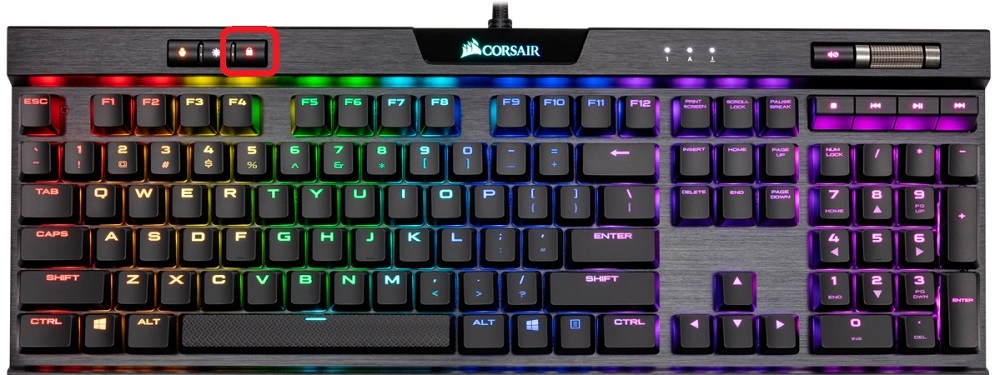
K70 RGB users must set the physical BIOS switch to position 1 for modern systems (position 2 for legacy BIOS). Incorrect settings disable RGB initialization. K95 owners with 19-zone lighting must connect both USB cables directly to motherboard ports—using hubs causes palm rest lighting failures. Check the detachable palm rest’s RGB cable for secure connections to the main PCB; loose connectors kill secondary zone lighting.
Activate Hardware Lighting Mode as Emergency Fix
When iCUE crashes repeatedly, enable “Hardware Lighting” in device settings to bypass software dependency. Configure a simple static color (like white at 50% brightness), then click “Save to Device” in iCUE. This stores lighting directly to the keyboard’s onboard memory. Access this profile during crises by pressing FN + F1-F5 (model-dependent) when iCUE isn’t running. Hardware mode ensures basic functionality even during software meltdowns.
Diagnose Dead LEDs vs. System Failures
Open iCUE and set all zones to bright white at 100% brightness. Dead LEDs appear as persistent dark spots across all profiles, confirming hardware failure. If entire sections dim uniformly, it’s a power issue. Run the rainbow wave effect: stuttering indicates USB bandwidth problems (try different ports), while complete color freeze points to firmware corruption. For K95 models, test palm rest lighting separately—loose ribbon cables cause zone-specific failures.
Prevent Future RGB Disasters With Proven Tactics
Create monthly iCUE profile backups by exporting them to external storage—Windows updates frequently corrupt lighting configurations. Always update iCUE before major Windows updates using Corsair’s official installer. Avoid USB daisy-chaining; connect your keyboard directly to motherboard ports and use powered hubs for other peripherals. Document which ports deliver stable power—some motherboards have inconsistent USB power delivery.
Optimize Your USB Power Setup Immediately
Test ports with a USB power meter app to confirm 5V/500mA minimum delivery. For K95 RGB Platinum models, never use extension cables—they cause voltage drops that kill 19-zone lighting. If front-panel ports fail, update your motherboard’s BIOS; outdated firmware often causes USB power instability. Keep your keyboard clean—debris under keys can short-circuit LED traces over time.
When these steps fail to revive your Corsair keyboard RGB lighting, contact Corsair support with your serial number and purchase receipt—RGB failures are covered under the standard 2-year warranty unless caused by physical damage. Their engineers can provide model-specific firmware files and advanced diagnostics not publicly available. Remember: 85% of “dead” RGB keyboards get restored through these methods, so don’t replace hardware prematurely. Keep this guide bookmarked for quick reference during your next lighting crisis—your vibrant gaming setup awaits its revival.