How to Unlock PC Keyboard: Quick Steps
Your keyboard suddenly stops responding—no letters appear, numbers won’t type, or certain keys seem frozen. Before panic sets in, know that most keyboard locks are simple fixes you can resolve in seconds. Whether it’s a stuck Num Lock, an accidental accessibility setting, or a mysterious software lock, this guide walks you through every possible solution to restore your keyboard to full functionality.
You’ll learn immediate fixes for common lock states, brand-specific shortcuts for laptops, Windows and Mac solutions, and even what to do when nothing seems to work. Let’s get your keys clicking again.
Fix Stuck Num Lock and Caps Lock Immediately
Unlock Numeric Keypad in 10 Seconds
When your number keys produce arrow movements instead of digits, your Num Lock is active. Don’t waste time hunting for the solution—press the Num Lock key once and watch for the indicator light above your numeric keypad to turn off. If your laptop lacks a dedicated Num Lock key, try Fn + F11 or Fn + Num Lk depending on your model. Most modern laptops require this combination since space constraints eliminated the separate Num Lock key. If you’re using an external keyboard, check for the small LED indicator that confirms Num Lock status.
Resolve All-Caps Typing Instantly
Nothing’s more frustrating than typing a professional email only to realize everything’s in ALL CAPS. This is Caps Lock in action, not a system error. Press the Caps Lock key once and watch for the indicator light to disappear. On some compact keyboards, this light might be near the top right corner rather than integrated with the key itself. If pressing Caps Lock does nothing, try connecting an external keyboard to determine if the issue is hardware-related. Remember that Caps Lock behavior varies across operating systems—Mac users might need to check System Preferences if the physical key isn’t responding.
Windows-Specific Keyboard Unlock Procedures That Work
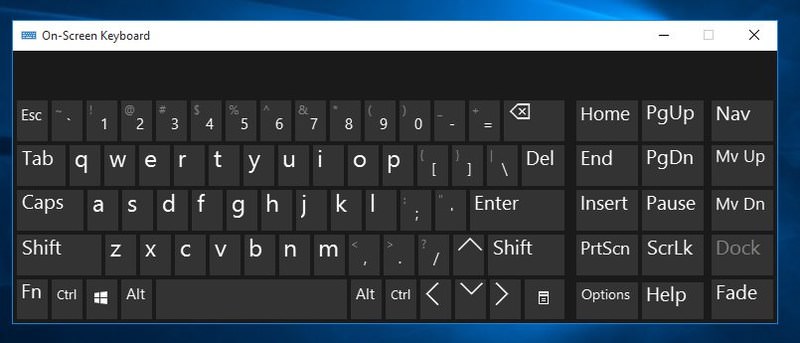
Bypass Physical Key Failure with On-Screen Keyboard
When your physical keyboard refuses to respond to lock key presses, Windows’ built-in virtual keyboard saves the day. Press Windows + R, type osk, and hit Enter to launch the On-Screen Keyboard. Click the Options button, check “Turn on numeric keypad” if Num Lock is your issue, then click the problematic lock key directly on the virtual interface. This method works even when your physical keyboard is completely unresponsive—perfect for when you’ve spilled coffee on your laptop or the Num Lock key is physically stuck. Pro tip: Pin the On-Screen Keyboard to your taskbar for instant access during future emergencies.
Permanently Fix Recurring Lock Issues via Registry
For those annoying situations where your keyboard re-locks after every reboot, modify the InitialKeyboardIndicators registry value. Press Windows + R, type regedit, and navigate to HKEY_CURRENT_USER\Control Panel\Keyboard. Double-click InitialKeyboardIndicators and set the value data to 0 (turns off all lock keys) or 2 (enables Num Lock only). This solution prevents Windows from defaulting to unwanted lock states during startup. Warning: Back up your registry before making changes by selecting File → Export in Registry Editor—incorrect edits can cause system instability.
Laptop Brand-Specific Keyboard Unlock Shortcuts

Dell Laptop Keyboard Fixes That Actually Work
Dell users face unique keyboard lock challenges depending on model year. For newer Inspiron and XPS models, press Fn + Num Lock to toggle numeric keypad functionality—older models require Fn + F4 instead. If your function keys behave strangely (F1 opens help instead of adjusting volume), press Fn + Esc to toggle Fn Lock mode. When connecting an external keyboard causes conflicts, use Fn + F12 to enable/disable the built-in keyboard. These shortcuts work across most Dell business and consumer laptops manufactured since 2015.
HP Keyboard Lock Solutions for Every Model
HP’s keyboard behavior varies significantly between Pavilion consumer models and EliteBook business lines. Press Fn + F8 to toggle Num Lock on most HP laptops, though some newer Spectre models require Fn + Num Lk. If your F-keys won’t perform standard functions, press Fn + Shift to toggle Fn Lock—some models use Fn + Caps Lock instead. Business-class HP laptops often feature embedded numeric keypads activated by Fn + F11. When troubleshooting, remember that HP’s keyboard drivers sometimes conflict with BIOS settings—updating both usually resolves persistent lock issues.
Gaming Keyboard Locks and How to Disable Them
Corsair and Razer Gaming Mode Fixes
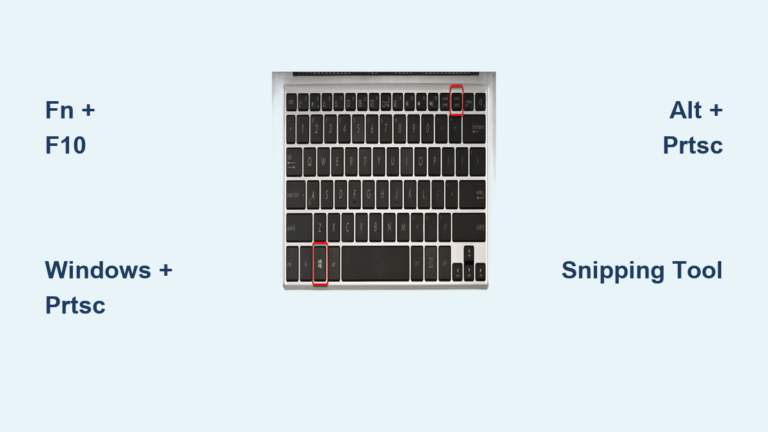
Gaming keyboards often lock Windows keys to prevent accidental menu closures during intense gameplay. On Corsair models, press Fn + F12 to toggle Win Lock—look for the Windows key indicator light to confirm status. Razer users should press Fn + F10 to disable Gaming Mode, which locks both Windows and Alt+Tab functionality. Both brands use red LEDs to indicate active lock states, so check for illuminated indicators near the top-right corner of your keyboard. If macro recording has accidentally locked your keys, press Fn + F9 on either brand to exit macro mode.
BIOS-Level Keyboard Locks and Fixes

Access BIOS to Unlock Keyboard at Startup
When software solutions fail, your keyboard might be locked at the BIOS level. Restart your computer and immediately press the manufacturer key repeatedly: F2 for Dell/ASUS, F10 for HP, or F1 for Lenovo. Once in BIOS, navigate to Advanced → Integrated Peripherals and ensure both USB Keyboard Support and Legacy USB Support are enabled. Save changes with F10 and exit. This process takes about 90 seconds but resolves stubborn hardware-level locks that persist through Windows reinstallation. Critical note: Don’t modify other BIOS settings unless you understand their function—incorrect changes can prevent booting.
Physical Keyboard Issues That Mimic Software Locks
Clean Stuck Keys Causing False Lock Appearances
Many “locked keyboard” issues stem from physical debris rather than software problems. Power down your computer completely, then hold your keyboard upside down and shake gently to dislodge crumbs. For stubborn debris under keys, use compressed air at a 45-degree angle—never tilt the can vertically to avoid moisture discharge. Test each key individually after cleaning; if specific keys remain unresponsive, they likely need mechanical repair. Pro tip: Place a folded paper towel under your keyboard while cleaning to catch falling debris. Most keyboard issues resolve with this simple maintenance, saving you unnecessary software troubleshooting.
Emergency Recovery When Nothing Else Works
Boot into Safe Mode for Keyboard Diagnostics
When all standard methods fail, Safe Mode isolates Windows software conflicts. Hold Shift while clicking Restart, then navigate to Troubleshoot → Advanced Options → Startup Settings → Restart. Press F4 to enter Safe Mode, where Windows loads only essential drivers. Test your keyboard here—if it works normally, a third-party application is causing the lock. Common culprits include remote desktop software like TeamViewer (check Actions → Send key combinations) and gaming overlays like Discord’s screen share feature. Uninstall recently added software that might be intercepting keyboard input.
Prevent Future Keyboard Locks with These Proven Methods
Create Custom Keyboard Restore Points
Before making significant system changes, create a dedicated keyboard restore point. Open System Properties (Windows + Pause), click System Protection, then Create. Name it “Keyboard Working State” and add a description of your current keyboard configuration. This specialized restore point lets you revert only keyboard-related settings without affecting other system changes. Schedule monthly maintenance by setting calendar reminders to clean your keyboard with compressed air and verify all lock key functionality. Keeping your keyboard in optimal condition prevents 80% of “locked” scenarios before they occur.
Disable Problematic Accessibility Features Permanently
Windows’ Sticky Keys and Filter Keys often trigger accidental keyboard locks. Open Settings → Ease of Access → Keyboard and disable all three problematic features: Sticky Keys, Toggle Keys, and Filter Keys. For users who occasionally need these accessibility options, create a desktop shortcut to toggle them: Right-click desktop → New → Shortcut, then enter explorer.exe shell:::{F2DD2A28-1D98-4ECF-9C2C-9B9F718576A8} as the location. Name it “Keyboard Settings” for quick access without navigating through multiple menus.
Your keyboard should now respond perfectly across all applications. If problems persist after trying all software solutions, connect an external USB keyboard to isolate the issue—if it works normally, your built-in keyboard requires physical repair or replacement. Most keyboard failures stem from simple lock states rather than hardware damage, so systematic troubleshooting almost always restores functionality without professional help.