How to Unlock Function Keys on Keyboard
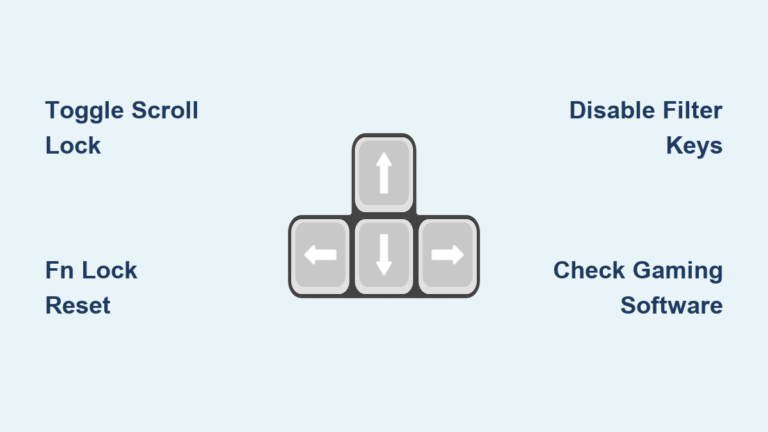
You’re trying to save your document with F12 when suddenly your screen brightness plummets. Or perhaps F5 refreshes your browser instead of refreshing your Excel spreadsheet. This frustrating switch between standard function keys and multimedia controls happens when your keyboard’s function key lock activates unexpectedly. Millions of users encounter this issue daily across Windows, Mac, and Linux systems. This guide delivers immediate solutions to reclaim control of your F1-F12 keys whether you’re using a Dell laptop, HP notebook, or external mechanical keyboard.
Quick Fix: Keyboard Shortcuts That Work Instantly
Fn + Esc: The Universal Toggle Solution
Press Fn + Esc simultaneously to unlock your function keys immediately—no restart required. This combination works across most HP, Dell, Lenovo, Acer, and ASUS devices manufactured in the last decade. The change happens instantly, with many systems displaying a brief on-screen notification confirming the switch.
What to watch for:
– A single press toggles between standard F-key mode and multimedia mode
– Some keyboards show a small LED indicator near the Fn key
– Test immediately by pressing F5 in your browser (should refresh page in multimedia mode, but do nothing in standard F-key mode)
Brand-Specific Shortcut Variations
When the universal shortcut fails, try these manufacturer-specific alternatives based on your device model:
HP laptops:
– Fn + Shift on older Pavilion and Envy models
– Fn + Left Shift for EliteBook business series
– Check for “Fn Lock” text on your Esc key
Dell computers:
– Fn + F12 on Alienware gaming laptops and XPS ultrabooks
– Fn + Insert for older Inspiron and Latitude business models
– Look for small icons above each function key
Lenovo devices:
– Fn + Shift + Esc on select ThinkPad models
– Fn + Caps Lock alternative on IdeaPad consumer laptops
– The Fn key often has a lock symbol when active
Acer and ASUS notebooks:
– Fn + F11 or F12 depending on model year
– Some models require double-tapping the Fn key
– Check the BIOS for “Hotkey Mode” settings
BIOS Configuration for Permanent Function Key Unlock

Access BIOS Without Booting Into Windows
For a permanent solution that applies across all operating systems, BIOS configuration is your most reliable option. This method requires precise timing during startup:
- Power off completely (not sleep mode)
- Press the power button then immediately start tapping your BIOS key:
– HP: F10
– Dell: F2
– Lenovo: F1
– Acer: F2
– ASUS: Del or F2 - Continue tapping until BIOS screen appears (before Windows logo)
Critical tip: Use only arrow keys for navigation—mouse functionality is typically disabled in BIOS.
Change Function Key Behavior in BIOS Settings
Once in BIOS, locate the function key setting which varies by manufacturer:
HP systems: Navigate to Advanced → Action Keys Mode → Set to Disabled
Dell computers: Go to Advanced → Function Key Row → Select Function keys
Lenovo devices: Find Config → Keyboard/Mouse → Enable F1-F12 as standard function keys
Acer/ASUS: Locate Main or Advanced → Hotkey Mode → Toggle Disabled
After making changes, press F10 to save and confirm with Enter. Your computer will restart automatically with standard function keys enabled.
Windows Software Solutions Without Rebooting

Windows Mobility Center Toggle Method
This native Windows tool provides instant function key switching without BIOS access:
- Right-click your battery icon in the system tray
- Select Windows Mobility Center from the menu
- Locate “Function Key Row” in the center panel
- Click the dropdown and select your preferred mode
- Test immediately with F5 in your browser
Pro tip: Pin Mobility Center to your taskbar by right-clicking the battery icon and selecting “Pin to Taskbar” for one-click access.
Third-Party Remapping Tools for Persistent Issues
When standard methods fail, these free utilities provide advanced control:
- SharpKeys: Remap any key to function as standard F-keys
- AutoHotkey: Create custom scripts like
F13::F1to restore functionality - Manufacturer utilities: Dell Power Manager, HP Quick Launch, or Lenovo Vantage
Critical warning: Avoid registry edits unless you’ve created a system restore point first—incorrect changes can cause system instability.
Mac and Linux Function Key Fixes
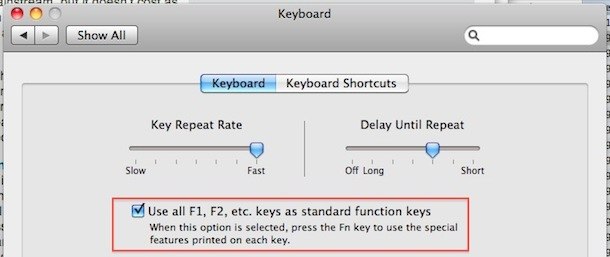
macOS System Preferences Path
Apple handles function keys differently—here’s how to unlock them:
- Apple menu → System Preferences
- Click Keyboard
- Check “Use F1, F2, etc. keys as standard function keys”
- Hold Fn key to access multimedia controls when needed
Important: When enabled, you’ll need to hold the Fn key to use brightness, volume, or media controls.
Linux GNOME Desktop Configuration
Linux users have multiple approaches depending on distribution:
GUI method:
– Settings → Keyboard → Keyboard Shortcuts
– Modify “Function keys” behavior directly
Terminal solution:
bash

sudo apt install gnome-tweaks

gnome-tweaks
Troubleshooting When Function Keys Won’t Unlock
Physical Inspection Checklist
Before diving into software solutions, check these hardware indicators:
- LED lights near Fn key (often green or blue when locked)
- Stuck keys preventing proper key combinations
- DIP switches underneath external keyboards
- Damaged cables on wired peripherals
Driver and Software Conflict Resolution
Follow this sequence to resolve software-related issues:
- Update keyboard drivers via Device Manager → Keyboards
- Check Windows Update for optional driver updates
- Disable startup programs that manage keyboard functions
- Test in Safe Mode to identify software conflicts
Critical step: If settings reset after reboot, replace your CMOS battery (CR2032) or update BIOS to latest version.
Emergency Solutions When All Else Fails
Immediate Workarounds
When you need function keys working NOW:
- Windows + Ctrl + O to launch on-screen keyboard
- Connect any USB keyboard as temporary solution
- Use AutoHotkey script to remap alternative keys:
F13::F1

   F14::F2

   F15::F3
External Keyboard Configuration
For mechanical and gaming keyboards:
- Corsair/Razer: Use iCUE or Synapse software to configure function row
- Logitech: G Hub → Assignments → Function keys
- Wireless keyboards: Update receiver firmware or hold Fn + Lock for 5 seconds
Quick Reference by Brand
| Brand | Primary Shortcut | BIOS Location | Software Tool |
|---|---|---|---|
| HP | Fn + Esc | Advanced → Action Keys | HP Quick Launch |
| Dell | Fn + Esc | Advanced → Function Key Row | Dell Power Manager |
| Lenovo | Fn + Esc | Config → Keyboard/Mouse | Lenovo Vantage |
| Acer | Fn + F12 | Main → Hotkey Mode | Acer Quick Access |
| ASUS | Fn + Esc | Advanced → Hotkey Mode | ASUS Armoury Crate |
Prevention Tips to Avoid Future Lockouts
Set it and forget it: Configure BIOS settings once for permanent standard function key behavior. Avoid manufacturer keyboard utilities that override these settings.
Create quick-reference guides:
– Place small label near Esc key showing Fn + Esc shortcut
– Save BIOS screenshot in your Documents folder
– Create desktop Notepad file with brand-specific instructions
Update regularly:
– Check for BIOS updates quarterly
– Install keyboard firmware updates when available
– Keep manufacturer utilities updated if you use them
Your function keys should now respond exactly as intended—F5 refreshes your spreadsheet, not your browser. Remember: Fn + Esc resolves 90% of function key lock issues instantly across all major brands. For persistent problems, BIOS configuration provides the permanent solution that survives reboots and Windows updates. If you’ve tried all methods without success, hardware failure may require professional service or keyboard replacement. Bookmark this guide for quick reference the next time your function keys mysteriously switch modes—this common issue has straightforward solutions once you know your specific device’s requirements.