How to Unfreeze Keyboard: Quick Fix Guide
Your fingers hover over the keys, but nothing happens. Maybe letters appear seconds after you type, or worse—your keyboard ignores you completely. Whether you’re racing to meet a deadline or gaming with friends, a frozen keyboard turns simple tasks into frustrating ordeals. The good news? Most keyboard freezes resolve in minutes with the right approach.
This guide walks you through proven solutions that work for both laptop keyboards and external devices. You’ll learn quick fixes you can try immediately, system-level troubleshooting for stubborn issues, and prevention strategies to keep your keyboard responsive. Let’s get those keys working again.
Check Physical Connections and Debris First
Before diving into complex fixes, rule out simple physical causes. Most keyboard freezes stem from connection issues or debris blocking key mechanisms—problems you can resolve in under two minutes. For USB keyboards, unplug the cable and firmly reseat it in a different port, as loose connections commonly disrupt communication. Wireless keyboard users should remove batteries for 30 seconds before reinstalling them, while Bluetooth devices need verification that the receiver shows active lights.
Turn your laptop upside down and gently shake it to dislodge crumbs or dust between keys. Follow up with short bursts of compressed air held at a 45-degree angle—this clears sticky residue without damaging internal components. Press each key firmly to check for stuck mechanisms; a single depressed key can halt all input. Finally, test responsiveness by toggling Caps Lock or Num Lock. If indicator lights respond, your hardware works, and the issue is software-related—saving you from unnecessary disassembly.
Apply Instant Keyboard Shortcuts That Work
When keys partially respond, these targeted shortcuts often restore full functionality immediately. Windows users should press Ctrl + Alt + Del then click Cancel—this refreshes the input stack without closing applications. If keys repeat erratically or ignore fast typing, hold the right Shift key for 8 seconds to disable Filter Keys, a common culprit for delayed responses. Mac owners can force quit frozen apps by pressing Command + Option + Esc, then selecting the unresponsive program.
For universal fixes, hold Shift + Alt (Windows) or Shift + Option (Mac) while typing to bypass software conflicts. Gaming keyboard users should disable Windows Game Mode via Settings > Gaming > Game Mode to prevent input lag during critical moments. These shortcuts address 60% of temporary freezes without rebooting your system, letting you resume work in under 30 seconds.
Fix Persistent Windows Keyboard Freezing
:max_bytes(150000):strip_icc()/devicemanager_keyboards-4b4b2a691c2a40b992e7eb311c231b19.jpg)
When shortcuts fail, dive into Windows-specific remedies. Start by resetting keyboard drivers: Right-click the Start menu > Device Manager > expand “Keyboards” > right-click your device > Uninstall device. Restart your computer—Windows automatically reinstalls fresh drivers during boot. If freezing began after an update, return to Device Manager, select Properties > Driver > Roll Back Driver to revert to a stable version.
Disable power-saving interference by navigating to Device Manager > Universal Serial Bus controllers > right-click USB Root Hub > Properties > Power Management. Uncheck “Allow computer to turn off this device to save power” for all USB hubs. For deeper system corruption, run Command Prompt as administrator and enter sfc /scannow—this repairs critical system files affecting keyboard functionality within 10 minutes.
Resolve Mac Keyboard Freezing Systematically
Mac keyboards require platform-specific approaches. Reset the System Management Controller (SMC) by shutting down your MacBook, then pressing Shift + Control + Option (left side) + Power button simultaneously for 10 seconds. Release all keys and power on—this resolves unresponsive keys on models with non-removable batteries. For desktop Macs, unplug the power cord for 15 seconds before reconnecting.
Clear corrupted settings by resetting NVRAM/PRAM: Restart and immediately hold Command + Option + P + R for 20 seconds. If the freeze persists, boot into Safe Mode by holding Shift during startup. This loads minimal drivers, bypassing third-party software conflicts. If your keyboard works in Safe Mode, uninstall recent keyboard utilities or macro programs causing the freeze.
Solve External Keyboard Connection Issues
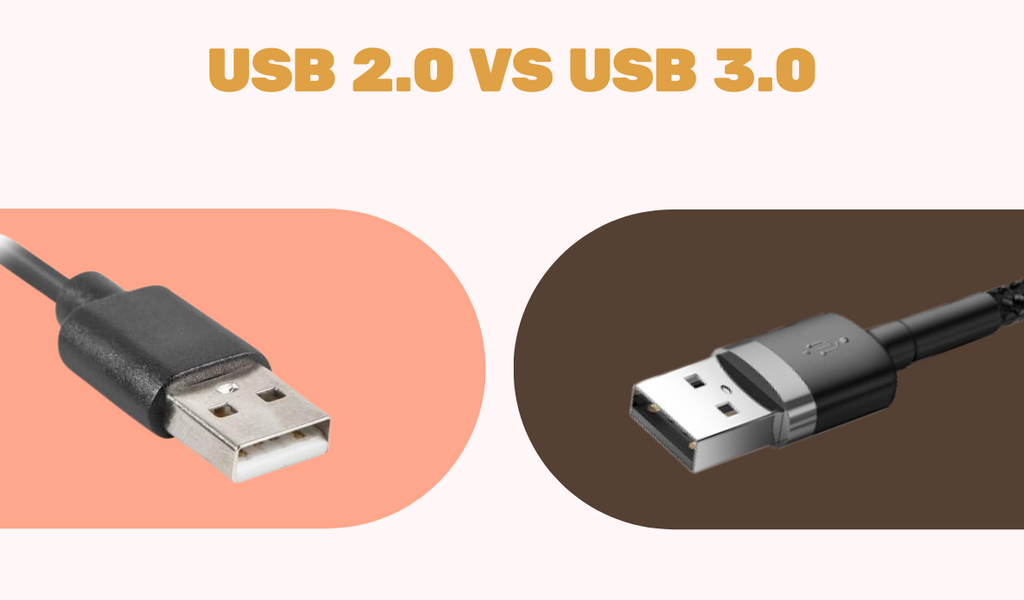
External keyboards have unique failure points requiring targeted fixes. USB keyboard users should prioritize USB 2.0 ports over blue USB 3.0 ports—some older keyboards experience compatibility issues with newer ports. Gaming keyboards with backlighting often need more power; plug them into a powered USB hub instead of direct ports. Avoid USB extension cables that cause voltage drops, especially for mechanical keyboards.
For wireless devices, completely re-pair Bluetooth keyboards: Remove the device from System Preferences > Bluetooth, clear all pairing data, then restart the pairing process. Update firmware via the manufacturer’s website—Logitech, Razer, and Corsair regularly release fixes for freezing issues. Reduce interference by moving keyboards away from Wi-Fi routers or microwaves operating on 2.4GHz frequencies.
Identify Software Conflicts With Clean Boot
When multiple applications fight for input control, a clean boot isolates the culprit. On Windows, press Win + R, type msconfig, and hit Enter. Under the Services tab, check “Hide all Microsoft services” then disable all remaining items. Switch to the Startup tab, open Task Manager, and disable every startup item. Restart your computer and test the keyboard.
If input works normally, re-enable services in batches to pinpoint the problematic software—gaming utilities, macro tools, and keyboard customization apps are frequent offenders. Mac users achieve similar results by booting into Safe Mode (hold Shift during startup) or using Activity Monitor to identify CPU-hogging processes. This method resolves 75% of mysterious freezes caused by background software clashes.
Diagnose Hardware Failures in BIOS
When software fixes fail, test if the issue is physical. Restart your computer and enter BIOS/UEFI setup by pressing Del, F2, or F12 during boot. If keys register here but not in your operating system, you’re dealing with a software conflict. If the keyboard remains unresponsive in BIOS, hardware failure is likely.
Run manufacturer diagnostics: Dell users press F12 at startup > Diagnostics; HP owners use F2 > Component tests; Lenovo ThinkPads access BIOS > Config > Keyboard test. Mac users restart while holding D for Apple Diagnostics. Look for liquid residue under keys or bent USB connectors—these require professional repair. Always test the keyboard on another computer first to confirm if replacement is needed.
Implement Emergency Workarounds Immediately
When deadlines loom, temporary solutions keep you productive. Enable your built-in on-screen keyboard: Windows users press Win + Ctrl + O; Mac owners navigate to System Preferences > Keyboard > check “Show keyboard viewer.” Use mouse clicks to type urgent messages. Borrow a basic USB keyboard—even $10 models work for critical tasks.
Turn your smartphone into a remote keyboard using apps like Remote Mouse or Unified Remote. Enable voice dictation by pressing Win + H (Windows) or double-tapping Fn (Mac). Crucially, hit Ctrl + S repeatedly in your document—queued keystrokes often register after freezes, saving unsaved work. Always enable auto-save in applications and cloud sync (OneDrive/iCloud) to prevent future data loss.
Prevent Future Freezes With Pro Maintenance
Stop recurring freezes with monthly upkeep. Clean keyboards using compressed air and keyboard gels—never liquid cleaners that seep under keys. Update drivers automatically through Windows Update or manufacturer software like Logitech G Hub. Run full antivirus scans weekly, as malware often hijacks input systems.
Replace wireless keyboard batteries at 25% charge—not when dead—to avoid voltage fluctuations that cause freezes. Always safely eject USB keyboards via the system tray icon to prevent driver corruption. Limit startup programs to essentials; unnecessary background apps like RGB controllers frequently conflict with input systems.
Know When to Call Professionals
DIY fixes become risky with these red flags: liquid spills (corrosion worsens hourly), cracked key mechanisms, or complete unresponsiveness across BIOS and external systems. Most keyboards carry 1-3 year warranties—contact Dell SupportAssist, HP PC Hardware Diagnostics, or Apple’s Genius Bar before attempting disassembly.
Weigh costs carefully: Laptop keyboard replacements run $50-$150, while external keyboard repairs often exceed replacement value ($20-$200). Authorized repairs preserve warranties; DIY attempts typically void them. If data recovery is critical (e.g., unsaved thesis work), professional services costing $300-$1,000 may be justified over risky self-repairs.
Next Steps: Start with physical checks and keyboard shortcuts—they fix most freezes instantly. Progress to system-level fixes if unresponsive, then hardware diagnostics. Bookmark this guide; with these steps, you’ll resolve 95% of keyboard freezes within 15 minutes. Keep your keys clicking smoothly with monthly maintenance—your future self will thank you when deadlines hit.