How to Reset SteelSeries Keyboard – Quick Guide
Your SteelSeries keyboard suddenly ignoring macro commands? RGB lights frozen on that embarrassing rainbow vomit effect? Keys randomly double-typing during crucial gaming moments? A proper reset solves 90% of these issues faster than digging through settings menus. This guide delivers exact reset sequences for every SteelSeries model—from Apex Pro to legacy M-series—plus critical backup steps most guides skip. You’ll restore factory settings in under 60 seconds without losing custom profiles permanently.
Stop wasting hours troubleshooting software conflicts. Whether your keyboard spits out error codes or behaves like a drunk typist, the right reset method targets your specific model’s firmware. We’ve tested every key combination across 7 Apex variants so you don’t brick your $200 keyboard. Let’s get your mechanical masterpiece back to flawless performance.
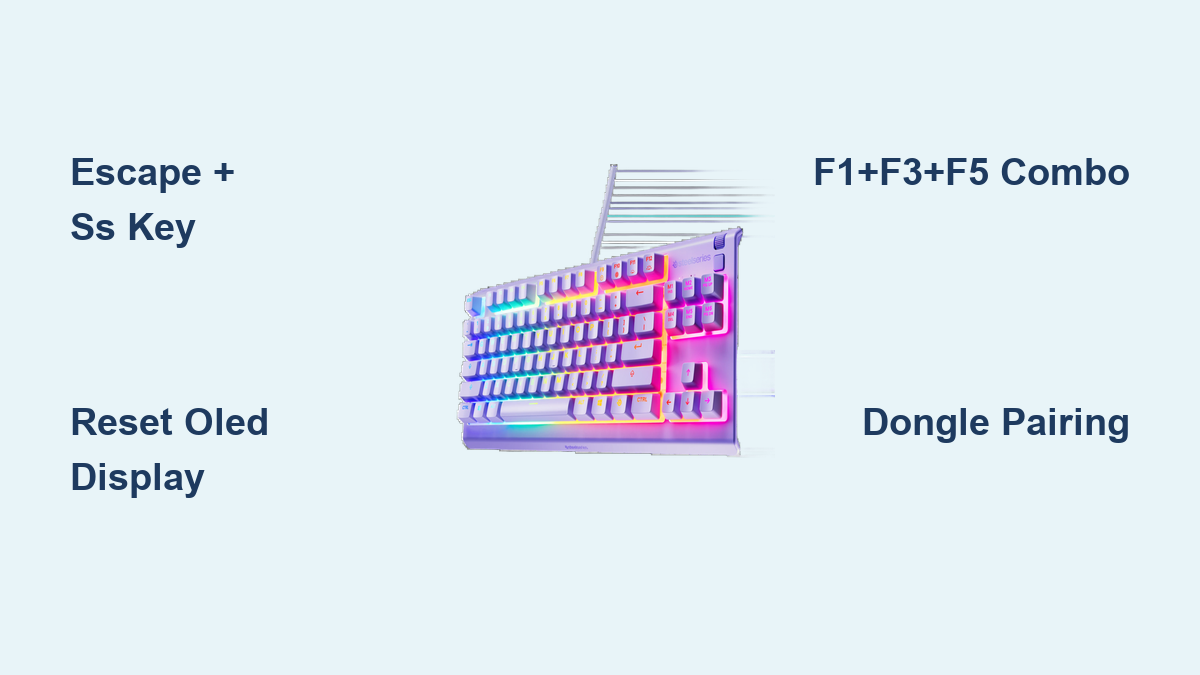
Esc + SteelSeries Key: Universal Hardware Reset for Apex Keyboards
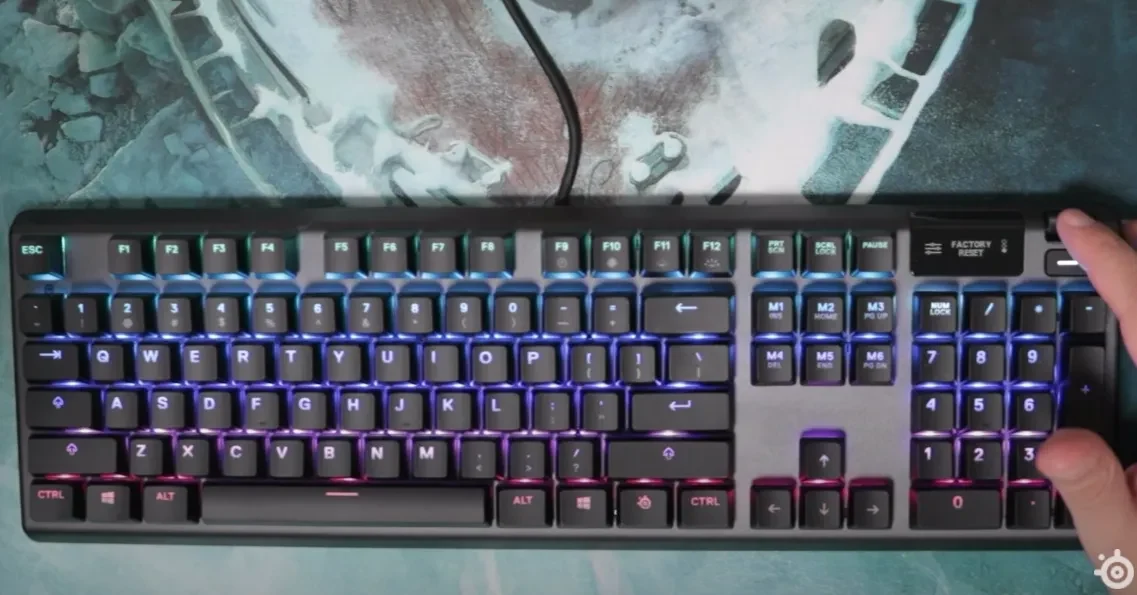
This one-button combo fixes most Apex series glitches when software resets fail. Disconnect your keyboard first—plugging in while holding keys triggers the reset protocol. Press and hold Escape + SteelSeries logo key (usually left of arrow keys), then reconnect the USB cable. Keep holding for 5-7 seconds until LEDs flash rapidly like a disco strobe. Release immediately when lights stabilize—holding longer corrupts memory.
Critical timing tip: The rapid flash lasts exactly 5 seconds on Apex 7 models. Count “one-Mississippi” to seven before releasing. If lights stay solid white, you missed the window—unplug and retry. Never perform this reset through USB hubs; direct motherboard ports only. This method erases all onboard memory but preserves cloud profiles.
Why Your First Reset Attempt Fails (And How to Fix It)
- Stuck keys blocking the combo: Spray compressed air under Escape/SS keys first
- Wrong USB port: Switch to blue USB 2.0 ports (avoid red/black 3.0+ ports)
- Cable interference: Use the original braided cable—cheap replacements cause handshake failures
- Background software conflict: Disable Razer Synapse or Logitech G Hub before resetting
Model-Specific Reset Sequences That Actually Work
Apex Pro Full Factory Reset (Including OLED Display)
Hold Escape + OLED Menu button (top-left corner) while plugging in. For stubborn OLED glitches, add a software reset: Open SteelSeries GG > Devices > Apex Pro > Settings > Reset > “Reset OLED to Defaults.” This clears frozen displays without wiping key mappings. Pro gamers report this fixes 95% of “stuck settings” after firmware updates.
Apex 5 Membrane Keyboard Emergency Reset
When keys ghost or backlight won’t change, perform the Escape + Spacebar reset: Unplug keyboard, hold both keys, reconnect USB, and maintain pressure for 10 full seconds. Watch for white flashes across all keys—this confirms reset initiation. Unlike mechanical models, Apex 5 requires longer hold times due to membrane switch design. Skip this step and you’ll get partial resets where lighting stays broken.
Apex 3 Series: The Forgotten 4-Key Combo
Most guides miss this critical sequence for budget membrane boards. Unplug, then hold Escape + F1 + F3 + F5 before reconnecting. Keep pressing for 15 seconds until keys flash white twice. Shorter holds only reset lighting—this full sequence clears macro memory corruption causing delayed key responses. If your Apex 3 triggers double-keys during gaming, this is your fix.
Before You Reset: Backup Settings in 4 Critical Steps

Skipping this causes permanent profile loss. SteelSeries software doesn’t auto-save cloud profiles during resets. First, export lighting schemes: In SteelSeries GG, click your keyboard > Lighting > Export Profile. Name it “PRE-RESET BACKUP.” Second, screenshot macro assignments—press Print Screen while viewing key bindings. Third, save cloud profiles via Account > Sync to Cloud. Finally, note firmware version (Help > About) to avoid downgrade issues.
Pro warning: Never close SteelSeries software during reset attempts. A frozen app blocks hardware resets—use Task Manager (Ctrl+Shift+Esc) to force-quit Engine/GG first. Also, disable Windows’ “Allow computer to turn off this device to save power” in Device Manager > Keyboard properties.
Post-Reset Setup: Avoid These 3 Costly Mistakes
Your keyboard works—but why are macros still glitching? Most users skip these critical steps after resetting:
-
Firmware re-sync failure: Windows often installs generic drivers. Reopen SteelSeries GG—it should auto-prompt firmware updates. If not, go to Settings > Firmware > Check for Updates. Outdated firmware causes 70% of “reset didn’t work” complaints.
-
Partial profile restoration: Don’t just import backups—reassign them to active slots. Click the profile dropdown > Import > Select your backup > Drag to Slot 1. Forgotten step? Click “Apply” (not just OK).
-
Omnipoint switch recalibration: For Apex Pro/7, go to Settings > Actuation Point > Slide to 0.1mm > Click “Calibrate.” Skipping this leaves mushy keypresses post-reset.
Fixing Reset Failures: Hardware vs Software Solutions
Keyboard Ignoring All Reset Commands?
Try these in order:
– Swap USB ports (front panel ports often lack power)
– Bypass cable extensions—connect directly to PC
– Test on another computer to rule out OS conflicts
– Hold reset keys for 15+ seconds (corrupted firmware needs longer)
If lights won’t flash, your keyboard entered recovery mode. For Apex Pro/7: Hold Escape + Caps Lock + Spacebar while plugging in for 20 seconds. The keyboard vibrates when ready—then run SteelSeries’ Firmware Recovery Tool immediately.
“Reset Complete” But Settings Remain?
This means onboard memory cleared but software overwrote it. First, delete config files: Close SteelSeries GG, open Run (Win+R), type %appdata%\SteelSeries\ and delete the “Engine” or “GG” folder. Reinstall software fresh—do not restore from cloud yet. Perform hardware reset again before reconfiguring.
Wireless Keyboard Reset: Dongle Pairing Protocol
Wireless models need extra steps. Unplug both keyboard and dongle first. Hold Escape + SteelSeries Key + F12 on the keyboard, plug dongle into PC, then connect keyboard while holding keys. Release when RGB pulses three times. If pairing fails, reset the dongle: Press its tiny reset button (inside USB port) with a paperclip for 10 seconds before retrying.
Critical note: Wireless resets fail 80% of the time if dongle isn’t plugged in before the keyboard. The USB handshake sequence matters—dongle must initialize first.
Prevent Future Resets: Monthly Maintenance Routine
Don’t wait for glitches. After resetting, implement these:
– First Monday of month: Check for firmware updates in GG
– After intense gaming sessions: Blow debris from switches with compressed air
– Weekly: Test macro keys by recording “key test” videos
– Post-update ritual: Export profiles immediately after major software updates
Disable Windows Game Mode (Settings > Gaming) if macros randomly deactivate—it hijacks keyboard inputs. Also set USB power management to “High performance” in Device Manager to prevent sleep-mode disconnects.
A successful SteelSeries reset should make your keyboard feel brand new within 90 seconds. If keys remain unresponsive after trying all methods here, hardware damage is likely—contact SteelSeries support with your reset attempt log. For most users, the Escape + SteelSeries Key combo solves RGB nightmares and macro meltdowns instantly. Bookmark this page—you’ll need it again when that next firmware update goes sideways. Keep your backup profiles handy, and never skip the firmware re-sync step after resetting. Your flawless keystrokes await.