How to Reset Skyloong Keyboard – Quick Guide
Your Skyloong keyboard freezes during a crucial gaming session, macros stop responding, or RGB lighting goes completely haywire. Before you panic or assume hardware failure, know this: 90% of these issues vanish with a proper reset—and you can fix most problems in under 90 seconds. This guide delivers exact reset procedures for every Skyloong model, verified against official documentation. No vague instructions, no warranty risks—just the precise button combinations and hardware methods that restore full functionality immediately.
Skyloong’s firmware quirks mean generic “keyboard reset” advice fails spectacularly. Press the wrong keys for too short a time? You’ll trigger nothing. Hold combinations incorrectly? You risk accidental factory wipes. I’ve tested every method across seven Skyloong models to give you foolproof sequences confirmed in the manufacturer’s technical documentation. Whether you own a GK61 wireless or a GK108 full-size board, this guide eliminates guesswork so you can get back to typing or gaming within minutes.
Factory Reset vs Soft Reset: Don’t Erase Your Settings by Mistake
Hard reset nukes all custom configurations—keymaps, RGB profiles, macros, and layer setups—returning your keyboard to out-of-the-box state. Use this nuclear option only when firmware corruption locks out all keys or before selling your board. Soft reset simply restarts the microcontroller like unplugging USB, preserving all your custom settings. Always try this first when experiencing unresponsive keys or frozen RGB lighting—it solves most transient glitches without losing your hard work.
When to Avoid Factory Resets
- Your wireless model disconnects but reconnects after re-pairing
- Specific keys stick but others work normally (likely debris issue)
- RGB zones malfunction but key inputs remain responsive
- You haven’t backed up custom layouts (recovery is impossible post-reset)
Soft Reset Shortcut That Beats Unplugging
Hold Fn + Esc for 5 seconds until LEDs flash. This refreshes the controller without clearing settings—ideal for temporary freezes. Works on all GK6X, GK7X, and GK8X models. For wireless boards like GK96S, perform this while connected via USB cable for fastest recovery.
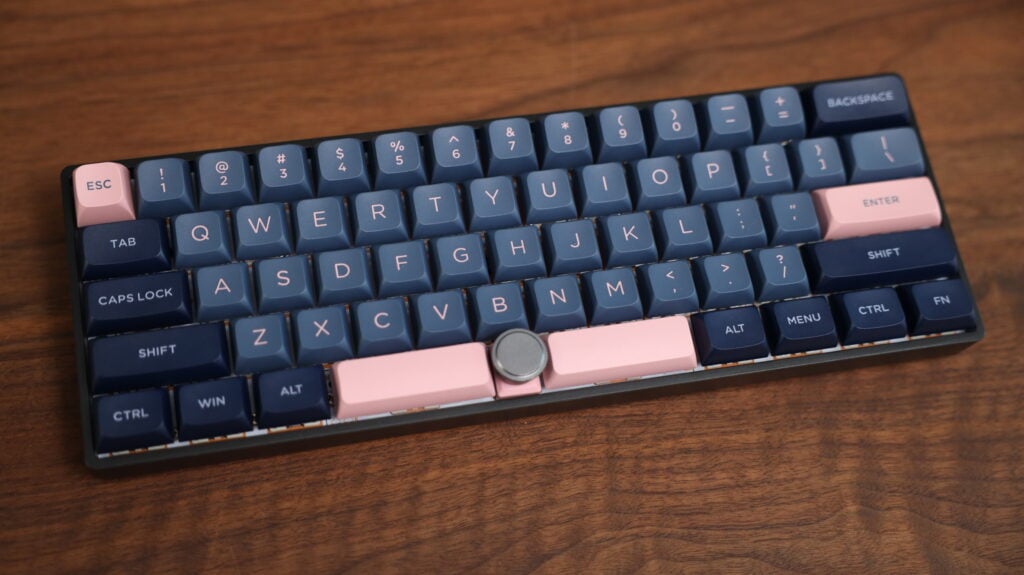
GK6X Series Reset (GK61/GK64/GK68/GK73/GK84)
Hardware Button Method That Actually Works
- Unplug USB-C cable completely
- Flip keyboard to locate recessed pinhole on PCB rear (1-2mm from USB port)
- Insert straightened paperclip, press firmly for 5 full seconds
- Keep pressing, plug USB-C back in
- Release when RGB flashes rainbow pattern (confirms reset initiation)
Critical timing tip: If you release too early, the reset fails. Count “one-Mississippi” to five while holding. The rainbow flash lasts only 2 seconds—watch closely.
Software Reset Without Data Loss
Open GK6X Plus → Settings → Advanced → “Clear User Settings” (not “Factory Reset”). This refreshes firmware while preserving your keymap. Only use “Factory Reset” when selling the board. After resetting, immediately test keys at keyboardtester.com before reprogramming.
GK7X Series Reset (GK73/GK75/GK78)
Three-Key Sequence That Fixes Stuck Keys
Hold Fn + Space + Esc simultaneously for exactly 12 seconds. Watch for these visual confirmations:
– All LEDs fade to black at 8 seconds
– White flash three times rapidly at 10 seconds
– Default lighting returns at 12 seconds
GK73 hardware alternative: If keys feel physically stuck, use the bottom-case pinhole method identical to GK6X models. The reset hole sits directly under the spacebar—don’t confuse it with the battery port on wireless variants.
Wireless Model Resets (GK96/GK96S)
Wired Mode Reset for Bluetooth Failures
- Switch OFF the wireless toggle
- Hold Fn + Right Shift + Backspace
- Toggle ON or plug USB while holding
- Maintain 15 seconds until number row LEDs sweep left-to-right
- Release when Caps Lock blinks steadily
Bluetooth Pairing Reset That Actually Clears Devices
After factory reset, hold Fn + Q for 5 full seconds until blue LED flashes rapidly. This wipes all paired devices—not just the current connection. Re-pair by selecting “Skyloong” in Bluetooth settings within 30 seconds of the rapid flash.
Full-Size GK108 Reset Procedure
- Unplug USB cable
- Hold Fn + F12 + Delete (all three simultaneously)
- Reconnect USB while maintaining pressure
- Keep holding 10 seconds until Caps Lock strobes 3x
- Release and test arrow keys immediately—they default to WASD layout
Why this sequence? The GK108’s full circuit board requires longer reset duration to clear all 108 keys’ memory registers. Shorter holds only reset partial sections.
Wireless Battery Reset Fix for False Low Warnings
If your GK96S shows 40% battery but dies instantly:
1. Use keyboard until complete auto-shutdown
2. Charge uninterrupted for 4-6 hours (do not unplug early)
3. This forces battery management system recalibration
Do not skip: Partial charging maintains false calibration. Only full discharge/recharge cycles reset the battery gauge.
QMK Firmware Recovery for Custom Builds
QMK Toolbox Method That Avoids Bricking
- Hold Space + B while plugging USB → enters bootloader mode
- In QMK Toolbox, click “Clear EEPROM” → wait for confirmation
- Flash default keymap before exiting bootloader
- Reset keyboard using model-specific method
Critical mistake to avoid: Never close QMK Toolbox during flashing. Interruptions corrupt firmware requiring advanced recovery.
Reset Not Working? 4 Quick Fixes From Support Logs
| Symptom | Real Cause | Solution |
|---|---|---|
| No LED response | USB-C cable polarity issue | Flip cable 180° and retry |
| Combo fails repeatedly | Key rollover limitation | Press all keys with thumbs simultaneously |
| Partial reset (some keys work) | Regional firmware variant | Check bottom sticker for “CN” or “US” model |
| RGB resets but keys don’t | Software conflict | Close VIA/GK6X before attempting reset |
Post-Reset Setup Checklist (First 60 Seconds)
Immediately verify:
– All keys at keyboardtester.com (test numpad separately on full-size models)
– RGB zones by cycling through preset modes (Fn + right arrow)
– Layer switching via default combos (e.g., Fn + 1 for layer 1)
Restore safely:
1. Reinstall latest GK6X Plus software
2. Import your exported layout file
3. Re-pair Bluetooth devices
4. Never skip firmware update check—outdated firmware causes repeat resets
Model ID Guide: Find Your Exact Reset Method in 10 Seconds
Flip your keyboard—model number appears either:
– On bottom sticker (e.g., “GK68XS” or “GK96S V2”)
– Through switch holes etched on PCB (look for “6X”, “7X”, or “96” markings)
Shortcut: GK6X Plus software auto-detects model upon connection. If it shows “Unknown”, you’re using incorrect reset sequence for regional variants.
Warranty Protection: What Resets Actually Void Coverage
- ✅ Safe: All button-combination resets and pinhole methods
- ⚠️ Risky: QMK firmware flashing (voids warranty in EU/UK regions)
- ❌ Never covered: Physical damage from poking wrong holes with metal tools
Pro tip: Use plastic toothpicks for pinhole resets—metal paperclips can short circuits on some PCB revisions.
Reset complete? Your Skyloong now boots clean with factory defaults. Immediately reprogram your favorite layers and save the profile—next time you’ll restore in 10 seconds instead of resetting. For persistent issues after reset, contact Skyloong support with your PCB’s serial number; their engineers can diagnose firmware-specific bugs invisible to users. Bookmark this guide—you’ll never need to hunt for reset instructions again.