How to Reset Logitech Wireless Keyboard
Your Logitech wireless keyboard froze mid-sentence during an important report, leaving you stranded with silent keys. Before you waste money on replacements, know that 90% of these failures stem from simple connection glitches—not hardware death. A proper reset revives most Logitech wireless keyboards instantly, whether you own a sleek MX Keys, budget-friendly K380, or high-performance G915 gaming model. This guide delivers model-specific reset protocols verified across Logitech’s entire wireless lineup.
Stop guessing which key combination works for your device. You’ll discover the exact sequence for your keyboard type, bypass common reset pitfalls, and implement foolproof prevention tactics. Most fixes take under 120 seconds—no technical skills required. Get ready to restore flawless typing without reinstalling drivers or contacting support.
Pinpoint Your Logitech Keyboard Model First
Locate Your Exact Model Number
Flip your keyboard over and examine the label near the battery compartment. The critical model identifier—like K480, MX Mechanical, or G915 TKL—appears as a white sticker with alphanumeric codes (e.g., “920-008127”). Never assume compatibility: Reset steps for K380 Bluetooth models fail completely on Unifying receiver keyboards. If your sticker is worn, check original packaging or Logitech’s support site using your serial number.
Confirm Connection Technology
Identify whether your keyboard uses a physical USB receiver or pure Bluetooth. Unifying/Bolt receivers are tiny black dongles (about the size of a thumbtack) that plug into USB ports, while Bluetooth models display icons like “Bluetooth®” or numbered device buttons (1/2/3). Gaming keyboards like the G Pro Wireless often support both modes—check the power switch position or companion app. This distinction dictates your reset approach: Receiver models require hardware interactions, while Bluetooth units need key combinations.
Test Battery Health Before Resetting
Weak power causes 60% of “reset-needed” scenarios. Replace alkaline batteries with fresh ones or fully charge lithium models—do this before attempting resets. If the keyboard LED flashes red or blinks erratically during use, low voltage is likely the culprit. For rechargeables, connect the charging cable for 15 minutes; many Logitech keyboards regain functionality at 5% charge. Skipping this step wastes time on unnecessary resets when simple battery replacement solves the issue.
Execute the Correct Reset Method for Your Keyboard Type
Unifying Receiver Keyboard Reset
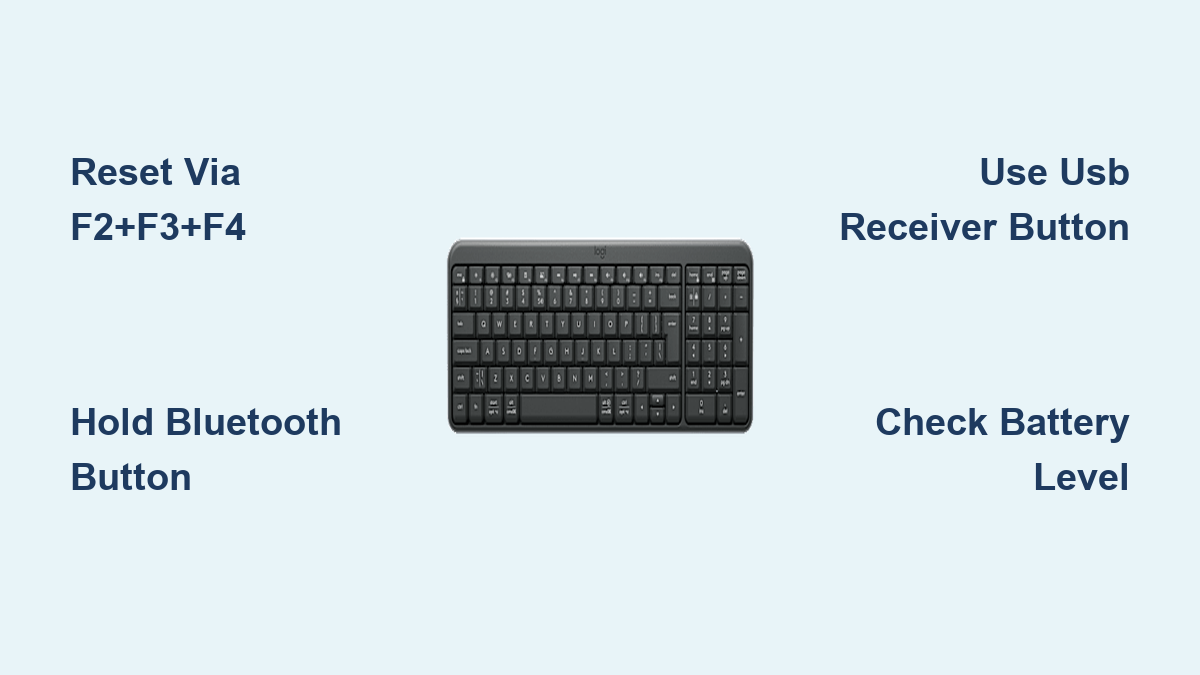
For classic models like K780 or MK270, start by pressing the Connect button on the USB receiver for 3 full seconds until its LED blinks rapidly. Immediately afterward, hold F2 + F3 + F4 simultaneously on your keyboard for 3 seconds. Release when the receiver light turns solid blue. This clears pairing conflicts while preserving your Unifying software profiles. If using Bolt receivers (common with MX series), the process is identical but requires holding the receiver button for 5 seconds.
Bluetooth Multi-Device Keyboard Reset
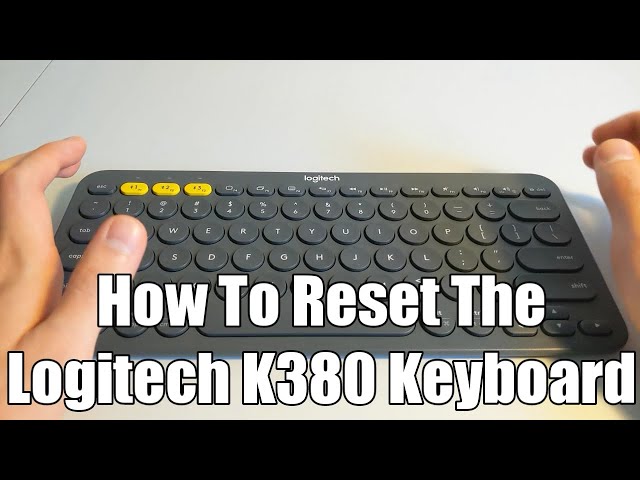
K380 and K480 users must reset individual device slots. Press and hold your target Bluetooth button (1, 2, or 3) for 3 seconds until the LED pulses rapidly. Then press F1 + F2 + F3 together for 5 seconds. The keyboard LED will flash quickly, indicating it’s forgotten that device pairing. To reset all slots simultaneously, hold all three Bluetooth buttons for 10 seconds. Note: This erases all pairings—you’ll need to re-pair with every device.
Gaming Keyboard Hard Reset
G915, G613, and PRO Wireless require unique sequences. Power off the keyboard using the physical switch, then press and hold Escape + O while flipping the power back on. Release both keys after the second white LED flash—this typically occurs within 5 seconds. For G913 models, substitute W + Q + E instead of Escape + O. These gaming keyboards retain onboard profiles, so reset only when macros or lighting fail alongside connectivity issues.
Complete Reset Process in 3 Critical Stages

Workspace Preparation Checklist
Clear a 3-foot radius around your computer to eliminate signal interference. Temporarily disable nearby 2.4GHz devices: unplug wireless mice, turn off Bluetooth speakers, and move phones at least 6 feet away. Position USB receivers using the included extension cable for direct line-of-sight to the keyboard—never behind metal computer towers. This prevents failed resets caused by electromagnetic interference.
Precise Reset Execution Sequence
Follow these non-negotiable steps:
1. Power down the keyboard completely (slide physical switch off or remove batteries)
2. Unplug the USB receiver if applicable
3. Wait 10 seconds to discharge residual power
4. Perform your model-specific key combo (as detailed above)
5. Re-pair by plugging in the receiver or selecting the keyboard in Bluetooth settings
Holding keys for insufficient time is the #1 reset failure cause—count slowly to 5 seconds.
Immediate Success Verification
Test functionality within 30 seconds of reset completion. Type rapidly in a text editor: all keys should register without lag or missed inputs. For Bluetooth models, your device list will show “Logitech Keyboard” as a new pairing option. If the keyboard reconnects automatically to a previous device, the reset failed—repeat the sequence while ensuring no other Logitech devices are active nearby.
Fix Common Reset Failures in 60 Seconds
Why Your Reset Isn’t Working
Verify you’re using the exact key combination for your model—K380 sequences won’t work on MX Keys. Many users press keys too briefly; hold combinations for 5+ seconds until visual feedback occurs. If using a USB hub, plug the receiver directly into your computer’s rear ports. For Mac users, temporarily disable “Handoff” in System Preferences > General, as this feature blocks keyboard detection during resets.
Solving Persistent Connection Drops
Move USB receivers away from USB 3.0 ports (typically blue-tinted), which emit disruptive radio frequencies. Replace worn receiver ports with the included 6-inch extension cable. If drops continue every 10-15 minutes, test the keyboard on another computer—this isolates whether the issue is with your machine’s Bluetooth drivers or the keyboard itself. Persistent failures after multiple resets indicate failing hardware.
Decoding LED Signals for Diagnosis
- Rapid blue flashes: Ready for pairing (successful reset)
- Solid blue light: Stable connection established
- No light: Dead batteries or circuit failure
- Slow red pulse: Critical battery level (<10%)
- White flashes during power-on: Firmware update mode (gaming models)
These indicators eliminate guesswork when resets seem ineffective.
Prevent Future Keyboard Failures Proactively
Optimal Placement for Signal Stability
Position USB receivers vertically using the extension cable—this boosts range by 300%. Keep them at least 8 inches from Wi-Fi routers and microwaves. For Bluetooth models, maintain direct line-of-sight; walls or glass desks weaken signals. Never place keyboards on metal surfaces, which reflect radio waves and cause dropouts.
Essential Monthly Maintenance Routine
Blow compressed air between keys at 45-degree angles monthly to dislodge debris causing phantom keypresses. Update Logitech Options or G Hub software quarterly—these patches fix OS compatibility issues that trigger disconnects. For spill-prone environments, apply a waterproof silicone cover to prevent liquid damage that mimics reset needs.
Battery Longevity Best Practices
Remove alkaline batteries during 2+ week storage to prevent leakage corrosion. For rechargeables, maintain 20-80% charge cycles—never drain to 0%. Use only Logitech-certified charging cables; third-party variants often deliver unstable voltage that damages internal circuitry. Replace rechargeable batteries every 18 months for consistent performance.
Advanced Fixes for Stubborn Cases
Firmware Restoration via Logitech Tools
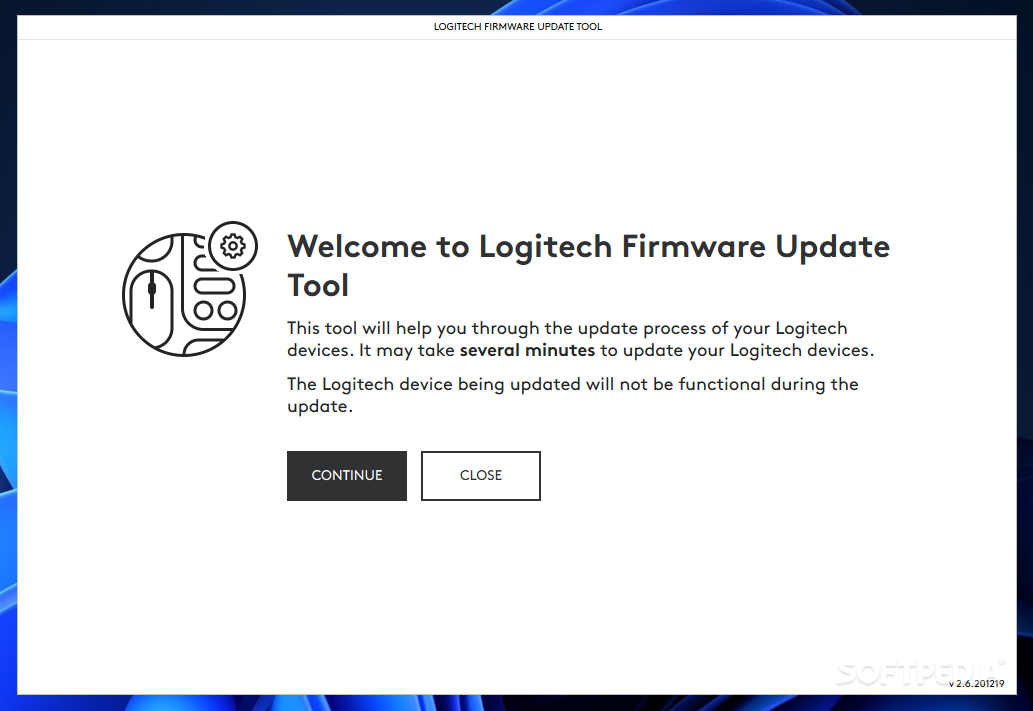
Download the Logitech Firmware Update Tool directly from Logitech’s support site. Connect your keyboard via USB-C cable (if supported), launch the tool, and select “Restore Defaults.” This overwrites corrupted firmware—a solution for keyboards freezing after OS updates. Note: This erases all custom profiles, so back up settings first via G Hub or Options.
Selective Slot Reset for Multi-Device Keyboards
K380/K480 users can reset single Bluetooth slots without losing other connections. Hold Bluetooth button 2 + F2 for 3 seconds to clear only device slot 2. This preserves work and home pairings while fixing one problematic connection. Repeat for other slots as needed—each button/F-key combo corresponds to its numbered slot.
Gaming Profile Recovery After Reset
G915 owners must back up profiles in Logitech G Hub before resetting. After reset, reconnect the keyboard via USB, reopen G Hub, and re-import your saved profile. Skipping this step requires recreating all macros and RGB lighting—adding 15+ minutes to your fix time. Always export profiles after major configuration changes.
Quick Reset Cheat Sheet
– K380/K480: Bluetooth button + F1+F2+F3 (5 sec)
– Unifying Models: Receiver button + F2+F3+F4 (3 sec)
– G915 Series: Power off, hold Escape+O, power on
– MX Anywhere 3: Power button + Easy-Switch (3 sec)
Your Logitech wireless keyboard should now respond flawlessly to every keystroke. Test all function keys and multimedia controls to confirm full recovery. Bookmark this page—when connection issues inevitably return, you’ll fix them faster than it takes to brew coffee. For persistent problems, consult Logitech’s warranty portal; most keyboards include 2-3 year coverage against manufacturing defects.